How to Use SOQL Query Merge Fields in Excel
Category :
How To

Salesforce DocsGen shouldn’t be complicated.
Stop wasting time on manual Salesforce document creation. Docs Made Easy simplifies Doc Gen with automated, error-free templates powered by live Salesforce data.
Get Started Today!Using SOQL query merge fields in Excel allows Salesforce data to flow directly into structured templates with accuracy and consistency. This approach ensures that Excel outputs reflect real-time Salesforce records without manual data entry. In this quick guide, we have provided steps to apply the correct merge field syntax, use query aliases properly, and generate clean Excel documents through Salesforce document generation, while maintaining strong document management workflows.
Step 1: You can use the SOQL query in the Excel template by following the syntax below:
Merge Field Syntax
&=${{QueryAlias.mergeFieldApiName}}
Example SOQL Query
SELECT Id, LastName, FirstName, Name FROM Contact WHERE Account.Id = ‘{pv0}’
In this query, the alias used is ‘query’.
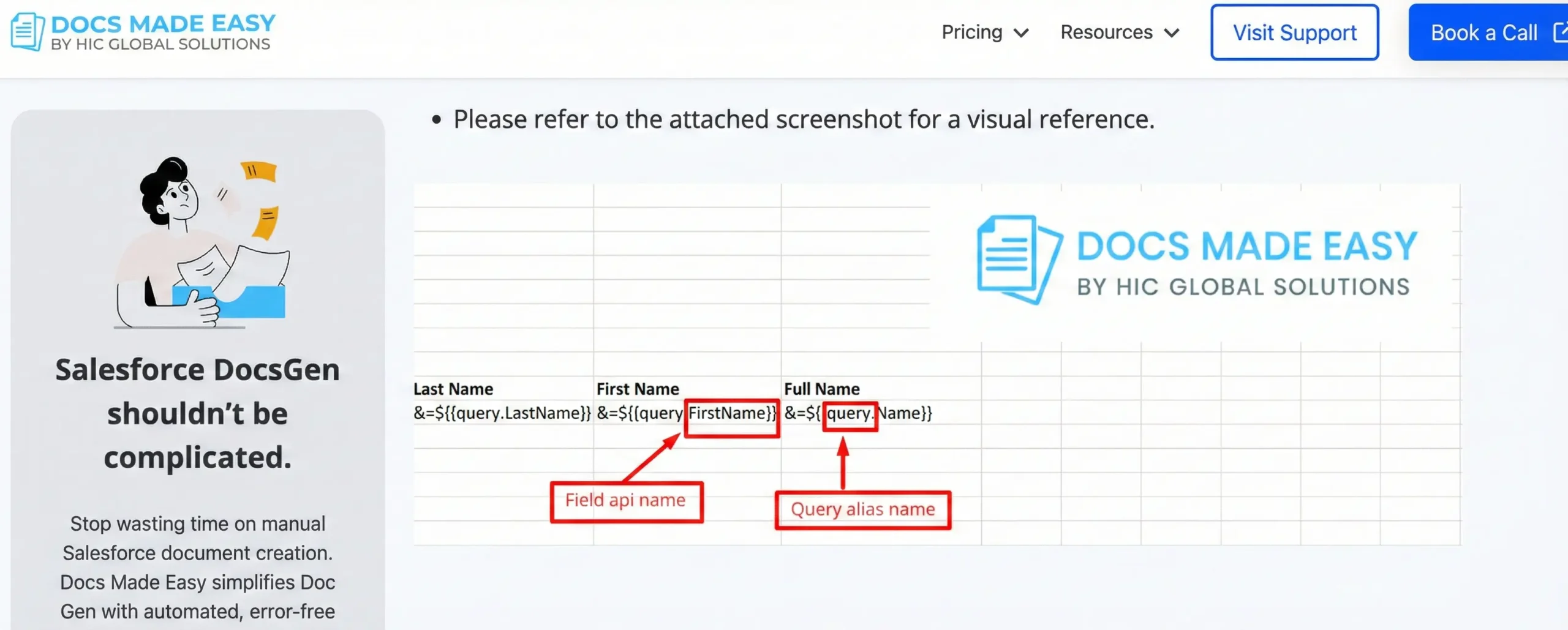
Use the following merge field syntax in the Excel file to display data from the query.
| Last Name | First Name | Full Name |
|---|---|---|
| &=${{query.LastName}} | &=${{query.FirstName}} | &=${{query.Name}} |
&=${{query.LastName}}
&=${{query.FirstName}}
&=${{query.Name}}
Note:
- Ensure that the Query Alias used in the Excel template matches the alias defined in the query.
- The merge field API names must exactly match the fields used in the SOQL query.
- This syntax is mandatory for proper data rendering in Excel output.
- Please refer to the attached screenshot for a visual reference.
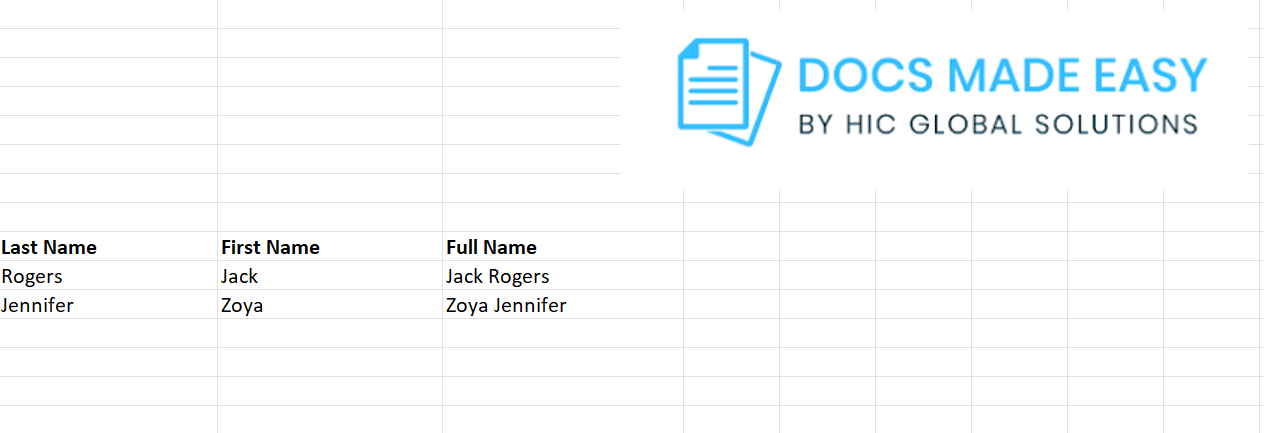
Step 2: After completing the above step, upload the Excel template to the Add Template section. The screenshot below shows the generated Excel document output.
Conclusion
Applying SOQL query merge fields correctly ensures your Excel templates always render accurate Salesforce data. When aliases and field API names align, document outputs are generated without errors or rework. This process keeps Excel documents structured, consistent, and ready for business use. Overall, it strengthens Salesforce document generation by enabling dependable and automated document creation at scale.
Frequently Asked Questions
Related Blogs
How to Generate & Send Documents for eSign in Salesforce
Sending a document for signature directly from Salesforce can make the approval process much easier, especially when you want to…
How to Generate Salesforce Documents Using Quick Document Merge
Creating Salesforce documents does not have to involve multiple steps or moving between different tools. With Quick Document Merge, you…
How to Create a Scope of Work (SOW) in Salesforce with Docs Made Easy
Creating a Scope of Work manually can take time, especially when information needs to be collected from Salesforce and added…