How to Create an Invoice in Salesforce
Category :
How To

Docs shouldn’t be complicated.
With Docs Made Easy, creating professional, Salesforce-powered documents is just a few clicks away.
Get Started Now!Creating invoices in Salesforce has become much easier without overthinking the process. This guide shows how to generate invoice documents using a simple, step-by-step flow and explains how to create an invoice directly from your data. With automation in place, invoice generation for Salesforce becomes quicker, generating in bulk with automation, and easier to manage.
How to Generate an Invoice Document
Here are the quick steps for generating invoices in Salesforce using Docs Made Easy.
Step 1: Start by logging in to Salesforce.
Step 2: Now, open Docs Made Easy from the App Launcher to begin the setup.
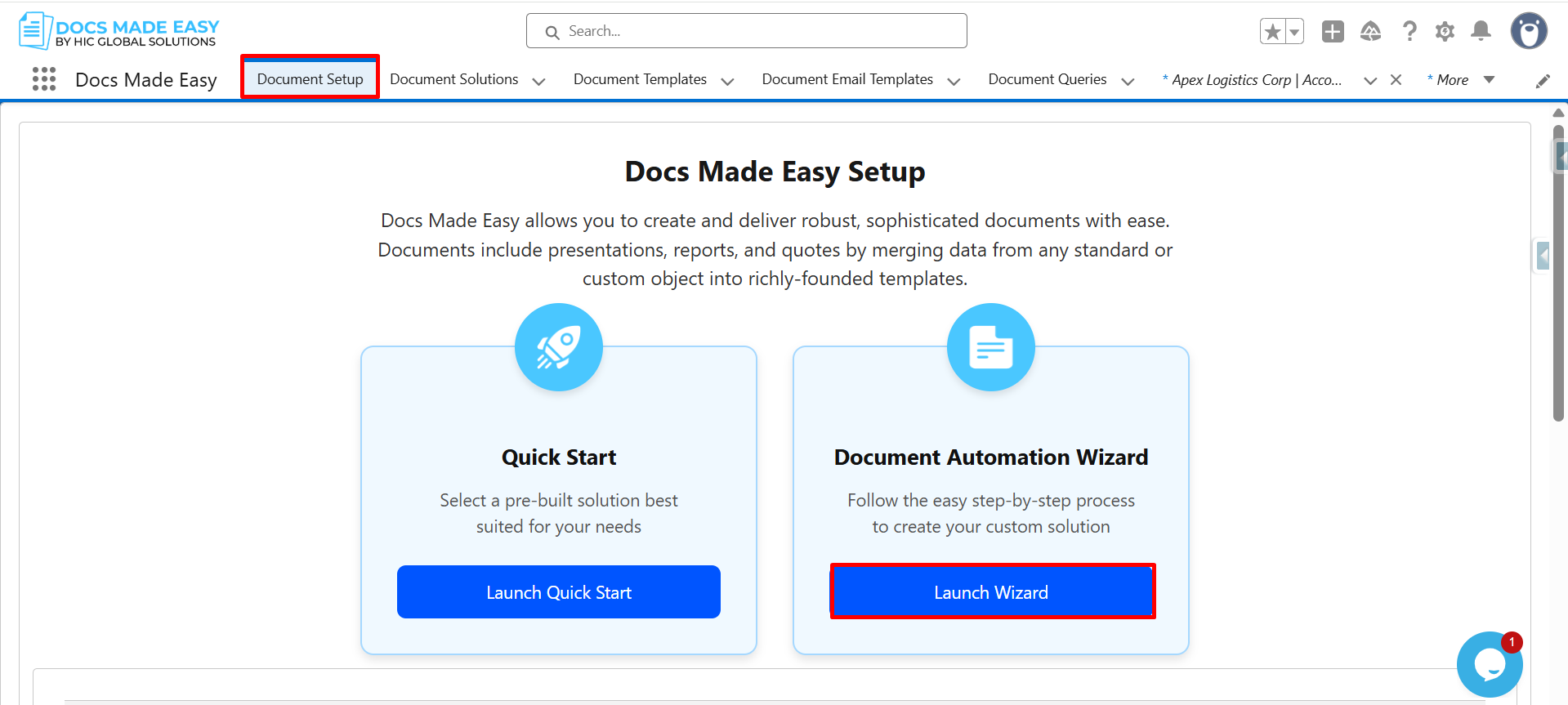
Step 3: Once you’re inside the app, click Document Setup and then proceed by clicking Launch Wizard.
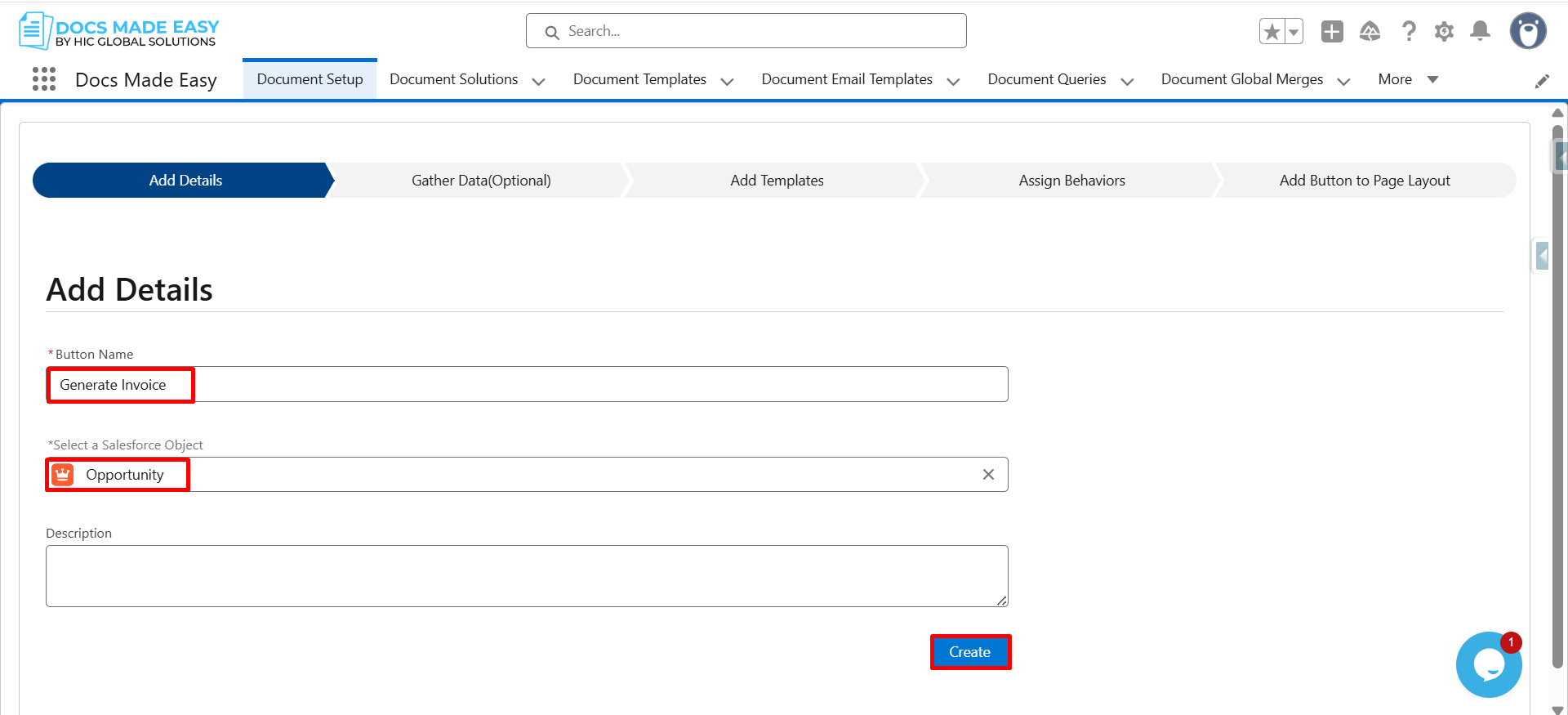
Step 4: Next, enter the button name and select the Salesforce object like Opportunity.
After setting this up, click Create to move forward.
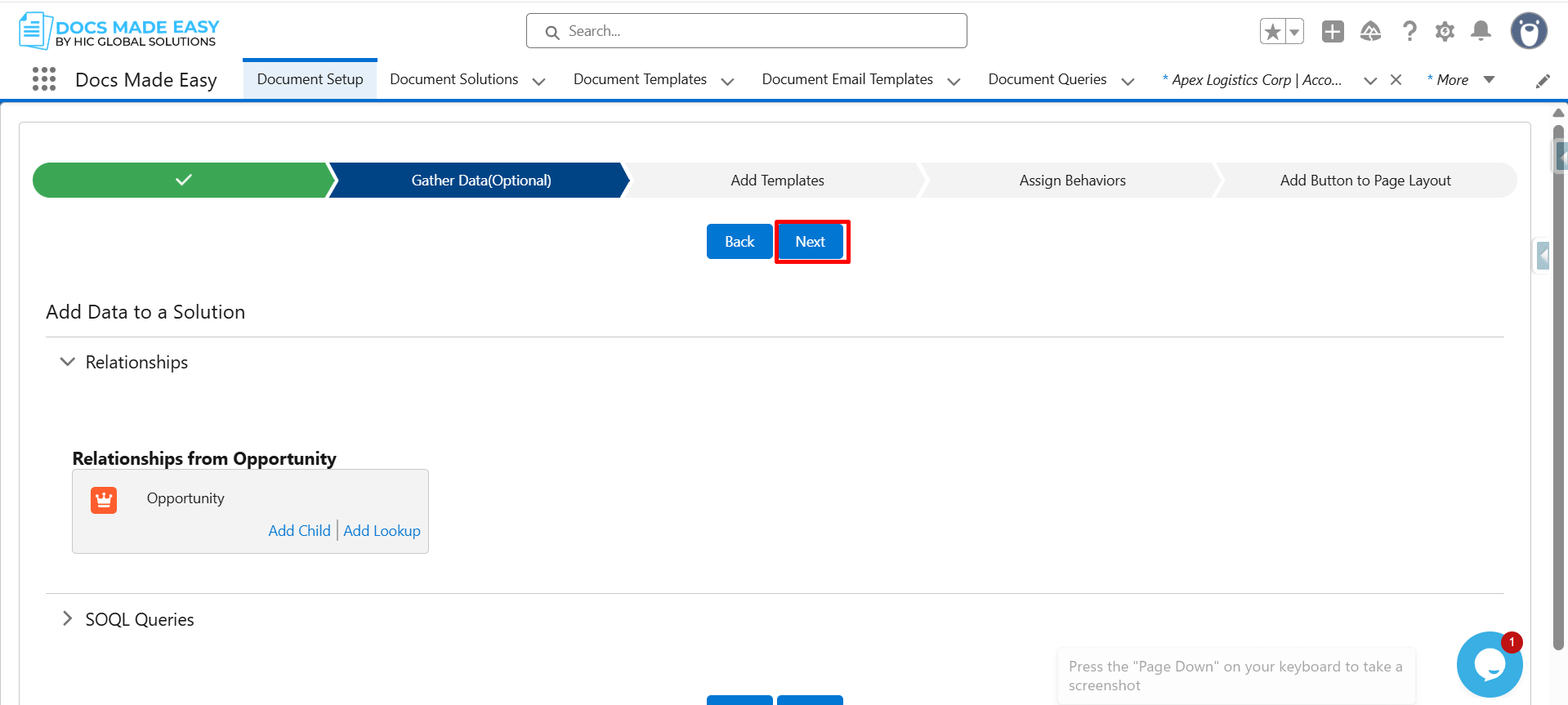
Step 5: Now that the basic setup is done, click Next to continue.
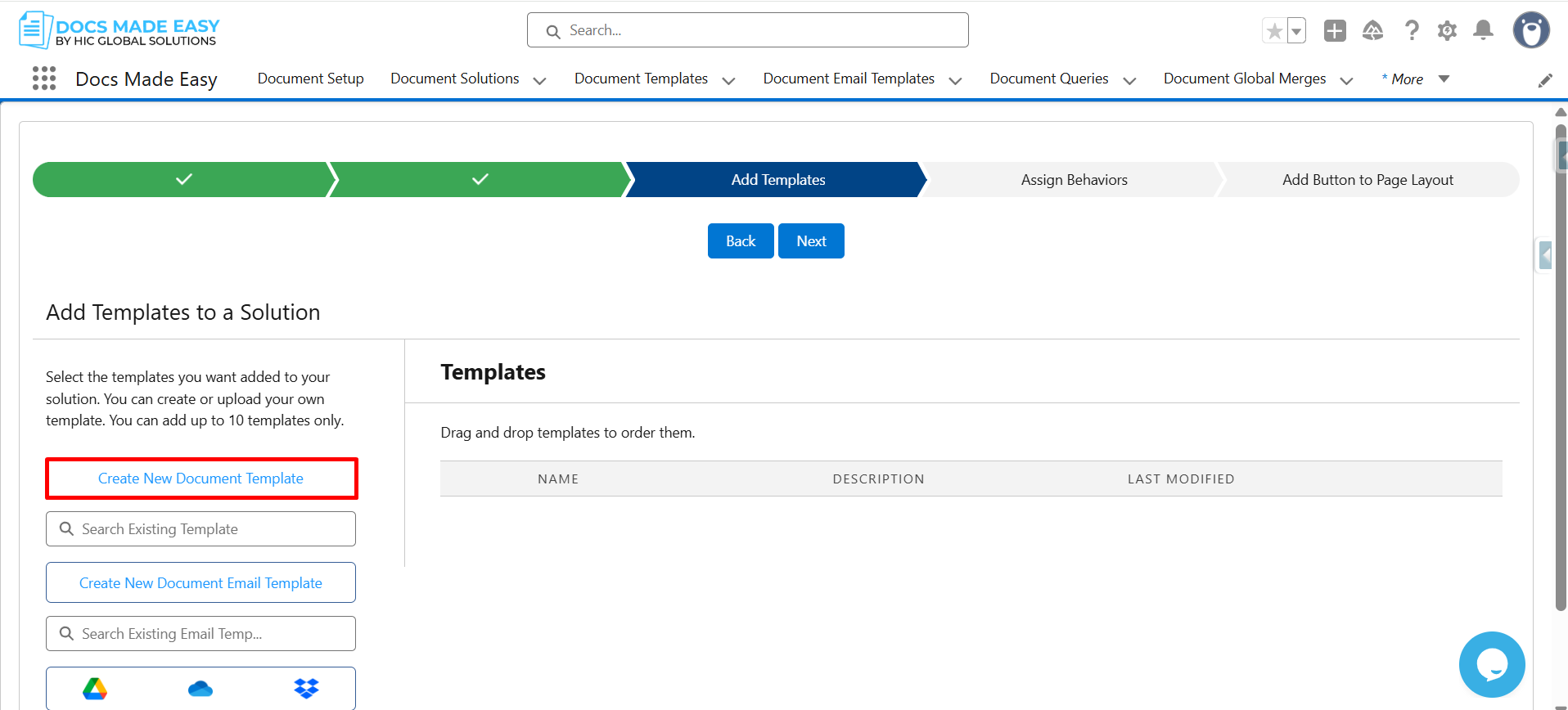
Step 6: At this stage, click Create New Document Template to start designing your invoice.
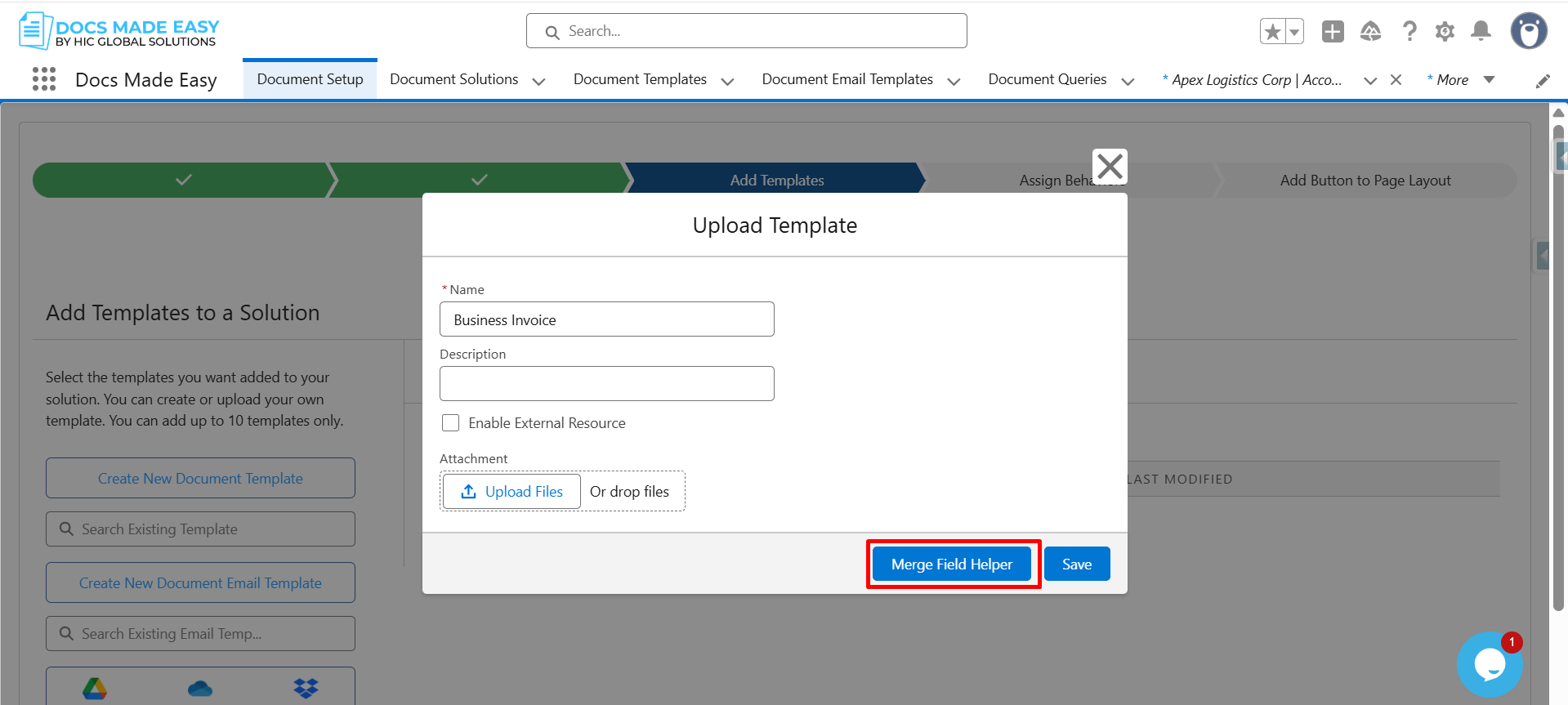
Step 7: Furthermore, open Merge Field Helper to add dynamic data to your document.
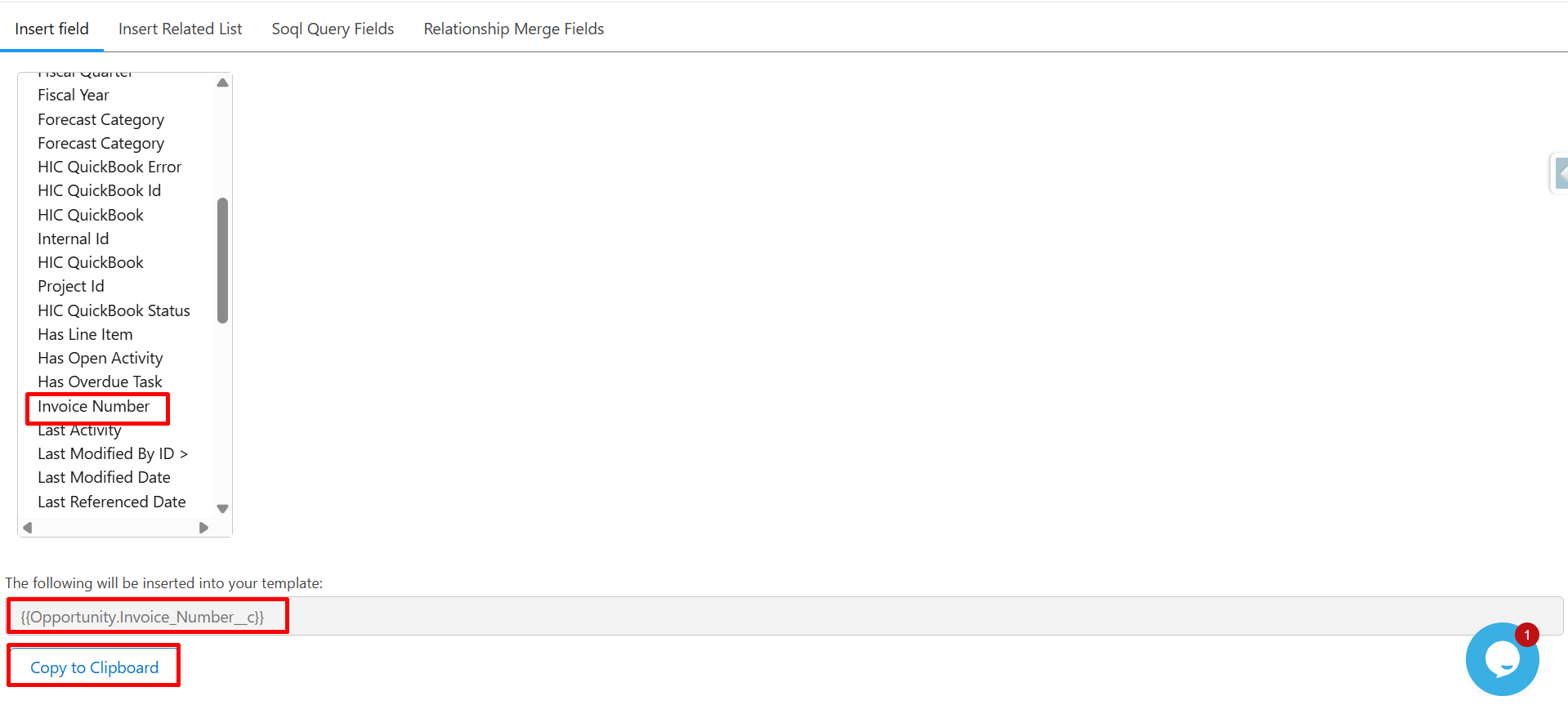
Step 8: From the field list, click Invoice Number to select it.
The system automatically generates the merge field syntax: {{Opportunity.Invoice_Number__c}}
Now, click Copy to Clipboard.
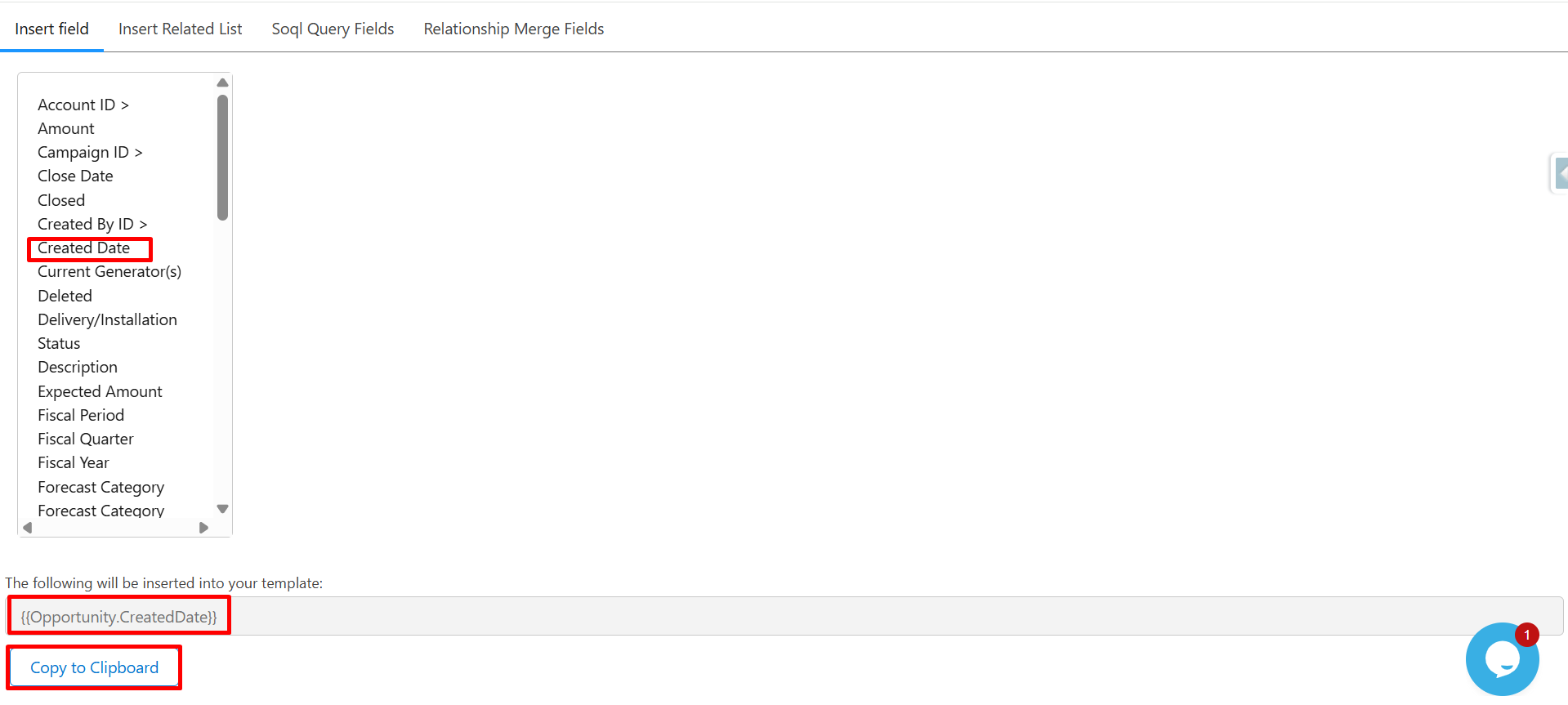
Step 9: Next, click Created Date, and once selected, click Copy to Clipboard again.
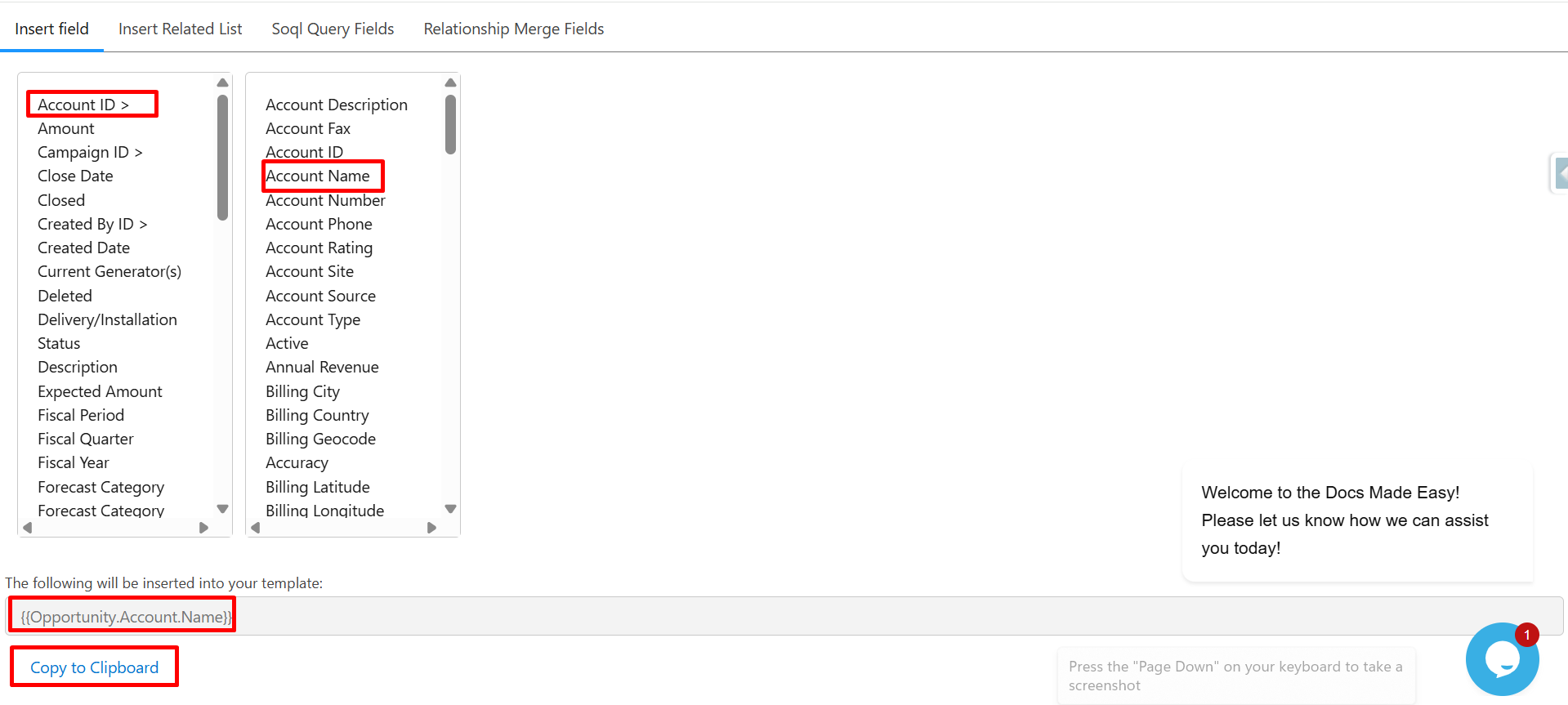
Step 10: After that, select Account ID (Opportunity → Account relationship) and choose Account Name.
You’ll see the merge field syntax appear as {{Opportunity.Account.Name}}.
Click Copy to Clipboard to save it.
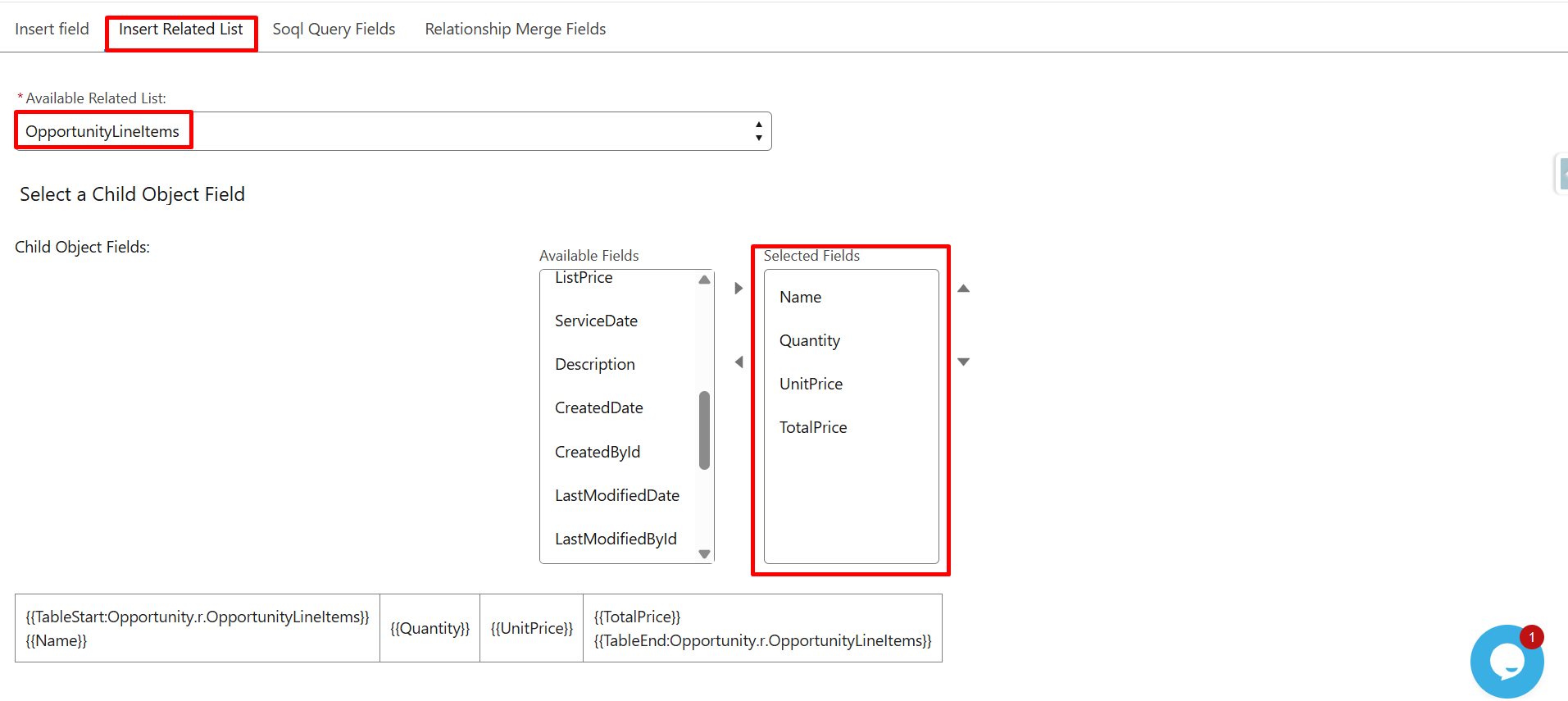
Step 11: Now, click Insert Related List to include line-item details.
From Available Related Lists, select OpportunityLineItems. Then, under Child Object Fields, choose the required fields:
- Name
- Quantity
- Unit Price
- Total Price
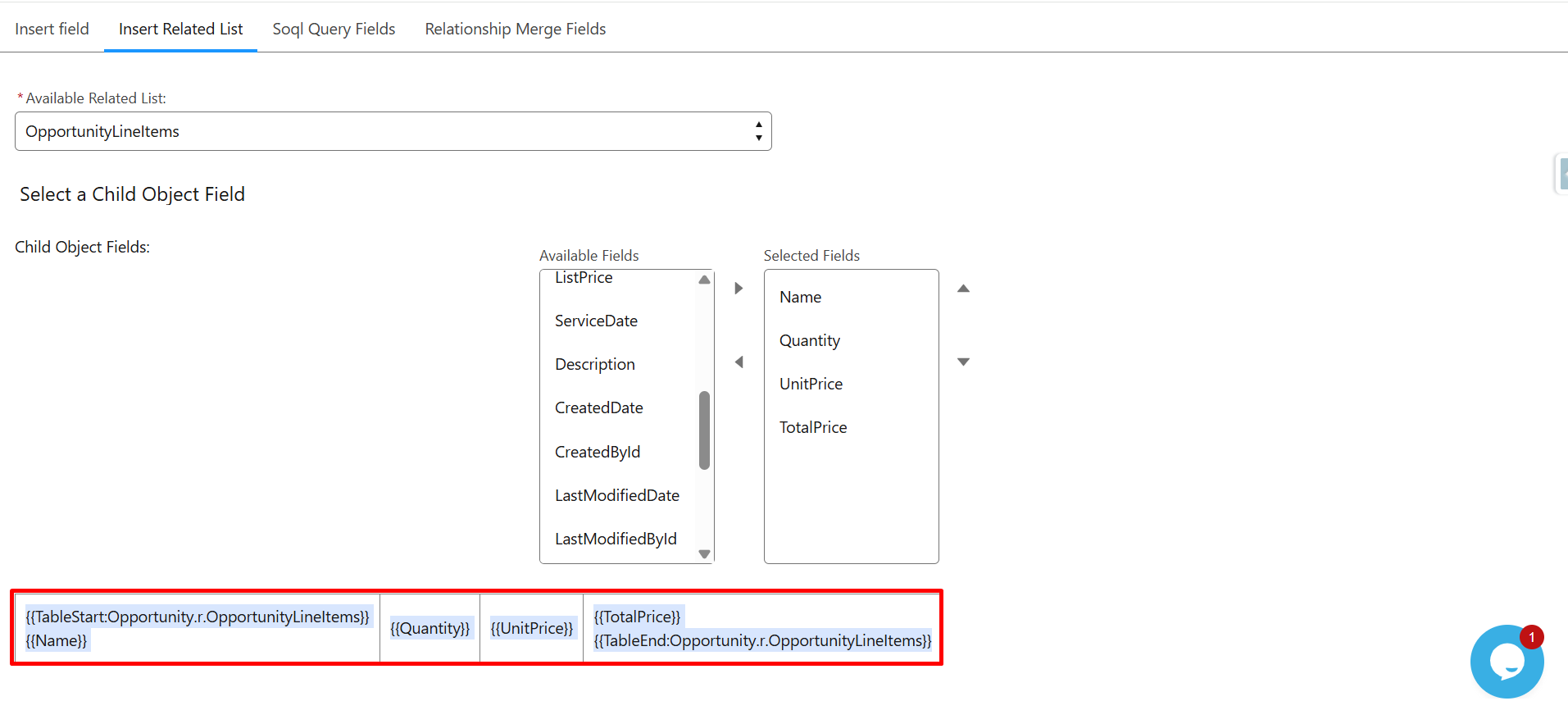
The system will automatically generate the table merge syntax for you.
Step 12: Once the table is generated, click Copy to copy the table merge syntax.
Step 13: Next, paste all the copied merge field syntax into the Template Editor.
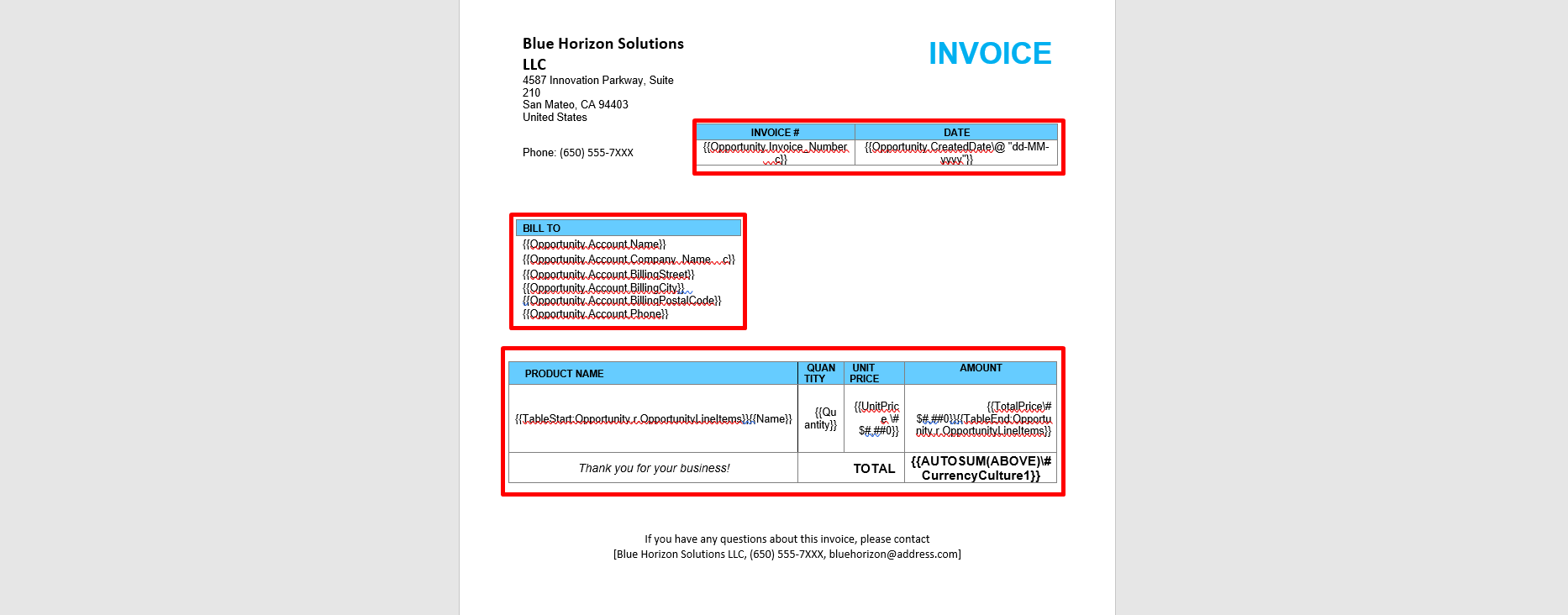
Step 14: After completing the template design, reopen the Upload Template window.
Enter the template name, upload the template file, and then click Save.
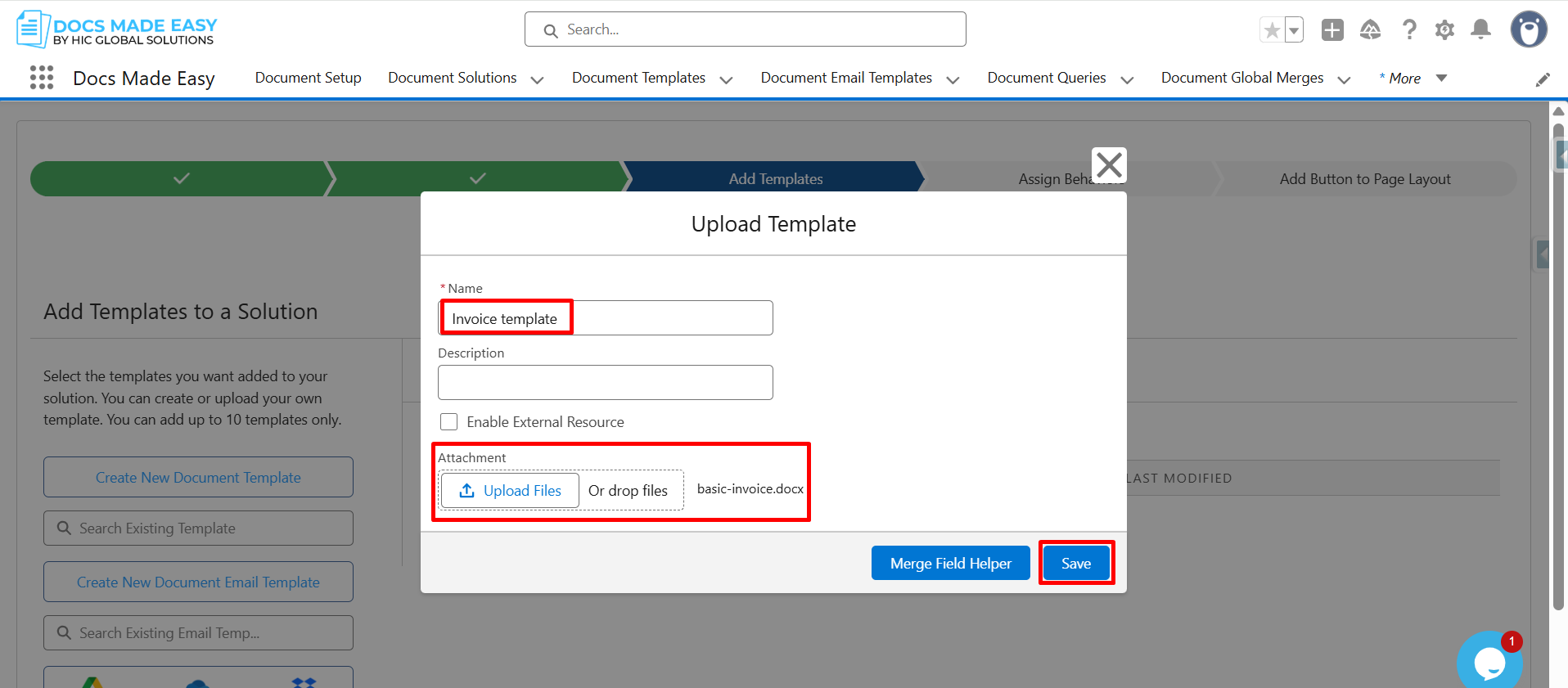
Step 15: Now that the template is saved, click Next to continue.
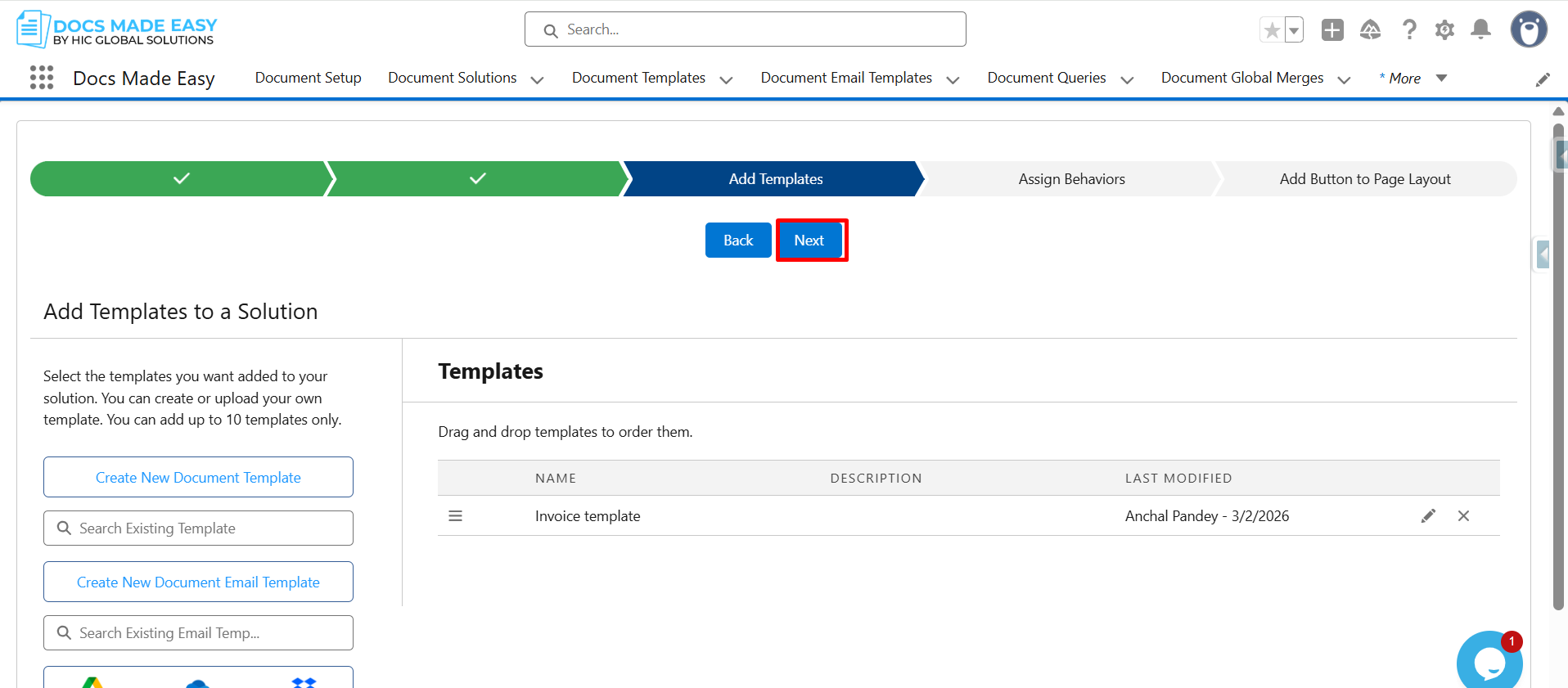
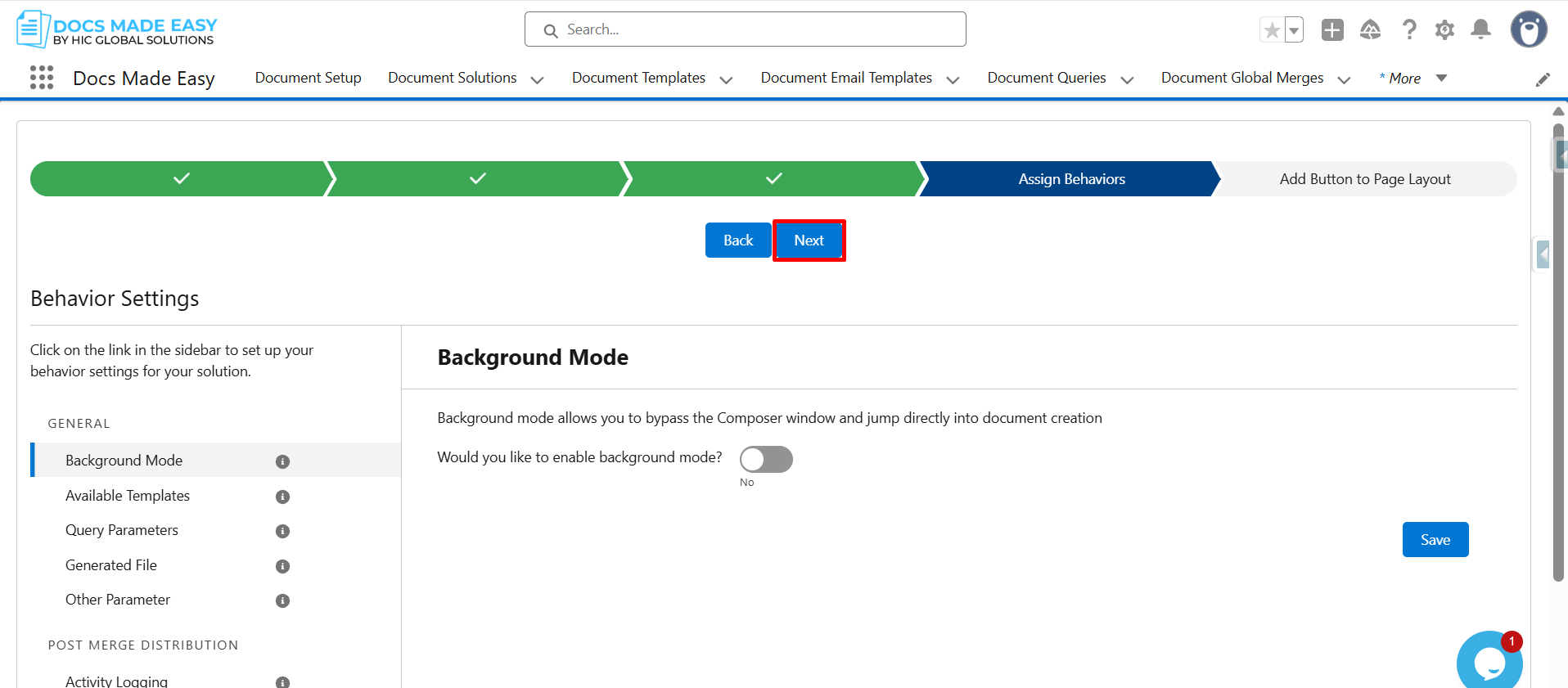
Step 16: Click Next again to move to the layout configuration.
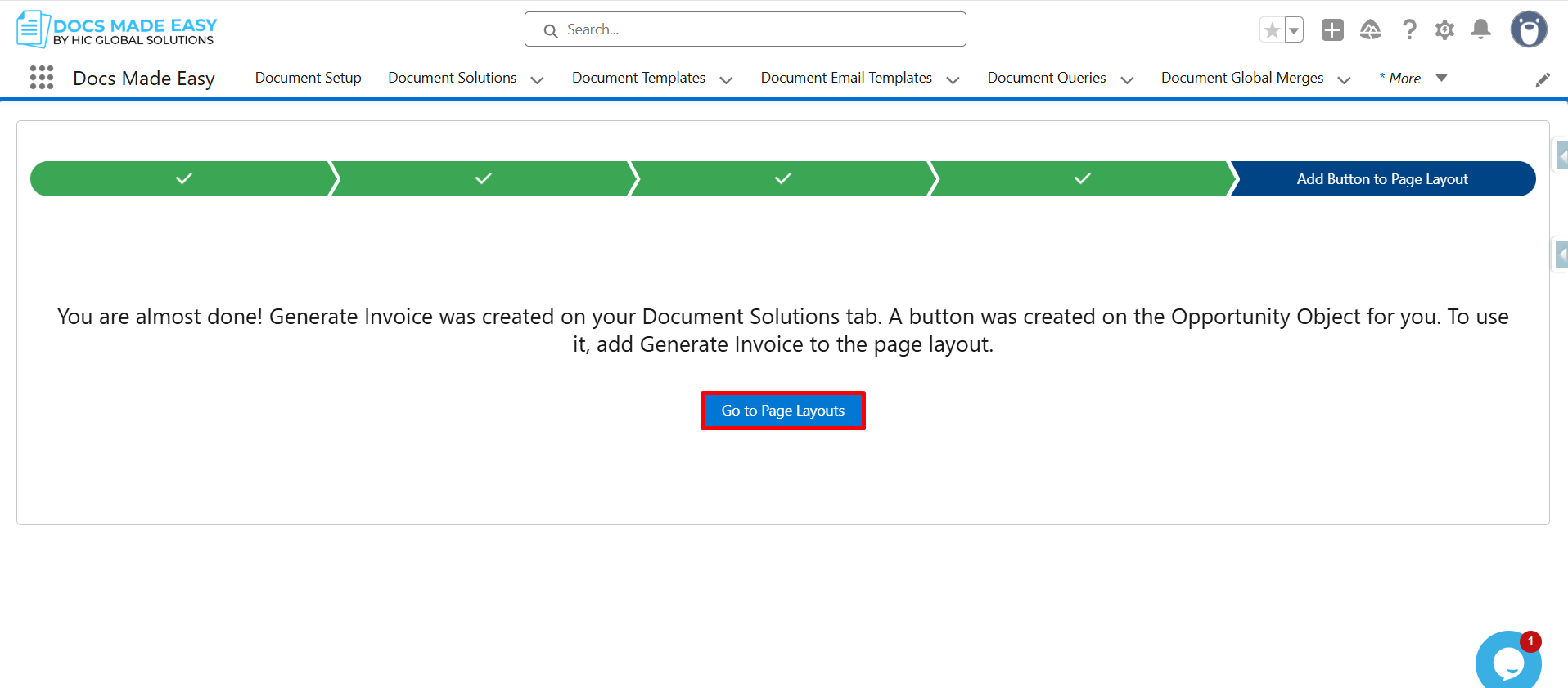
Step 17: At this point, click on Go to Page Layouts in Salesforce.
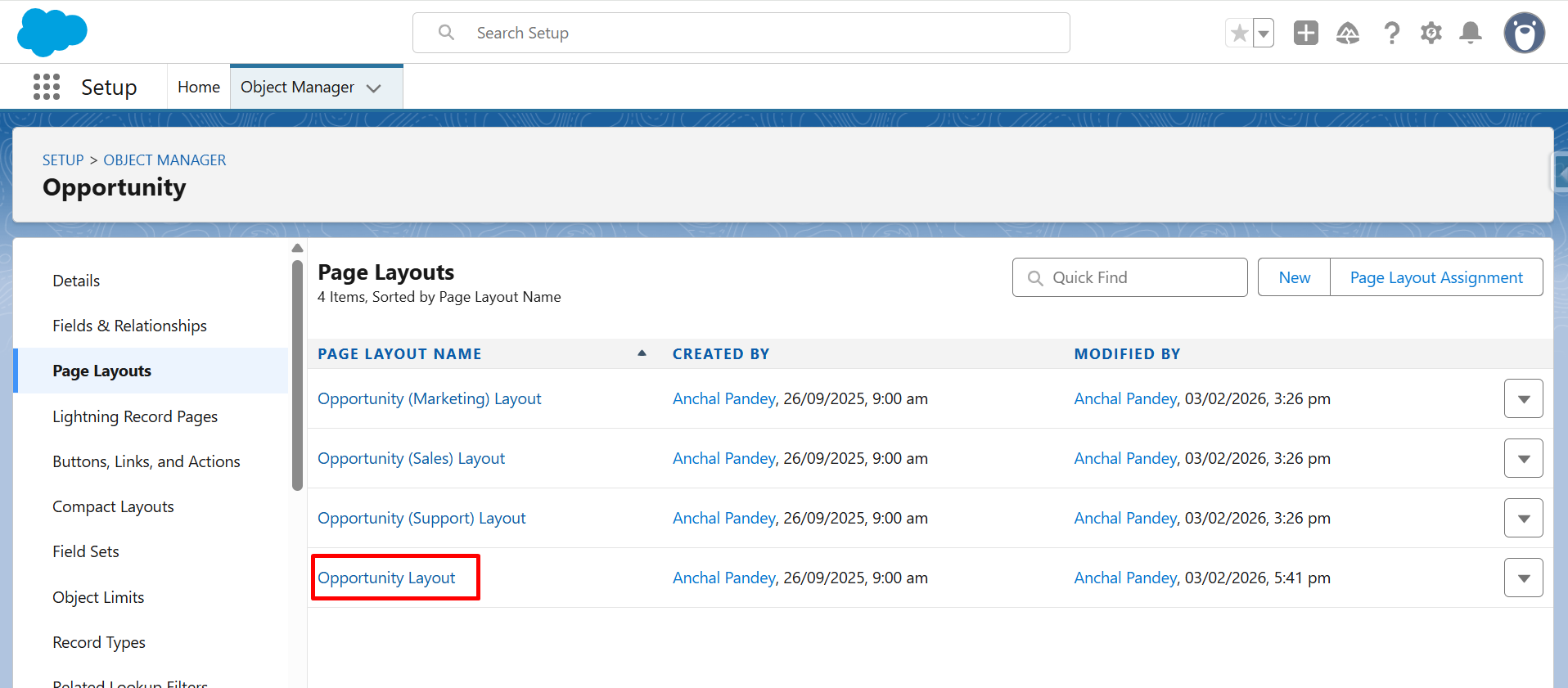
Step 18: From the list, click Opportunity Layout (as we have selected Opportunity as Salesforce object) to customize the record page.
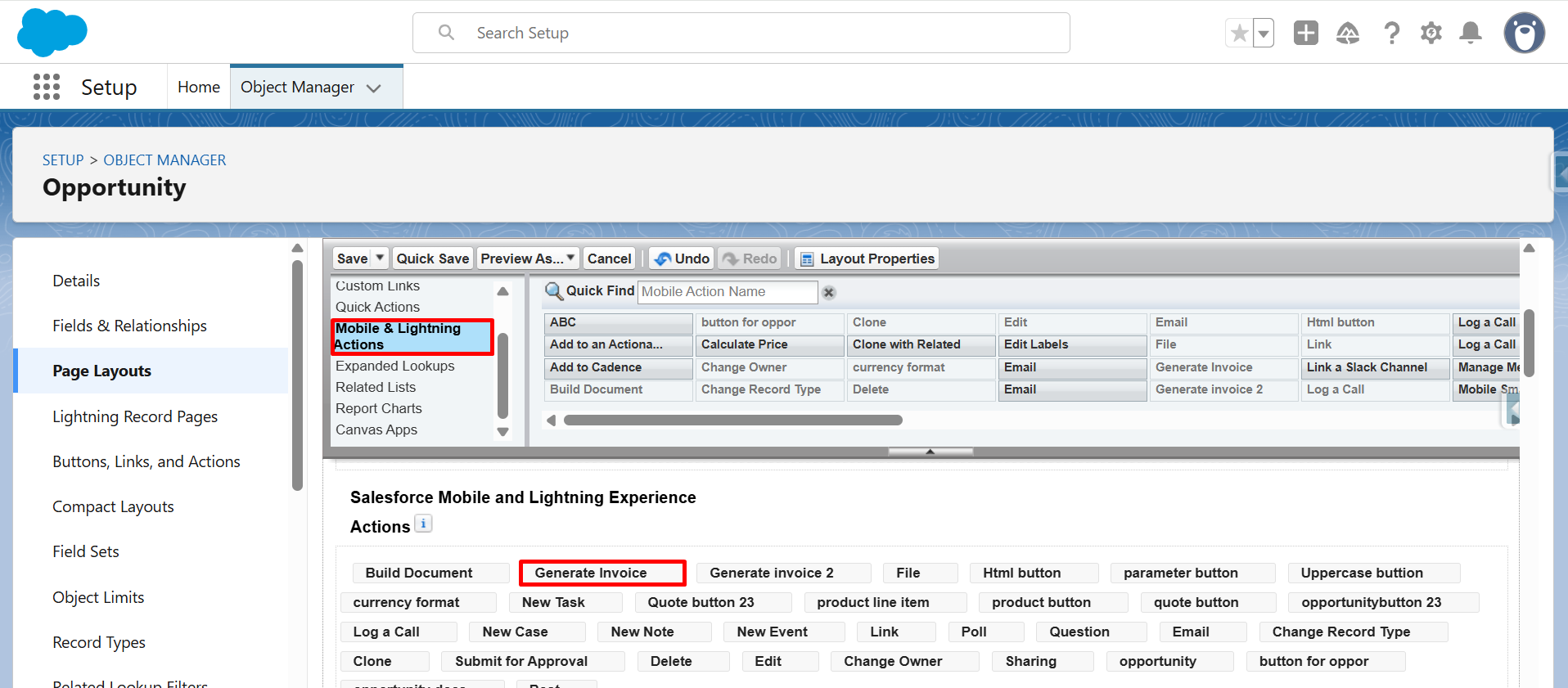
Step 19: Now, from Mobile & Lightning Actions, drag and drop Generate Invoice into Salesforce Mobile and Lightning Experience Actions.
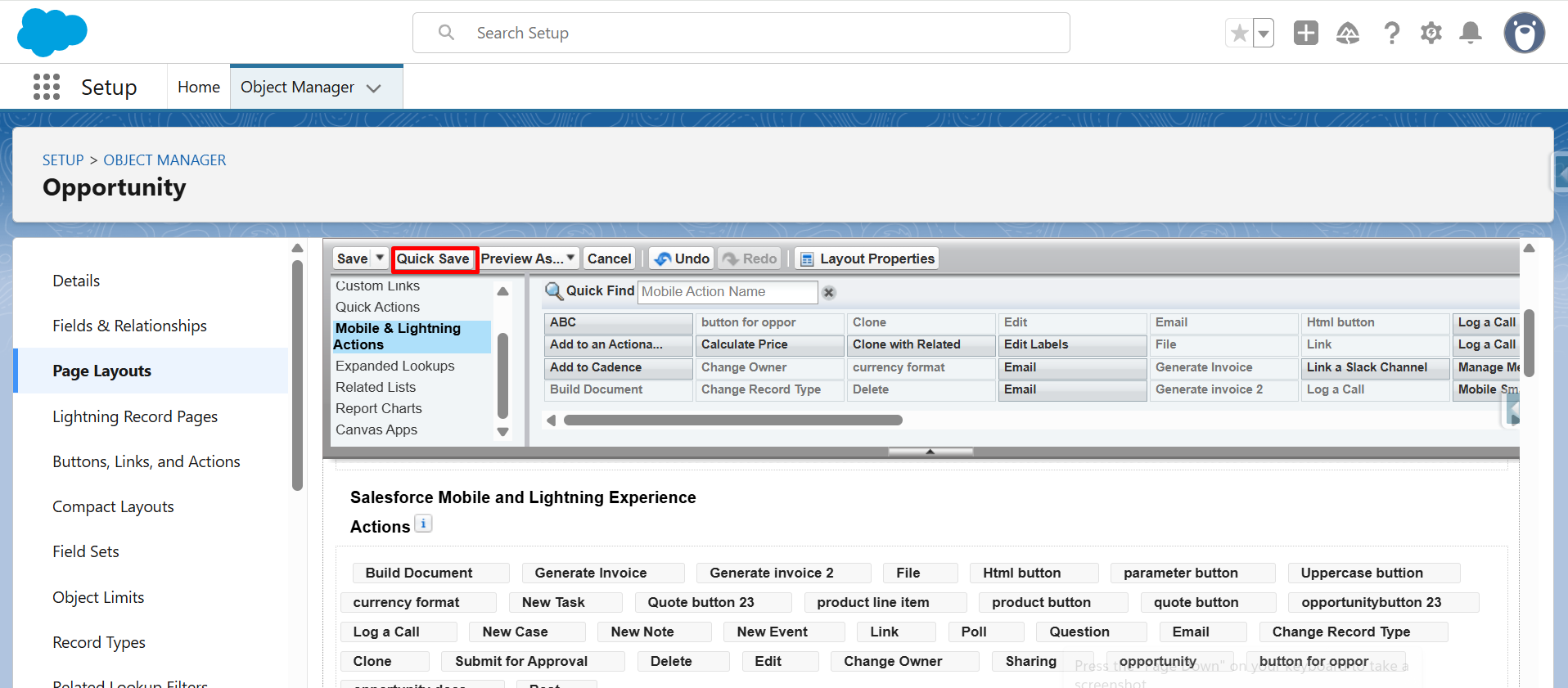
Step 20: After placing the button, click Quick Save or Save to apply the changes.
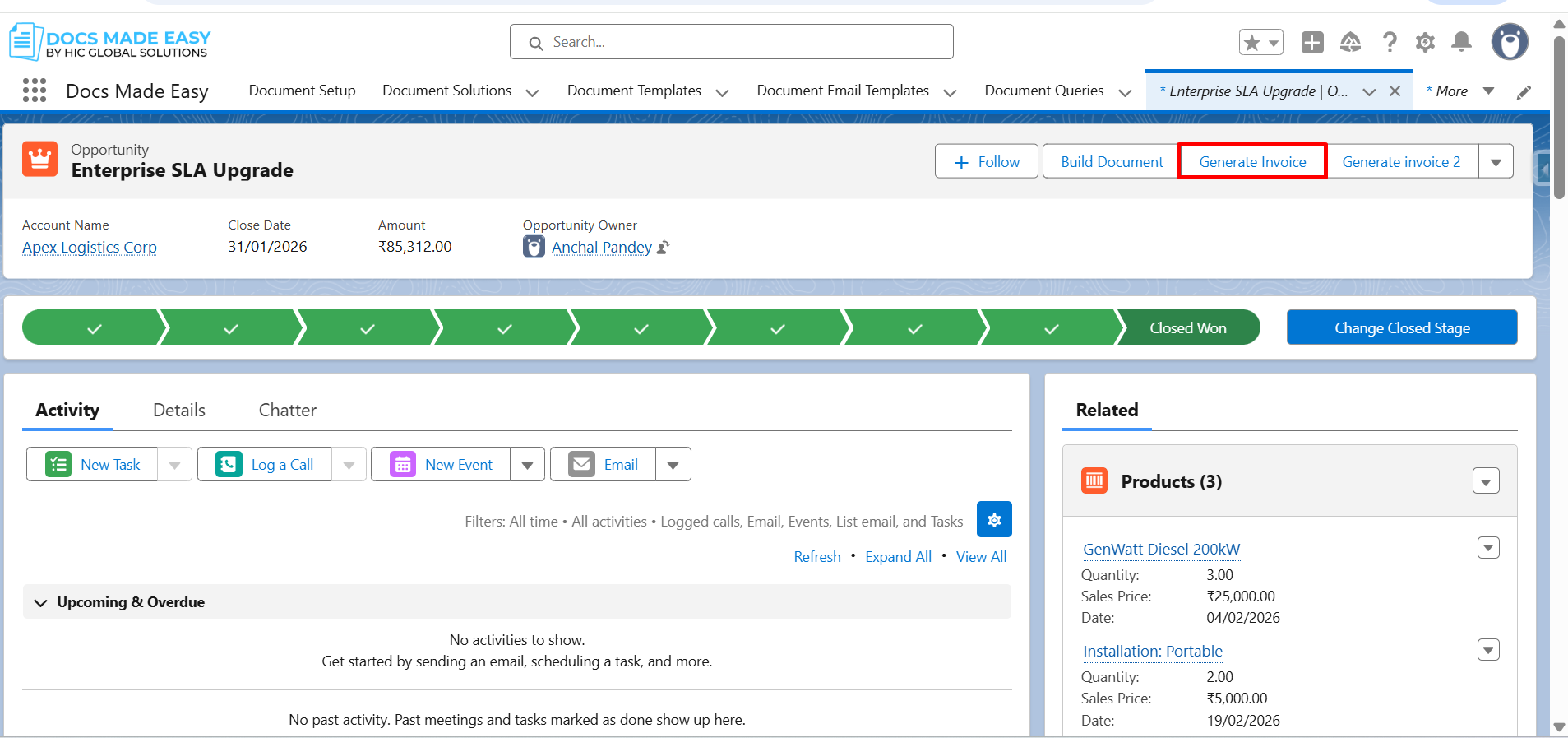
Step 21: Next, open an Opportunity record and click the Generate Invoice button.
Step 22: Now, click Download Template to start the document process.
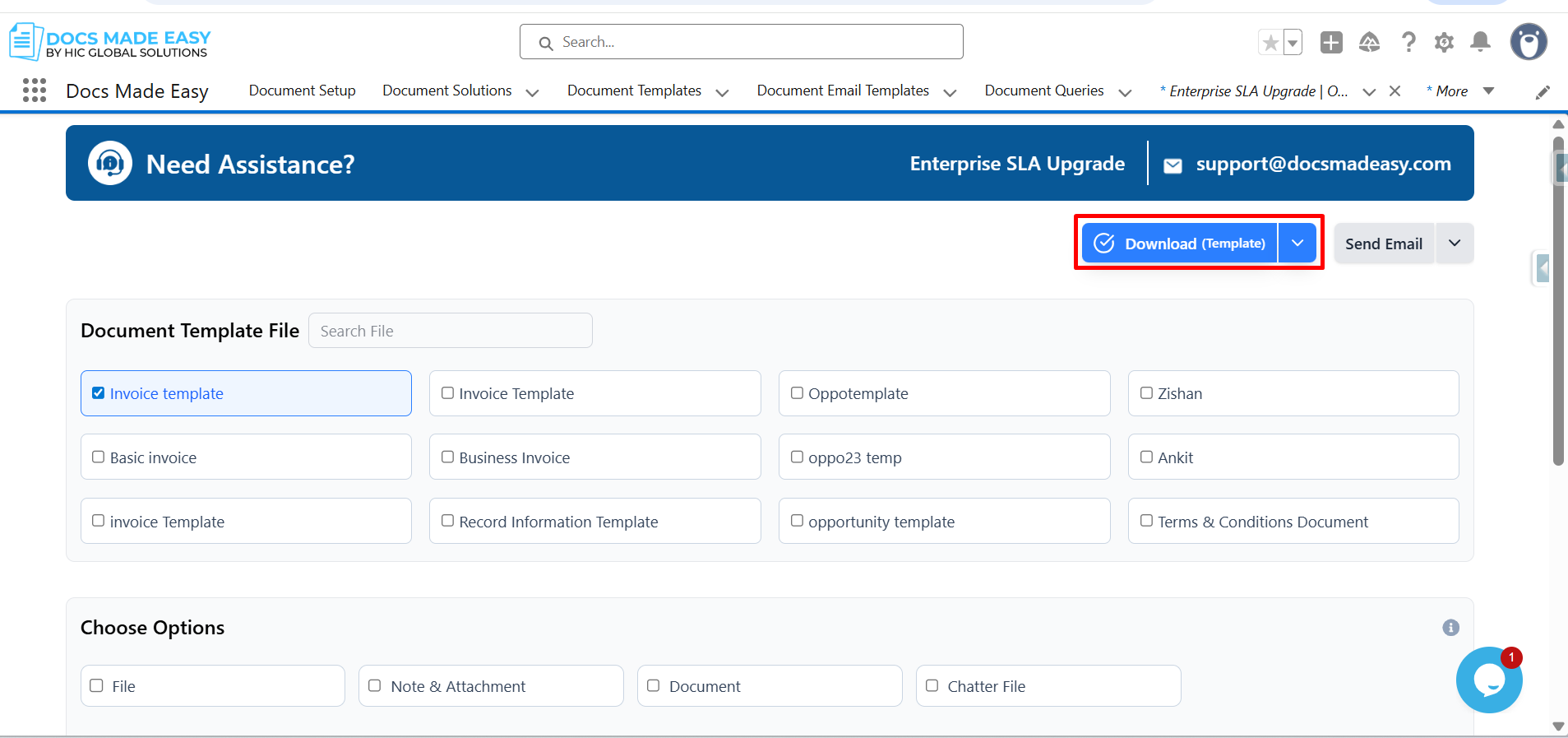
Step 23: The system will begin generating the invoice document automatically.
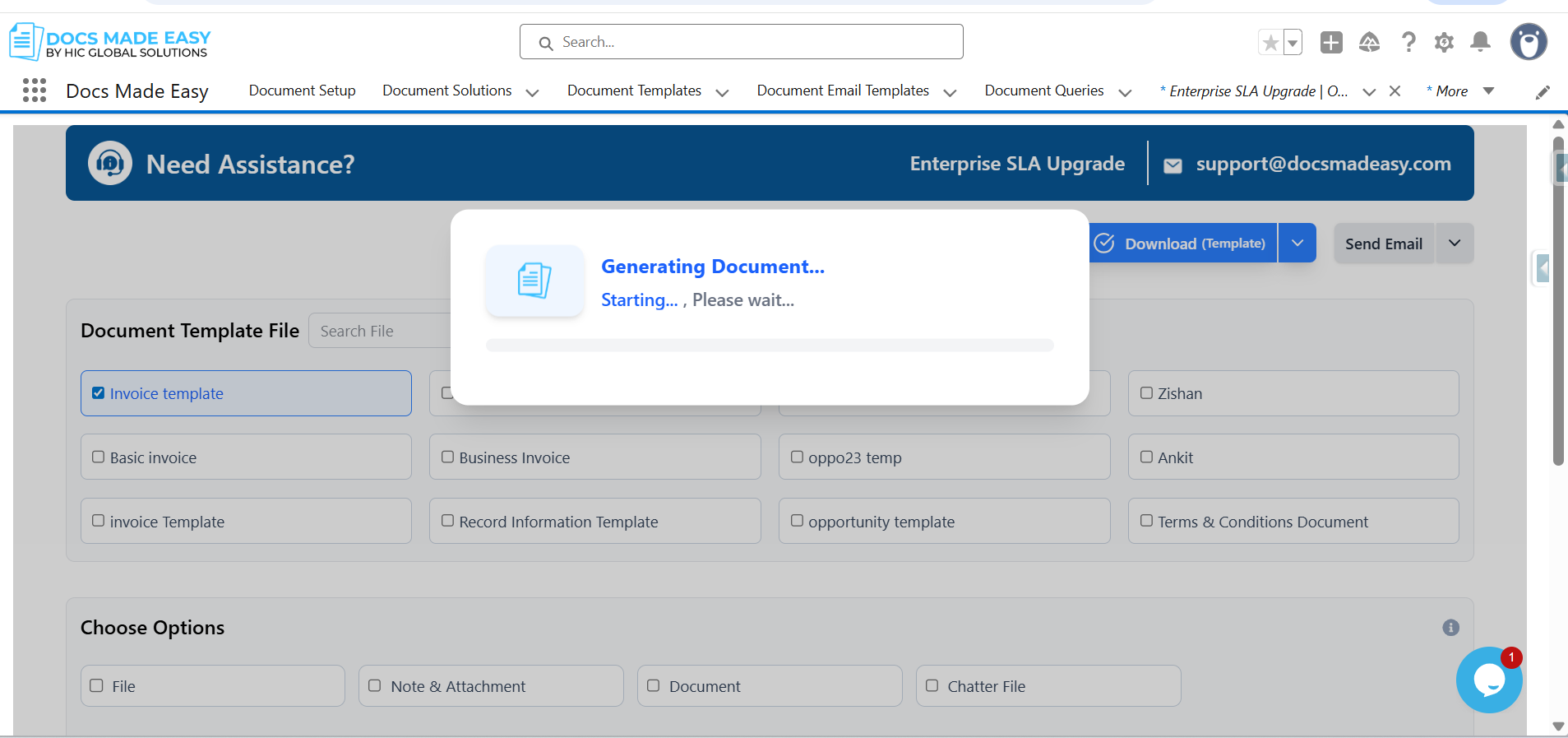
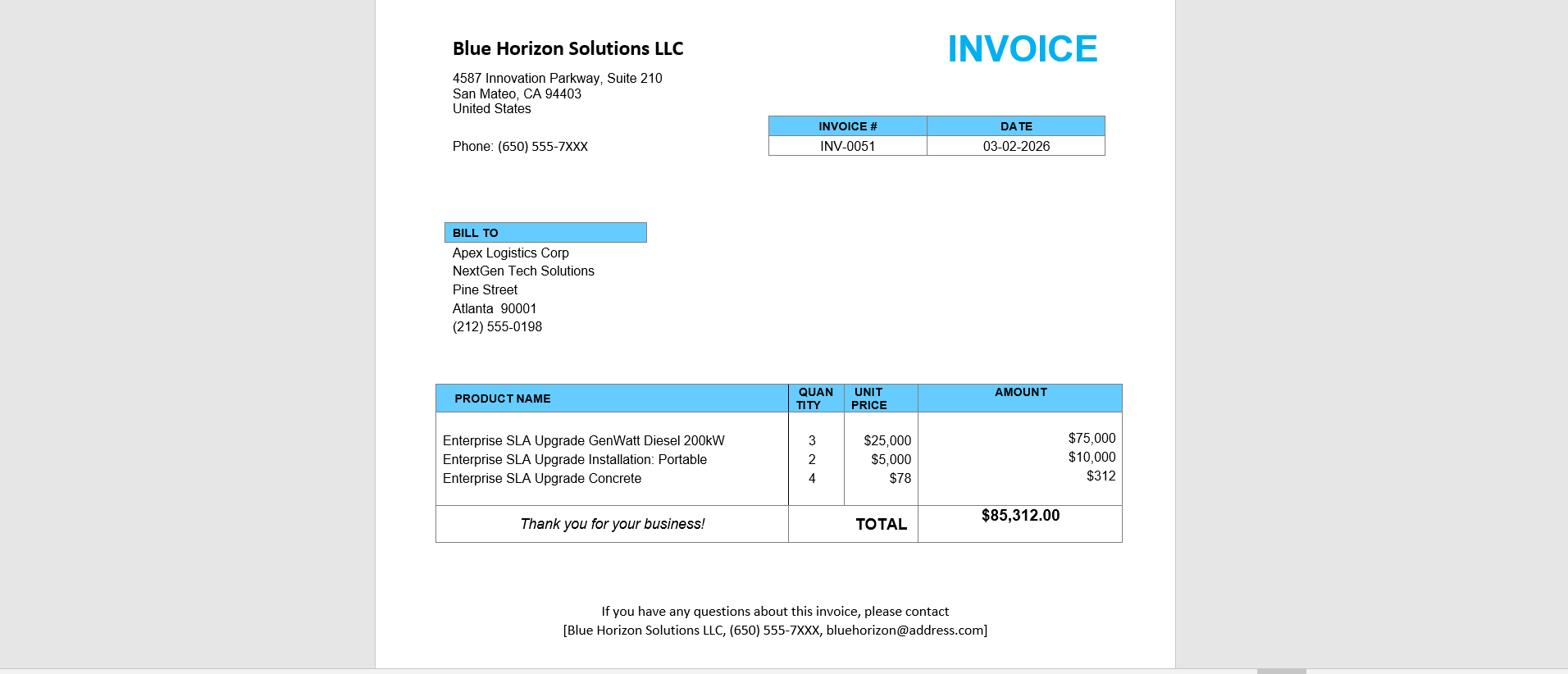
Step 24: Finally, open the generated document and review your invoice.
Conclusion
Once you set this up, invoice generation for Salesforce feels effortless instead of manual. Docs Made Easy – the best document generation app is designed for Salesforce users who want document generation to be quick and simple. Install Docs Made Easy Pro now and create your invoice faster with complete automation! With this, how to create an invoice from Salesforce records becomes easy and error-free. Additionally, this way you can generate quotes, proposals, and other documents your business needs.
Frequently Asked Questions
Related Blogs
How to Generate QR Codes and Barcodes in Salesforce Documents
Adding QR codes and barcodes to your documents can make it easier to track records, verify information, and share data…
How to Create a Document Template Using Merge Field Helper
Creating documents manually by copying information from Salesforce can take time and often leads to errors. With a document template…
How Does Salesforce Revenue Cloud Simplify the Quote-to-Cash Process?
For a long time, businesses used Salesforce CPQ to simplify their quoting process. It helped sales teams create accurate quotes…