How to Edit and Download Merged Documents in Salesforce
Category :
Document Generation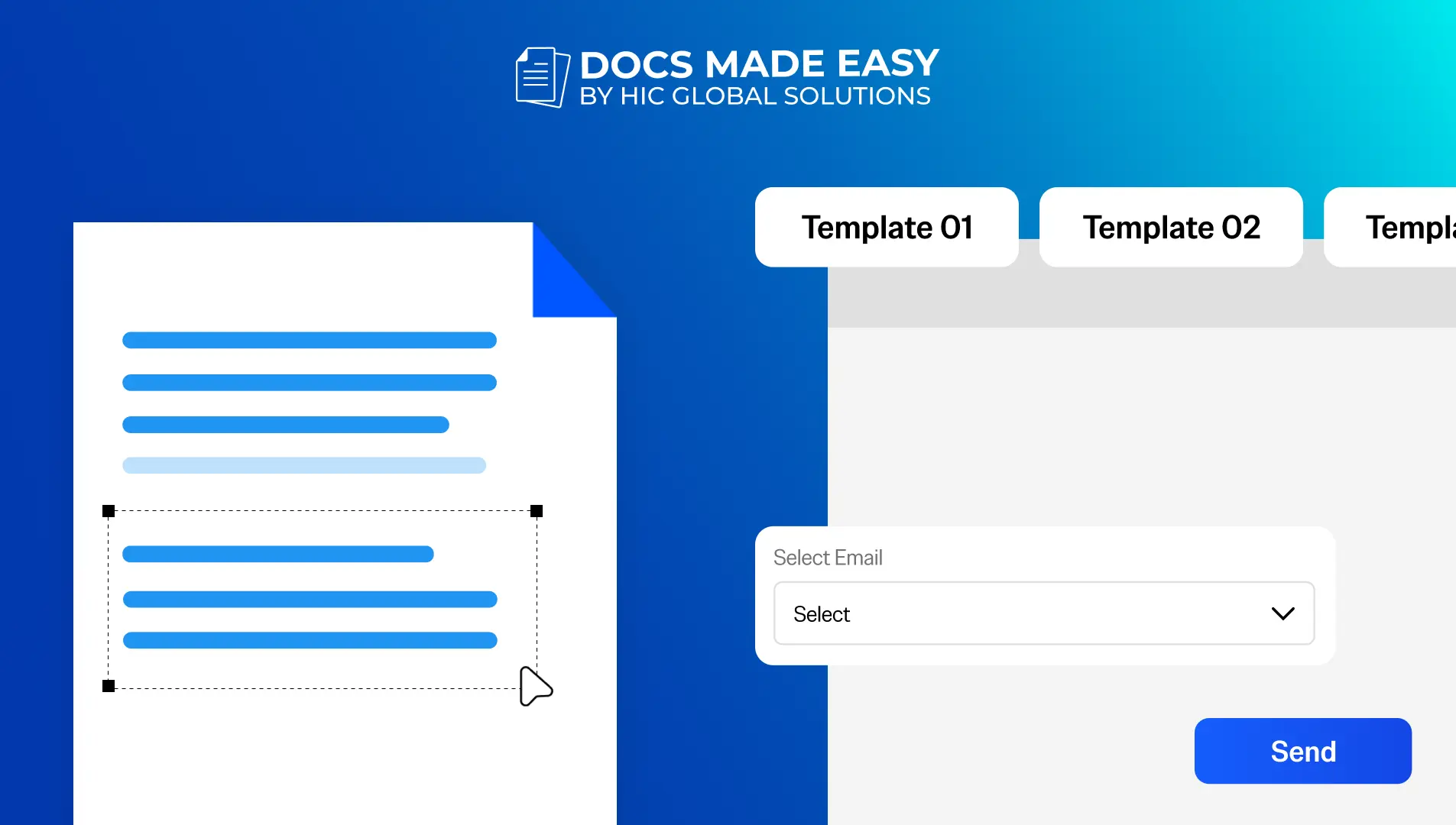

Docs Made Easy Proudly Featured by Salesforce
Built to simplify document workflows while enhancing productivity inside Salesforce.
Explore Now!Last-minute document editing is a common challenge many Salesforce users face during customer interactions. Most tools used for document generation do not provide quick editing options when changes are needed urgently. A reliable Salesforce document solution – Docs Made Easy makes this process simple. Here are the steps to quickly merge, edit, and download your documents without delays.
Step 1: Log in to Salesforce.
Step 2: Open Docs Made Easy from the App launcher.
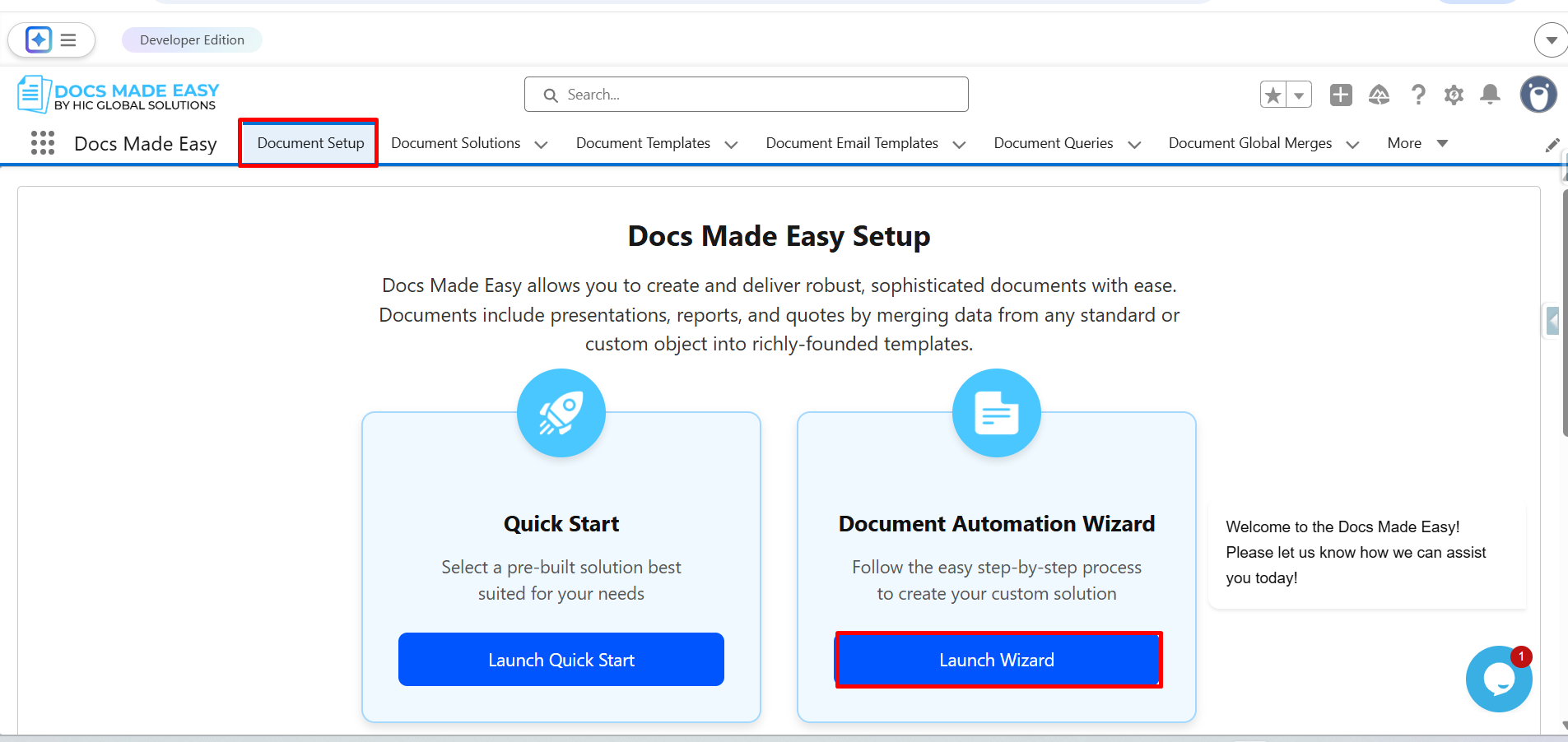
Step 3: Click on Document setup. Then click Launch wizard.
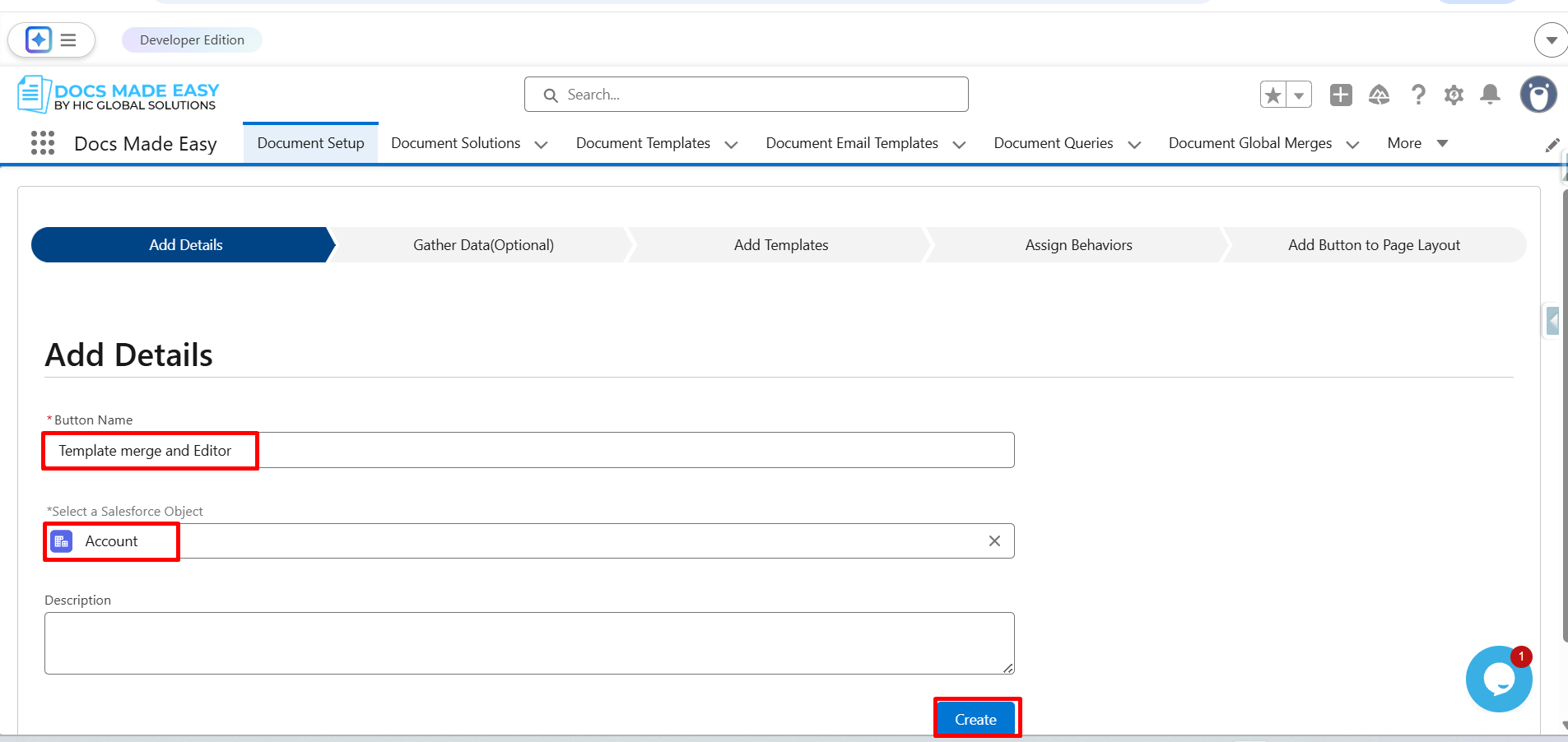
Step 4: In the Add details tab, add the button name and select the Salesforce object. Followed by clicking on the Create button.
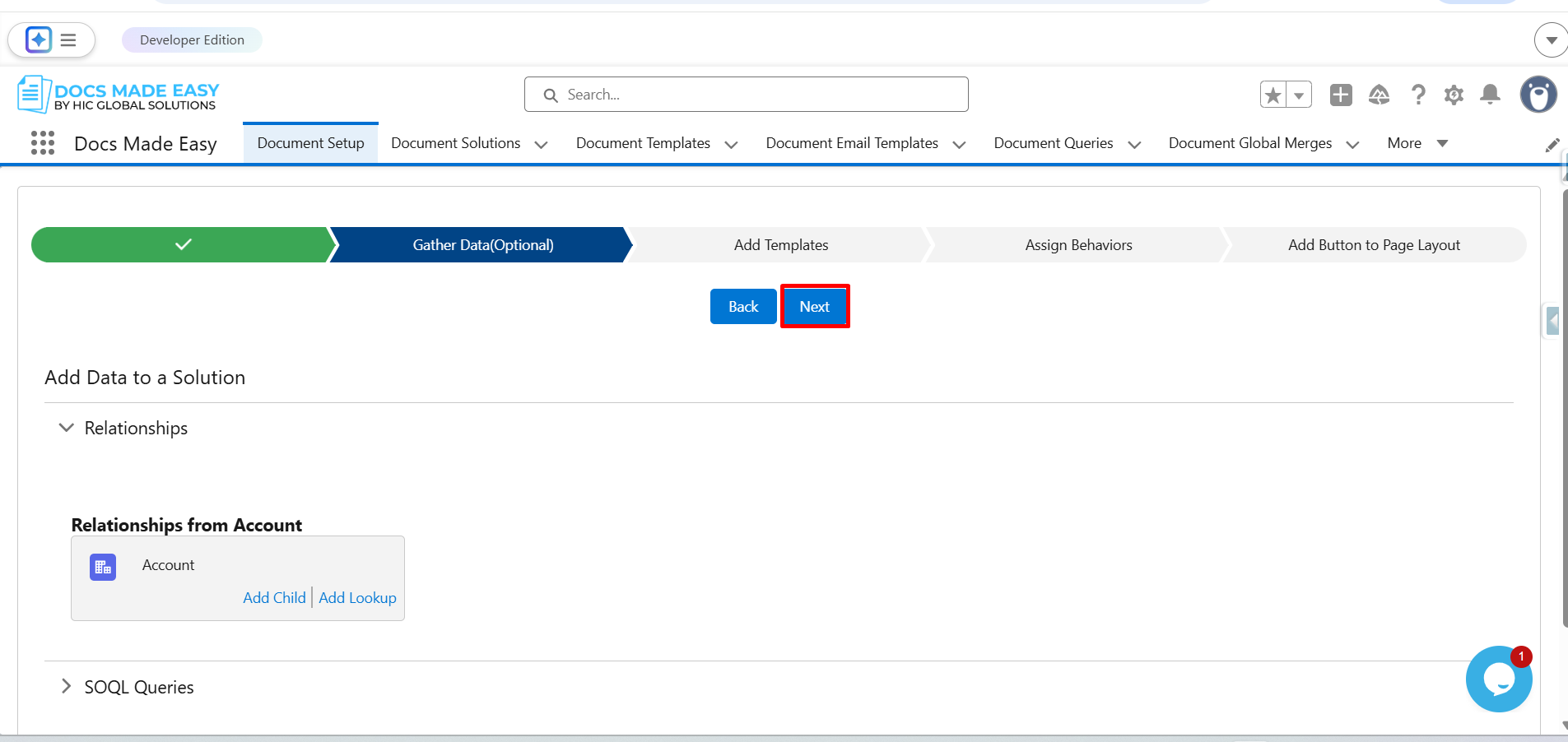
Step 5: Click on Next.
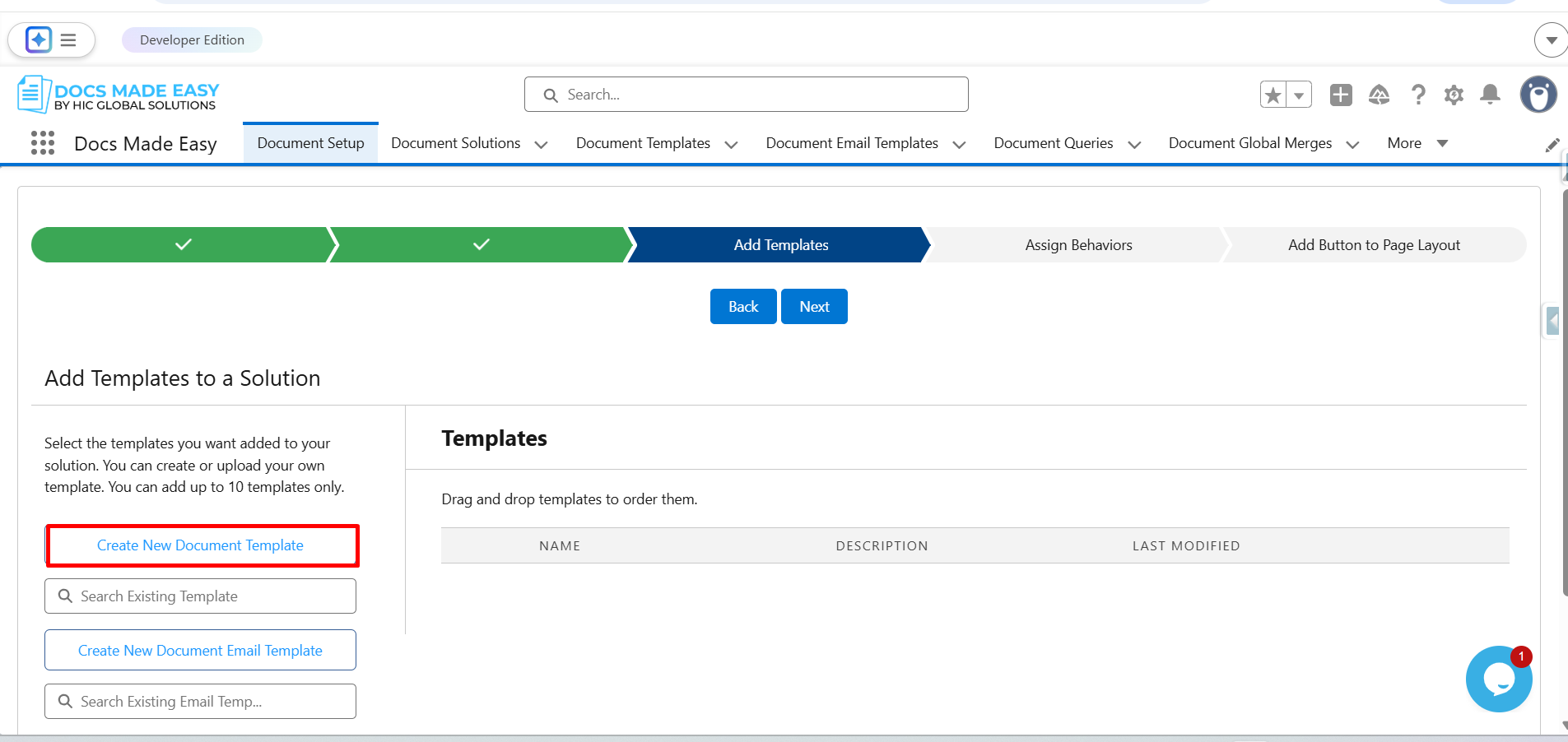
Step 6: Click on Create New Document Template.
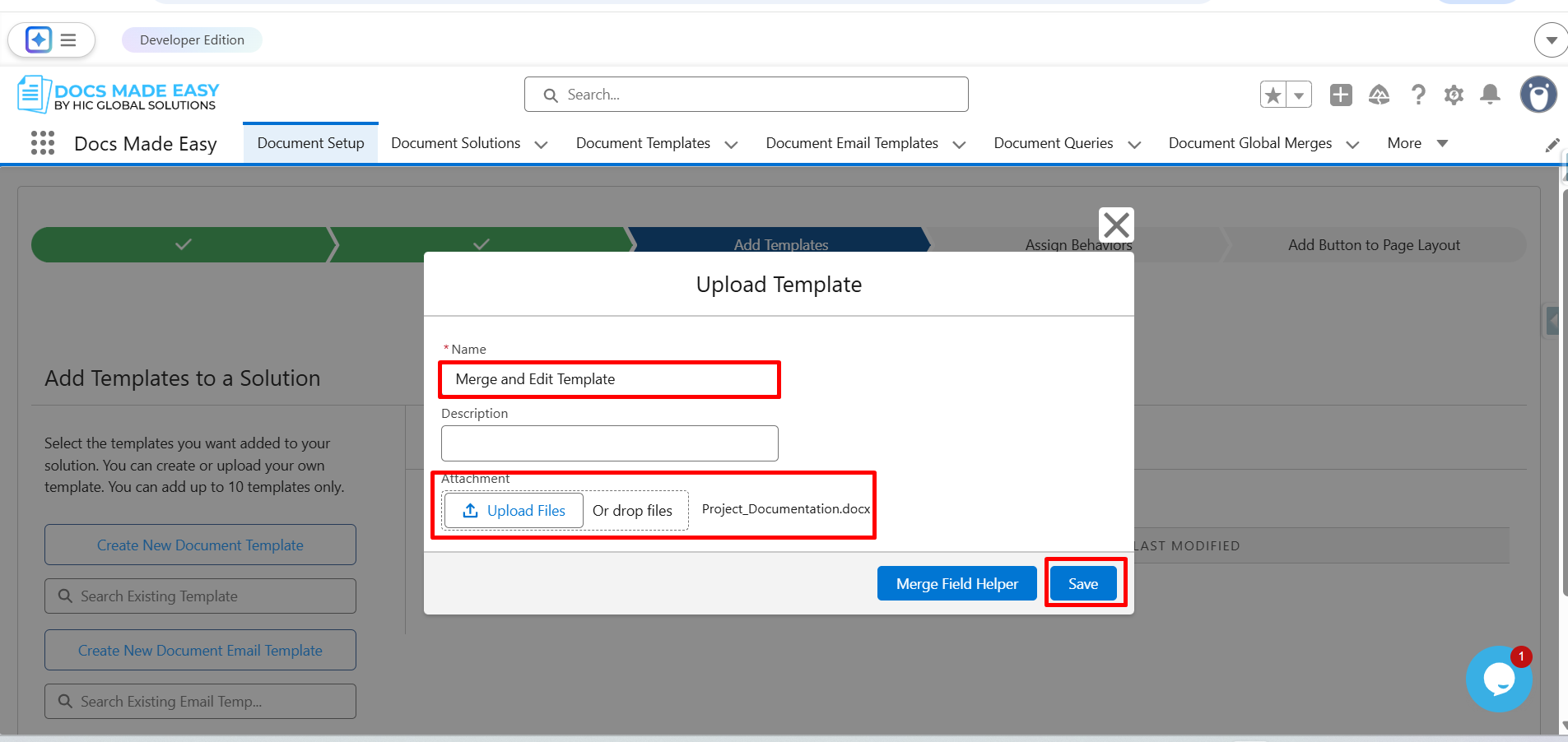
Step 7: Enter the Template Name, upload the Template file, and click Save.
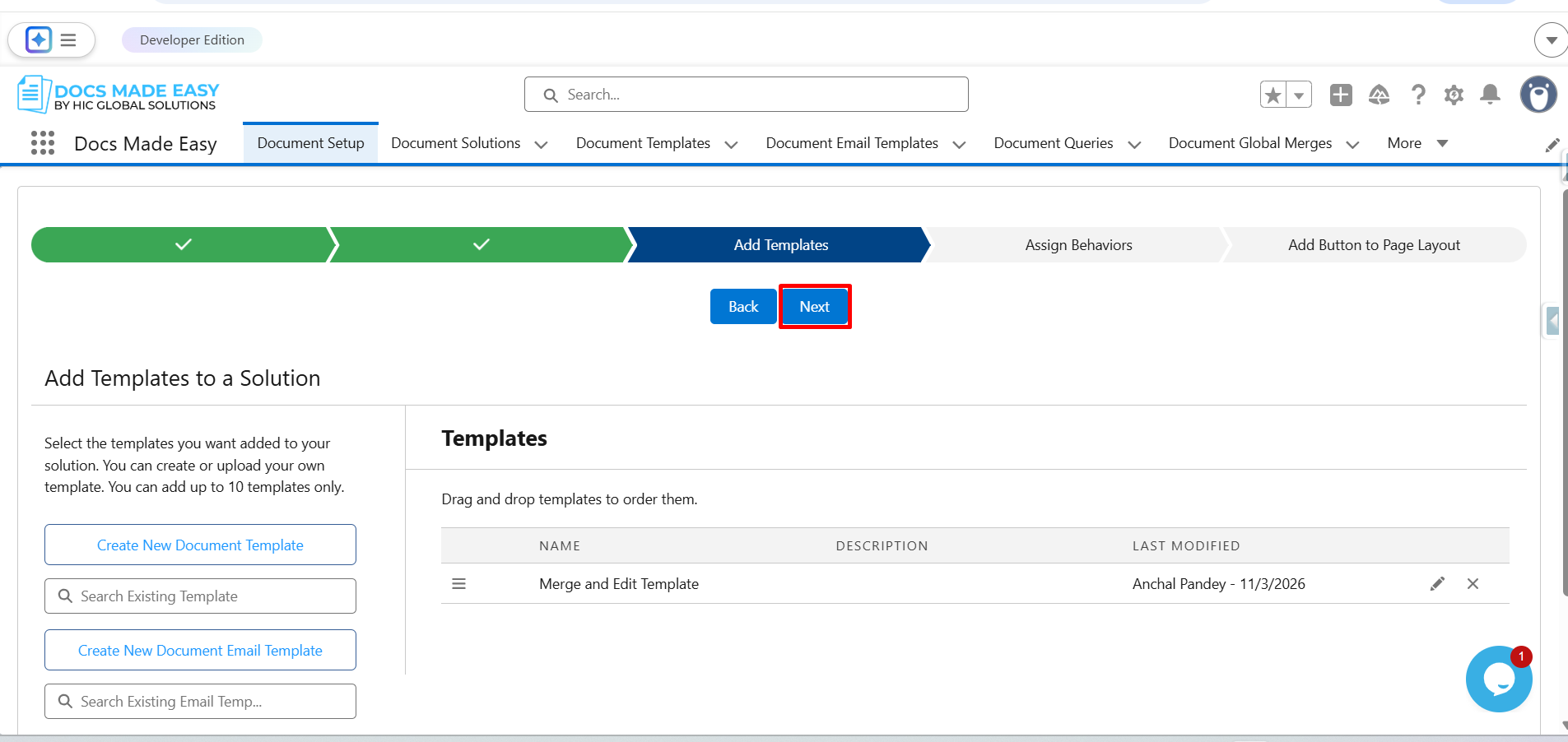
Step 8: Click on Next.
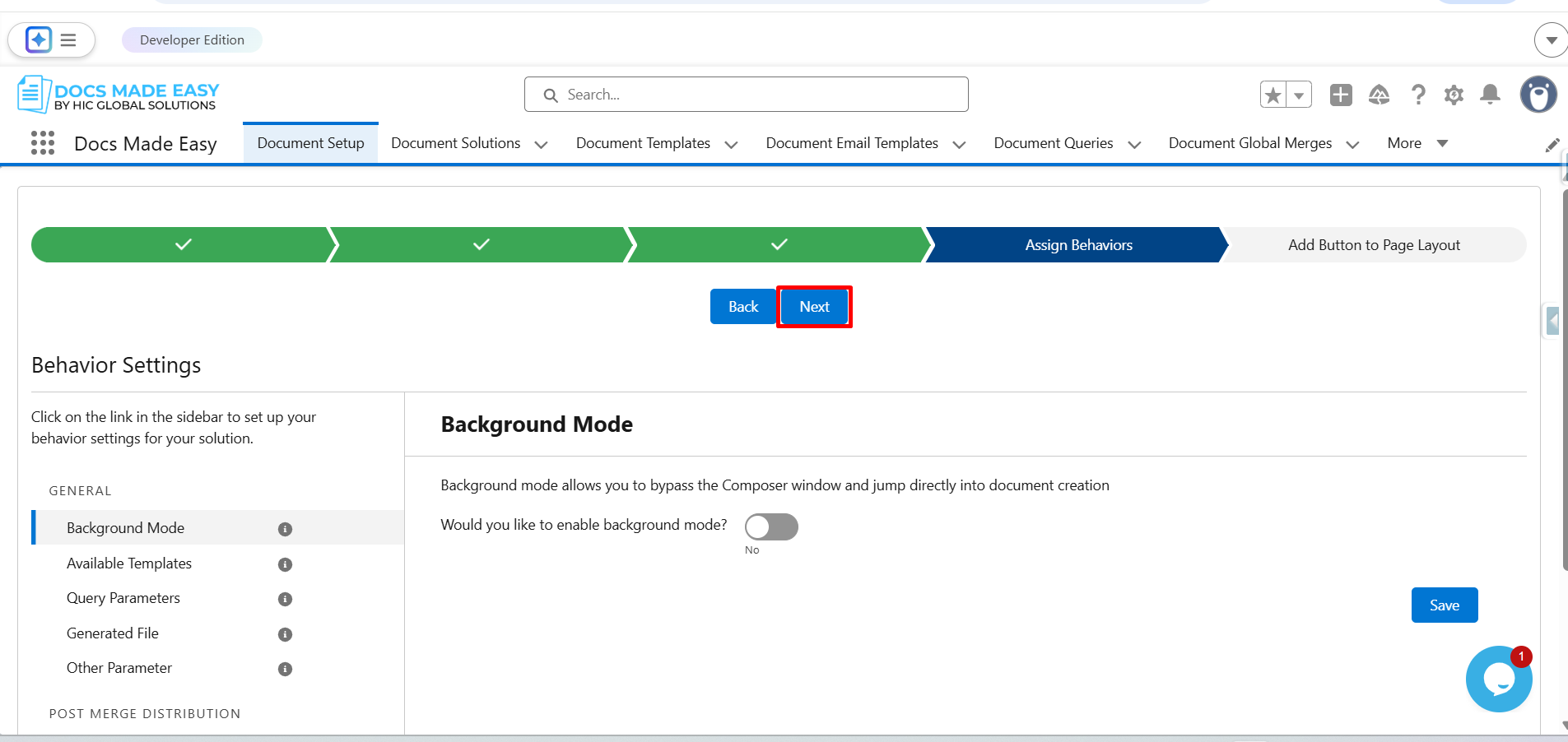
Step 9: Click on Next.
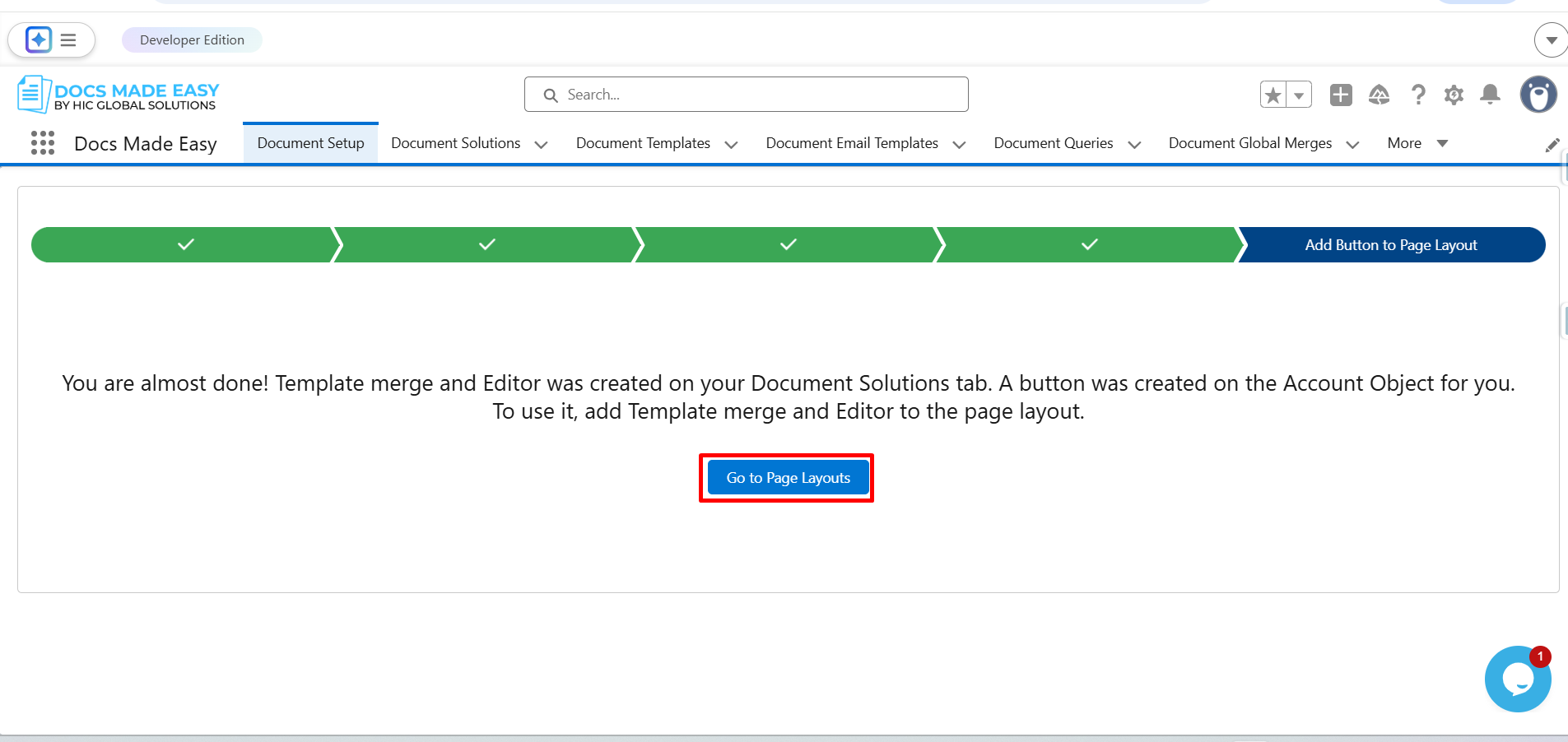
Step 10: Click on Go to Page Layouts.
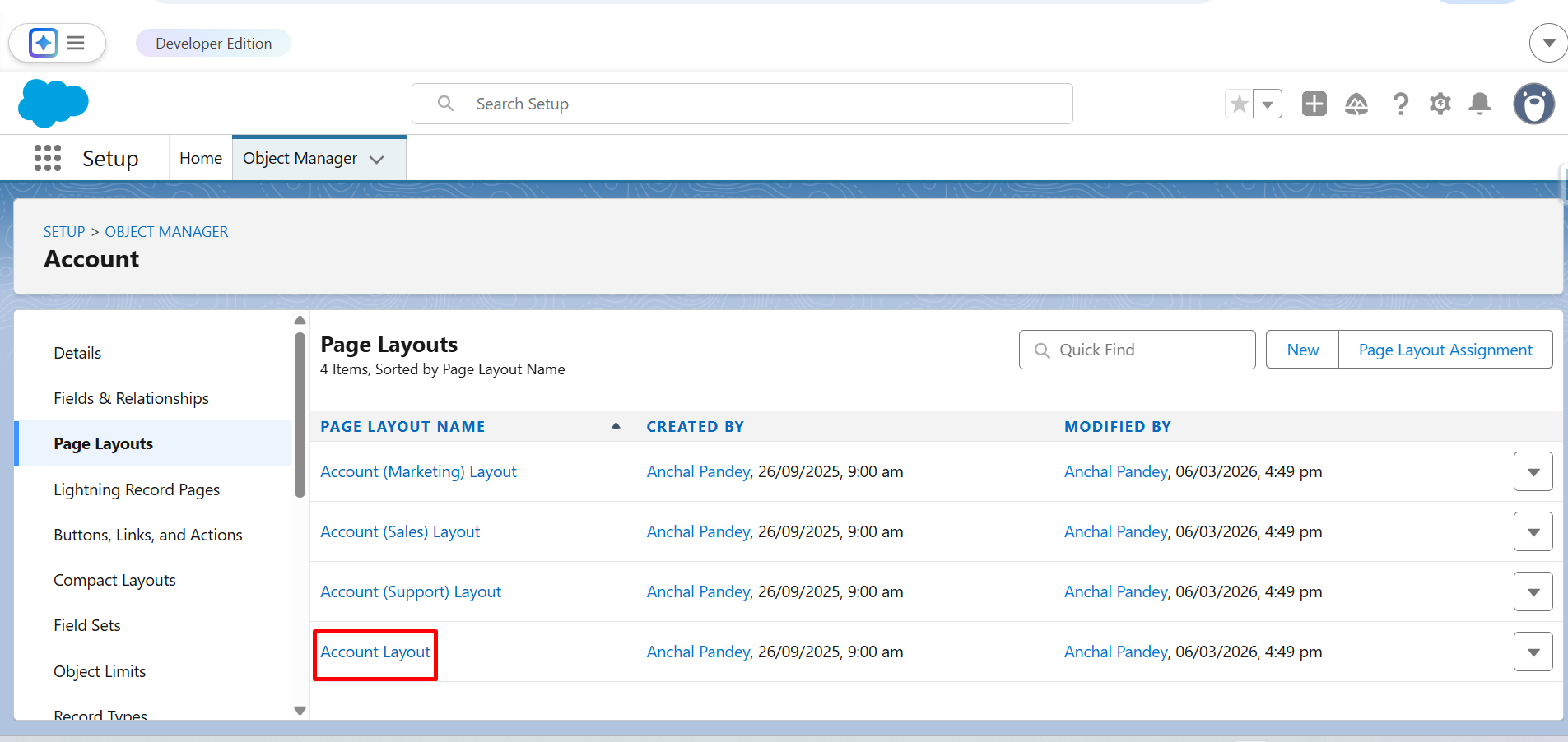
Step 11: Here, click on Account Layout.
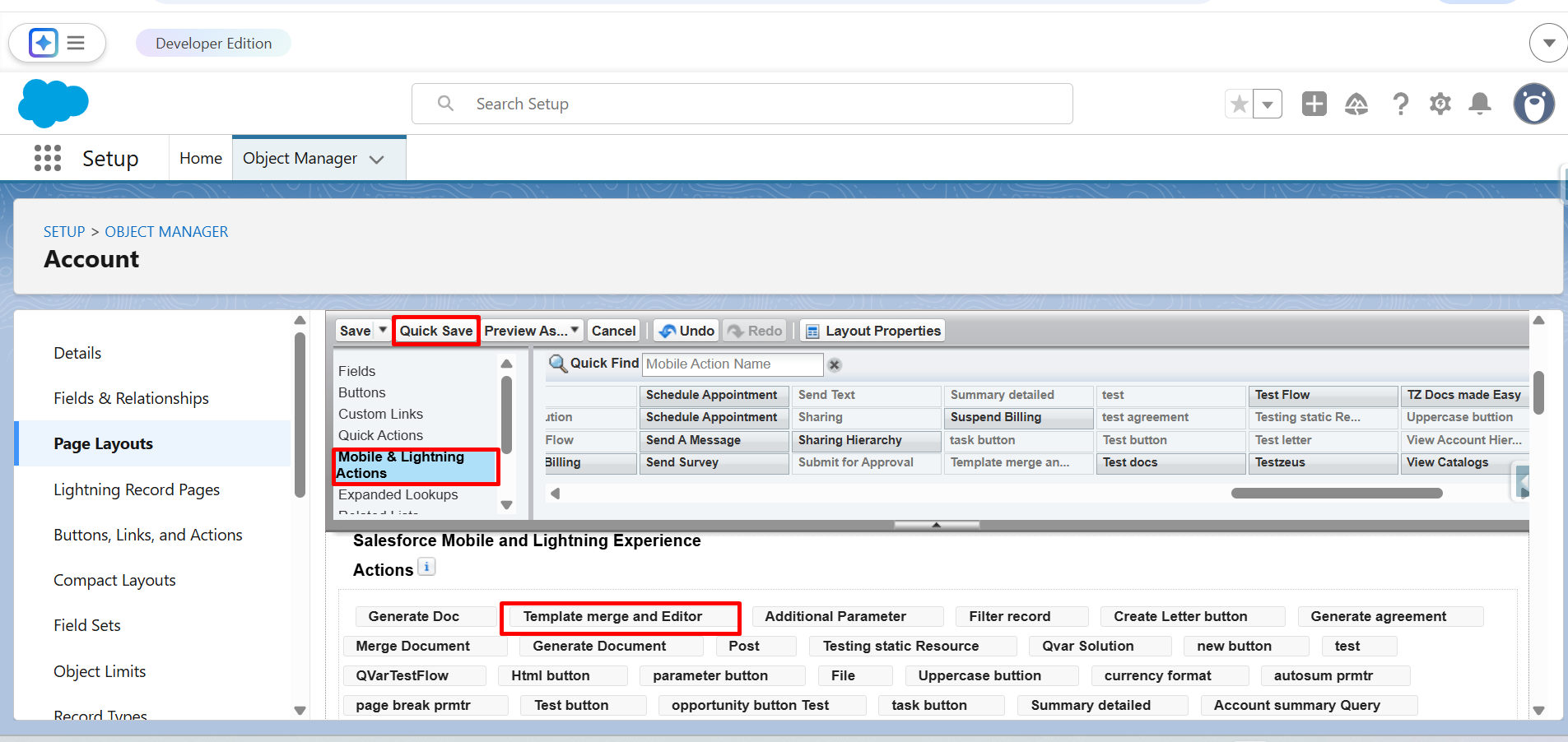
Step 12: From Mobile & Lightning Actions, drag and drop the Template merge and Editor button in Salesforce Mobile and Lightning Experience Actions.
Click on the Quick Save button.
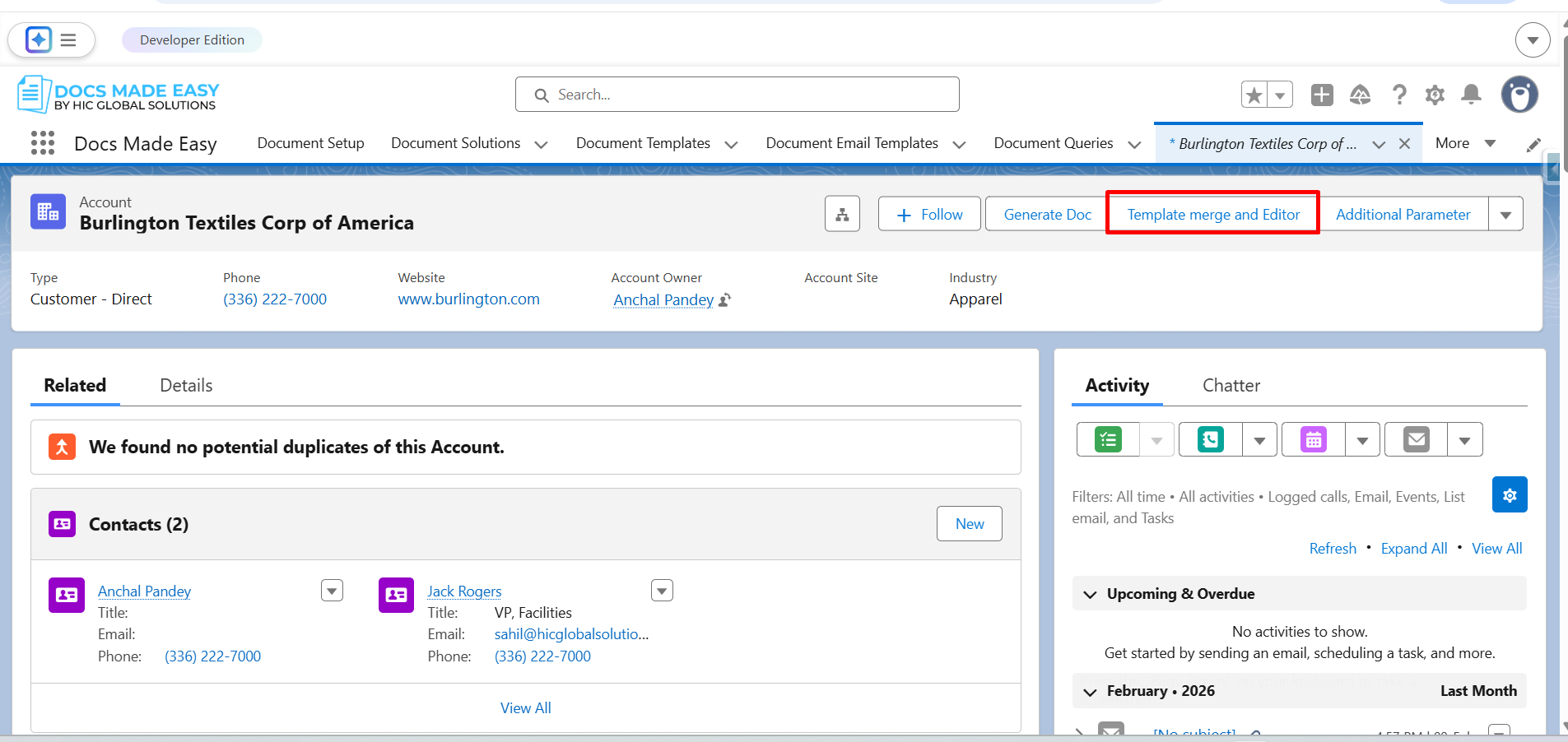
Step 13: Go to Account Record and click on the button (Template merge and Editor).
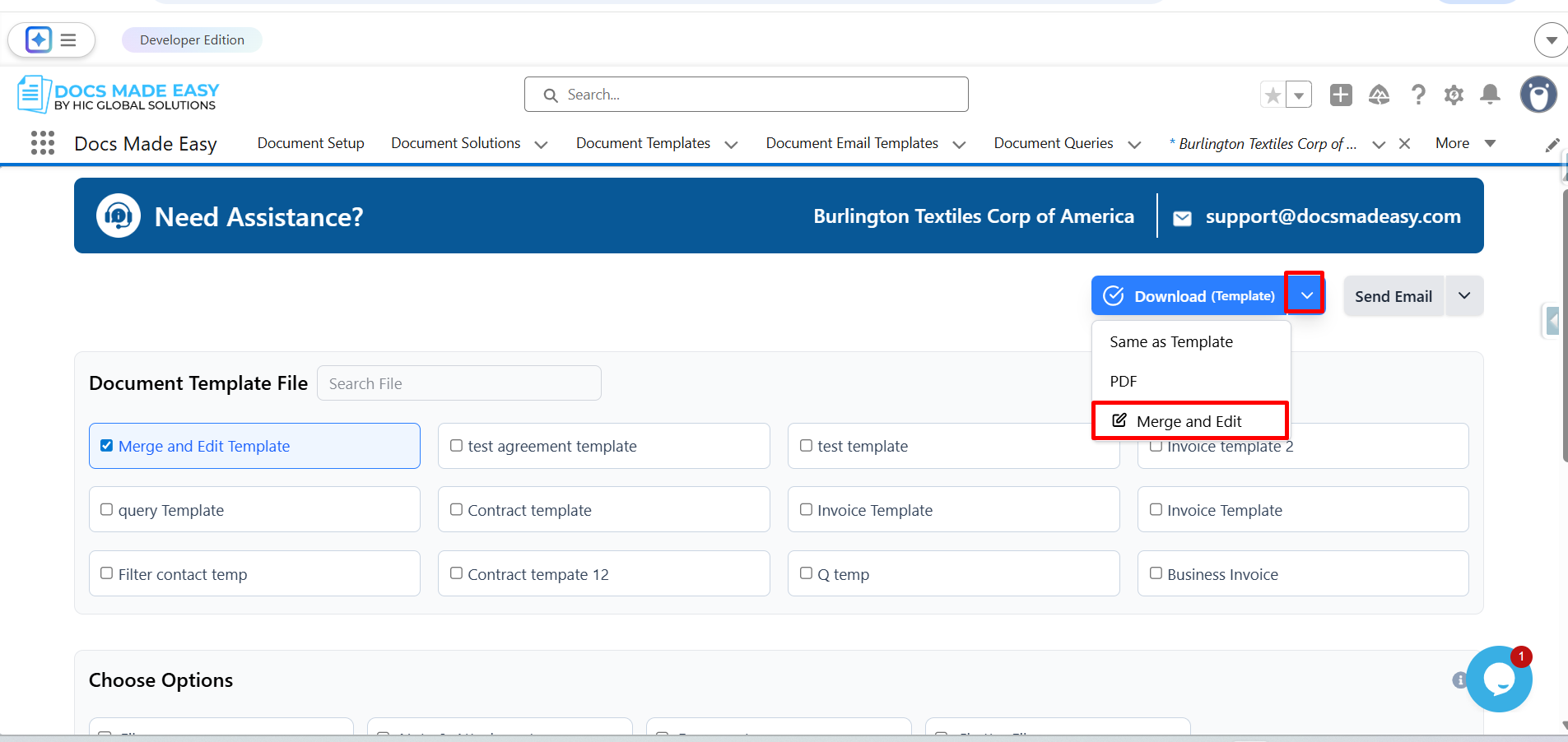
Step 14: Click the dropdown arrow next to the Download (Template) button.
From the available options, select Merge and Edit.
Step 15: Click on Merge and Edit (Editor).
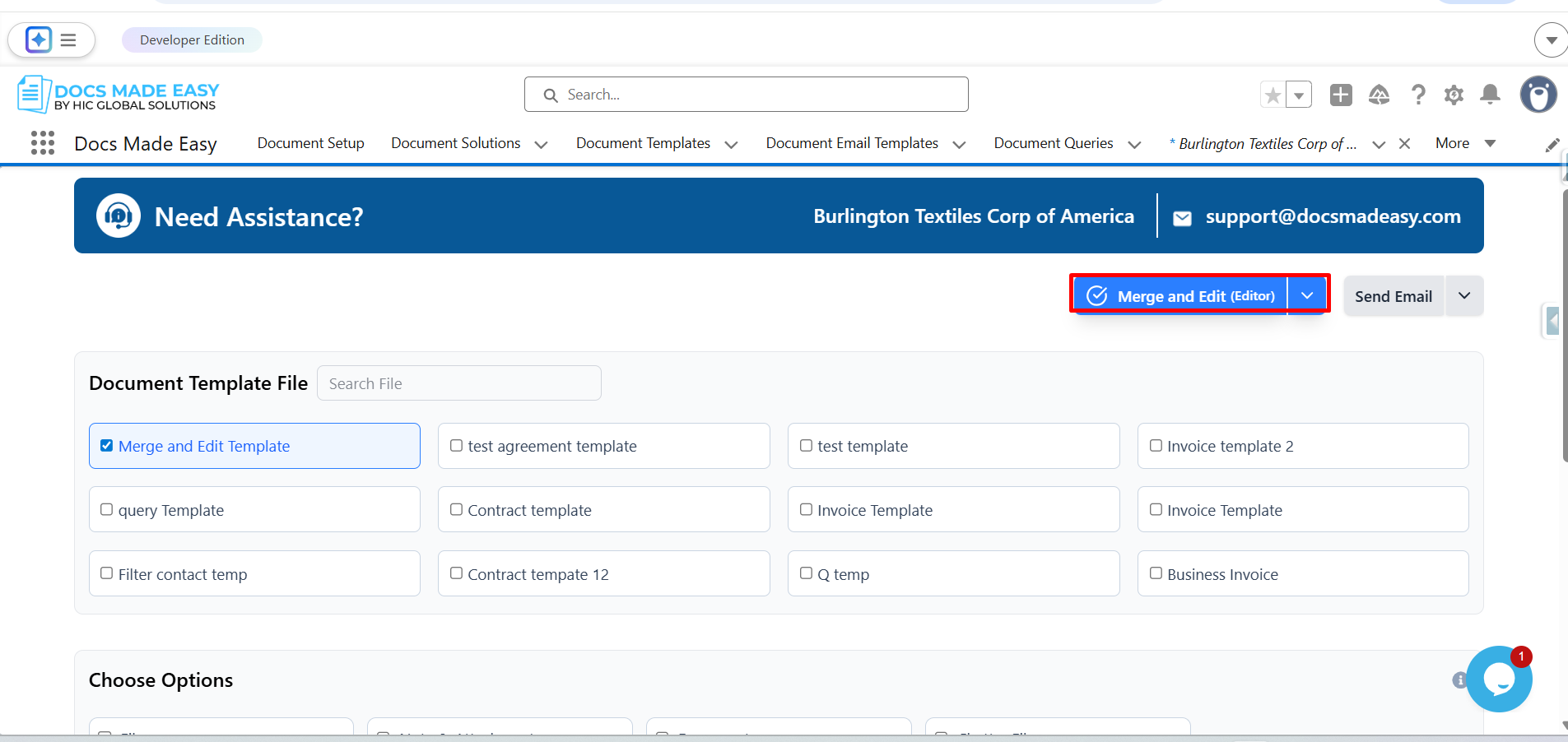
Step 16: Now, the system will start generating the document.
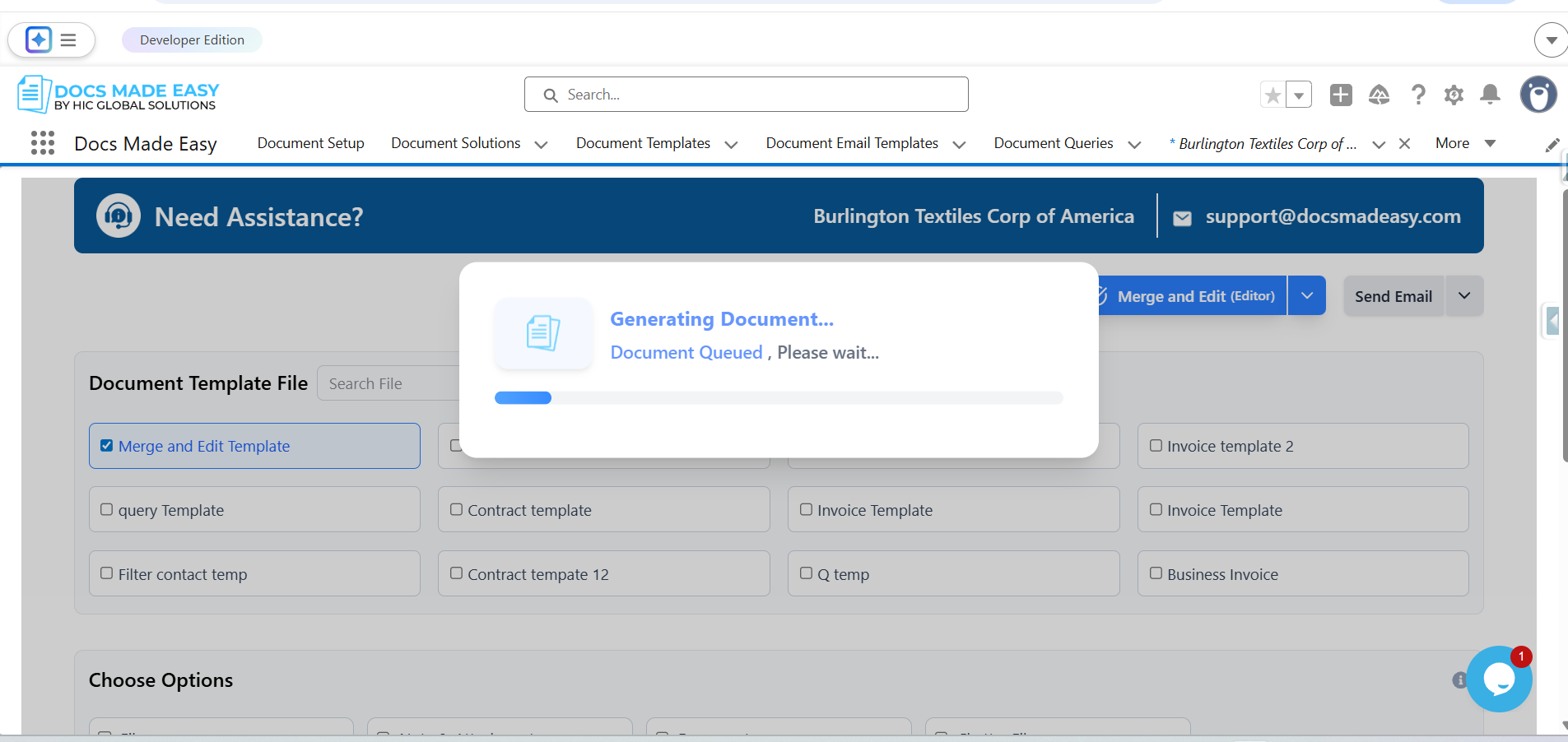
Step 17: The system will merge the template with the selected record data and open it in the document editor for further editing.
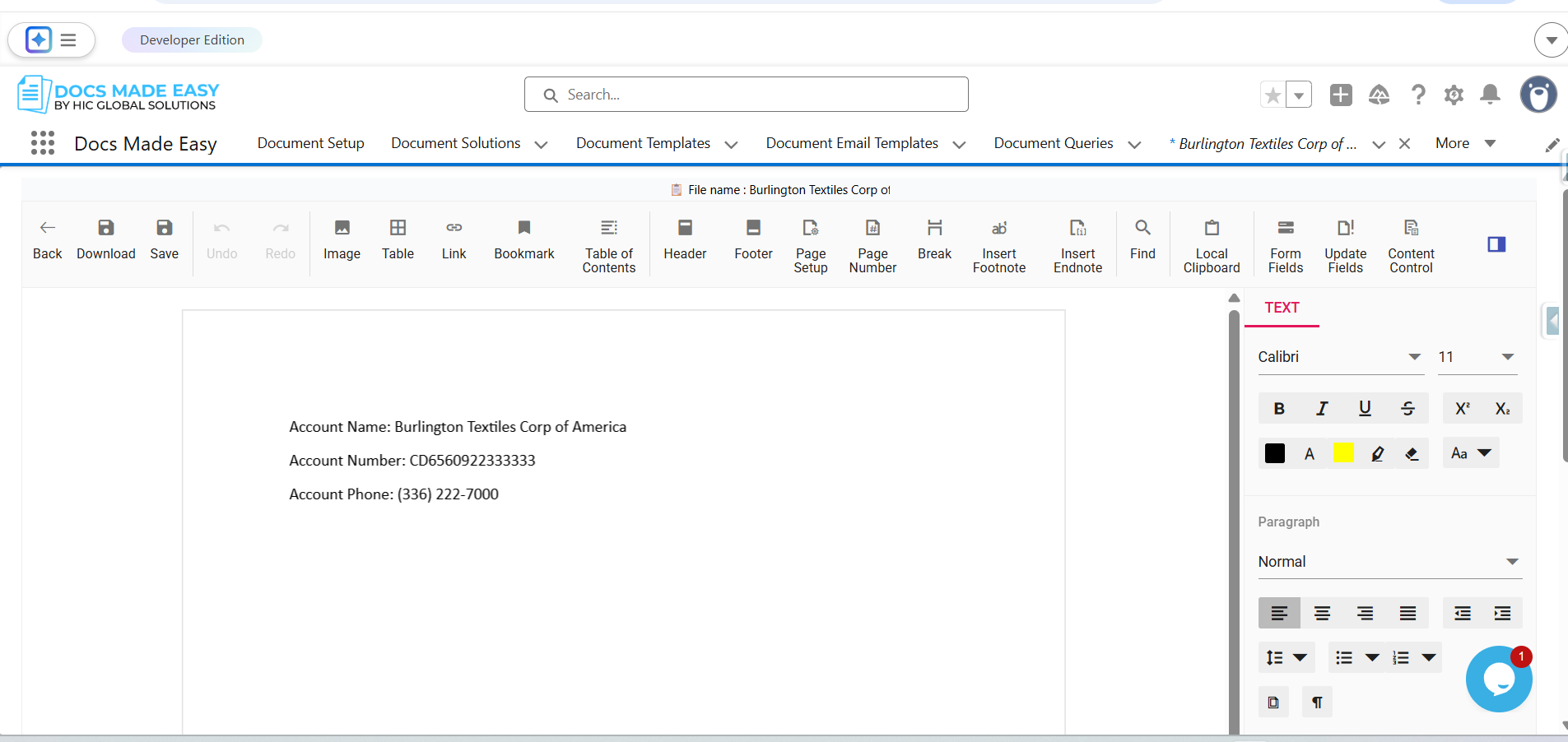
Step 18: Edit or update the content in the document as required.
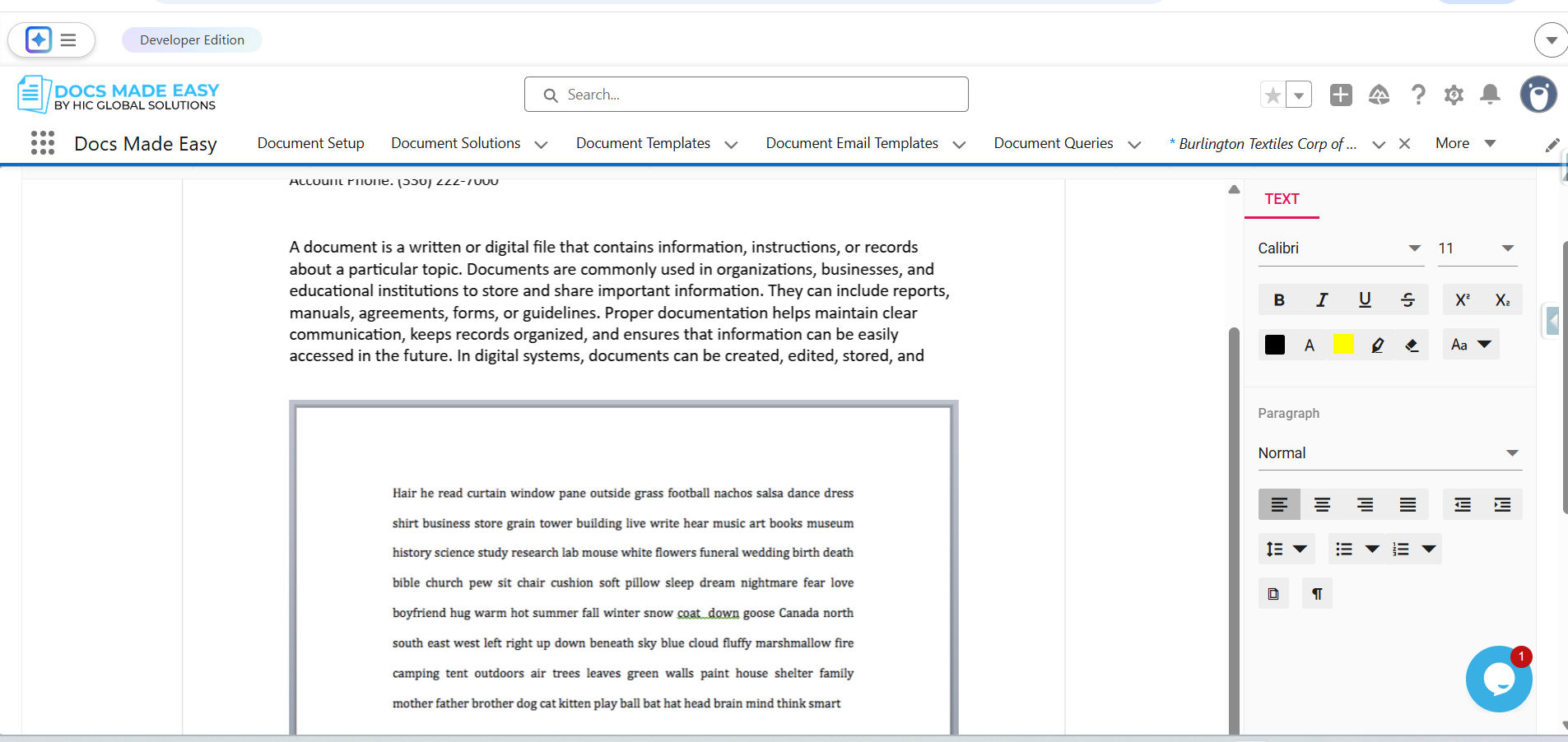
Step 19: After completing the changes, click on the Download button available in the editor.
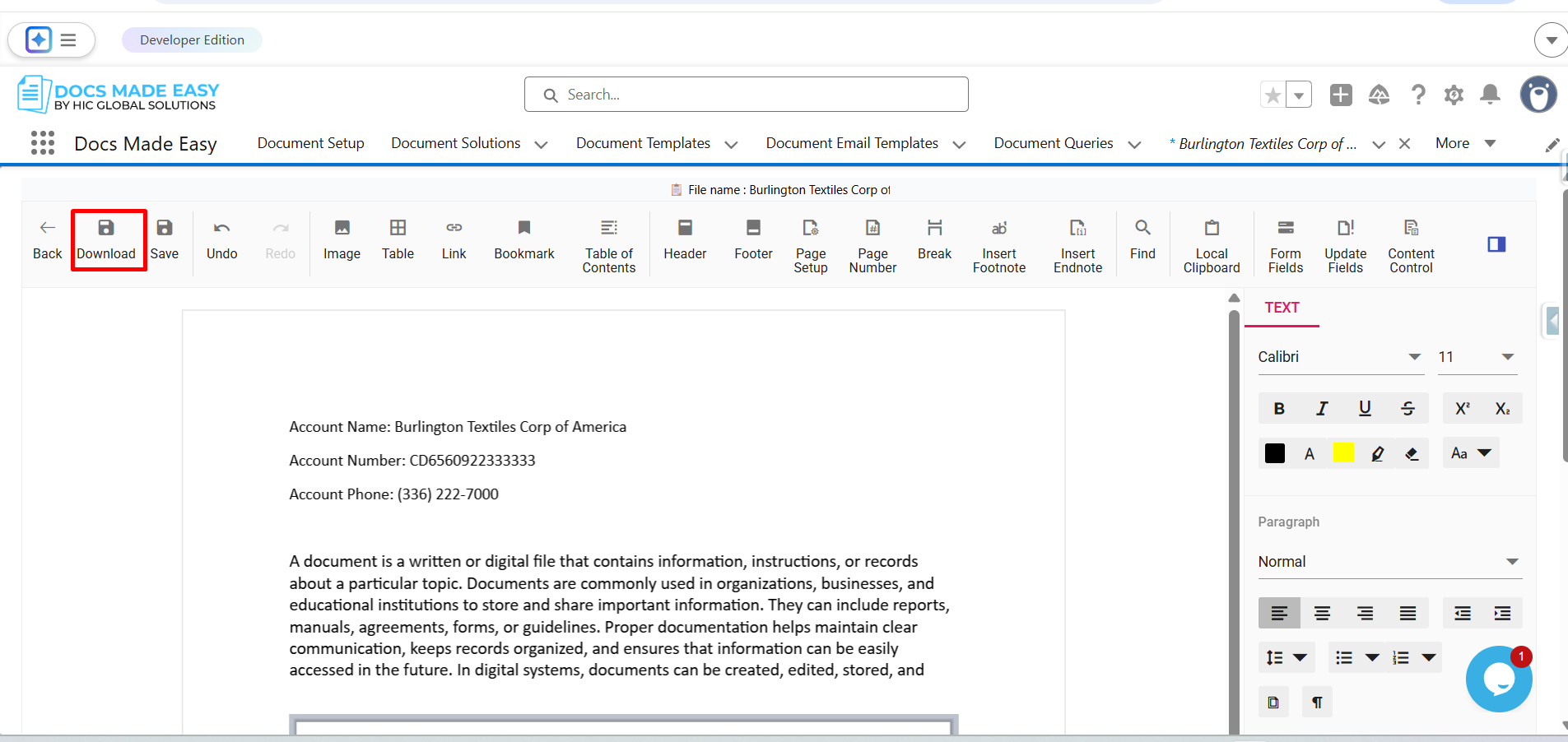
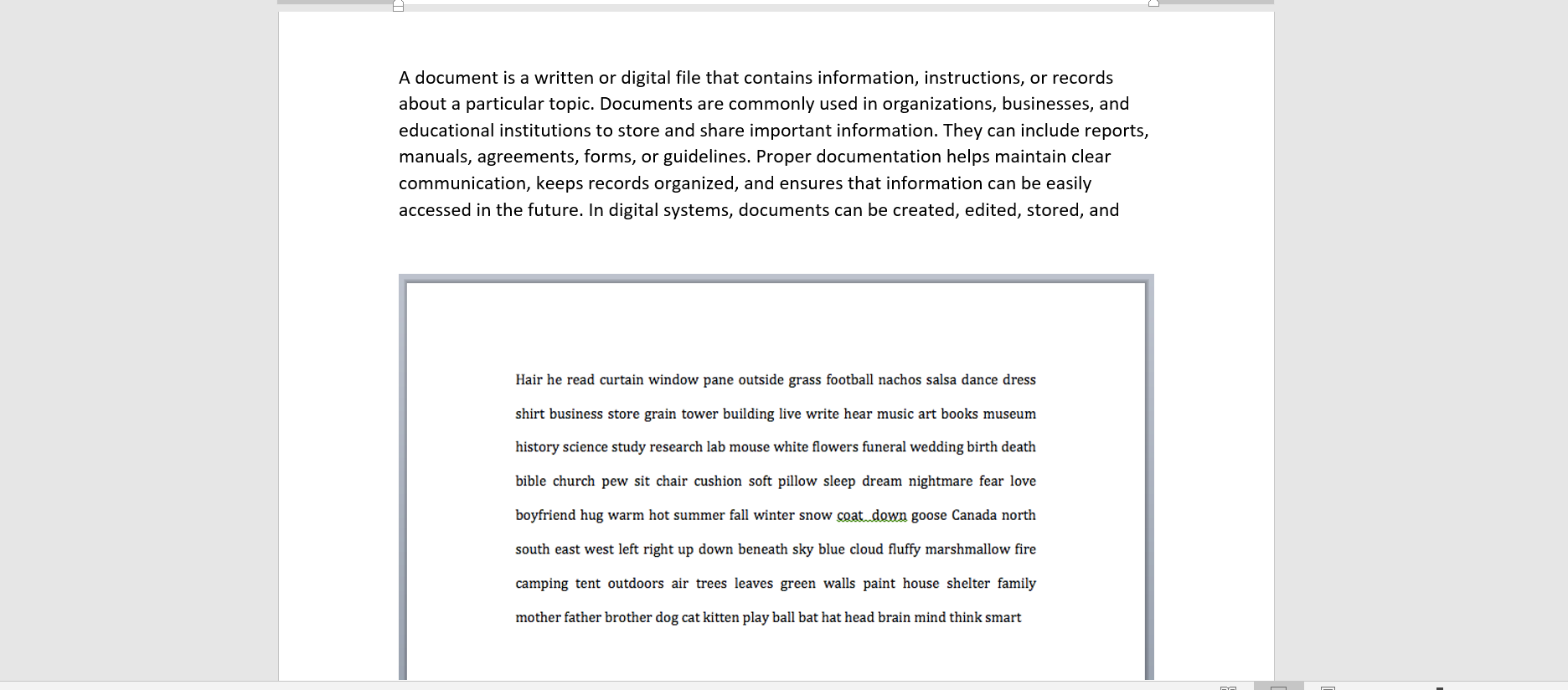
Step 20: The system will download the edited document to your device.
Conclusion
By following these steps, handling document generation becomes much easier, even when last-minute edits are required. So now you don’t need to edit the document anywhere else; in the same Salesforce document solution, you can create, share, and edit any Salesforce document at any time. This helps teams work faster, reduce confusion, and confidently manage documents.