SOQL Queries for Smarter Salesforce Document Generation
Category :
Document Automation

Docs shouldn’t be complicated.
With Docs Made Easy, creating professional, Salesforce-powered documents is just a few clicks away.
Get Started NowUsing SOQL queries enables dynamic, record-specific Salesforce document generation by retrieving live Salesforce data at the time of document generation. This approach also improves document management by ensuring data is always accurate and up to date.
Queries allow users to fetch fields from standard or custom objects, apply filters, and even pull in related records through parent-child relationships. Instead of static values, SOQL queries provide a real-time connection to your Salesforce environment, ensuring that generated documents reflect the most current and relevant information for the record in focus.
This guide will provide you with the detailed steps to use SOQL queries in Docs Made Easy.
How to Use SOQL Queries in Docs Made Easy?
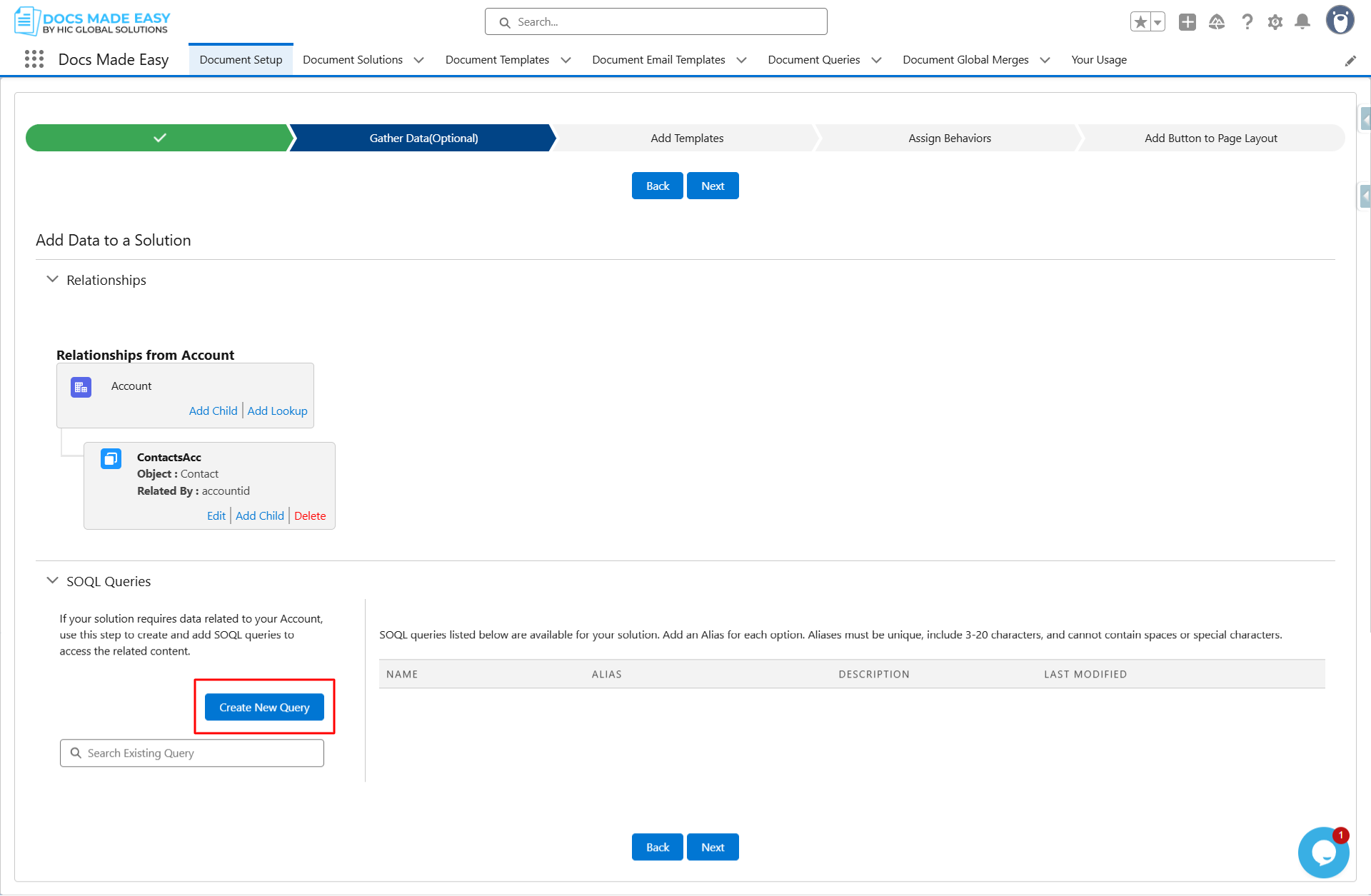
Step 1: First go to Document Setup, then Gather Data, and click on SOQL Queries.
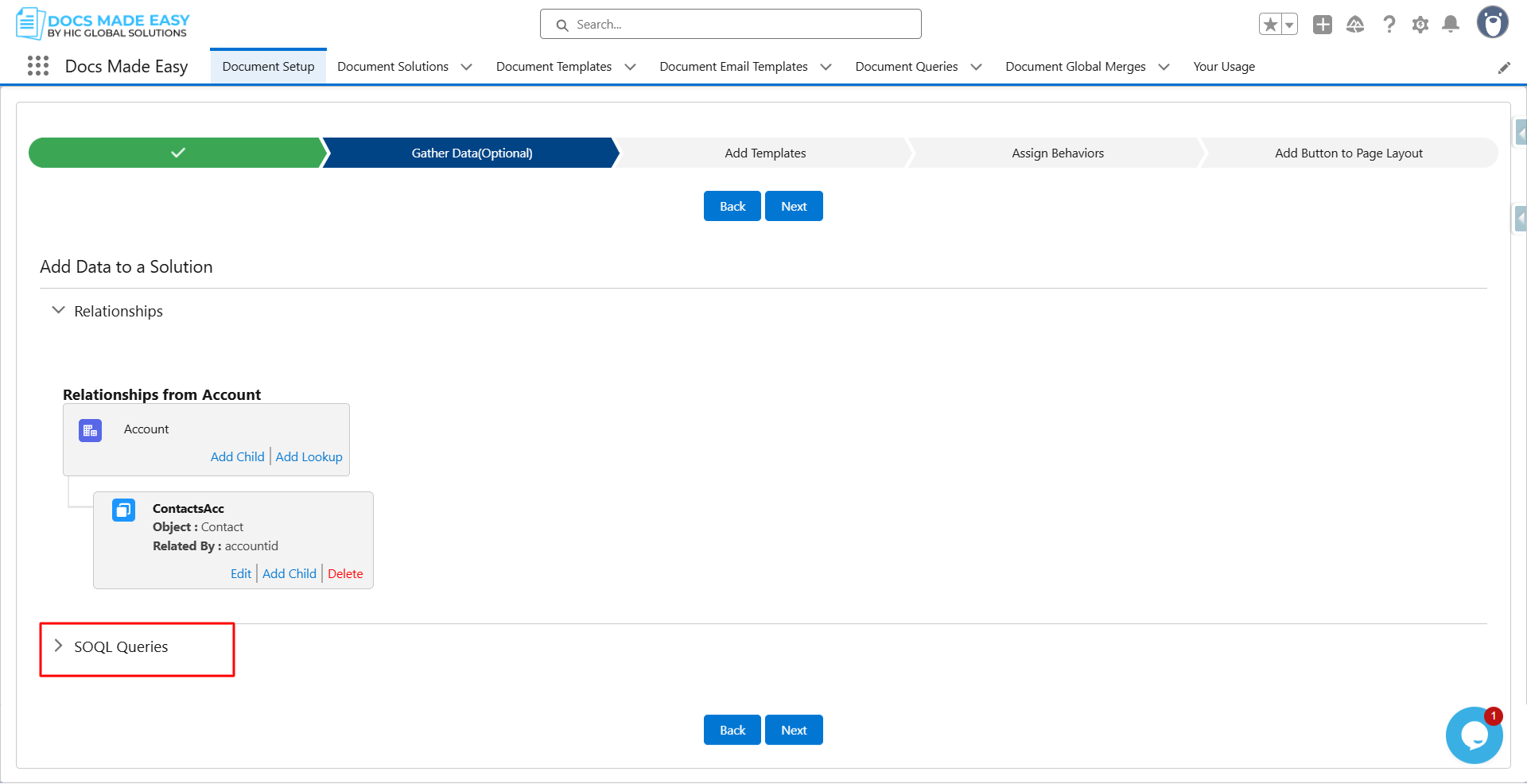
Step 2: After that, click on Create New Query.
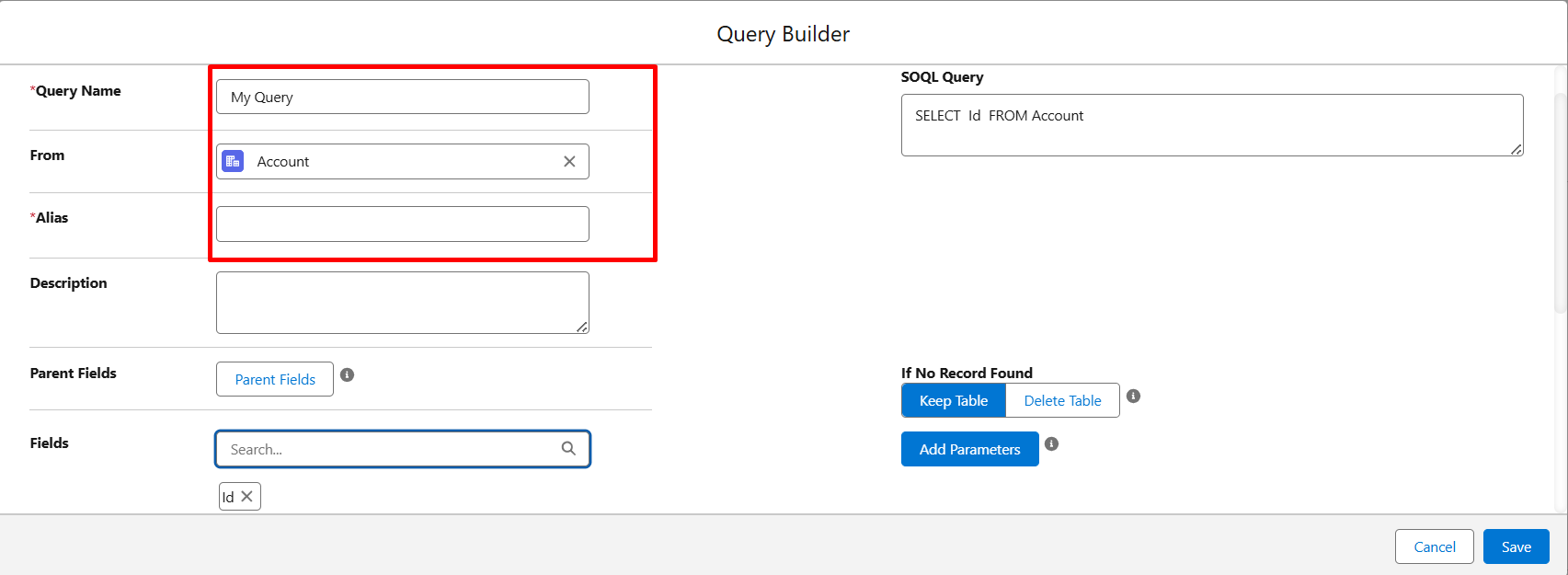
Step 3: Give your SOQL query a name and select the object you want to fetch data from, e.g., (Account), and give an Alias to it. You can also give some relevant description to your query, like the purpose of the query or what type of data it is fetching.
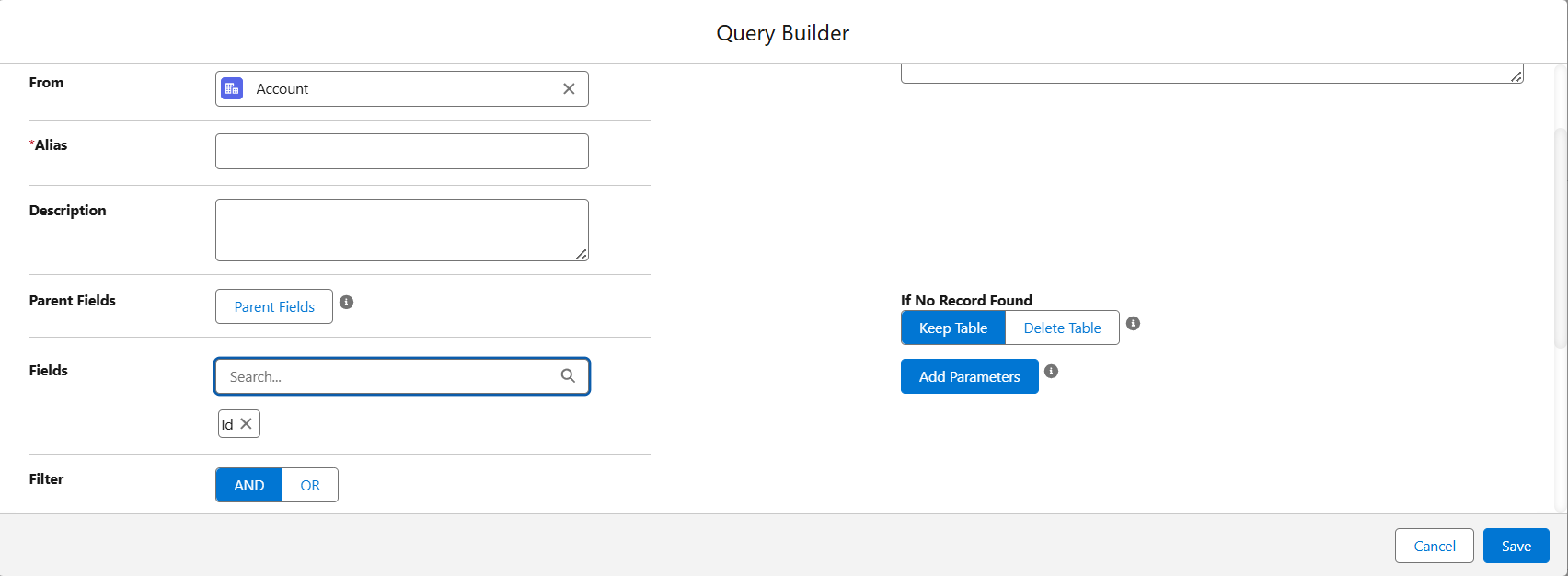
Step 4: Now it is time to add data to your query. Search for the field in the search bar.
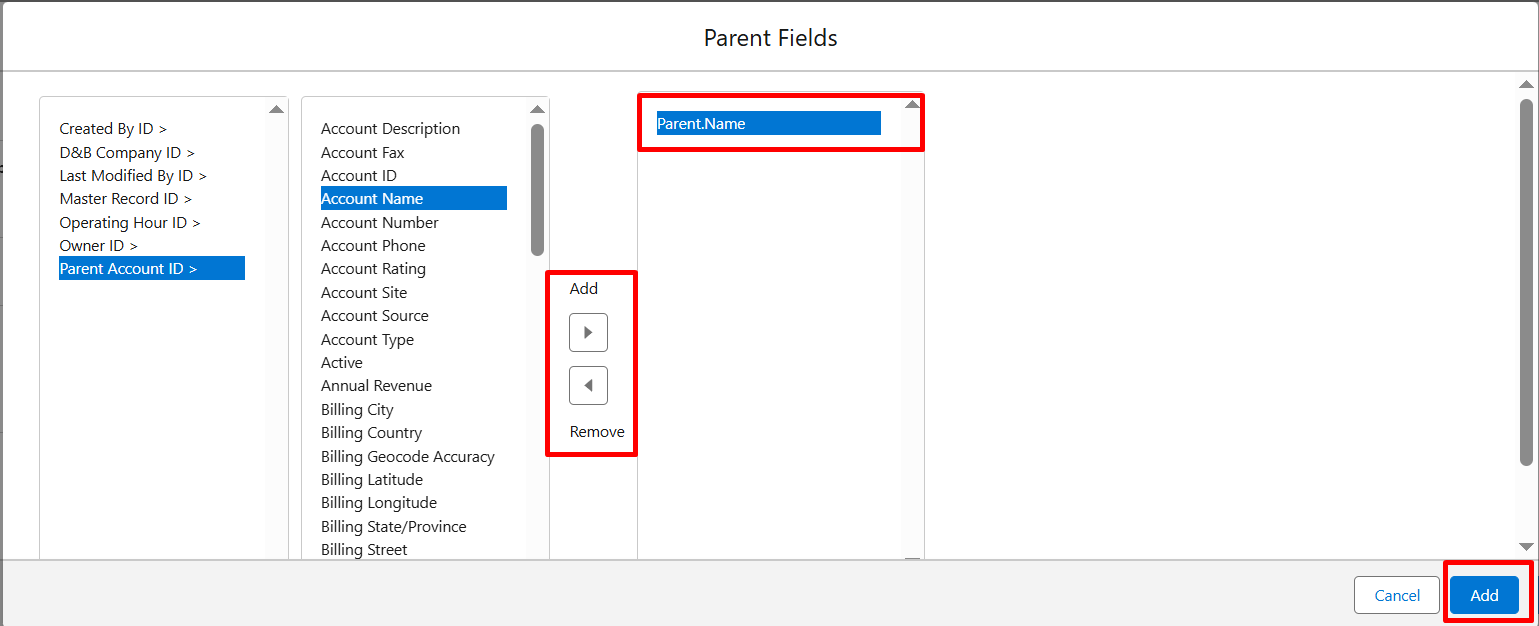
Step 5: You can also select the parent fields, like Parent Account or Account in the case of Contacts, by clicking on the Parent Fields Button.
Step 6: Select the Field you want and add it to the Query.
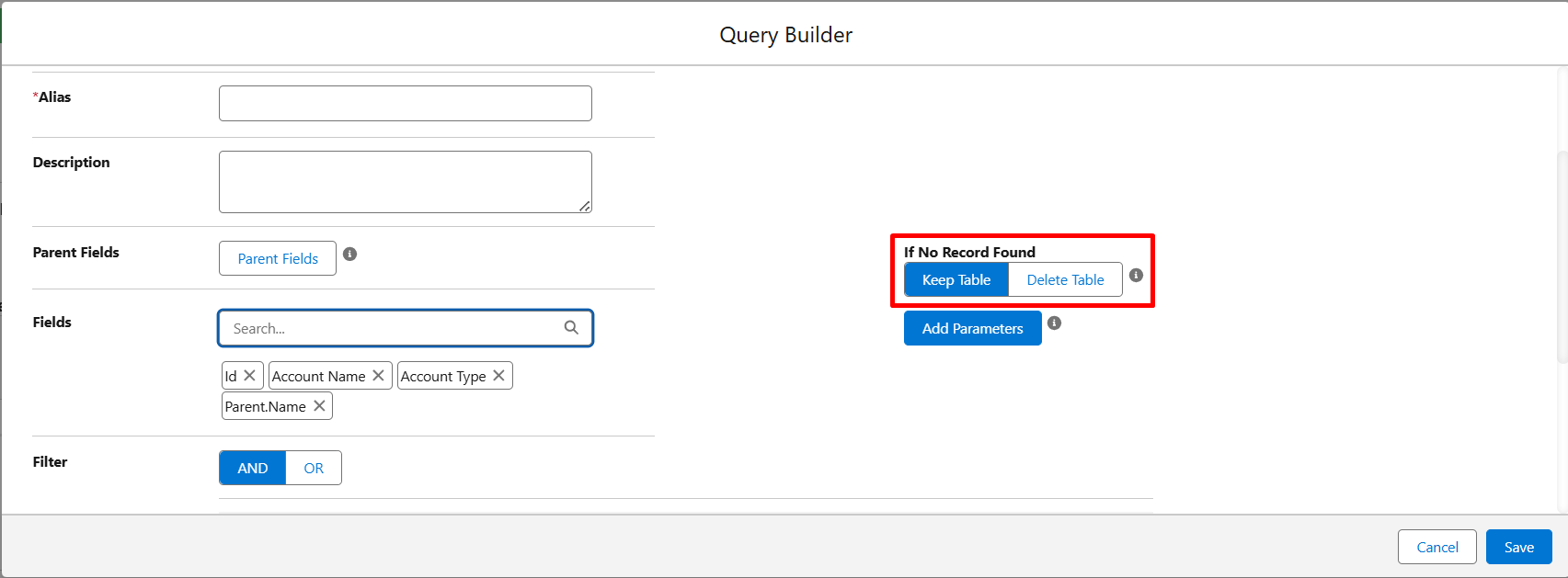
Step 7: From the Query builder, you can control whether a table should be visible or kept hidden in case there are no records. You can click on Keep Table and Delete Table as per the requirements.
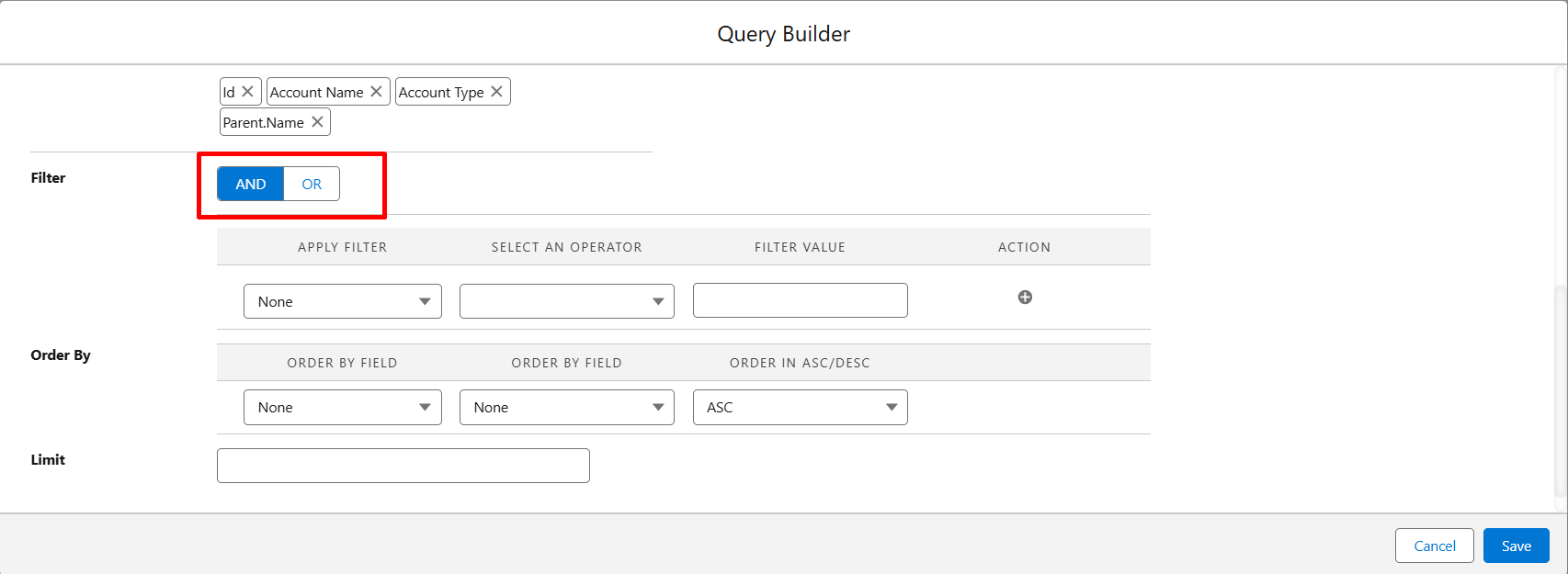
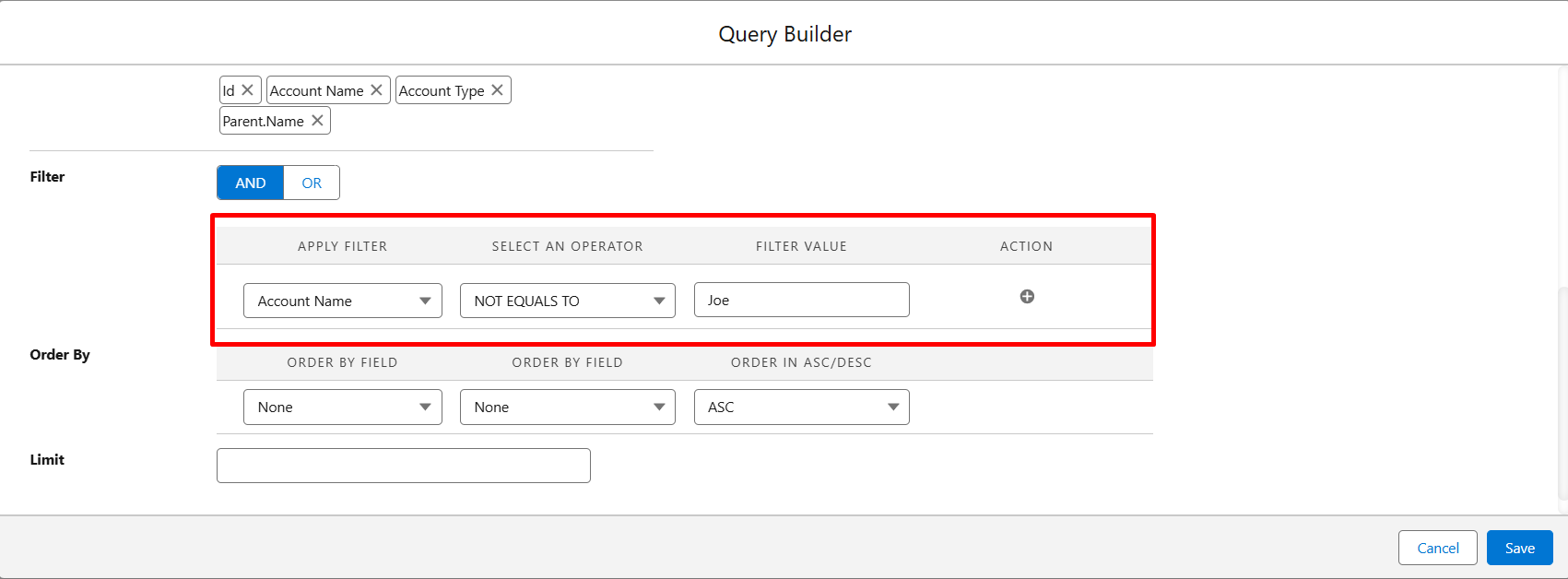
Step 8: If you want to add any filters to your query, you can set them from the filter section and choose the filter condition, e.g., Account Name equals Joe.
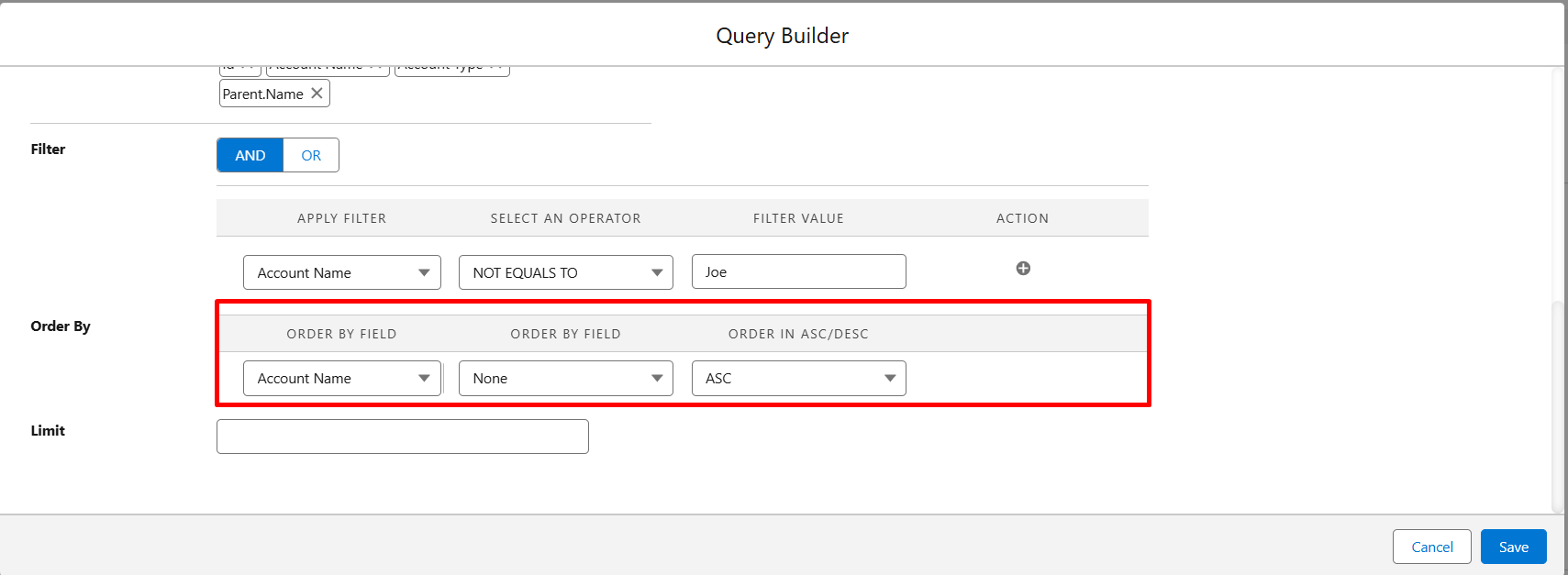
Step 9: You can also set the Order By condition in your queries from the Order By Section, e.g., Order By- Account, None, or ASC.
Step 10: In the last section, you can set the limit (How many records you want to display in the document).
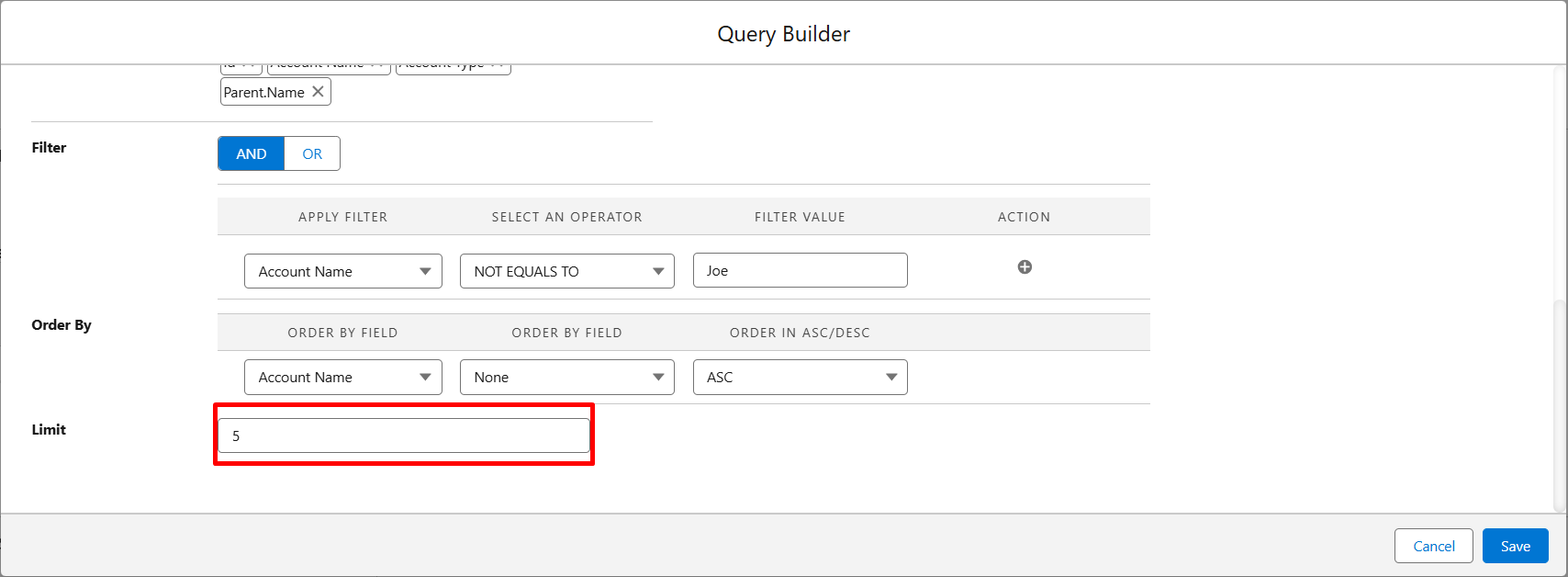
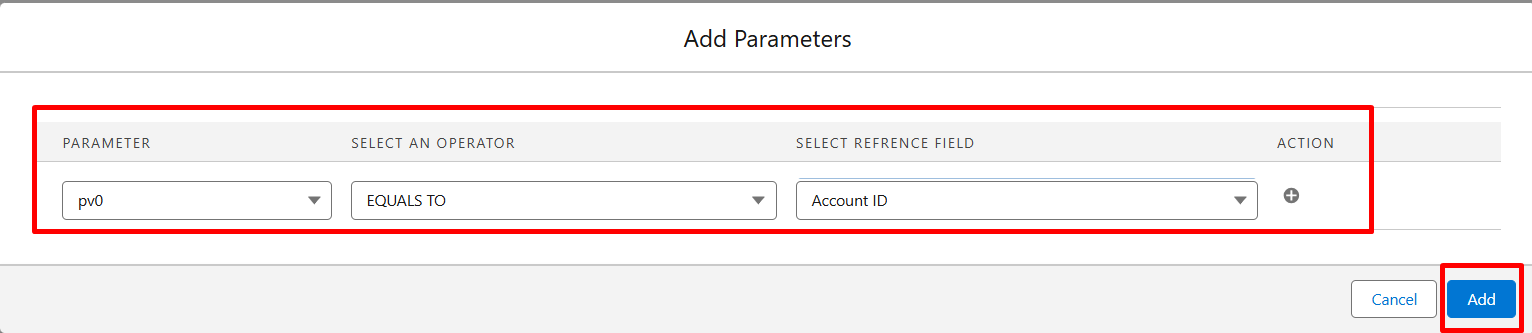
Step 11: Now it’s time to give the pv0 parameter to make the query dynamic.
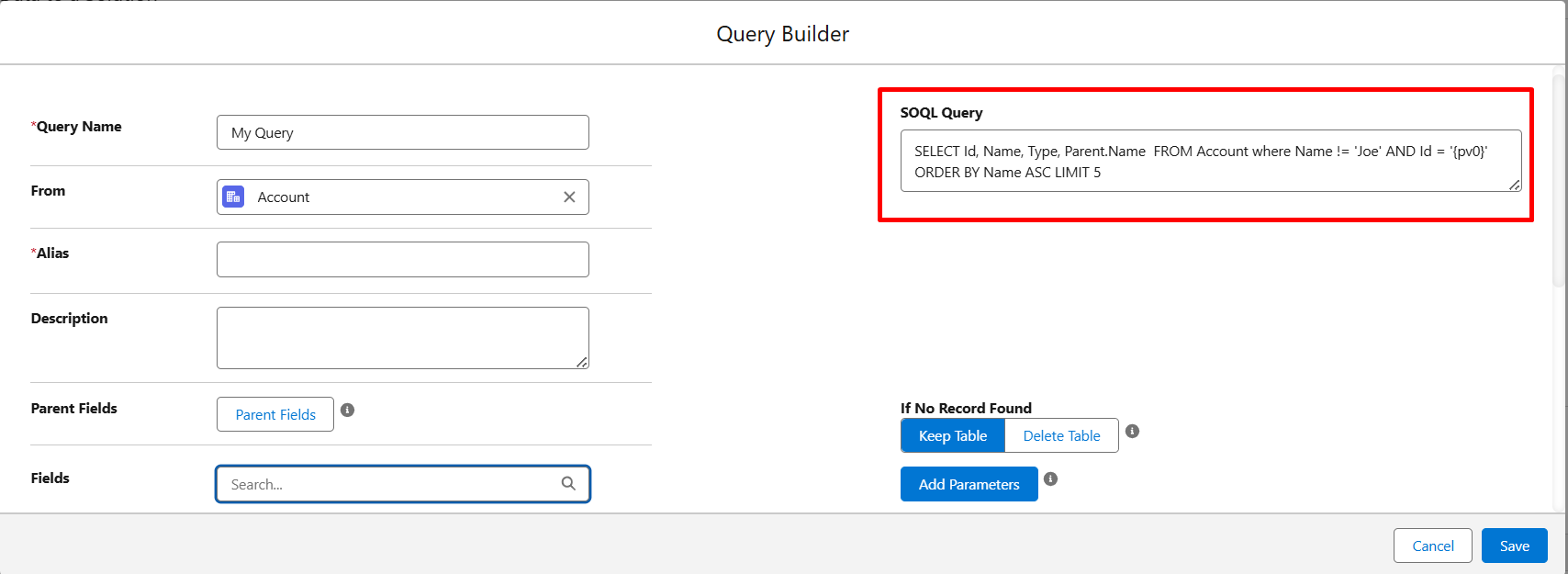
Step 12: After completing all the conditions, you can see your query is now ready to be used.
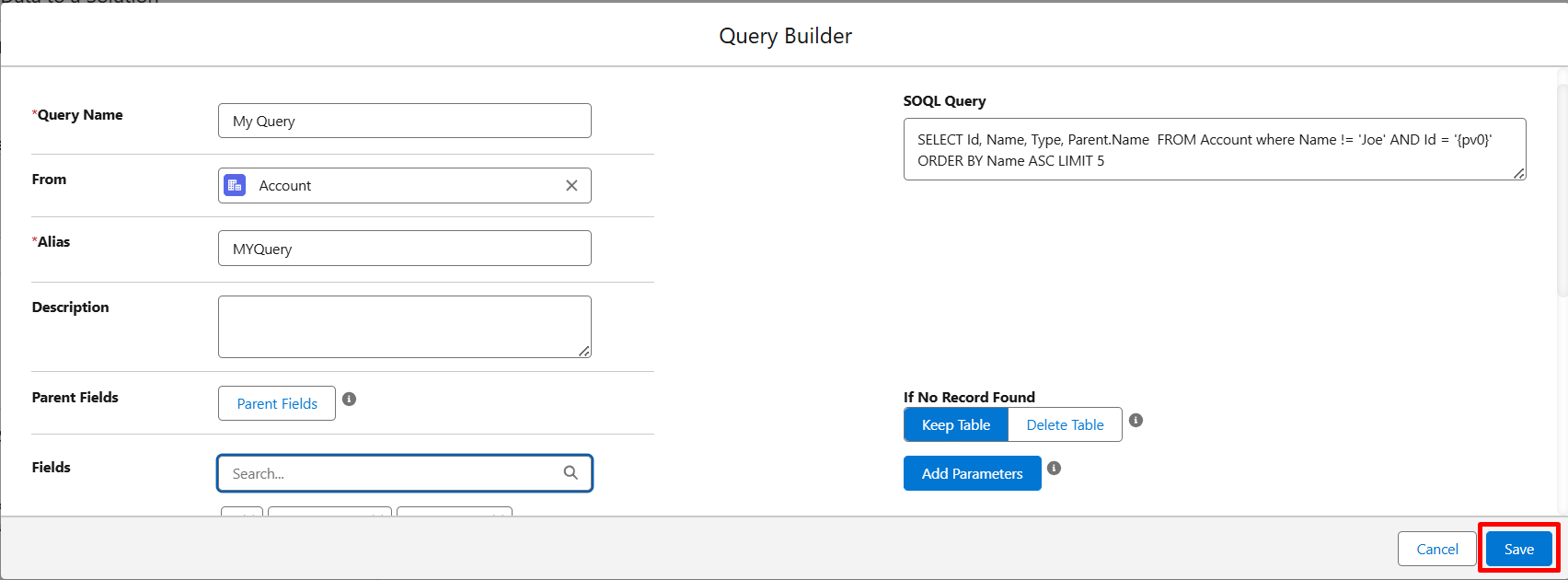
Step 13: Save your Query by clicking on the Save button.
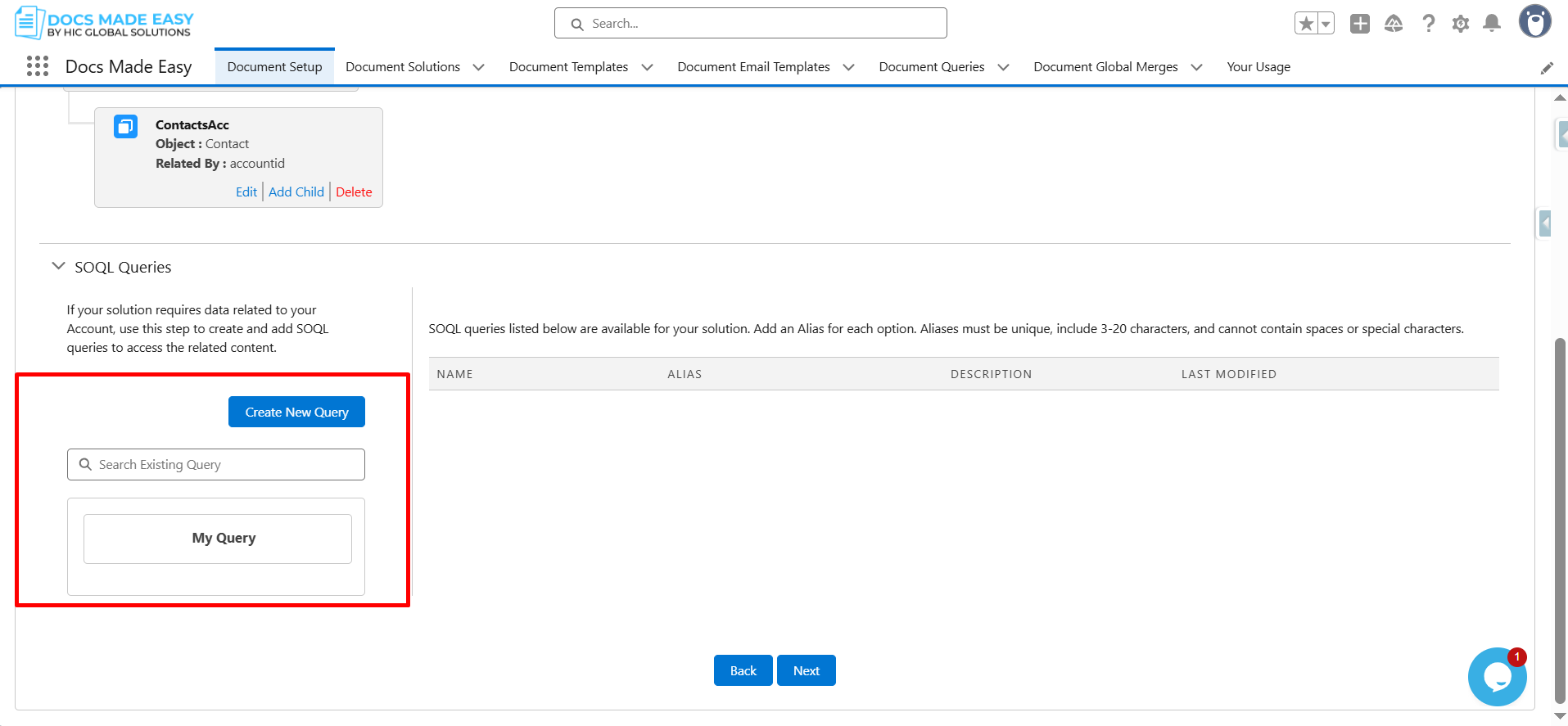
Step 14: You can see that the saved query is now added to the SOQL Queries section.
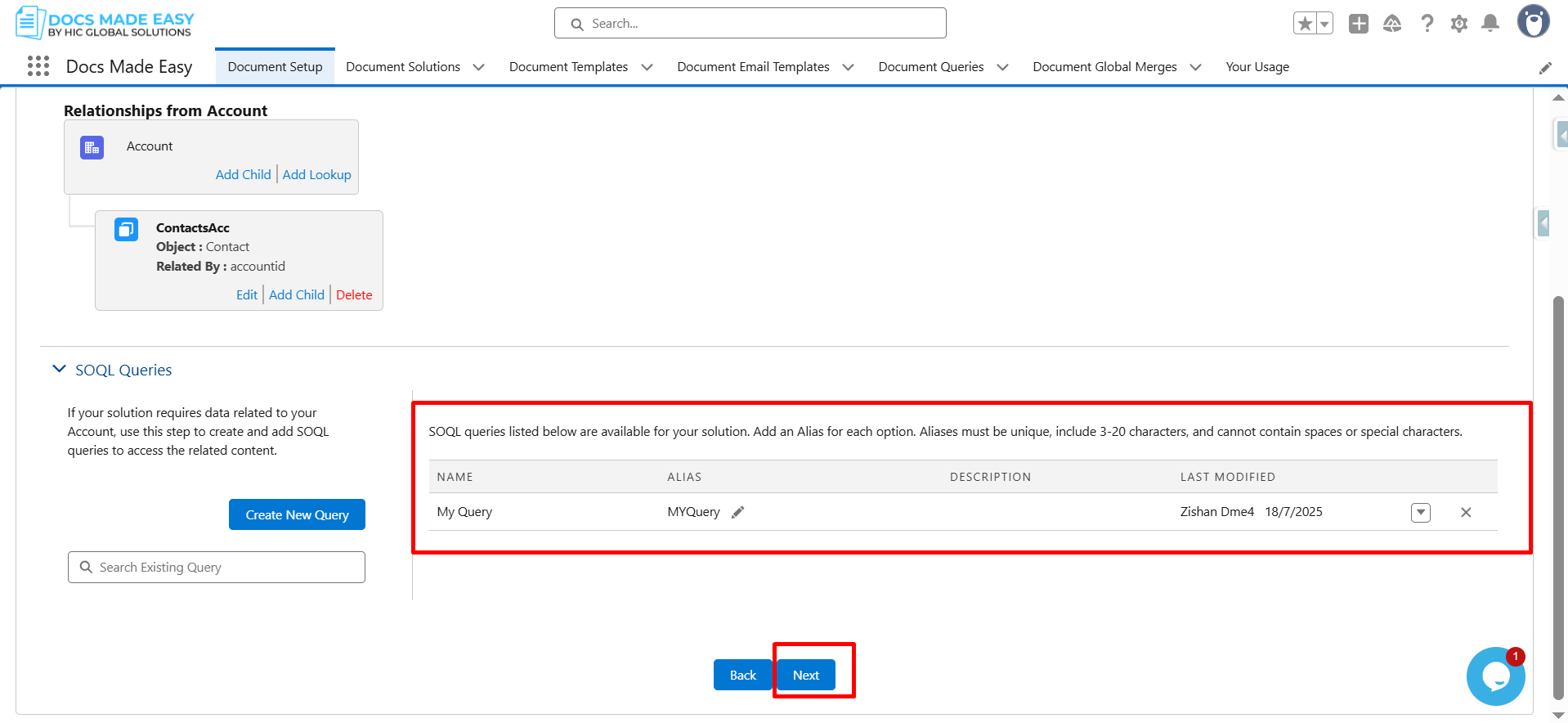
If the created query is not visible in the SOQL Query Section, you can search for the Query in the Search Bar and select it.
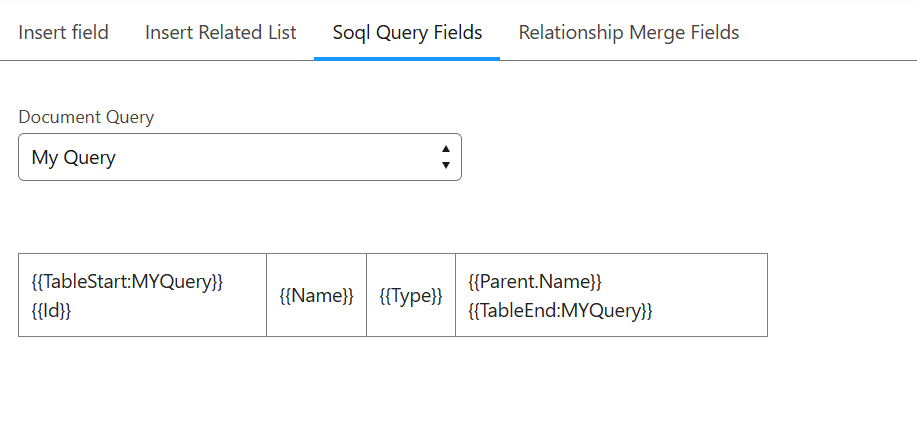
To use Query Data, you need to follow the syntax below in your template.
You can find your query Fields in the Merge Field Helper while uploading the template.
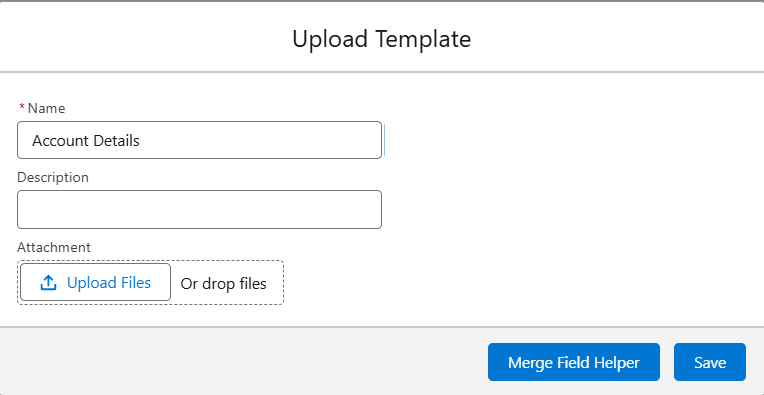
Select the Syntax and paste it into your template.
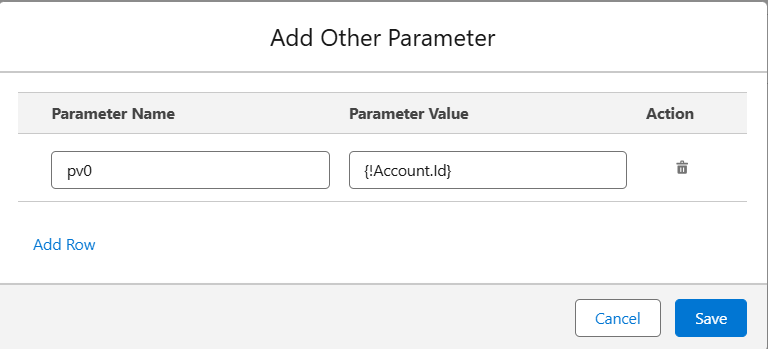
| Note: To use SOQL queries, you need to explicitly add the pv0 parameter in the Other Parameters section of the Assign Behavior page. |
Conclusion
SOQL queries in Docs Made Easy give teams a powerful way to automate data-driven documents without manual effort. By connecting templates directly to live Salesforce records, they ensure accuracy, reduce repetitive work, and support consistent business workflows. This makes processes like Salesforce PDF generation smoother and strengthens overall Salesforce document generation capabilities across departments.
Frequently Asked Questions
Related Blogs