How to Set Up Object Relationship in Gather Data for Salesforce Document Generation
Category :
How To

Salesforce DocsGen shouldn’t be complicated.
With Docs Made Easy, creating professional, Salesforce-powered documents is just a few clicks away.
Get Started NowSetting up accurate object relationships is a key step in effective Salesforce document generation. When related objects are configured correctly in Gather Data, teams can pull structured information into templates without manual mapping. This improves document management, keeps data consistent, and helps automate document creation at scale. In this step-by-step guide, we walk through how to set up object relationships in Gather Data using Docs Made Easy to generate reliable Salesforce documents.
Step 1: Log in to Salesforce.

Step 2: Open Docs Made Easy from the App Launcher.
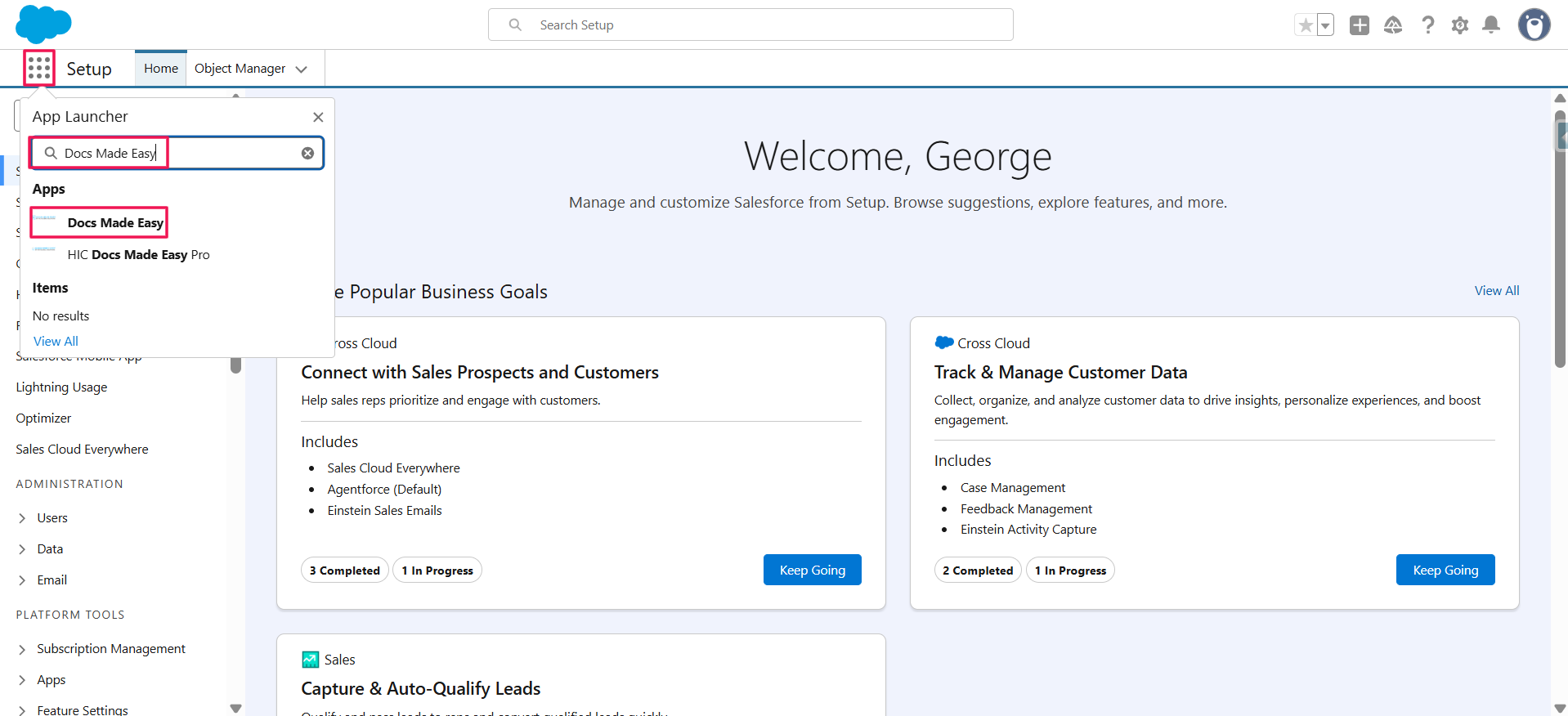
Step 3: Click on Launch Wizard.
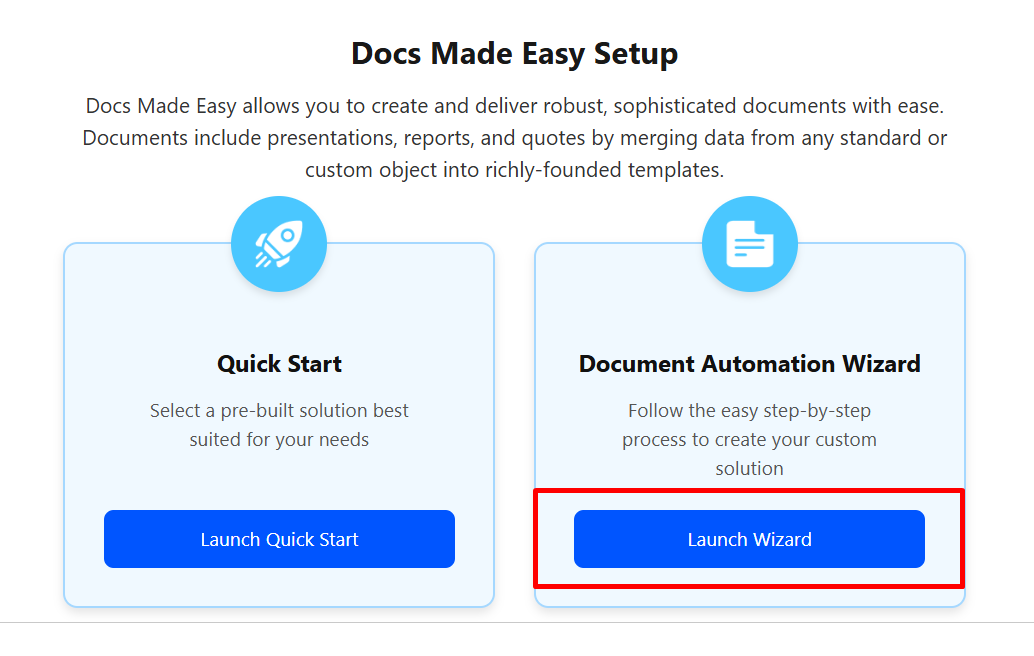
Step 4: Add the Button Name, select the Salesforce object Opportunity, and click Create.
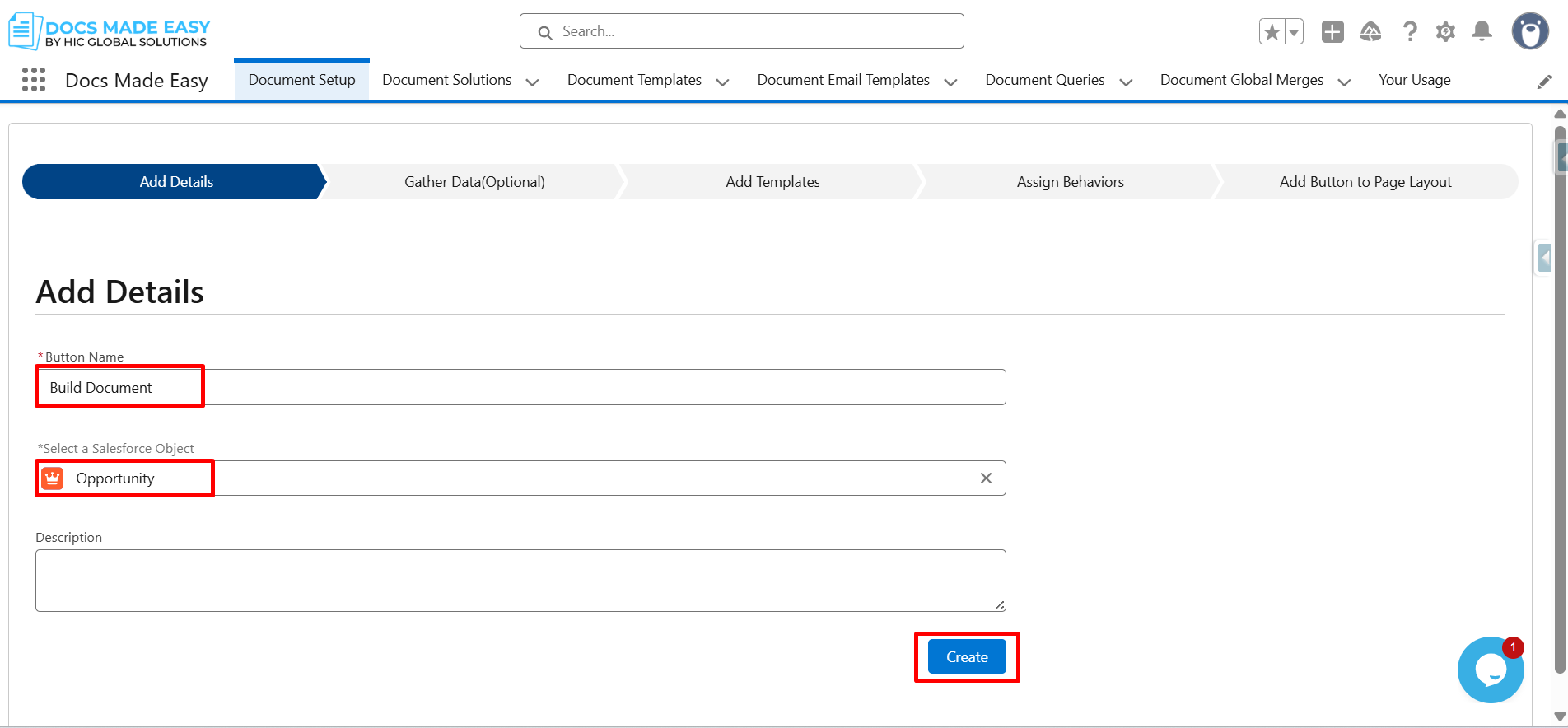
Step 5: Click on Add Child.
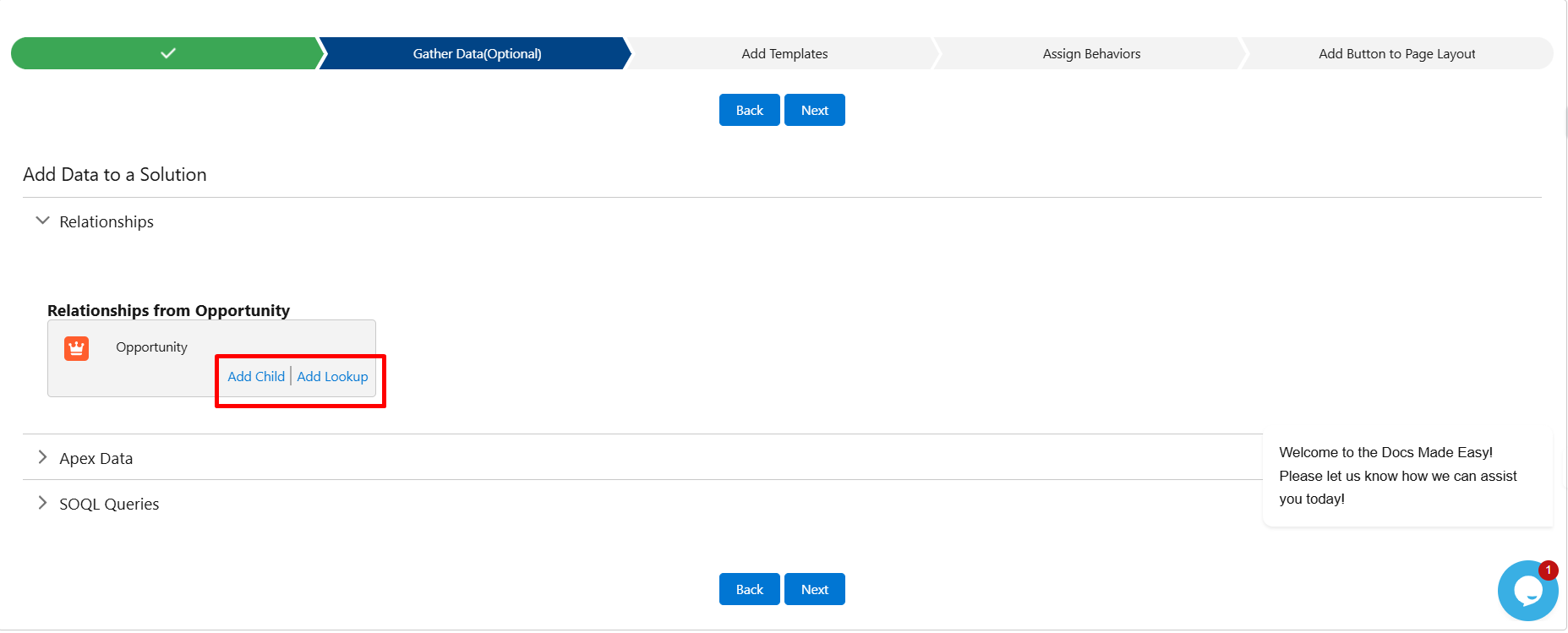
Step 6: From the list of available objects, choose Opportunity Product.
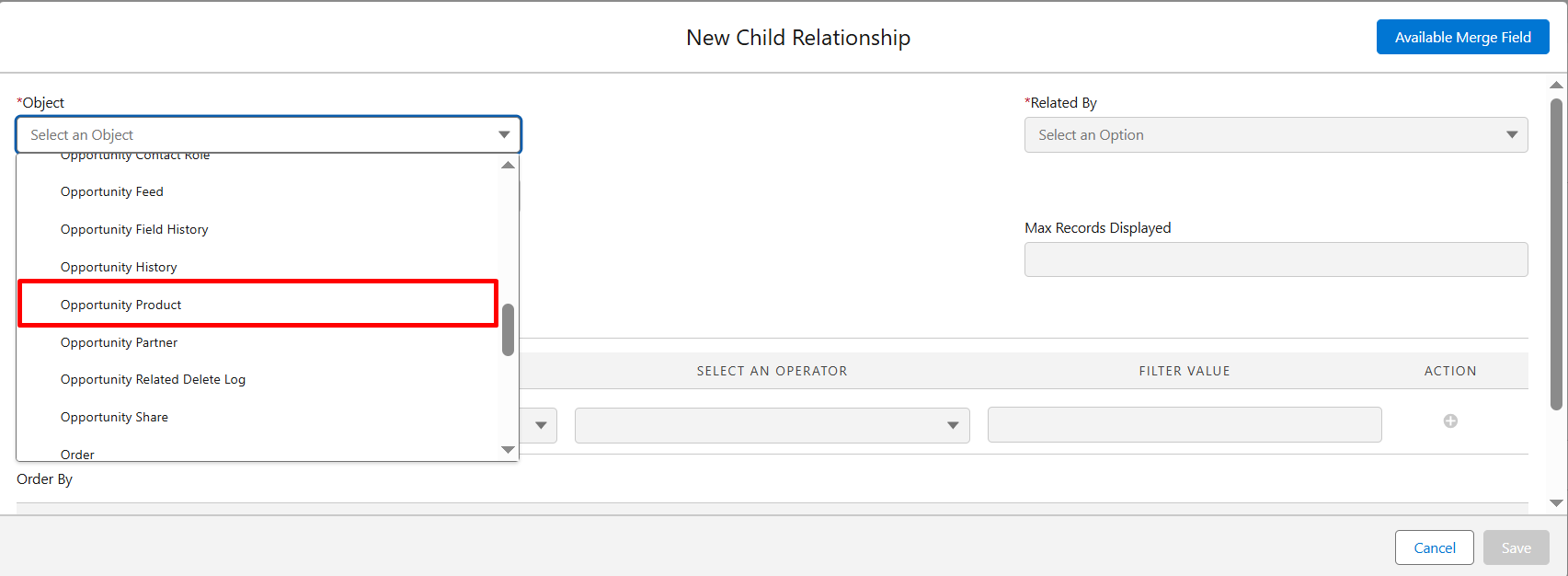
Step 7: In the Alias field, enter a name (for example, OppPro) to easily identify this relationship.
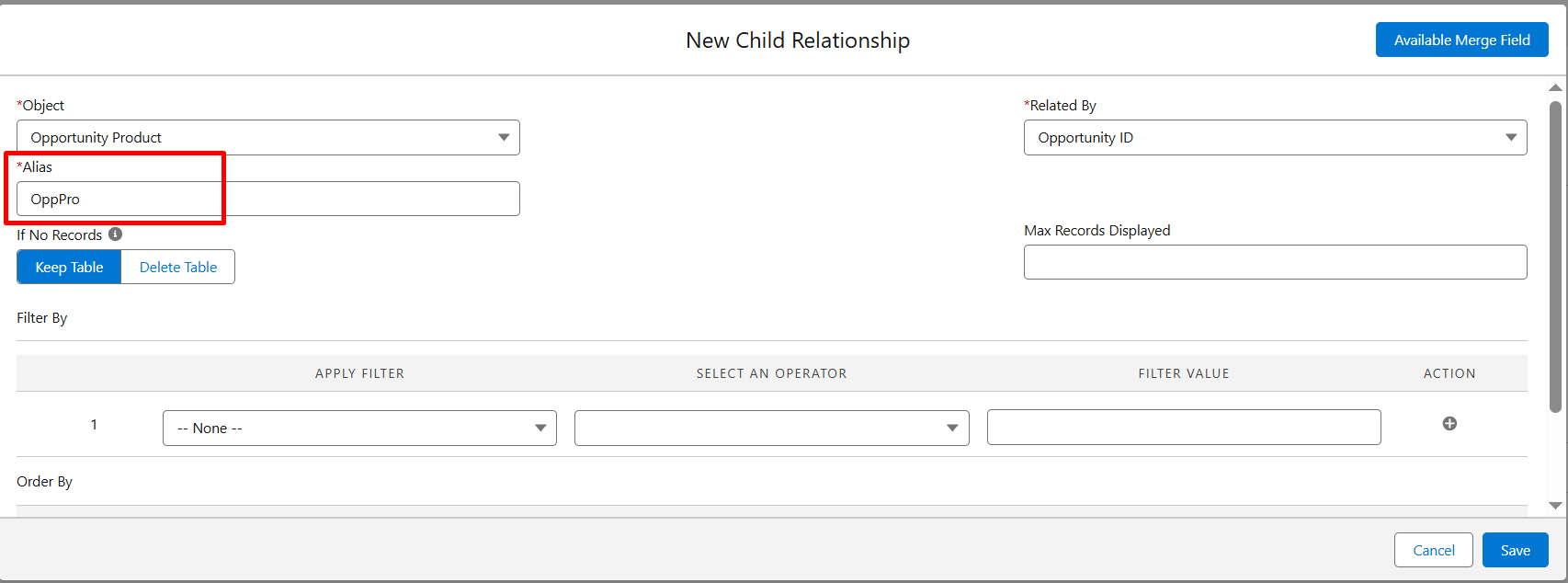
Step 8: After selecting the object and entering the alias, locate the If No Records section.
- Choose Keep Table to retain the table structure even when no child records exist.
- Choose Delete Table to automatically remove the table when no records are found.
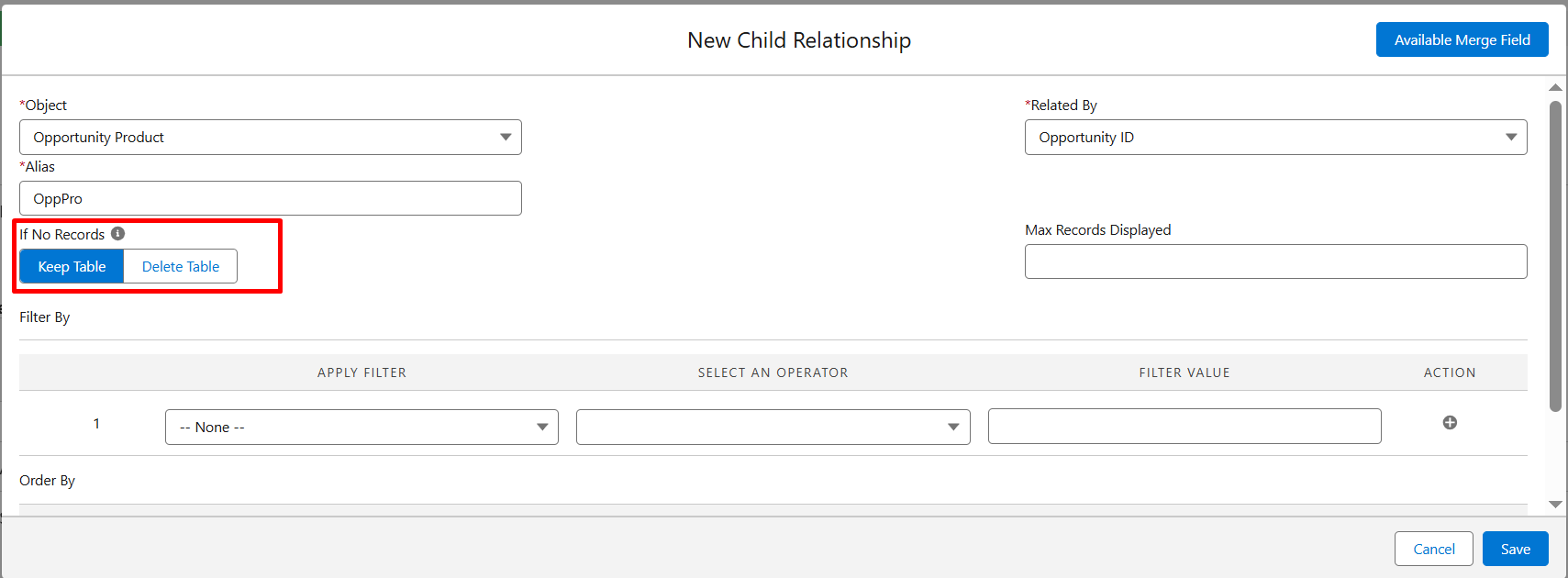
Step 9: Enter the maximum number of child records you want to display in the document (for example, 2).
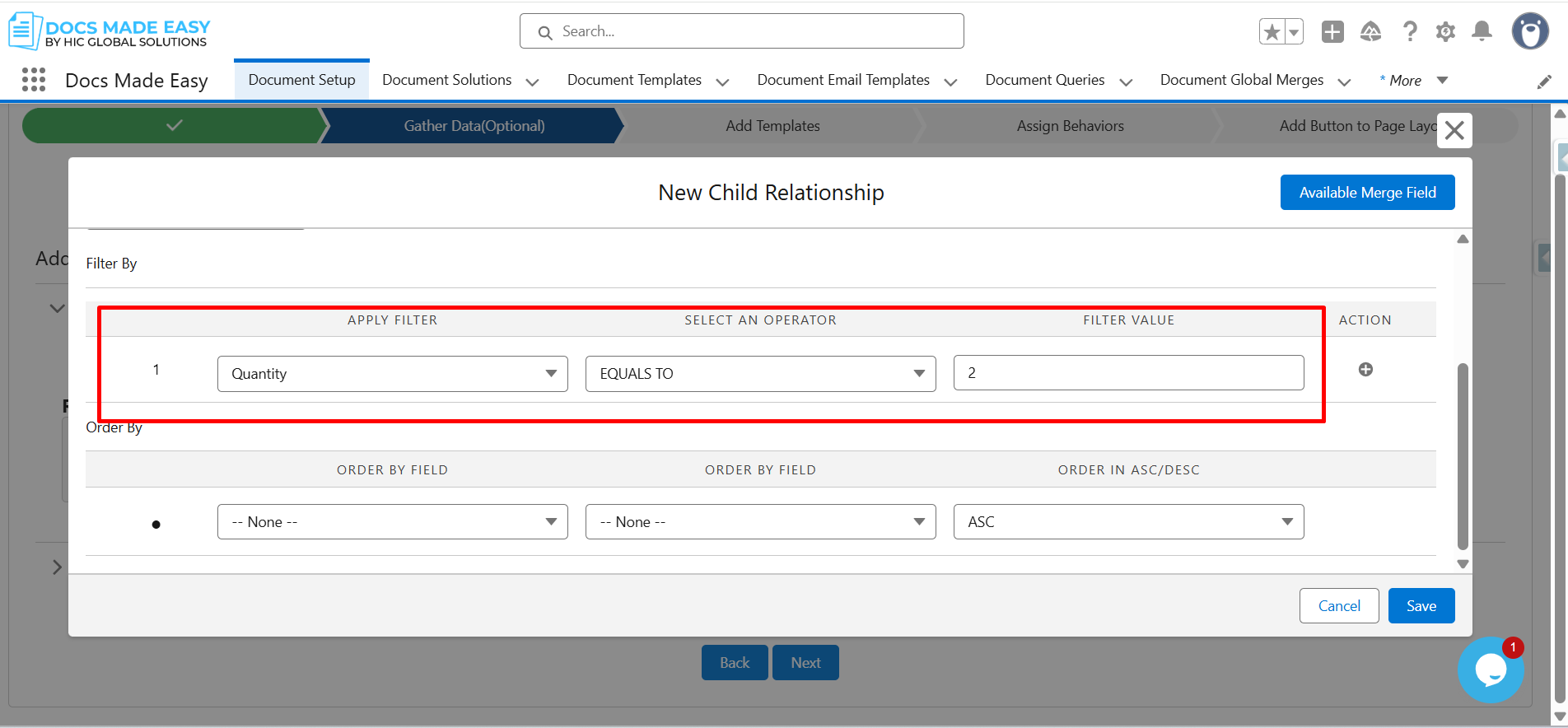
Step 10: Review additional settings if required.
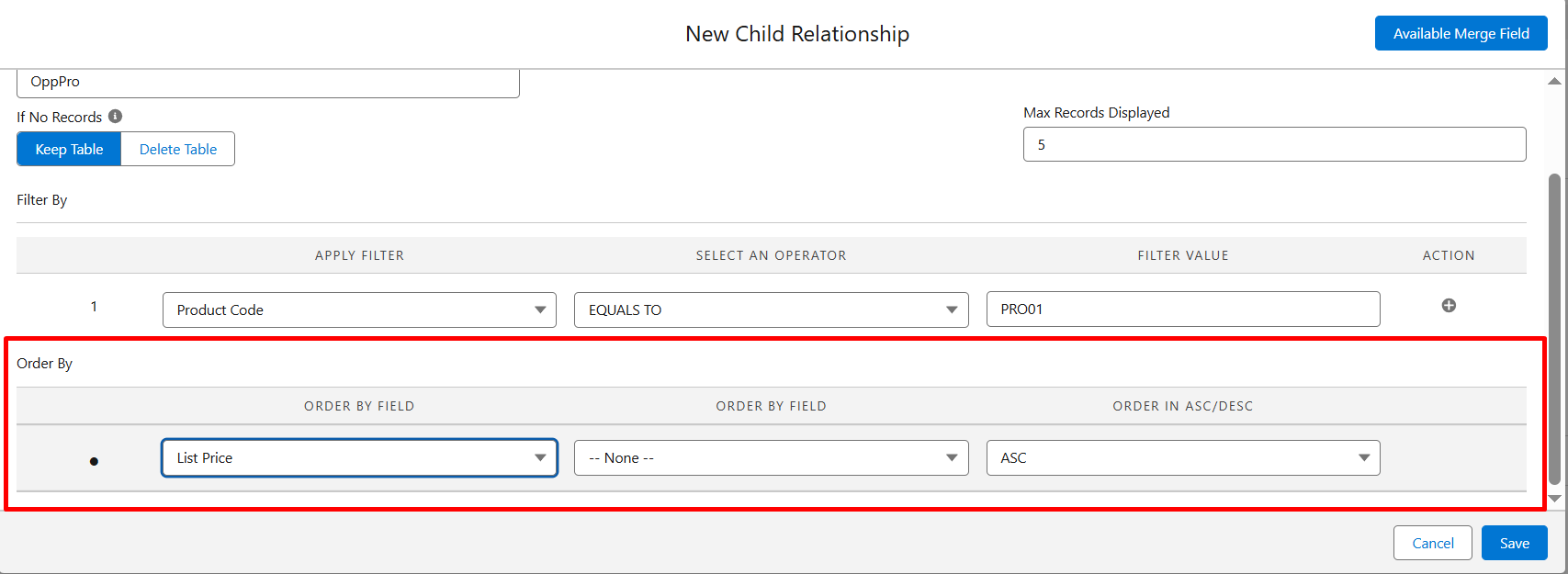
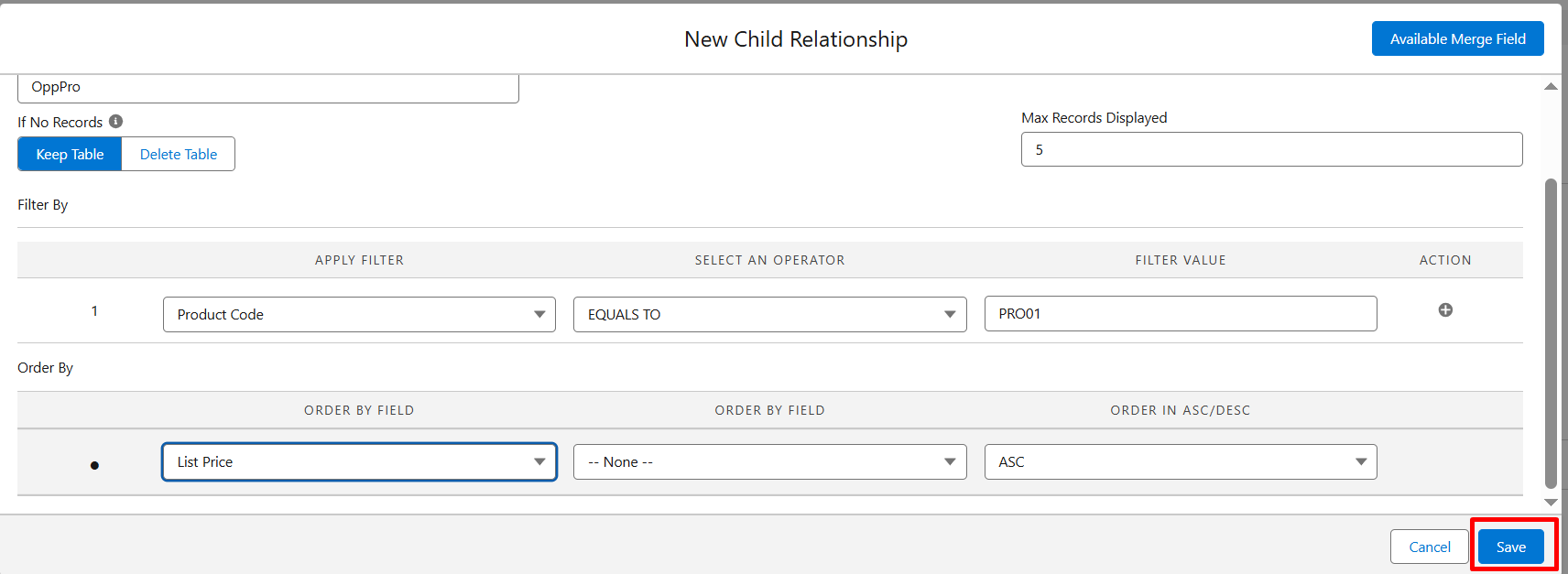
Step 11: Click Save.
Step 12: Confirm that the relationship has been added successfully.
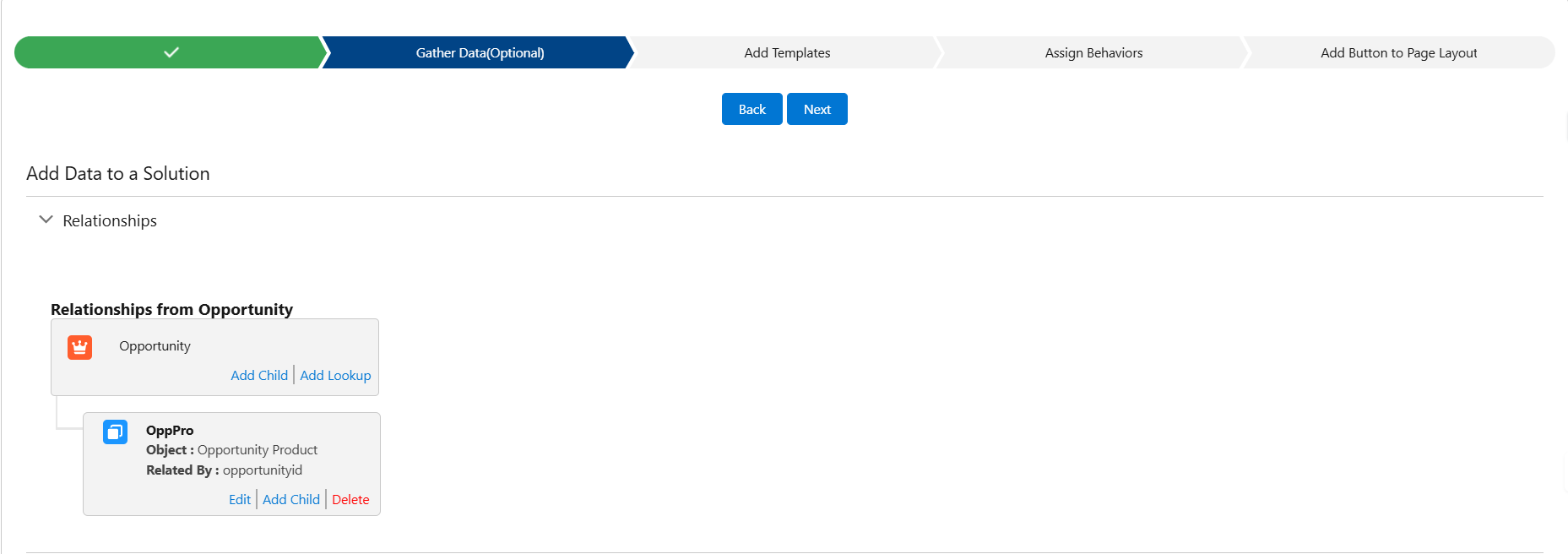
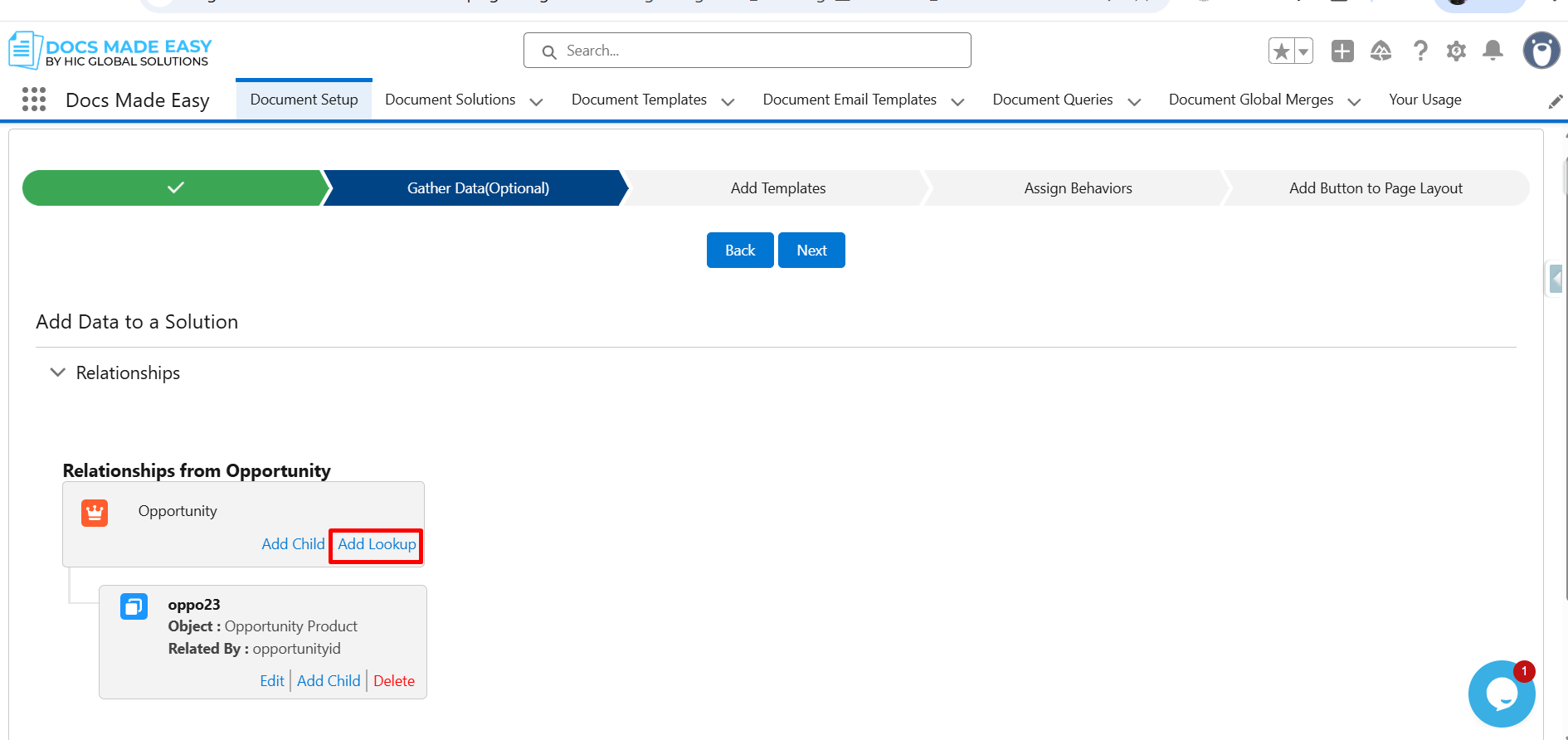
Step 13: Click on Add Lookup.
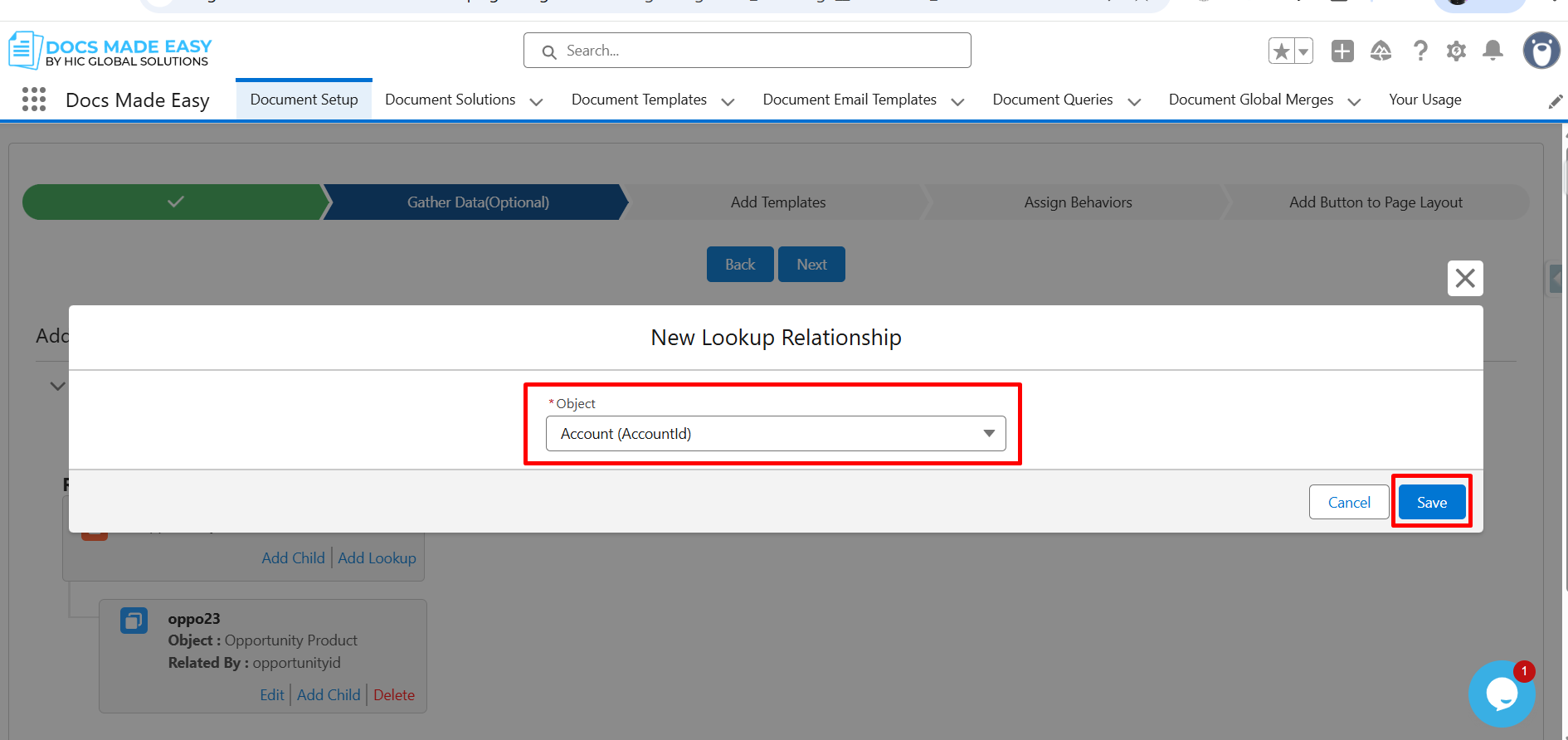
Step 14: Select the object for the new lookup relationship and click Save.
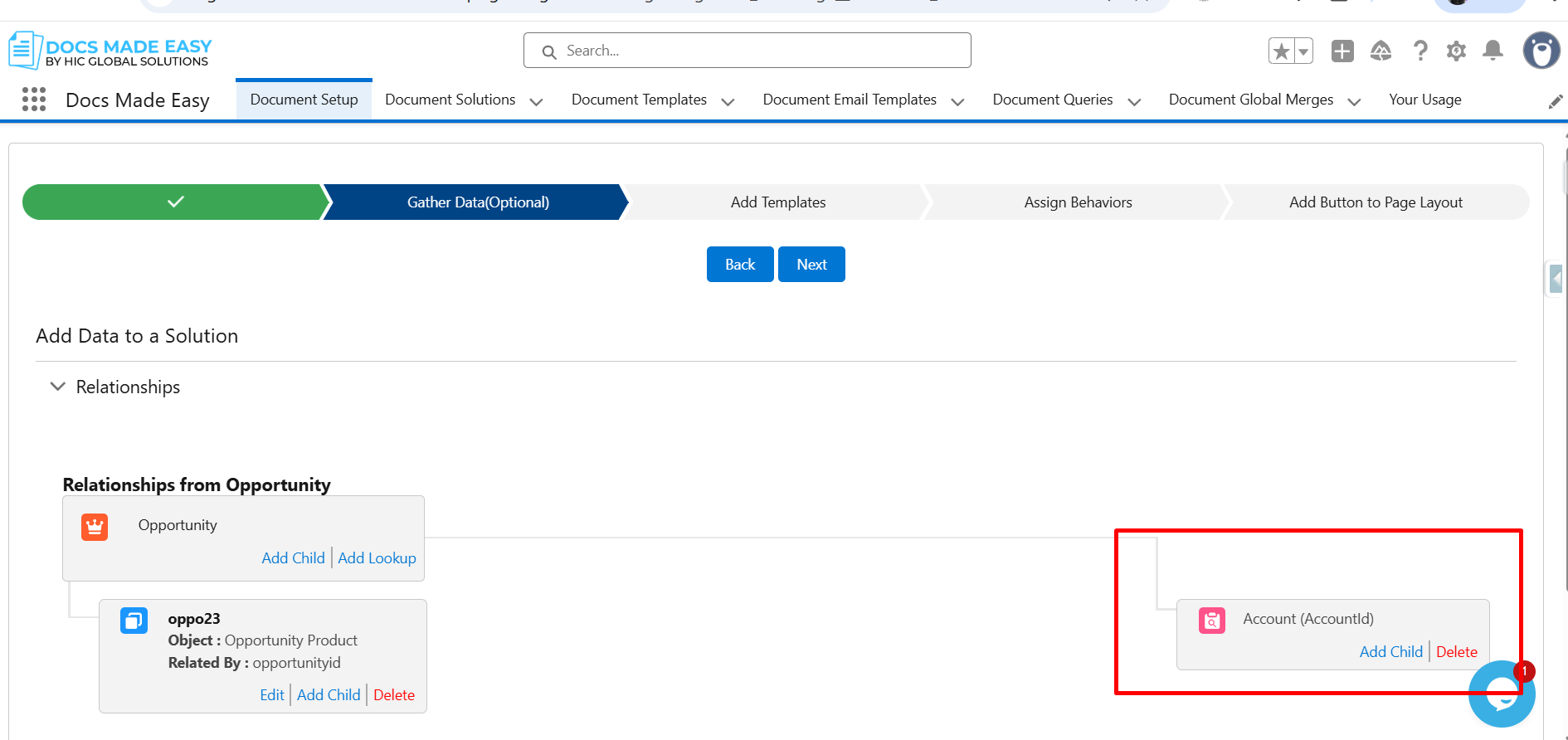
Step 15: Verify that the lookup relationship is added to the solution.
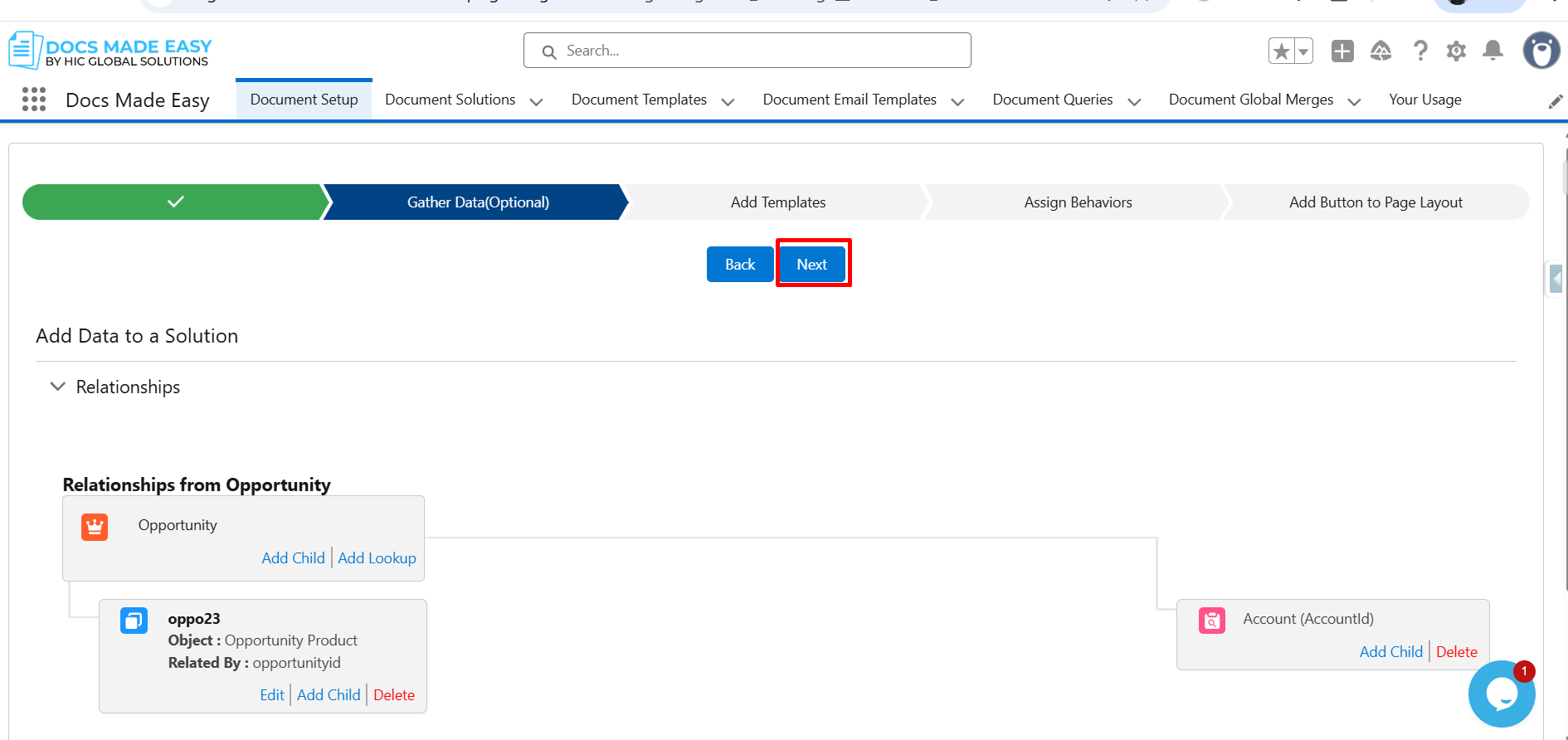
Step 16: Click Next.
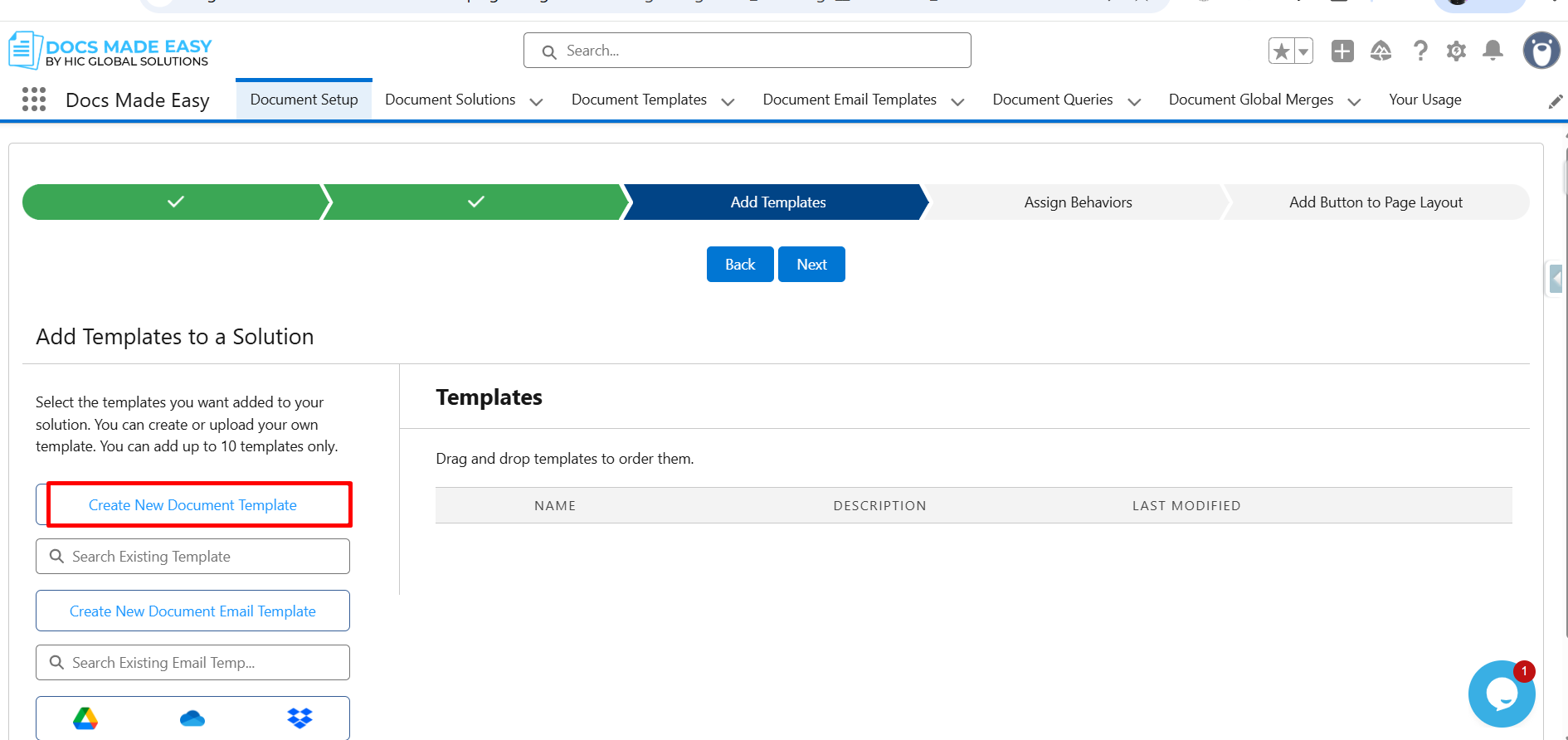
Step 17: Click on Create New Document Template.
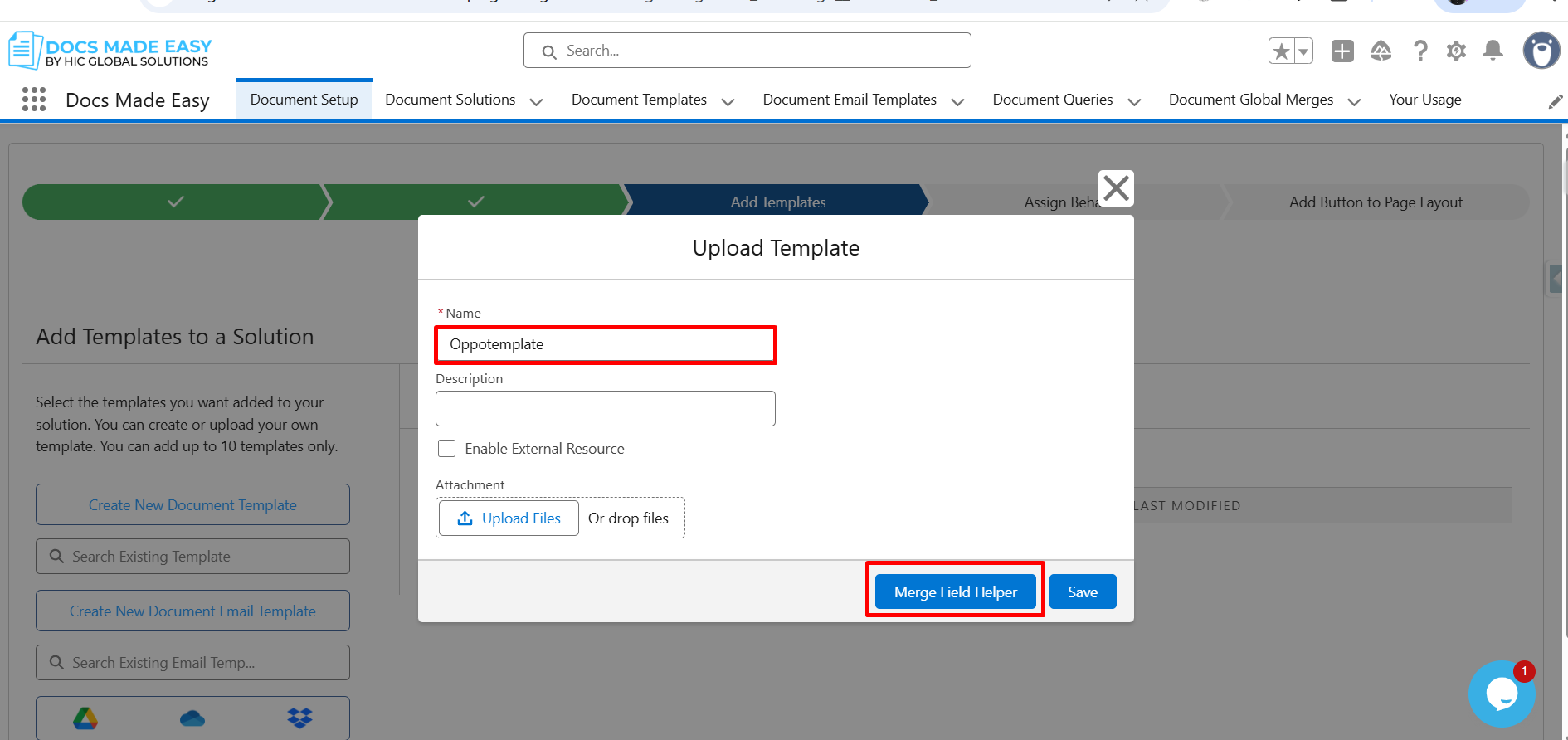
Step 18: Enter the template name and click Merge Field Helper.
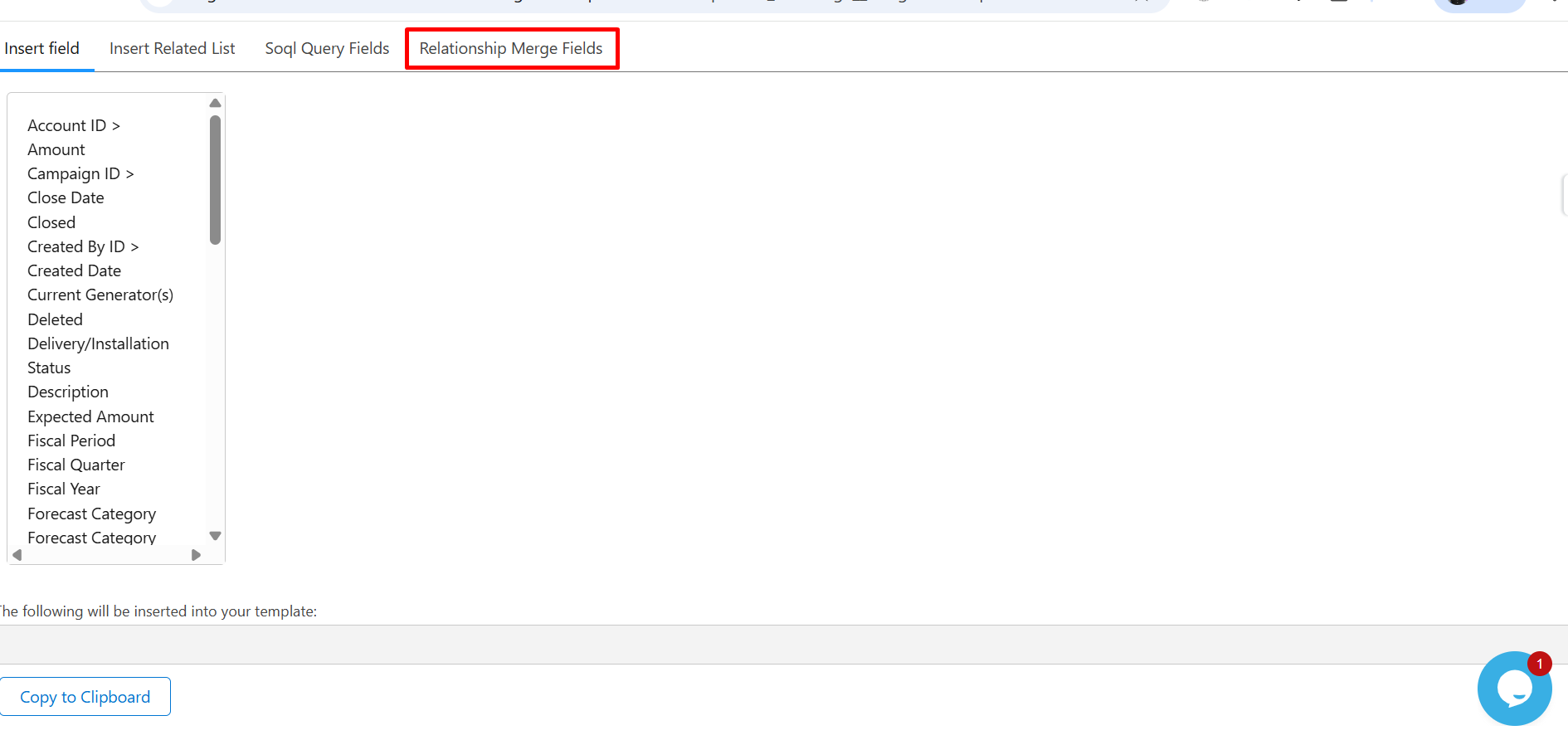
Step 19: Click on Relationship Merge Fields.
Step 20: View the list of related objects, such as Opportunity, OppPro (Opportunity Product), and Account.
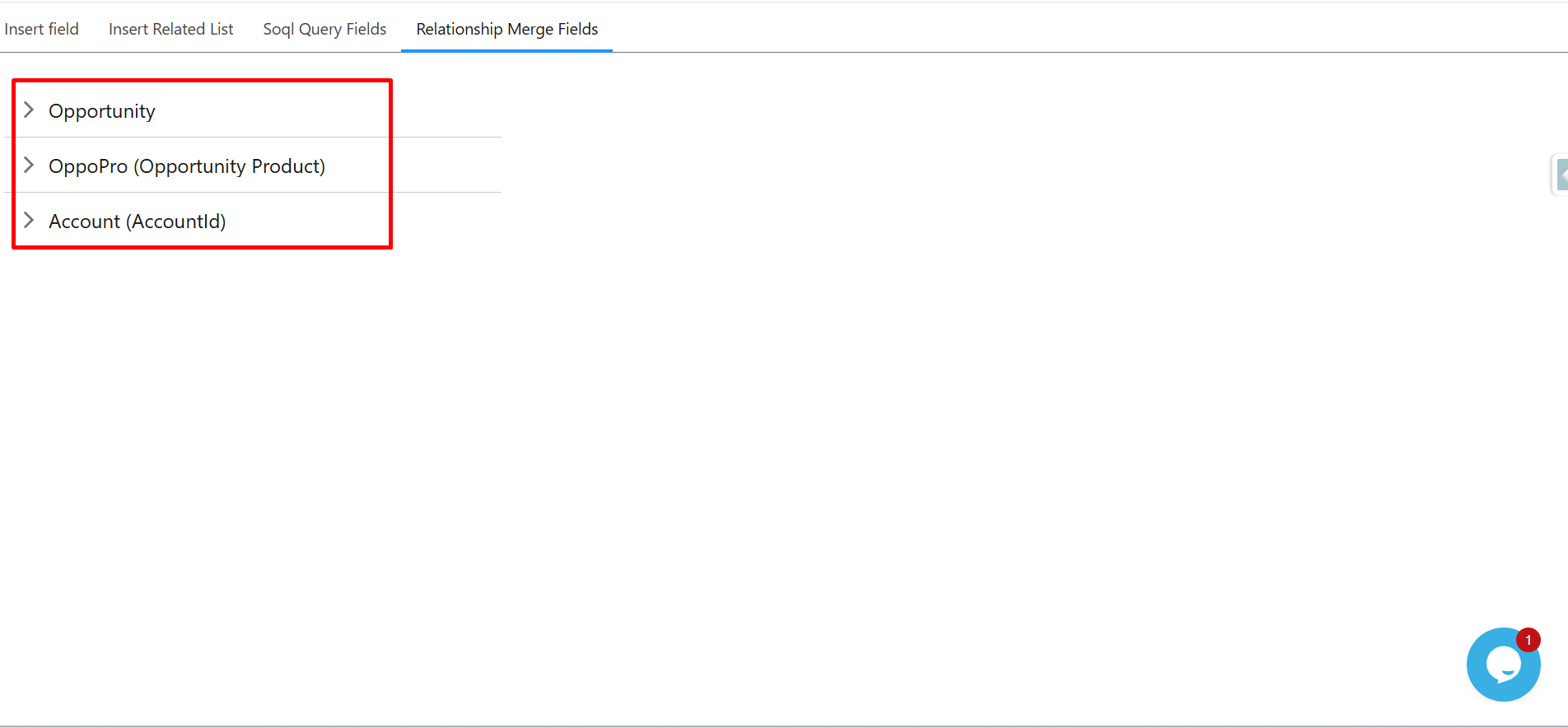
Step 21: Click the arrow next to a related object to expand it.
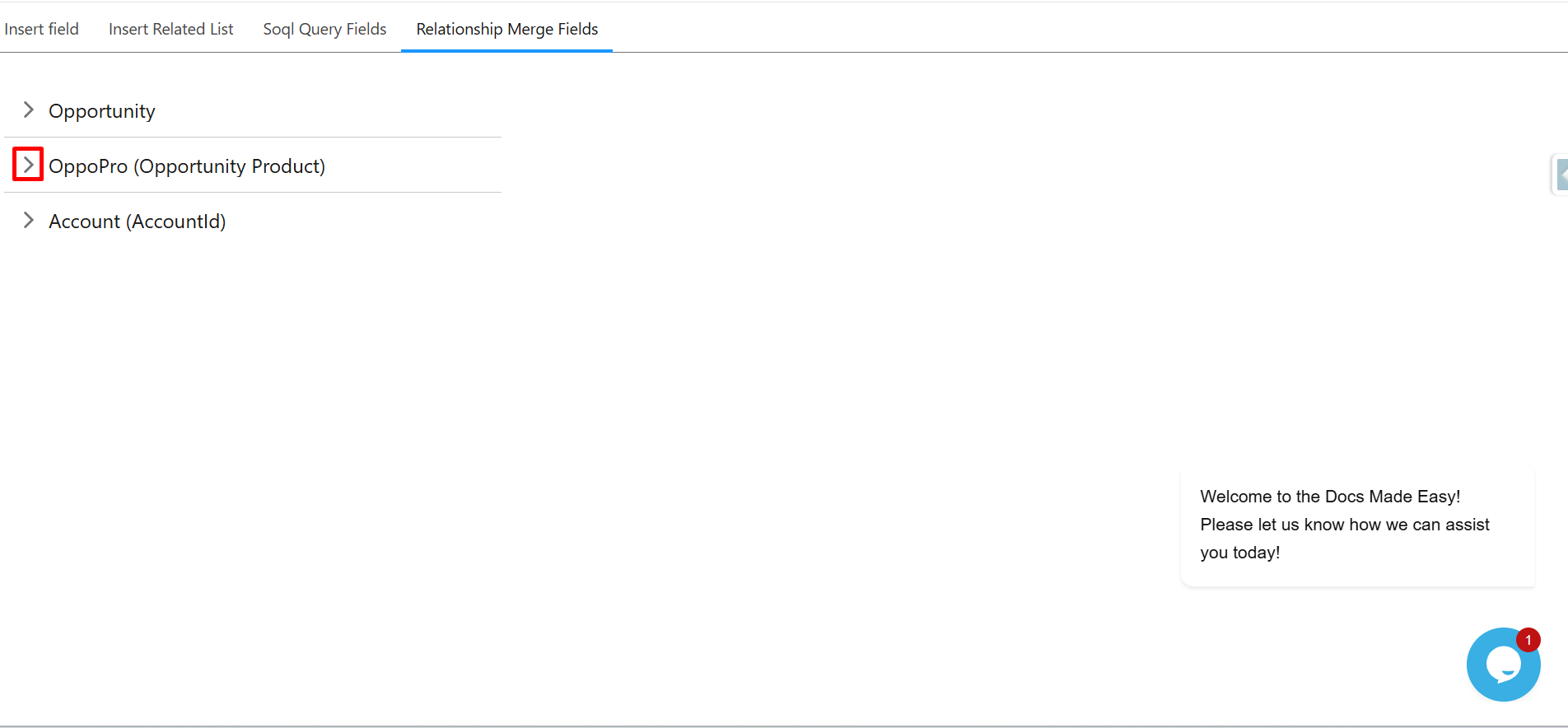
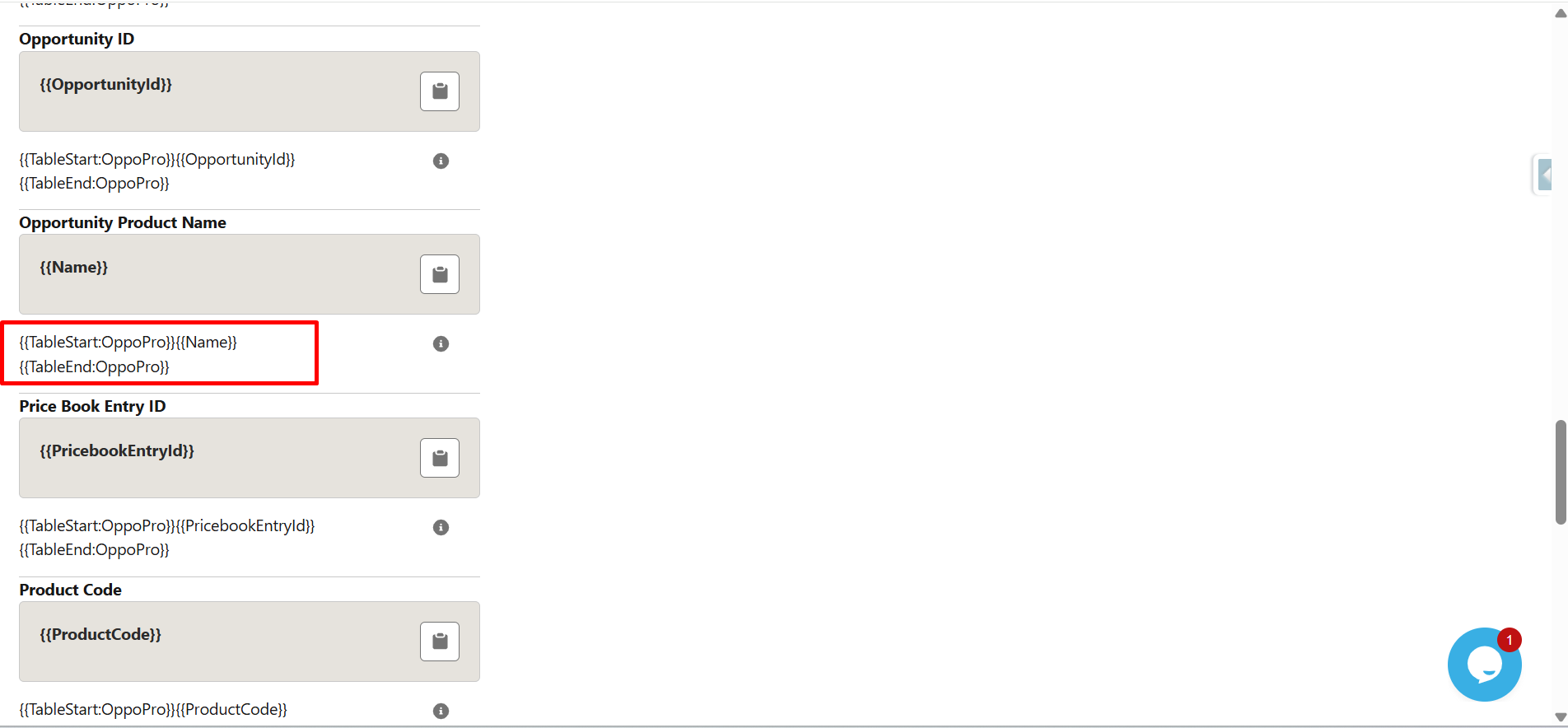
Step 22: Select the required field from the expanded list.
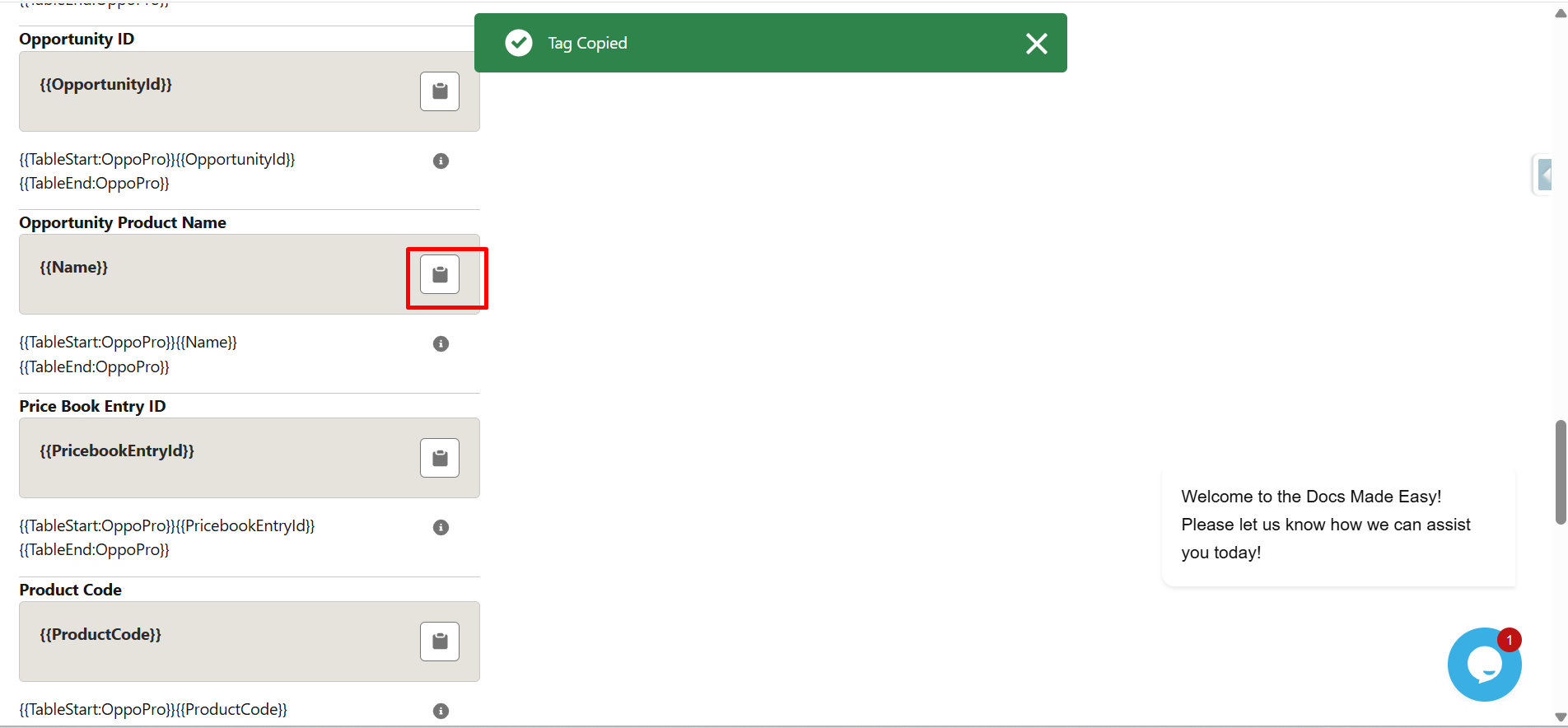
Step 23: Click Copy to Clipboard to copy the merge field syntax.
Step 24: Paste the syntax into the document.
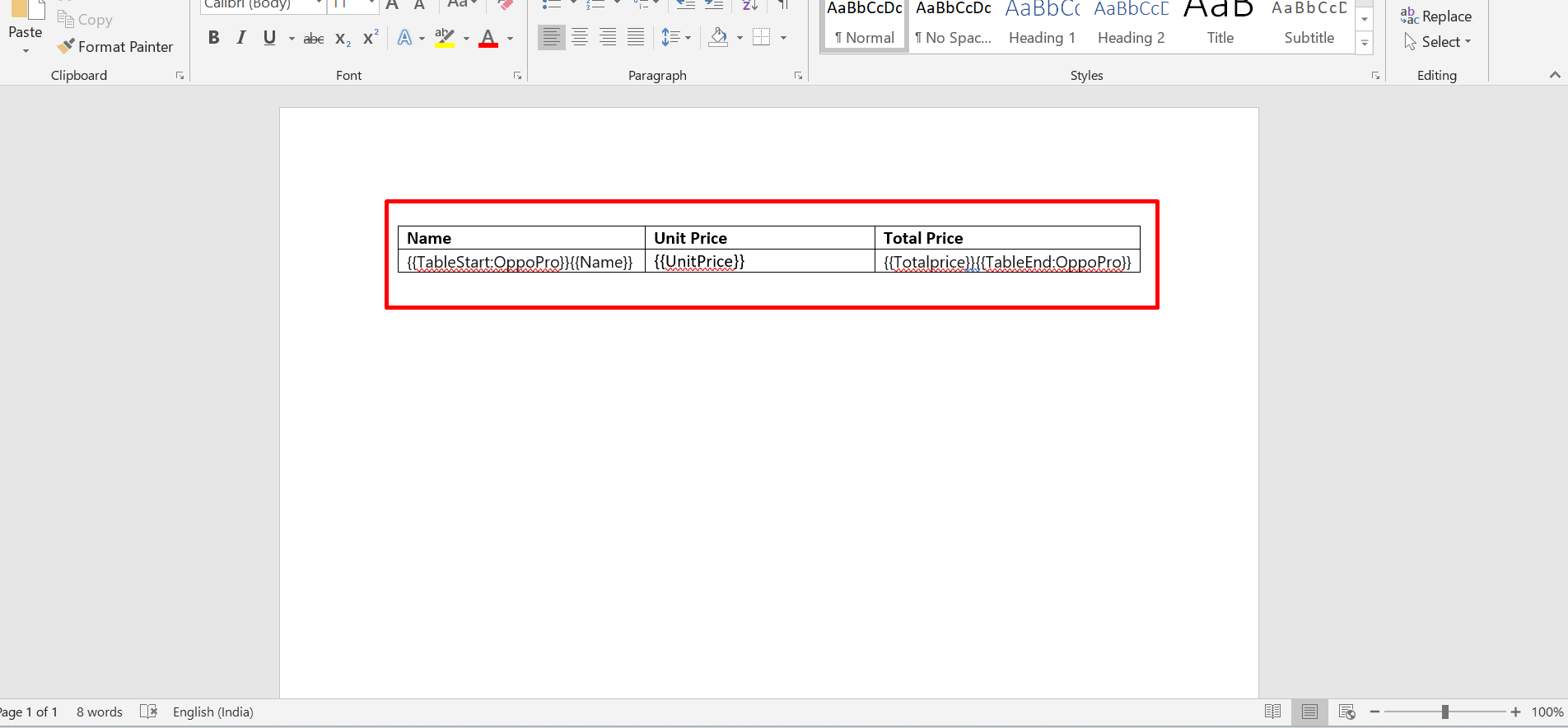
Step 25: Upload the file and click Save.
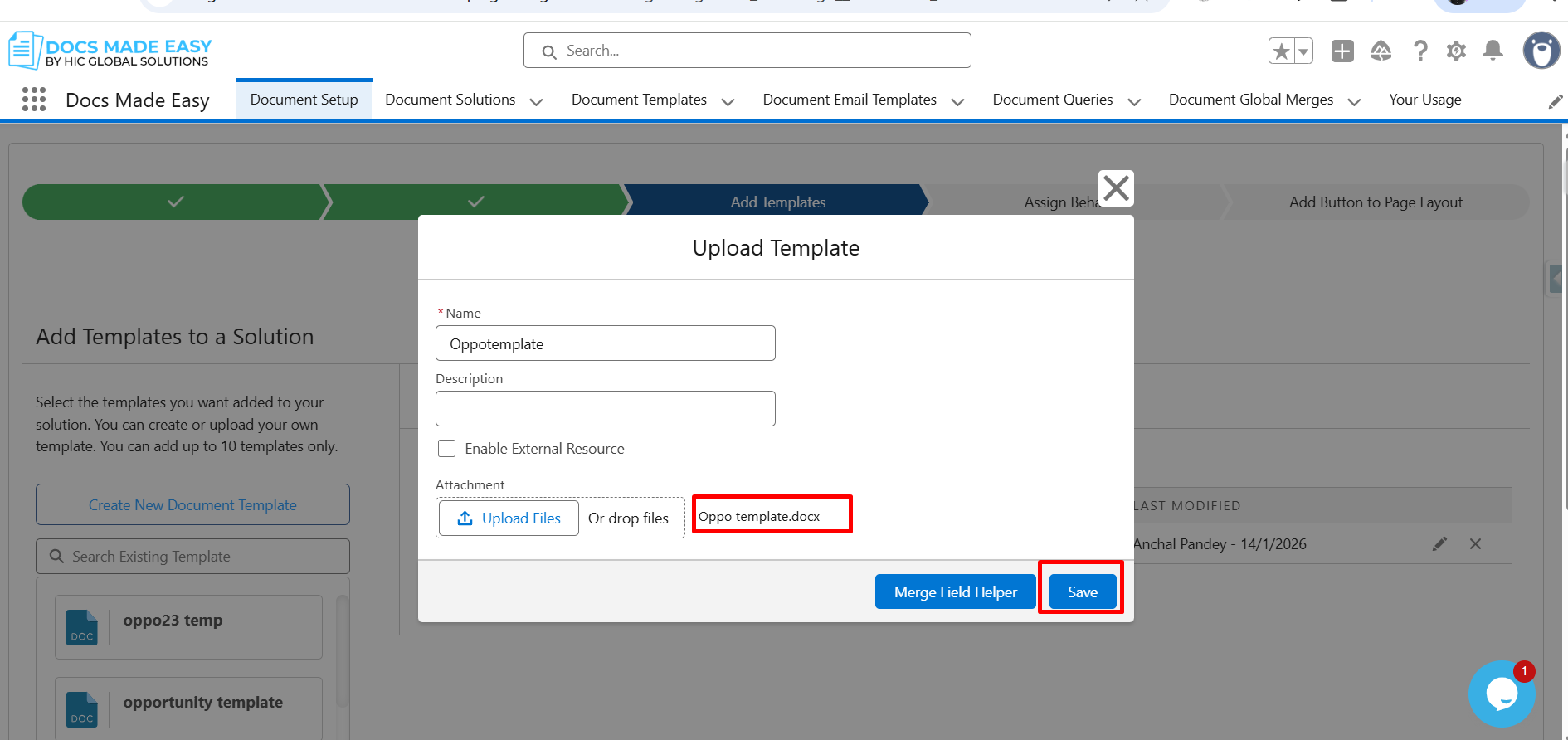
Step 26: Confirm the template is added to the solution and click Next.
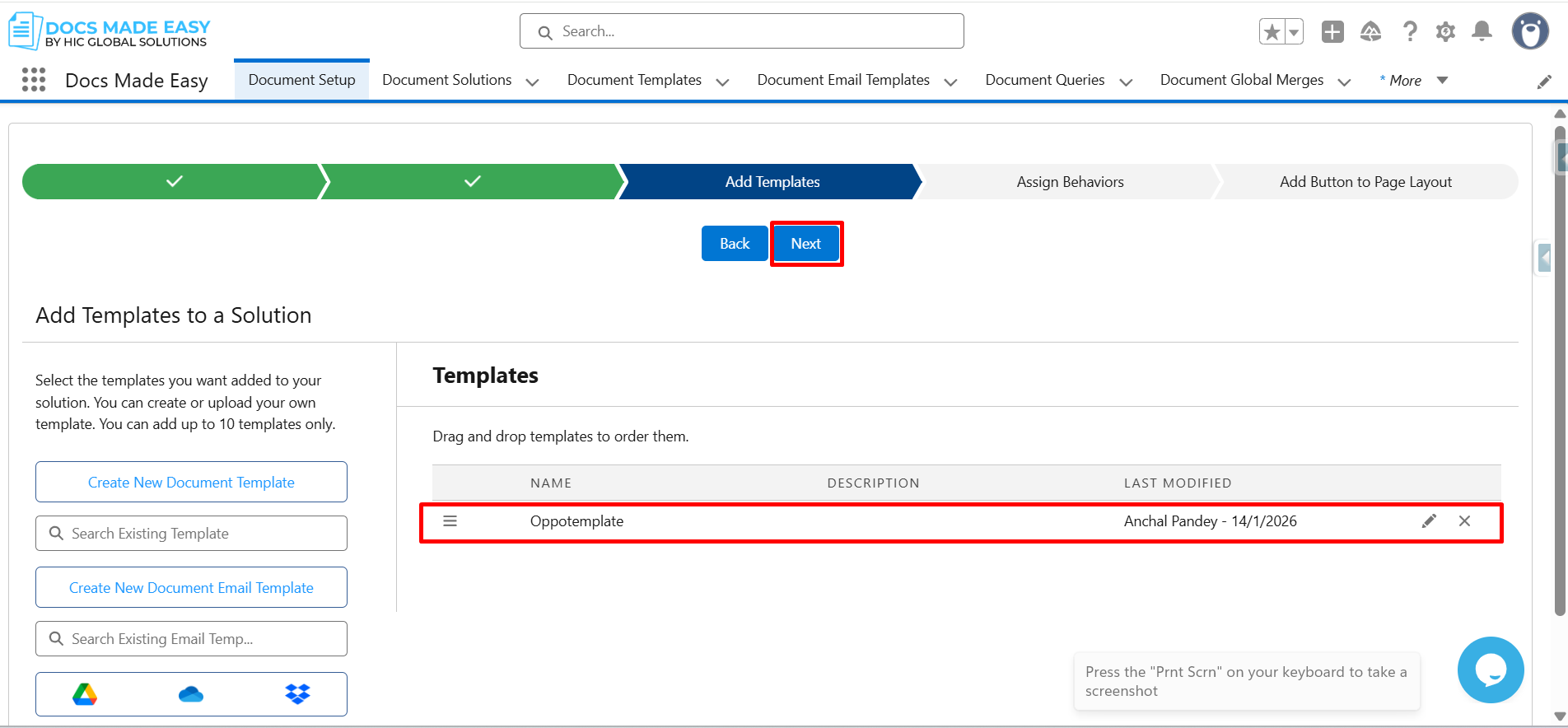
Step 27: Click Next again to proceed.
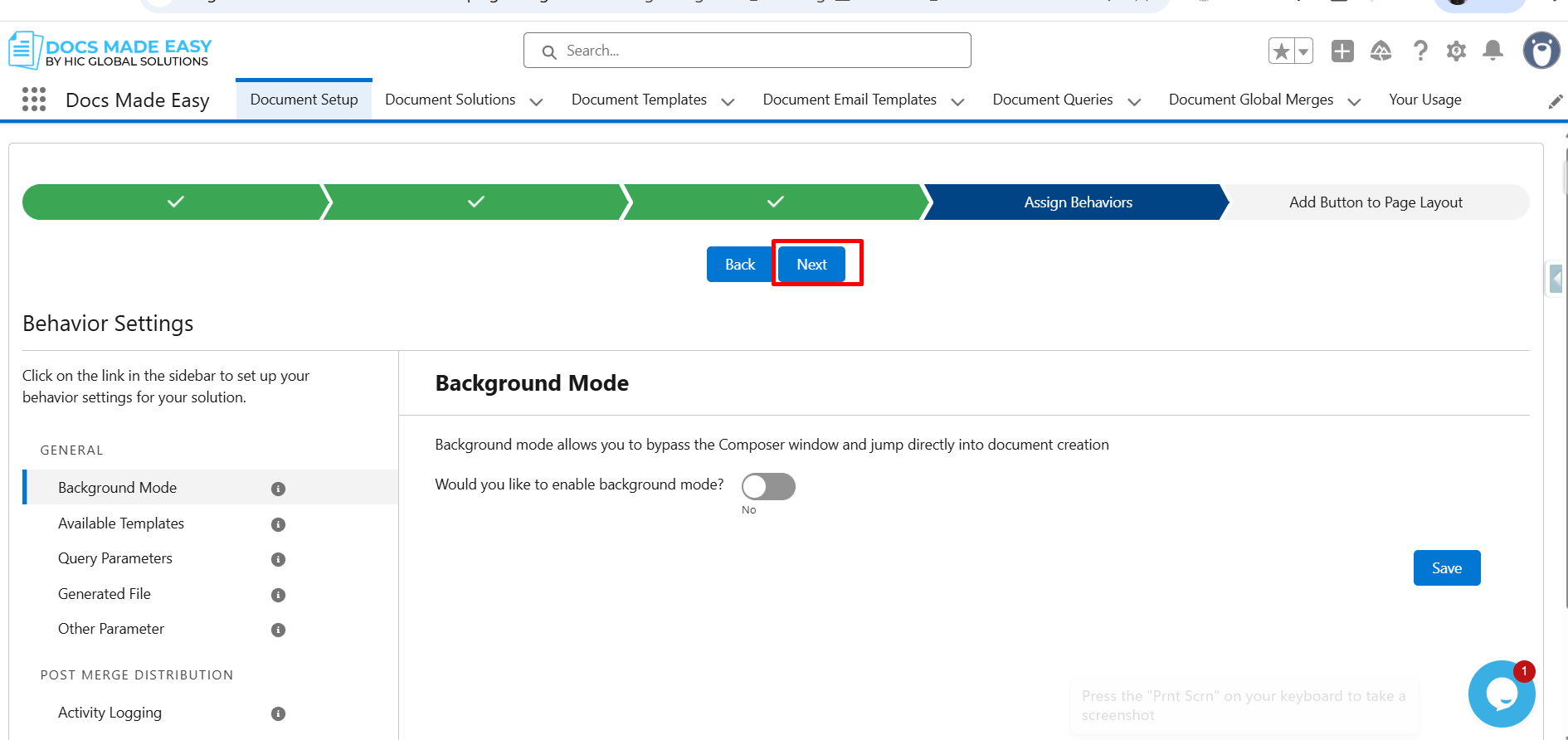
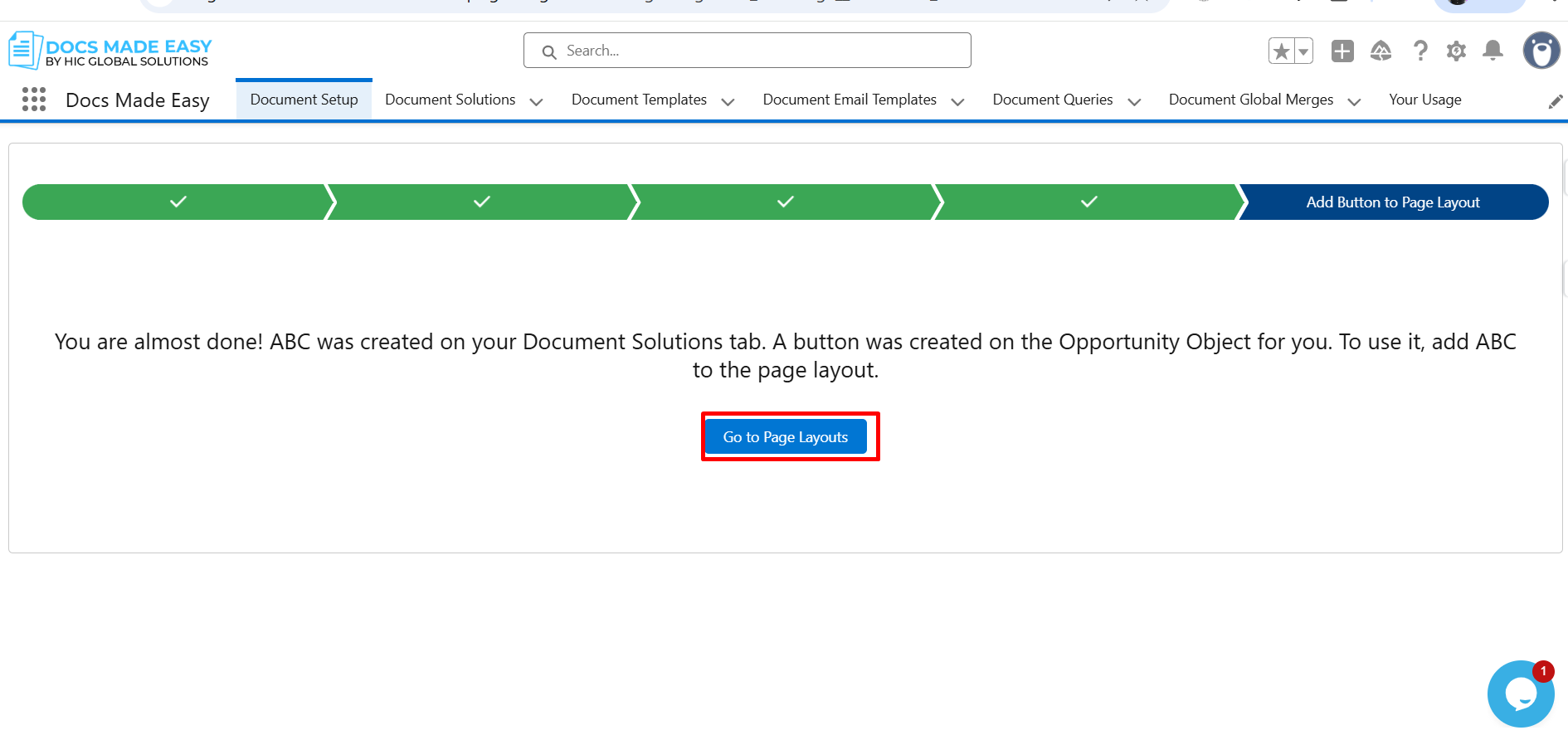
Step 28: Click Go to Page Layouts.
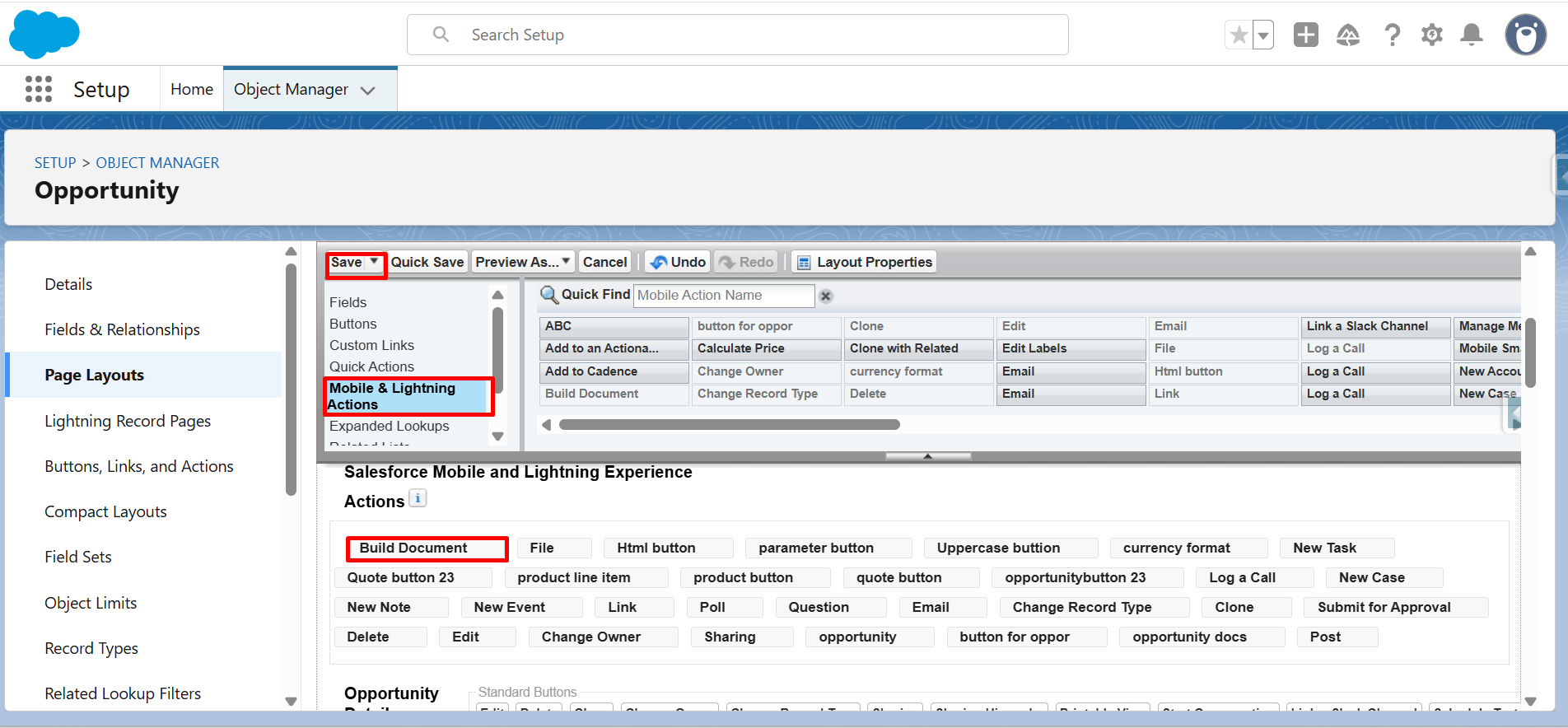
Step 29: In the Mobile & Lightning Actions section, locate the Build Document button.
Drag and drop the Build Document button into the Salesforce Mobile and Lightning Experience Actions section and click Save.
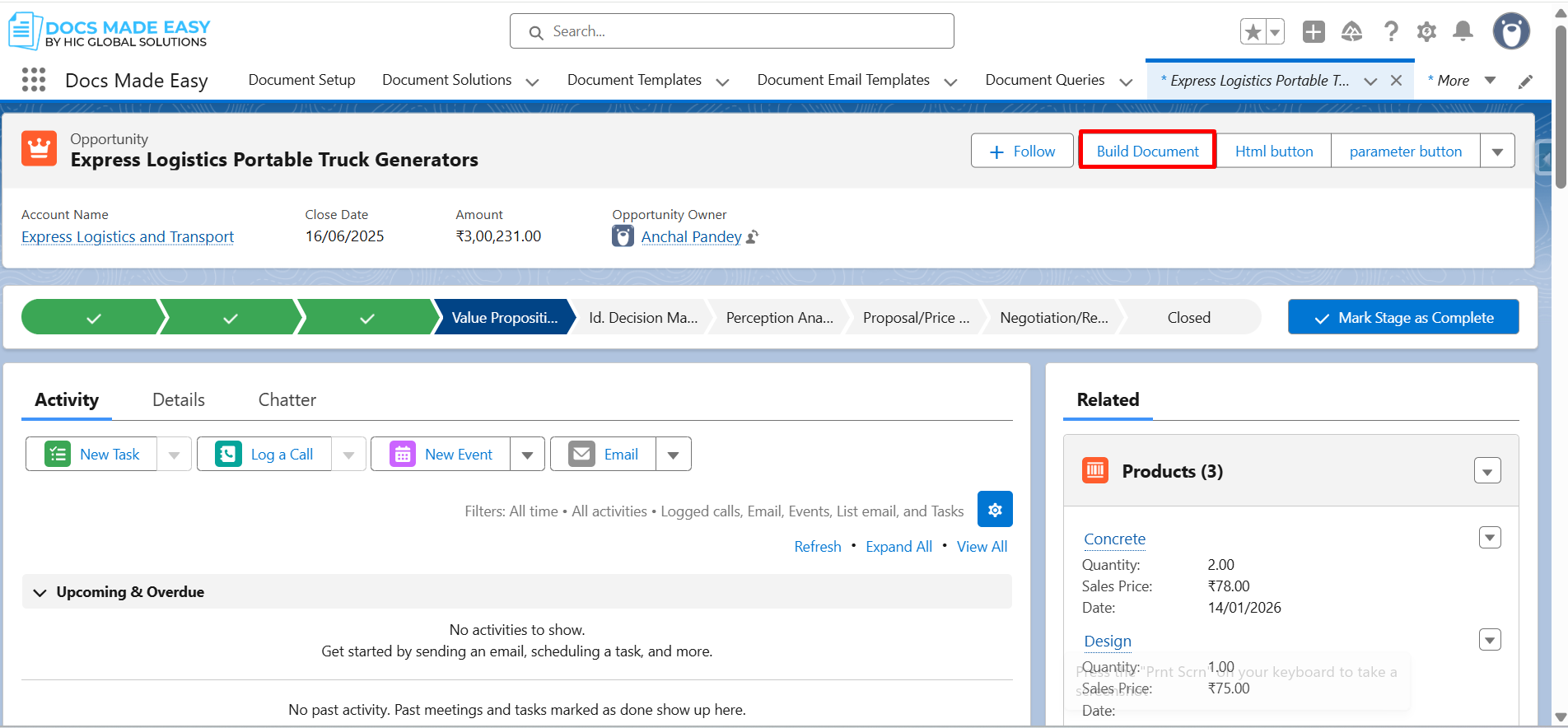
Step 30: Open any Opportunity record and click on the Build Document button.
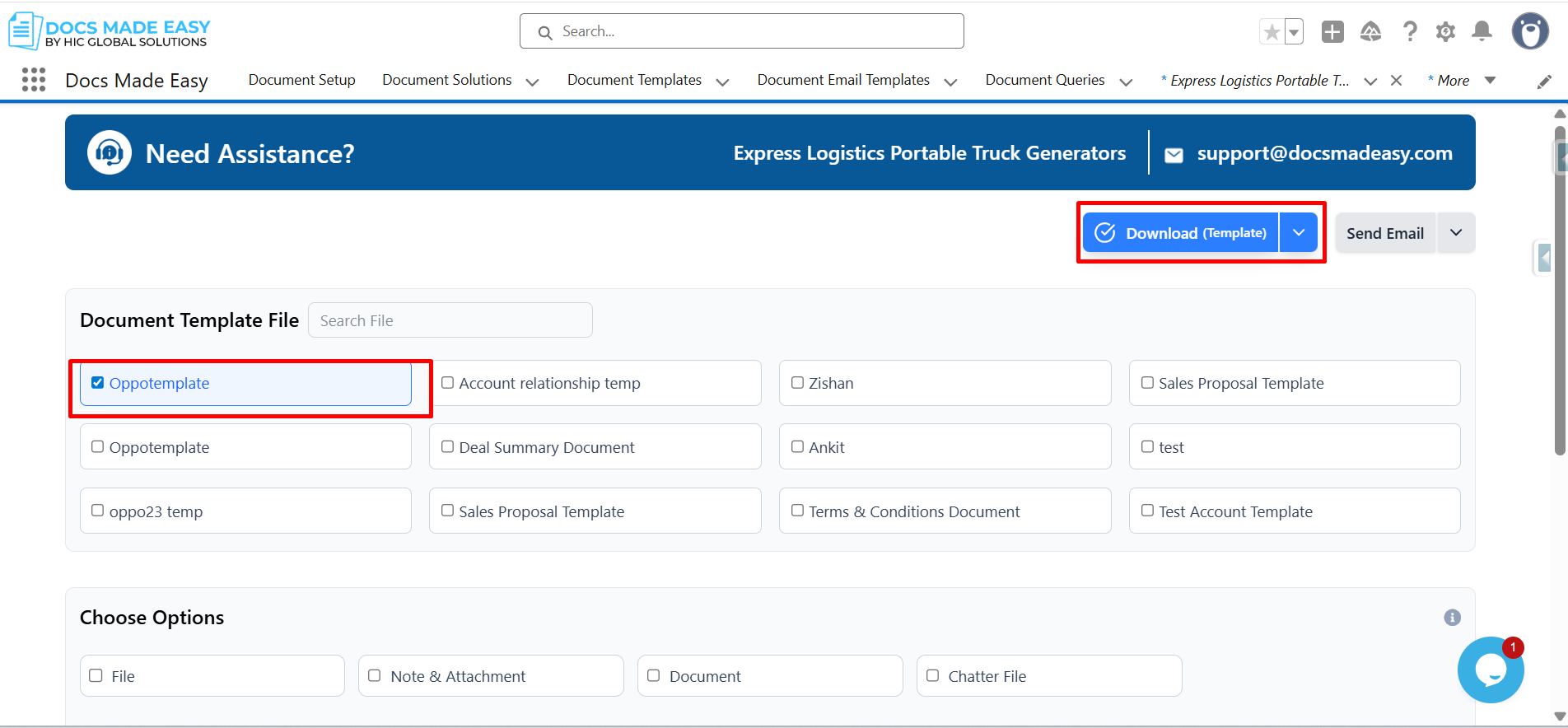
Step 31: The Docs Made Easy document builder opens. Click Download Template.
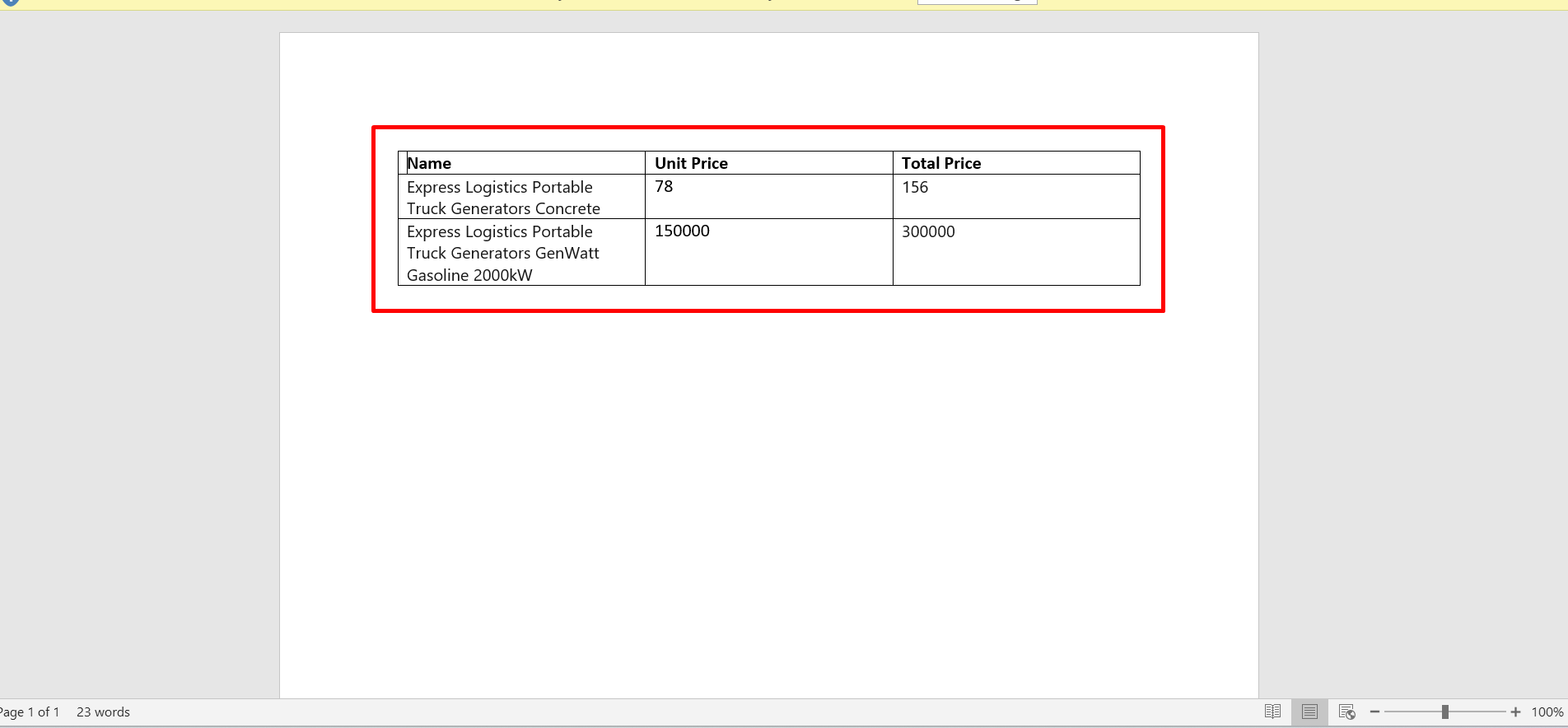
Step 32: Review the generated document preview and verify that related child records appear correctly in table format.
Conclusion
Properly configured object relationships in Gather Data ensure that every Salesforce document is populated with accurate, related data. By using Docs Made Easy to define relationships correctly, organizations can generate consistent, scalable documents while reducing manual effort and errors.
Frequently Asked Questions
Related Blogs
How to Generate & Send Documents for eSign in Salesforce
Sending a document for signature directly from Salesforce can make the approval process much easier, especially when you want to…
How to Generate Salesforce Documents Using Quick Document Merge
Creating Salesforce documents does not have to involve multiple steps or moving between different tools. With Quick Document Merge, you…
How to Create a Scope of Work (SOW) in Salesforce with Docs Made Easy
Creating a Scope of Work manually can take time, especially when information needs to be collected from Salesforce and added…