How to Generate Multiple Documents from a Single Data Feed Using Salesforce Flow
Category :
How To

Docs shouldn’t be complicated.
With Docs Made Easy, creating professional, Salesforce-powered documents is just a few clicks away.
Get Started NowCreating documents manually every time a record reaches a certain stage can become repetitive and time-consuming, especially when different documents are needed throughout the process. Salesforce document generation tool helps automate this work by generating the required documents directly from Salesforce data when specific conditions are met.
With Salesforce document templates, you can prepare different documents for different stages and generate them automatically from the same data. Additionally, a Record-Triggered Flow makes this process easier by starting the document generation when the required field changes. So, here are the steps to set up this flow and automate the document generation process.
Step 1: Go to Setup, search for Flows in the Quick Find box, and click on Flows under Process Automation.
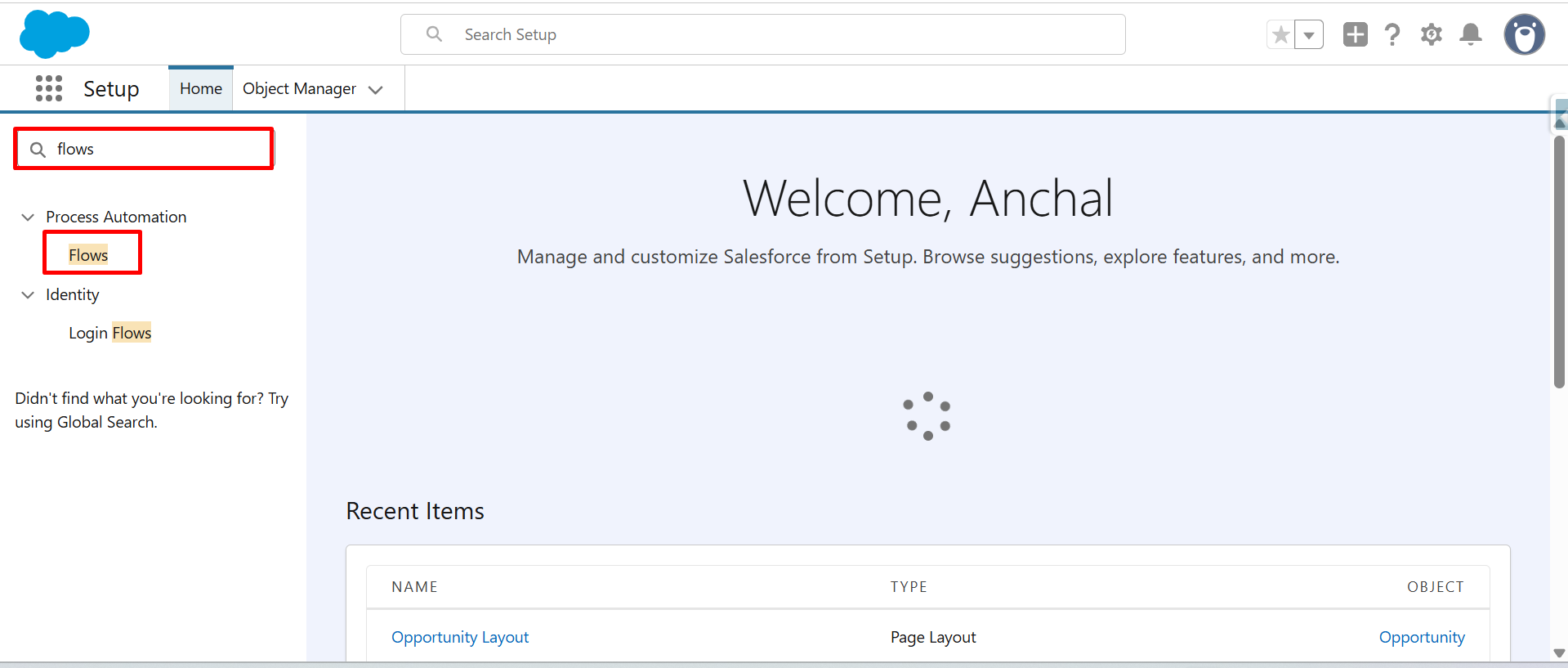
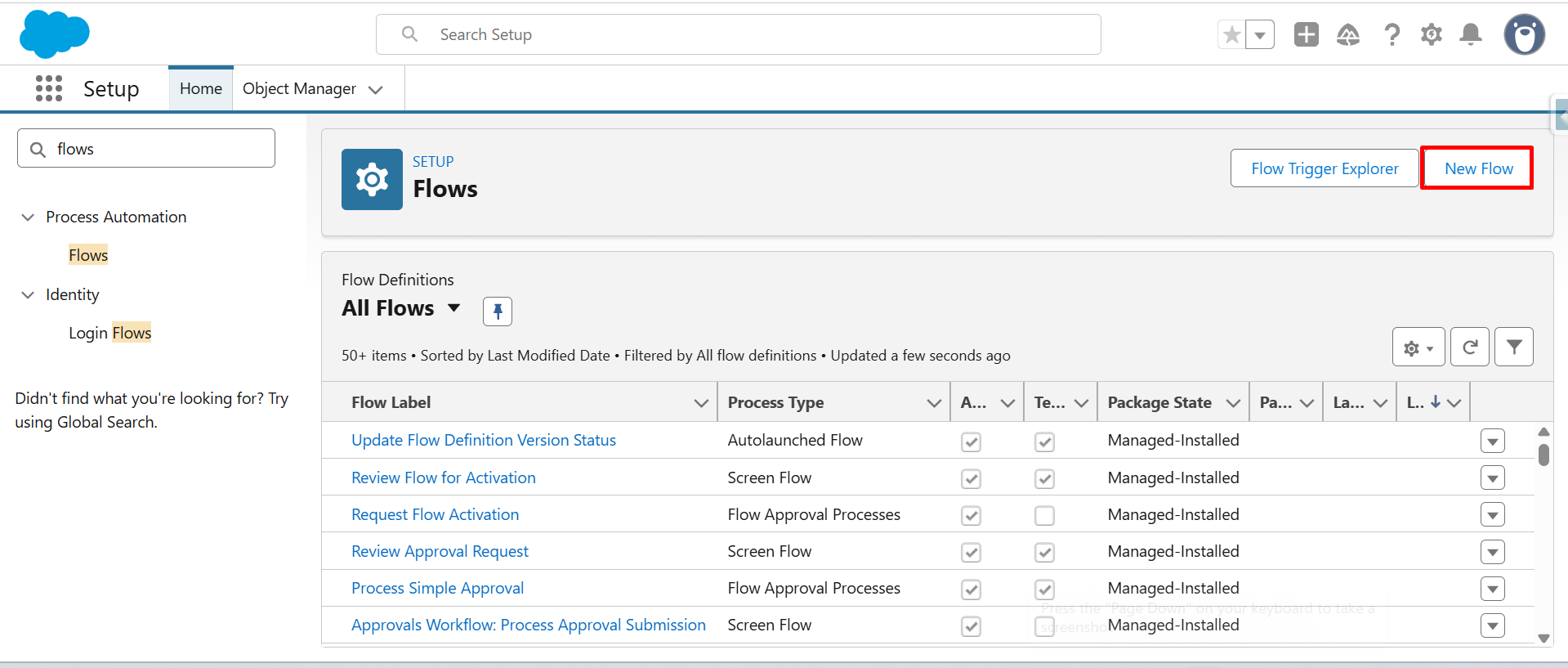
Step 2: Click on New Flow to create a new automation.
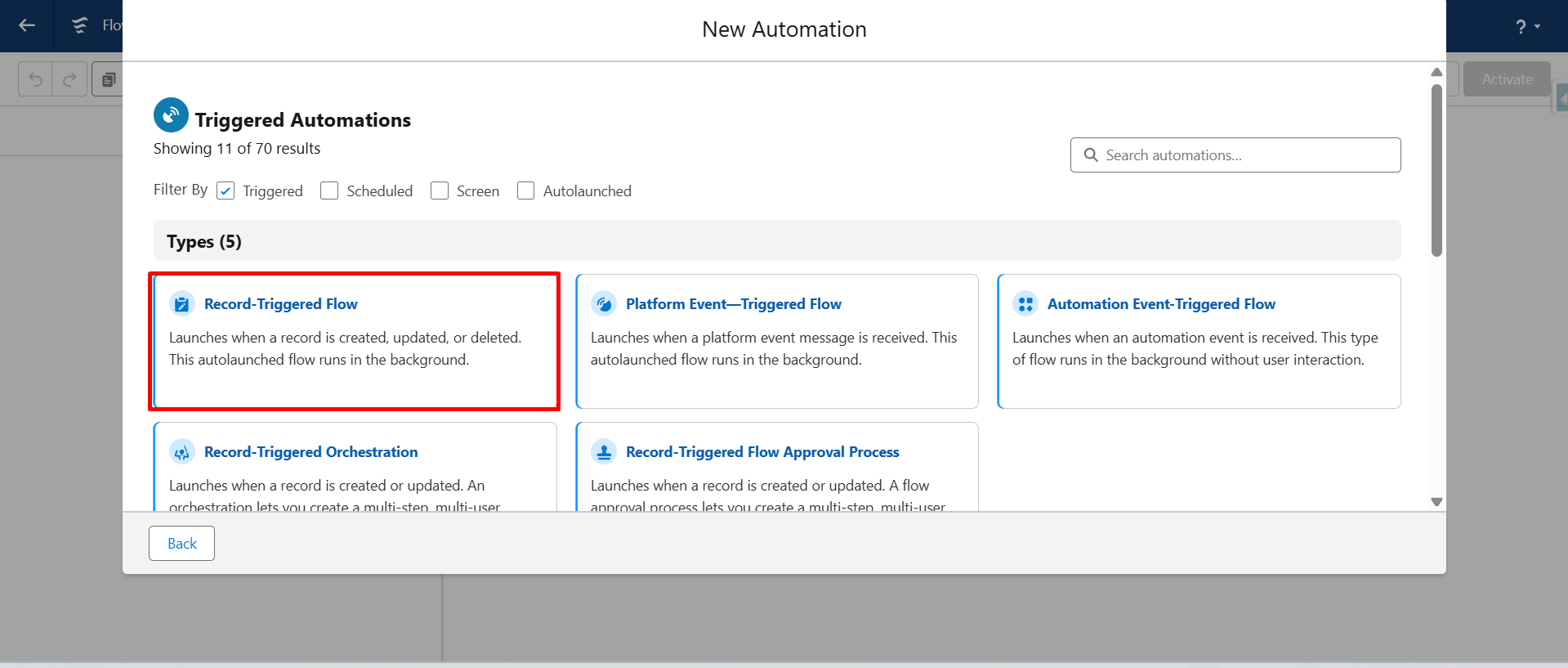
Step 3: Here, you can select the flow type based on what you want to create. Since we’re setting up a Record-Triggered Flow, we’ll select Record-Triggered Flow.
Step 4: Select the Salesforce object (Opportunity) and configure a trigger to trigger the flow when a specific event occurs (like A record is updated). Click on Save.
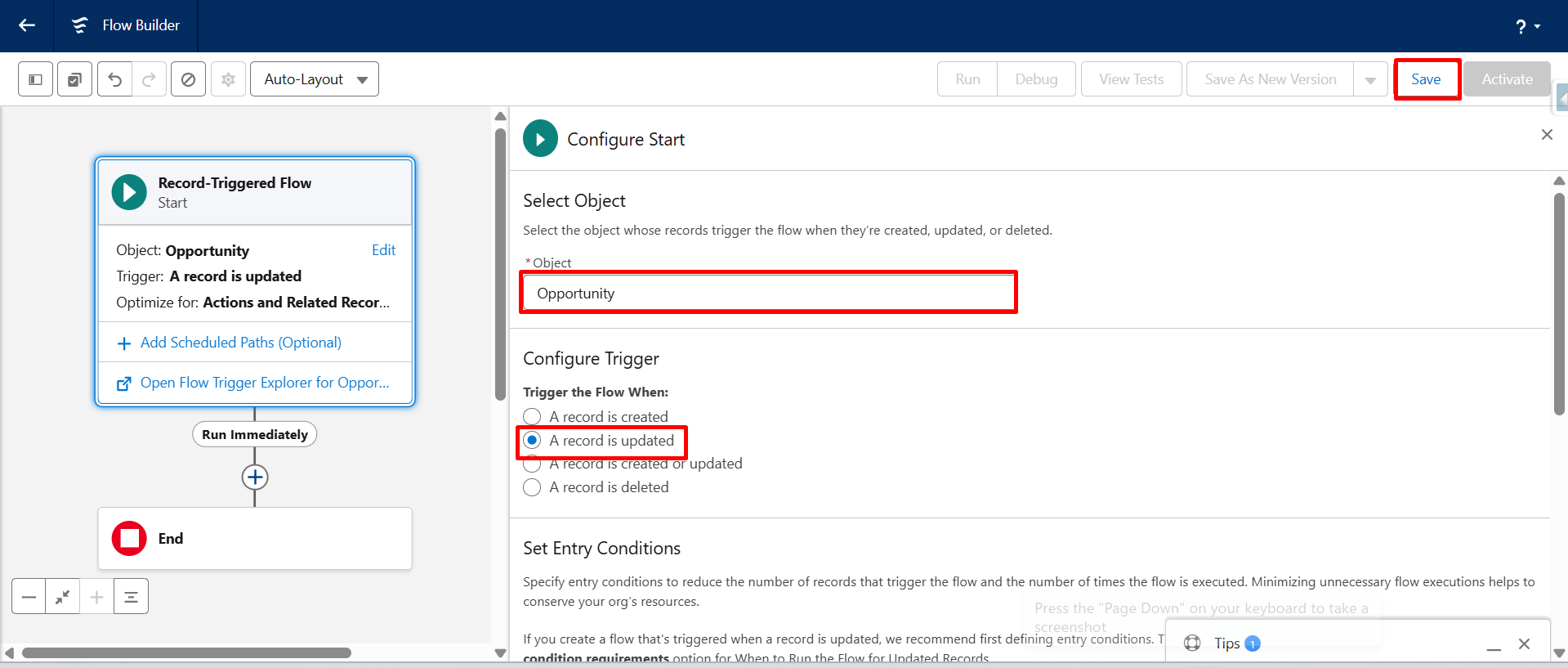
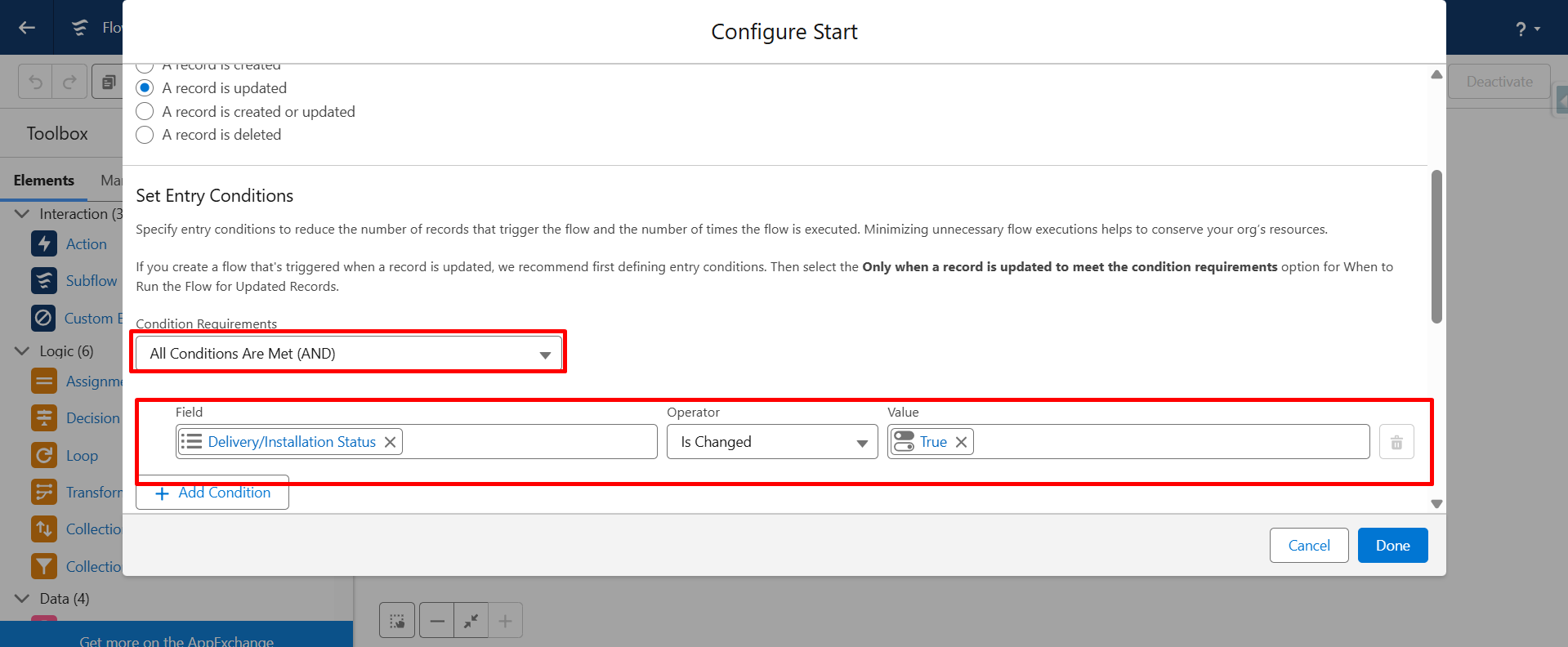
Step 5: Under Condition Requirements, select All Conditions Are Met (AND).
Add the condition:
- Field: Delivery/Installation Status
- Operator: Is changed
- Value: True
(Note: This condition means any time this field is updated, the condition becomes true and the process/automation will run.)
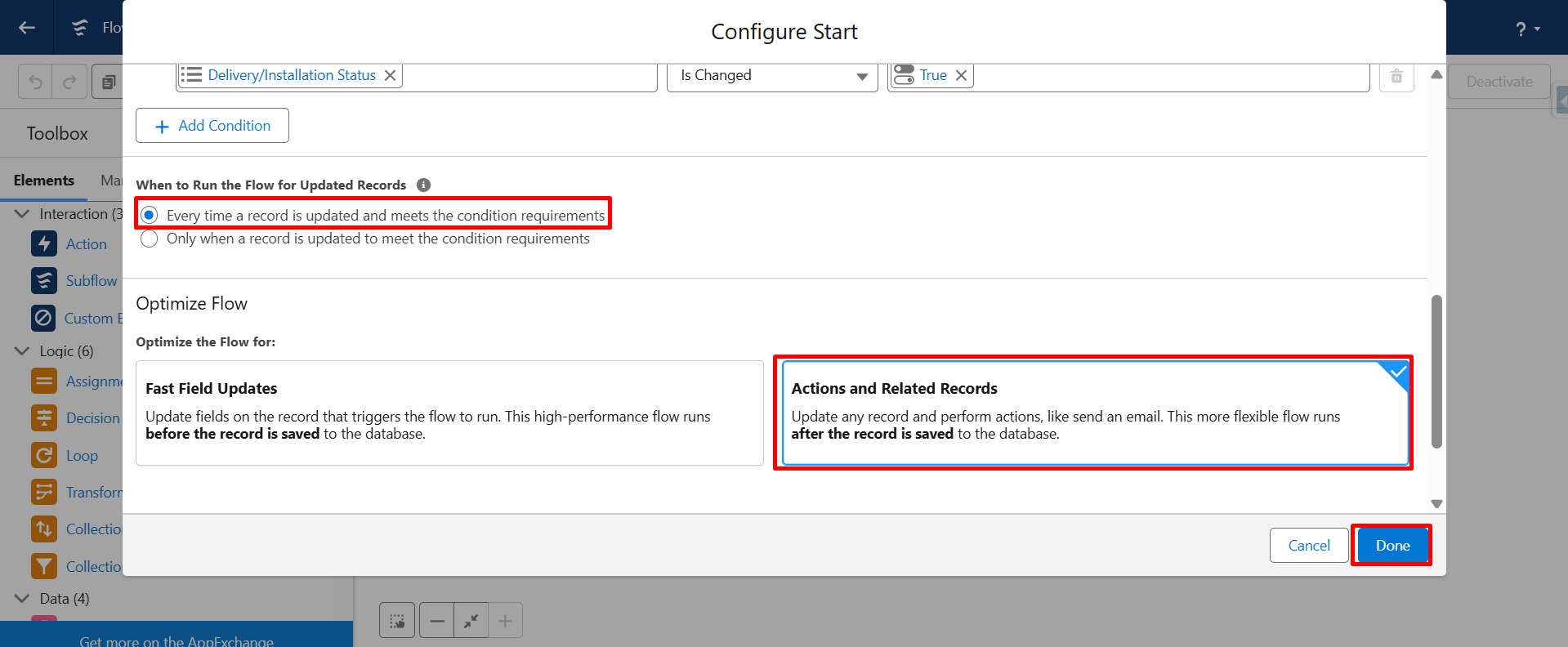
Step 6: Now, optimize the flow by selecting Actions and Related Records, then click on Done.
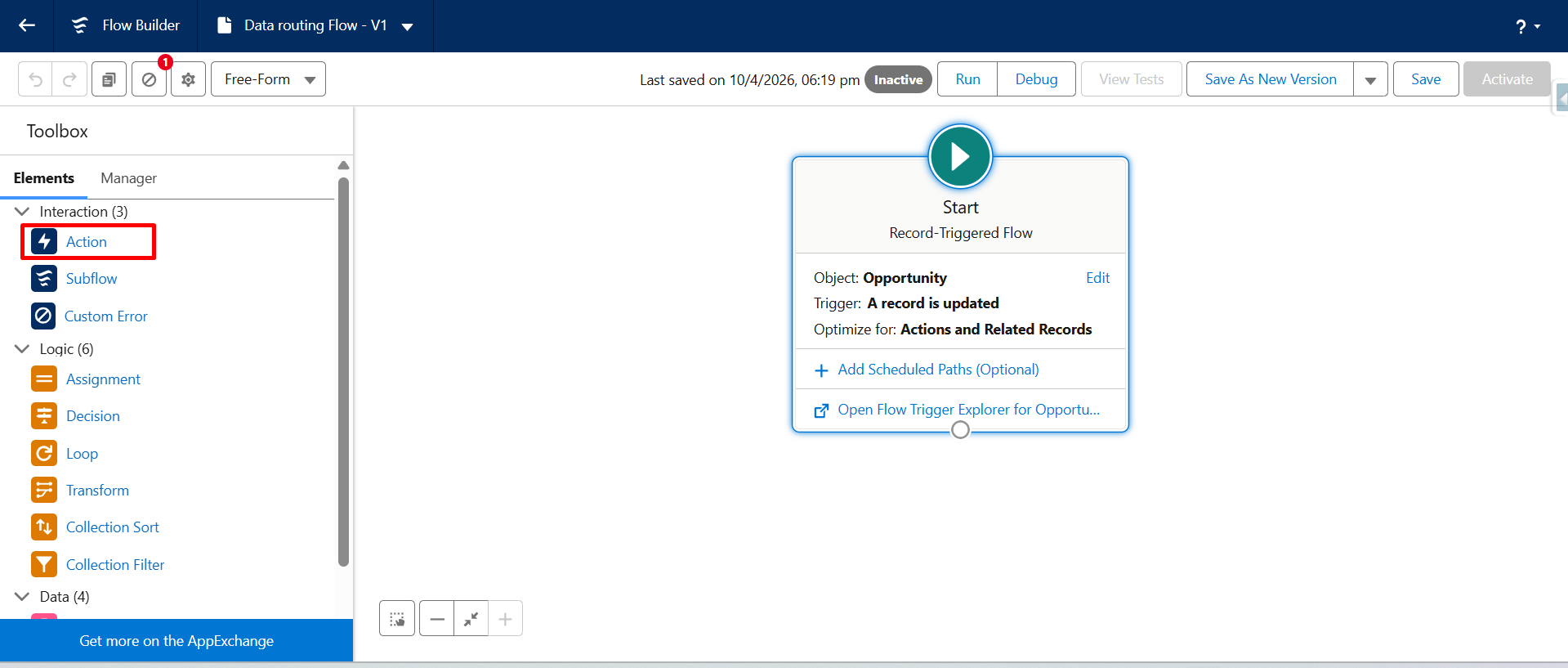
Step 7: Next, drag and drop the Action element from the Toolbox.
Step 8: Here, choose the required action and click on Done.
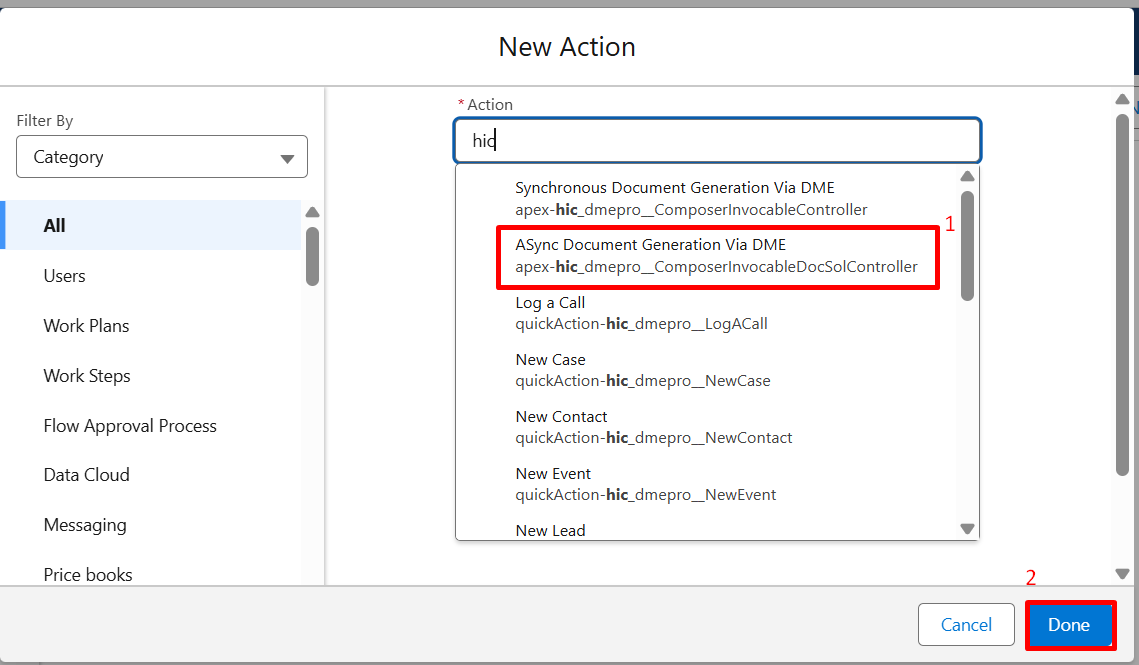
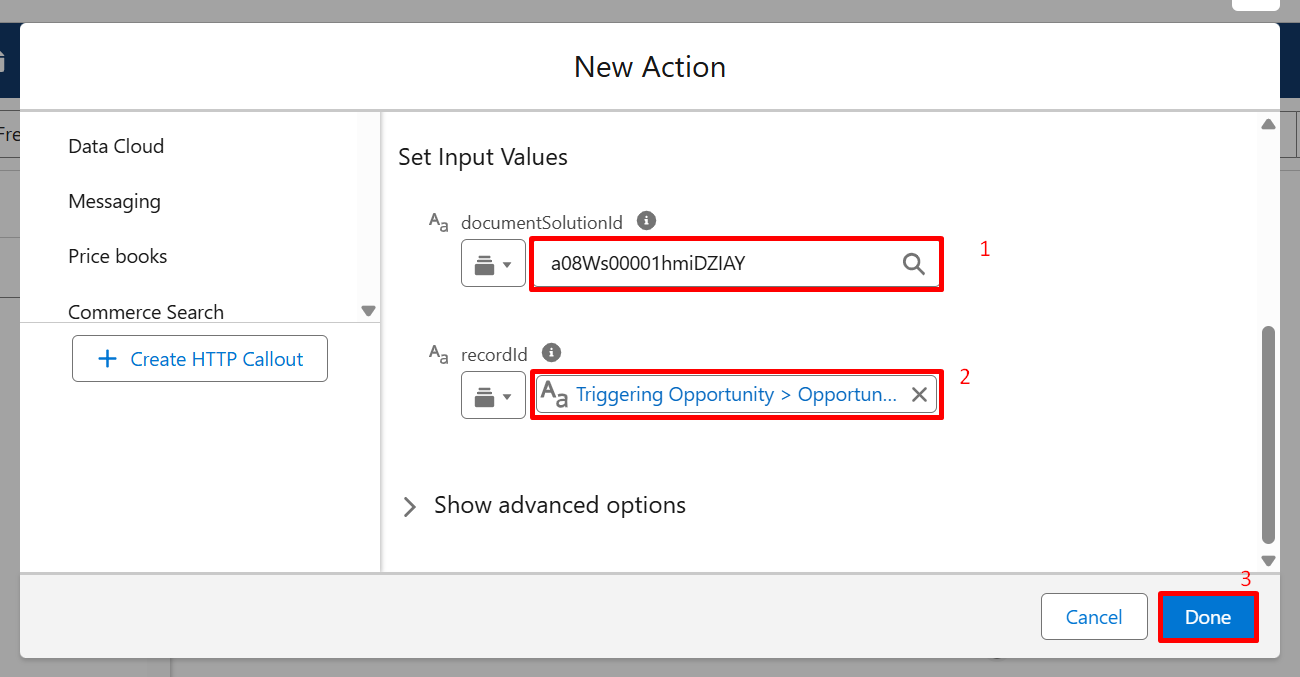
Step 9: Enable DocumentSolutionsId & RecordId.
Enter the Document Solution ID and the Record ID so the system knows which record to generate the document for.
Now, click on Done.
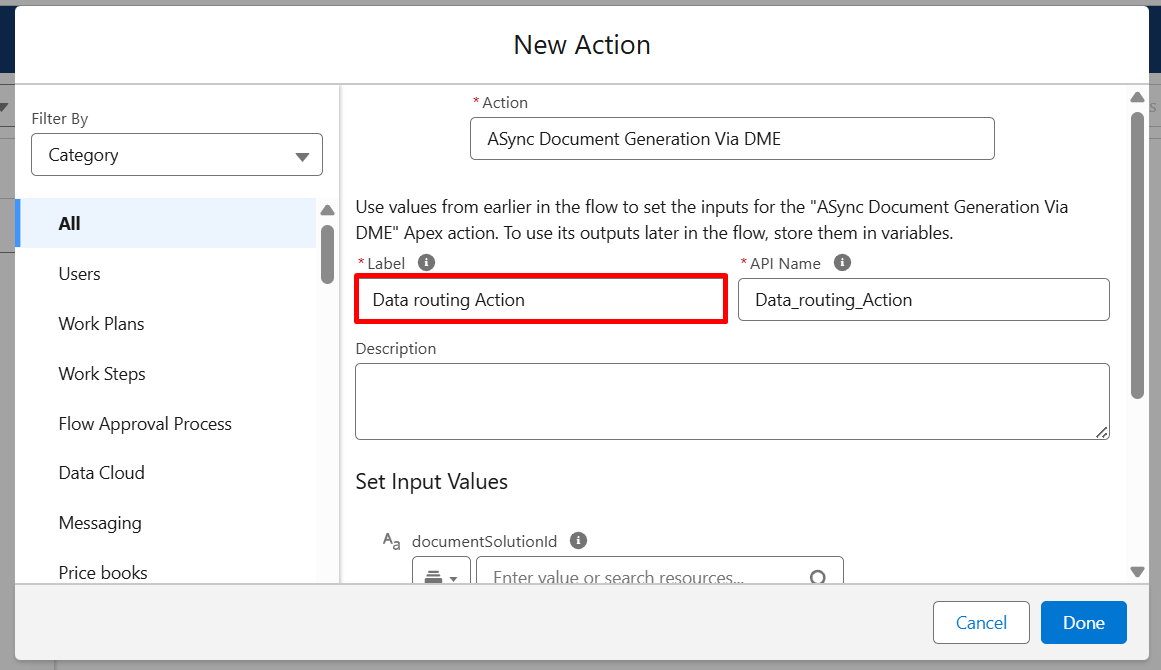
Step 10: Enter the Document Solution ID and the Record ID so the system knows which record to generate the document for. Now, click on Done.
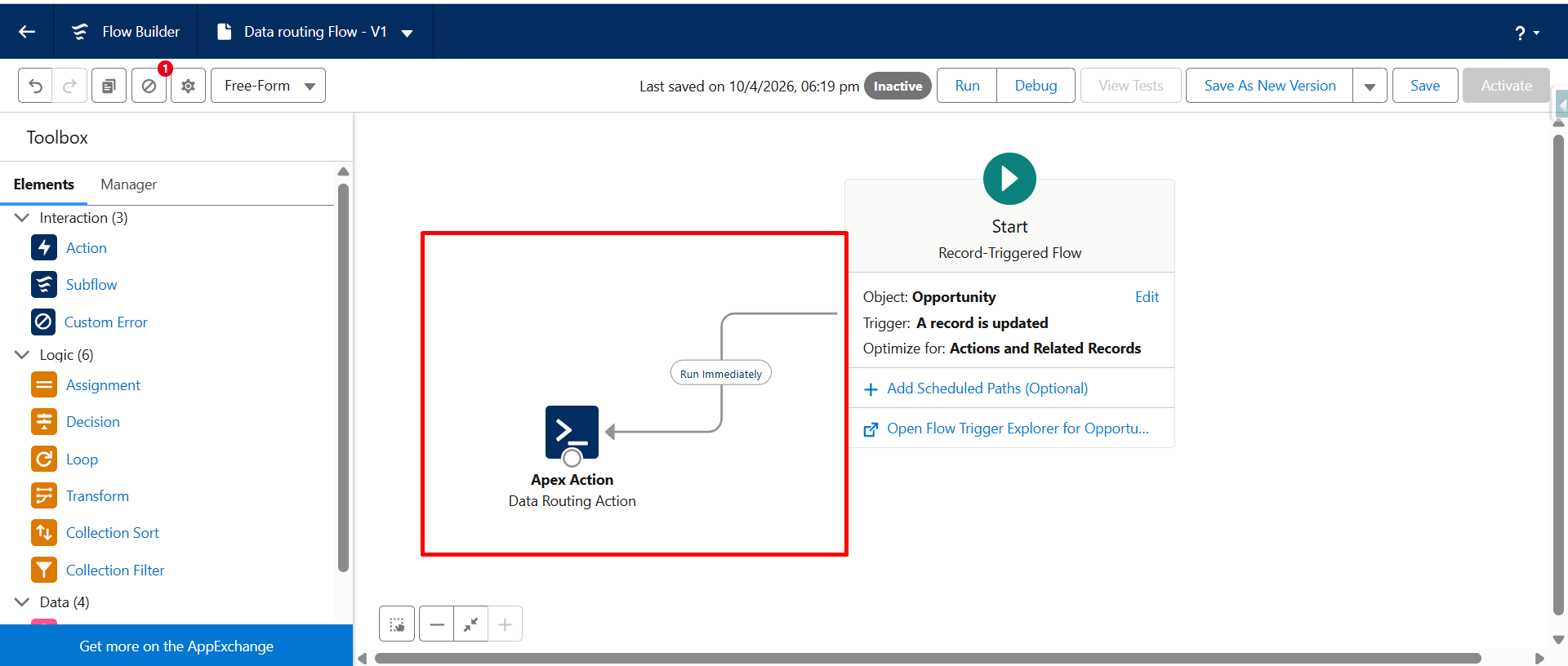
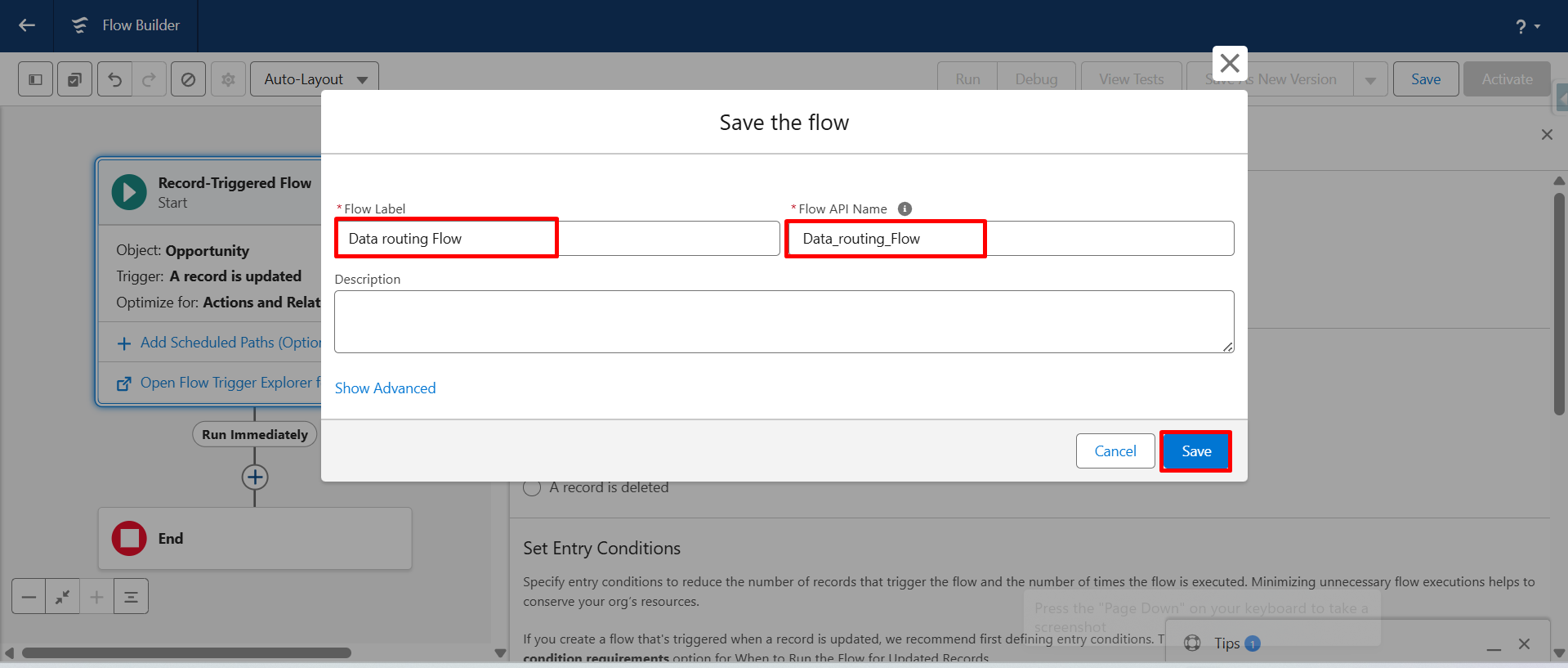
Step 11: Enter the Flow Label name and click on Save again.
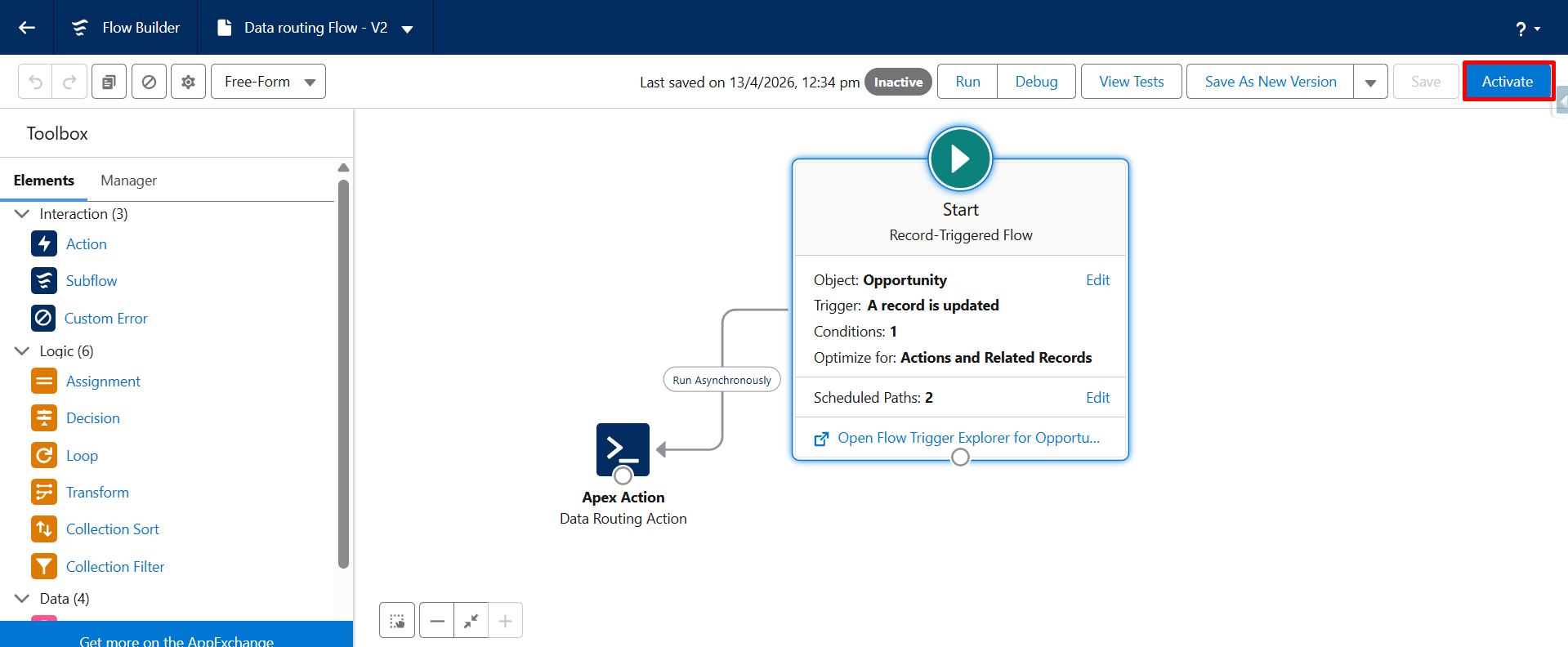
Step 12: Click on Activate to make the flow live.
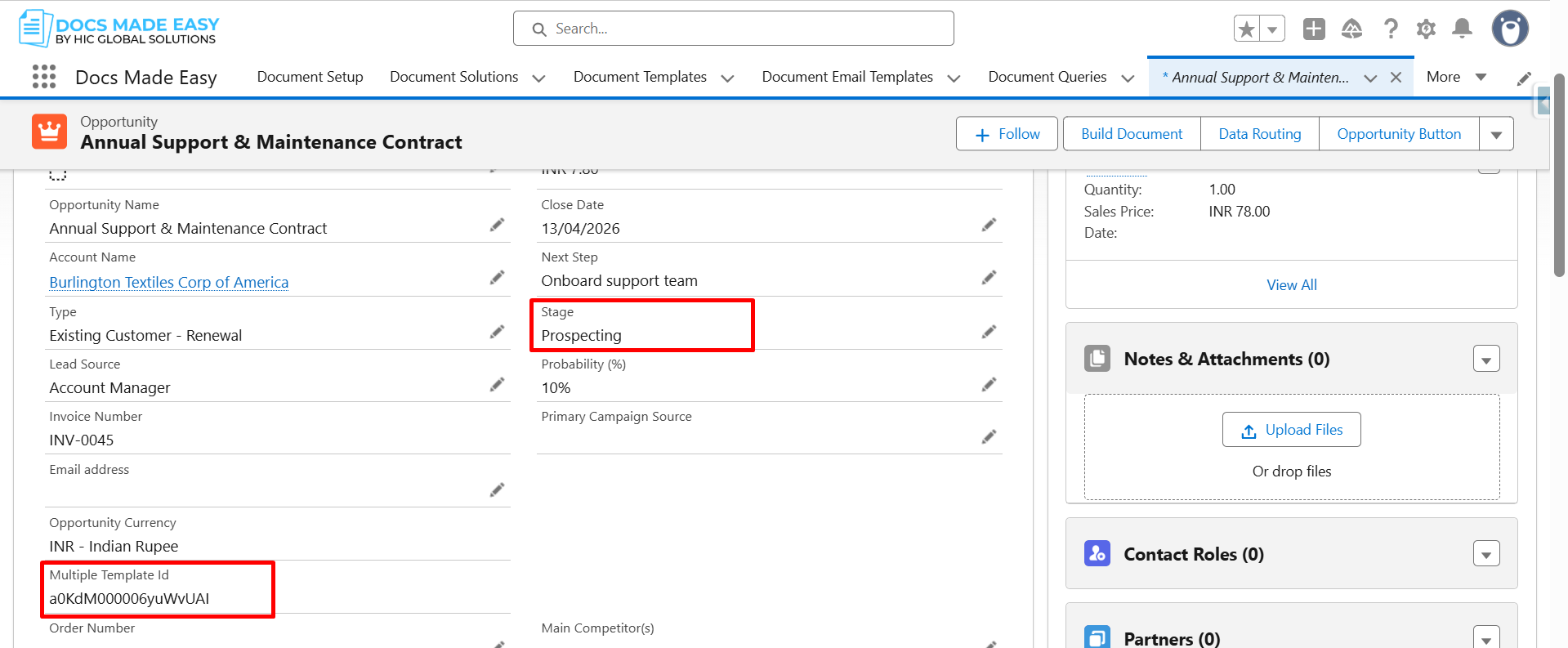
Step 13: Now, open the Opportunity record, update the Stage to Prospecting, and click Save.
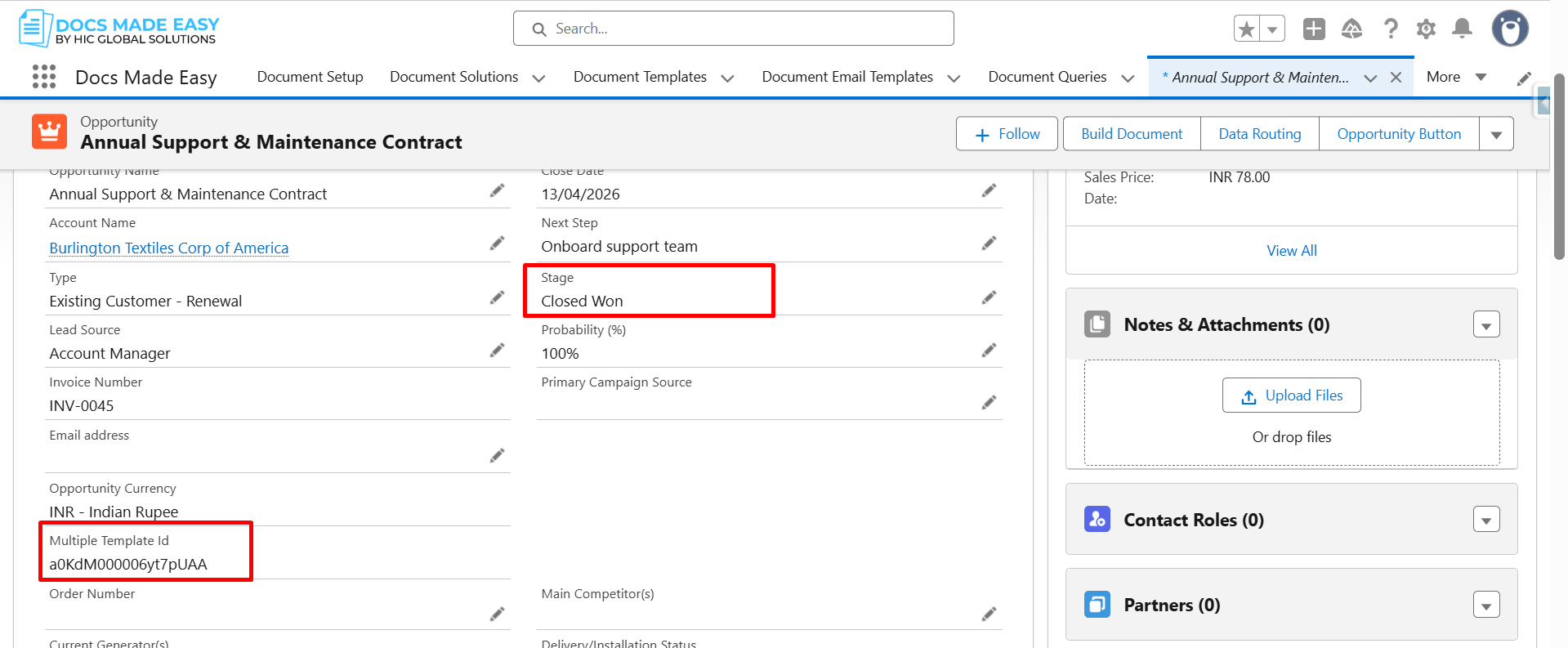
After saving, the Contact Template ID will be reflected in the Multiple Template ID field.
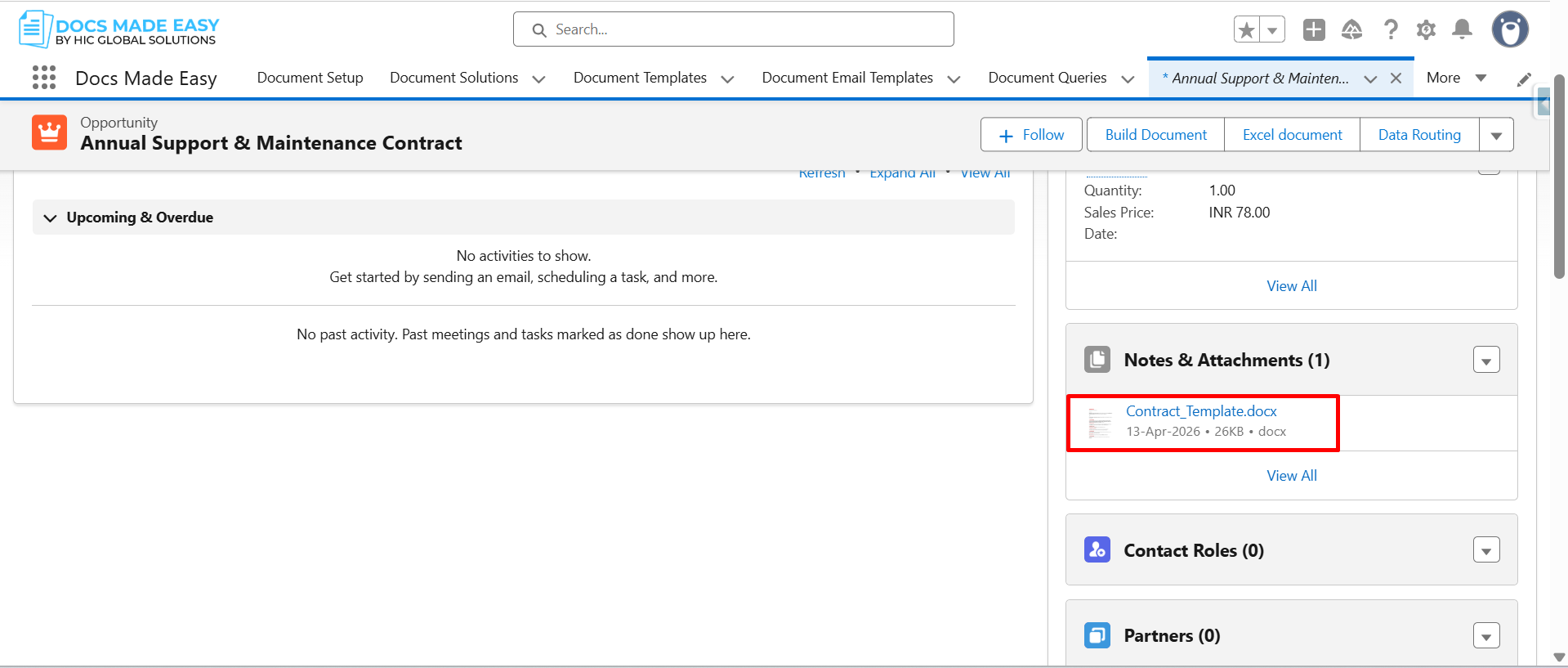
Step 14: Now you can see that the Contract Template document has been generated and saved in the Notes & Attachments section.
Step 15: Open the generated document.
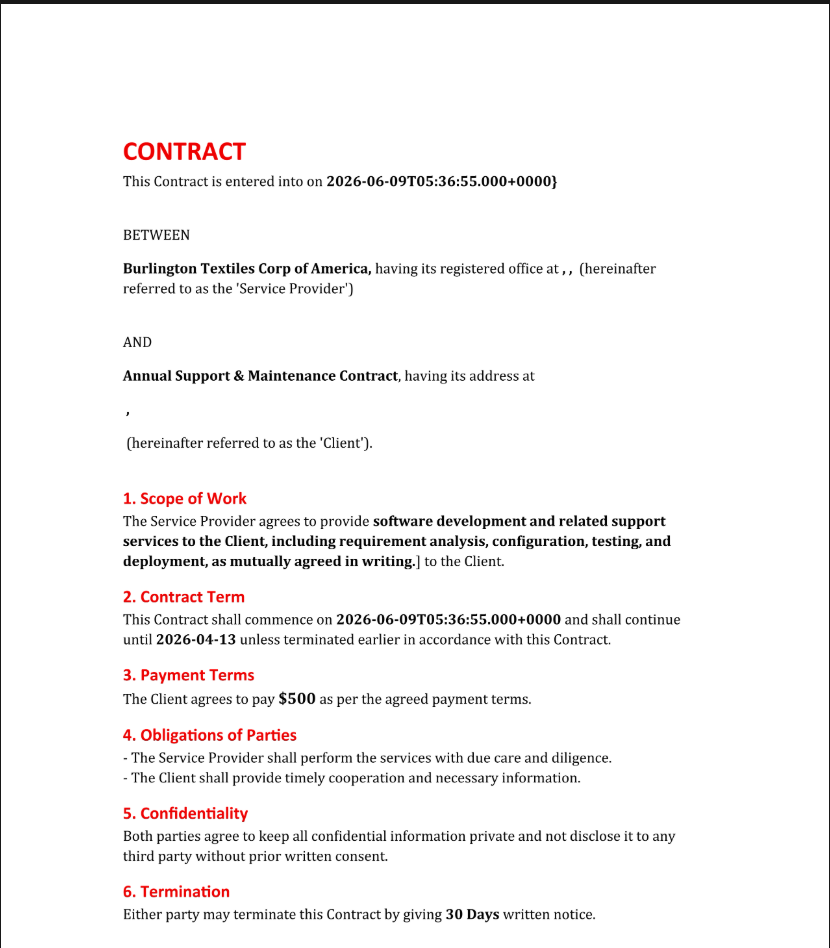
Step 16: Update the Stage to Closed Won, and click Save.
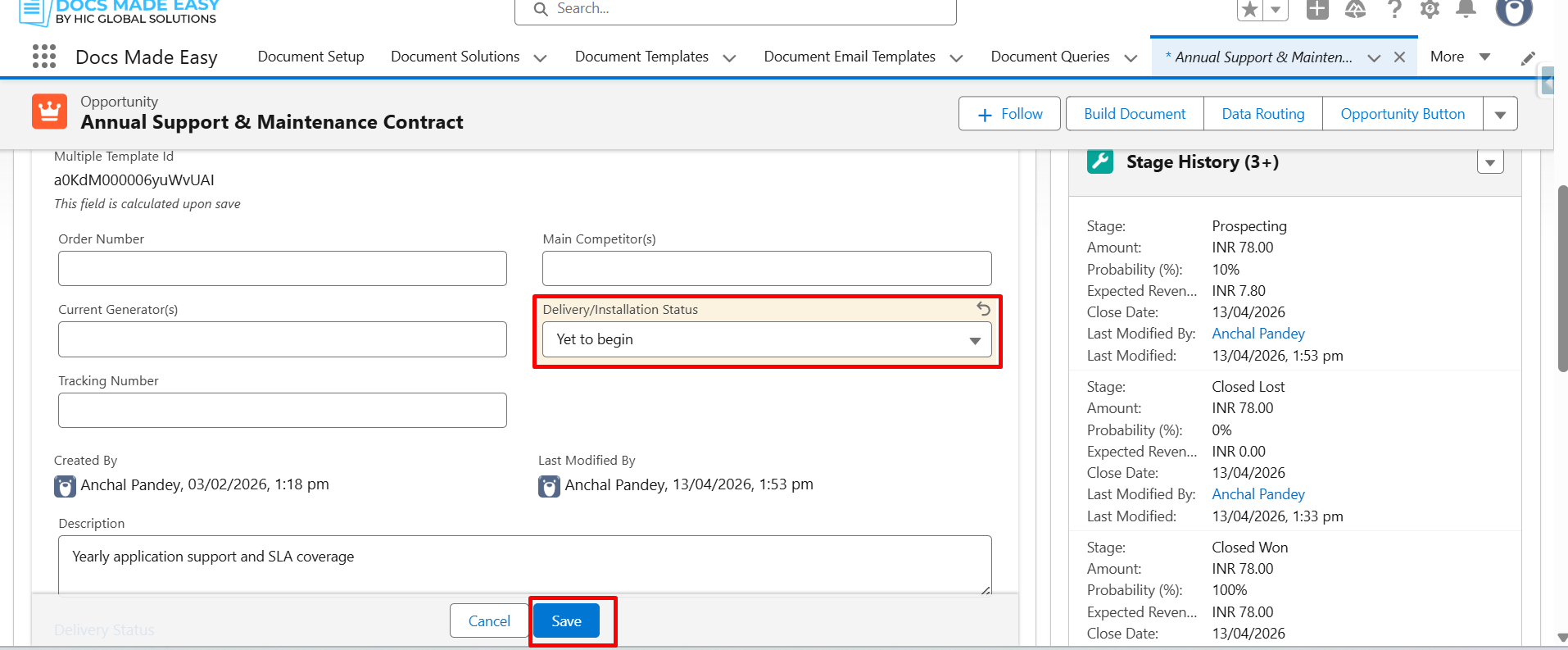
Step 17: Now change the Delivery/Installation Status and click Save.
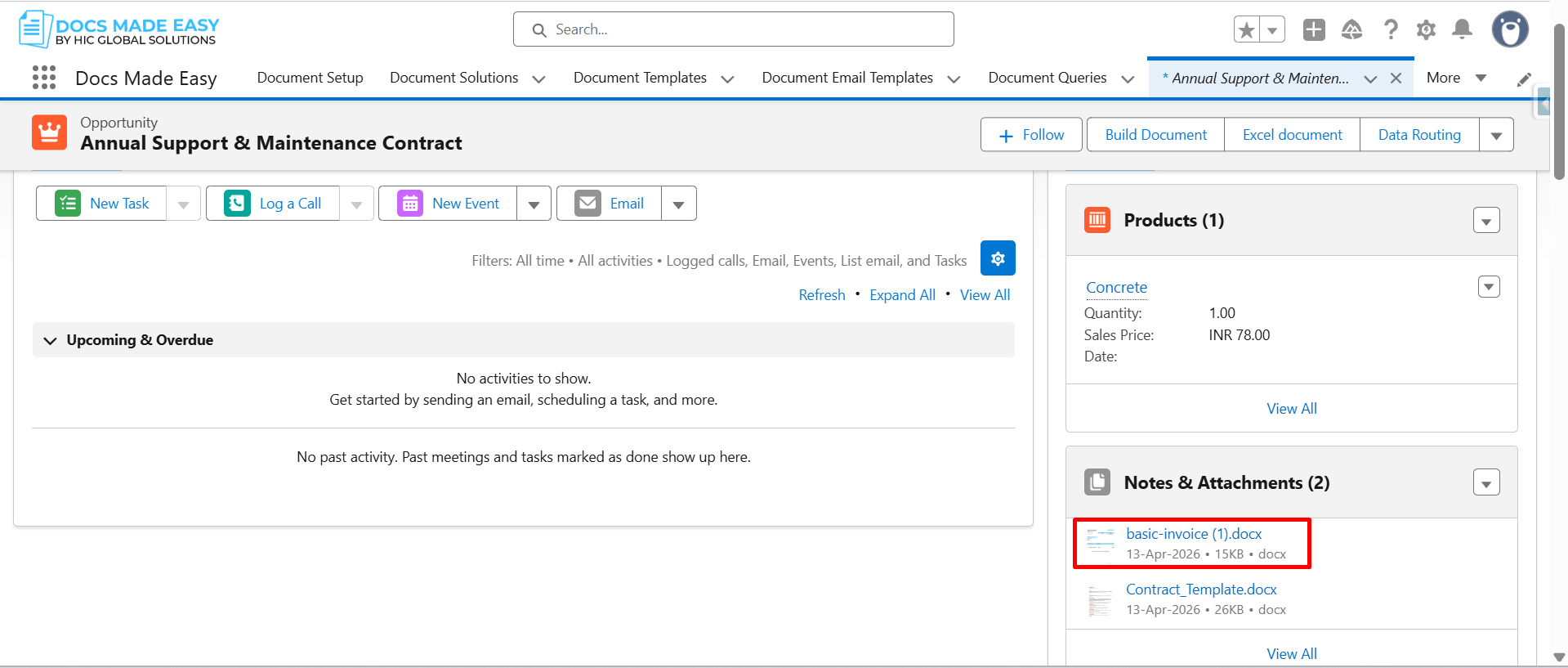
Step 18: Now you can see that the Invoice Template document has been generated and saved in the Notes & Attachments section.
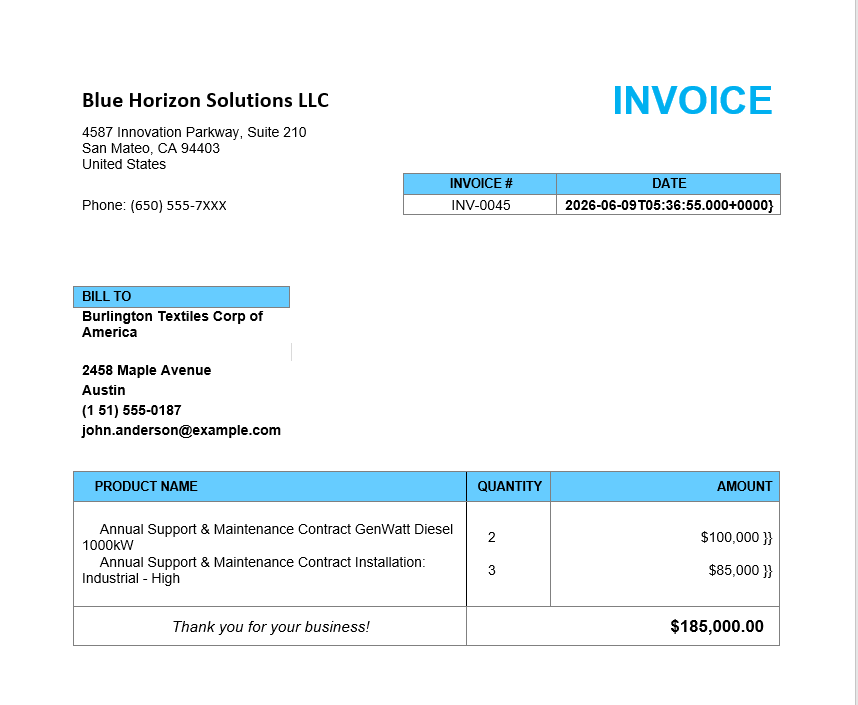
Step 19: Open the generated Document.
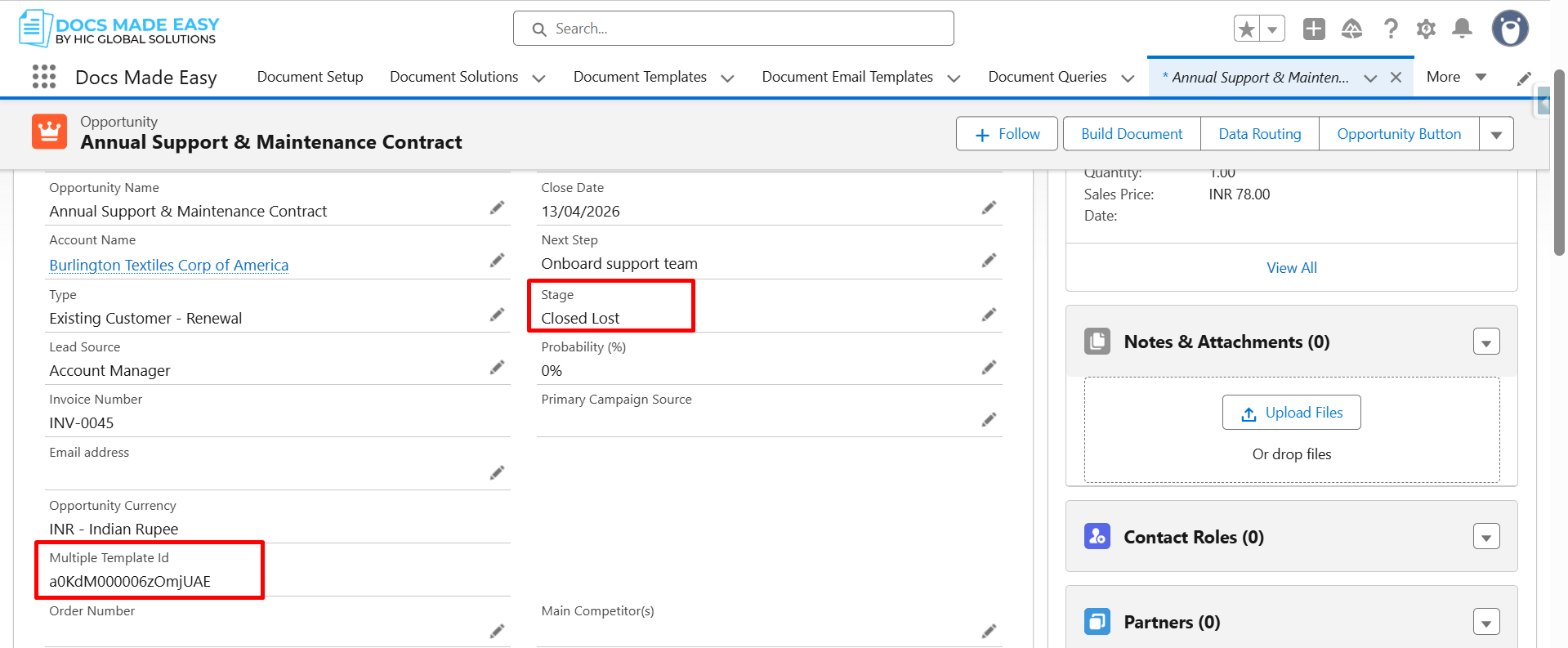
Step 20: Update the Stage to Closed Lost, and click Save.
After saving, the Proposal Template ID will be reflected in the Multiple Template ID field.
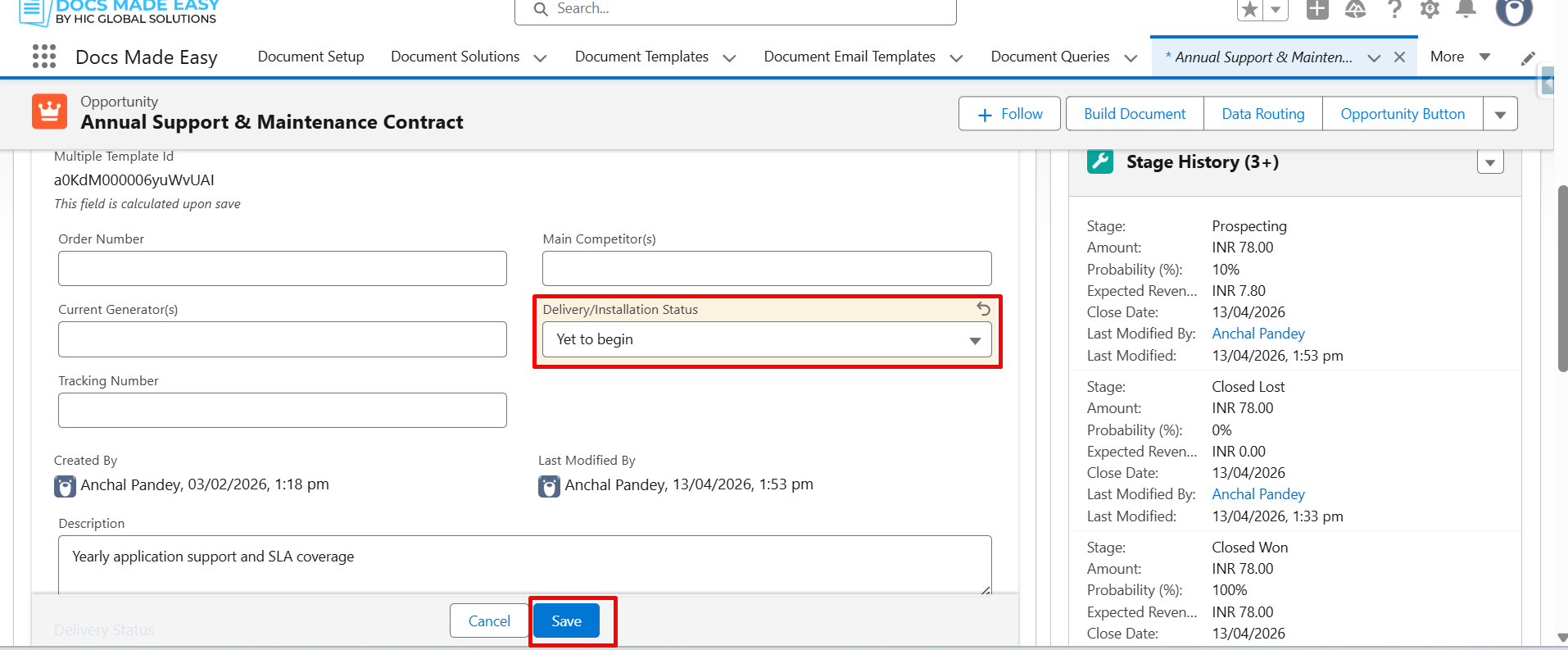
Step 21: Now change the Delivery/Installation Status and click Save.
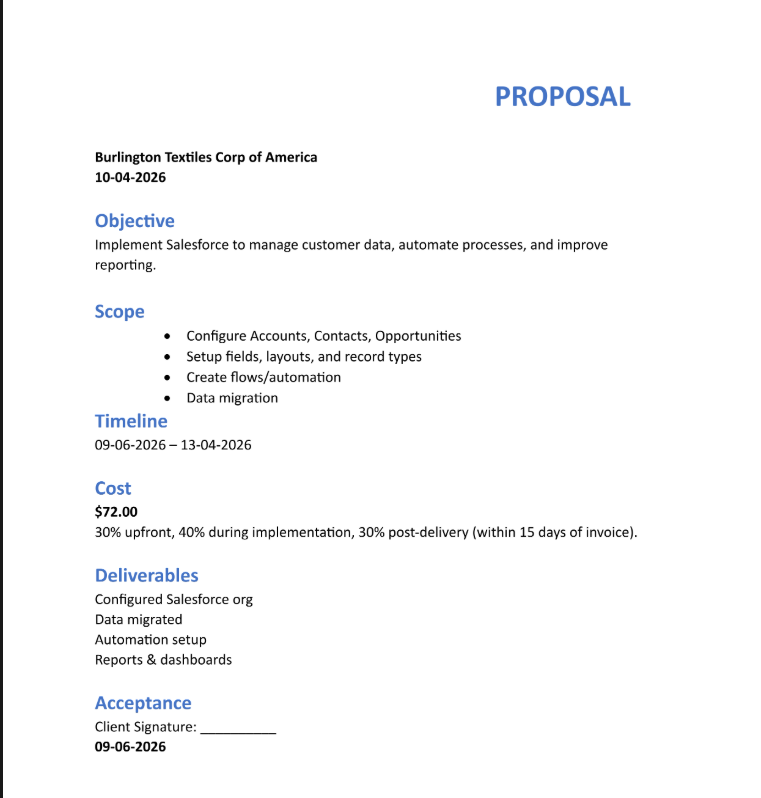
Step 22: Now you can see that the Proposal Template document has been generated and saved in the Notes & Attachments section.
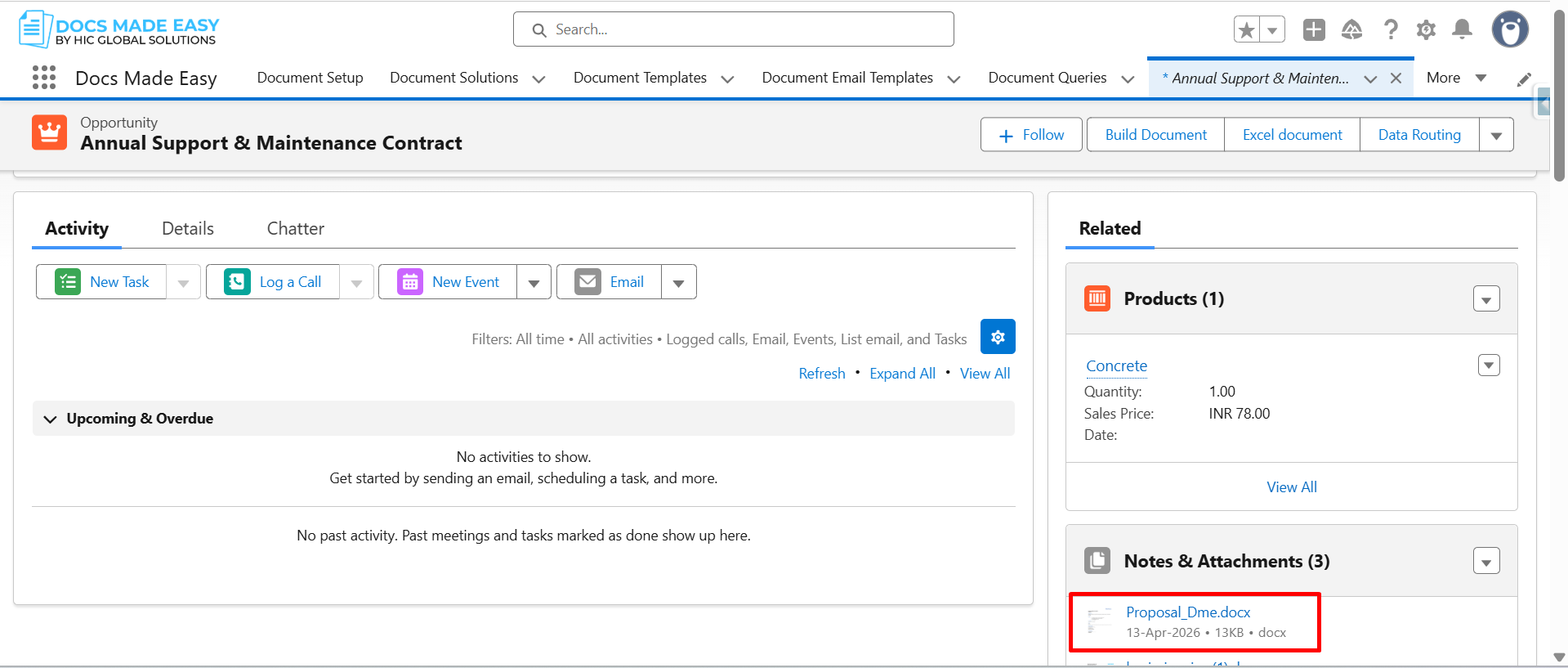
Step 23: Now, open the generated document.
Conclusion
With this setup, you can use Salesforce Flow to generate multiple documents from the same data based on specific field changes. Therefore, the required documents can be generated automatically at the right time without creating each one manually.
This makes Salesforce document automation easier to manage and helps reduce repetitive work, while keeping generated documents connected to the right Salesforce records.
Watch Demo Video

Top Companies Trust Docs Made Easy What’s Stopping You?
Frequently Asked Questions
Related Blogs
How to Generate & Send Documents for eSign in Salesforce
Sending a document for signature directly from Salesforce can make the approval process much easier, especially when you want to…
How to Generate Salesforce Documents Using Quick Document Merge
Creating Salesforce documents does not have to involve multiple steps or moving between different tools. With Quick Document Merge, you…
How to Create a Scope of Work (SOW) in Salesforce with Docs Made Easy
Creating a Scope of Work manually can take time, especially when information needs to be collected from Salesforce and added…