How to Generate Receipts in Salesforce?
Category :
Document Generation

Docs Made Easy Proudly Featured by Salesforce
Built to simplify document workflows while enhancing productivity inside Salesforce.
Explore Now!Generating documents in Salesforce is a quick and easy process, as you can create professional documents that are easy to share, allow advanced automation, and move back to the Salesforce records. So, whenever it comes to document generation in Salesforce, creating receipts manually can slow down your team and increase the chances of errors.
However, with the right Salesforce receipt generation tool – Docs Made Easy, the entire process is just a few clicks away. So, now let’s walk through the quick steps of generating receipts in Salesforce without leaving the system.
Step 1: First, log in to Salesforce using your credentials to access your org.
Step 2: Now, open Docs Made Easy from the App Launcher.
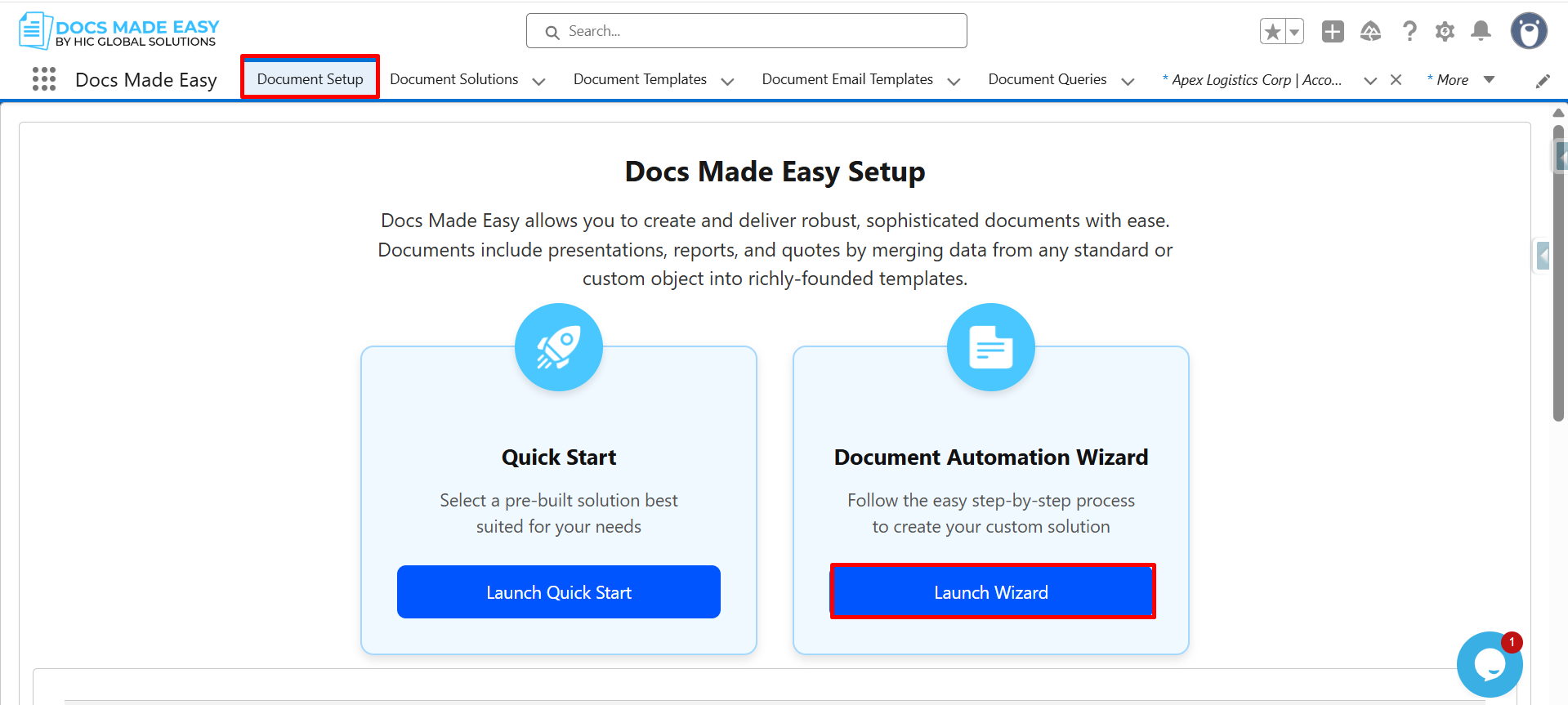
Step 3: Next, click on Document Setup and then click on Launch Wizard to start the process.
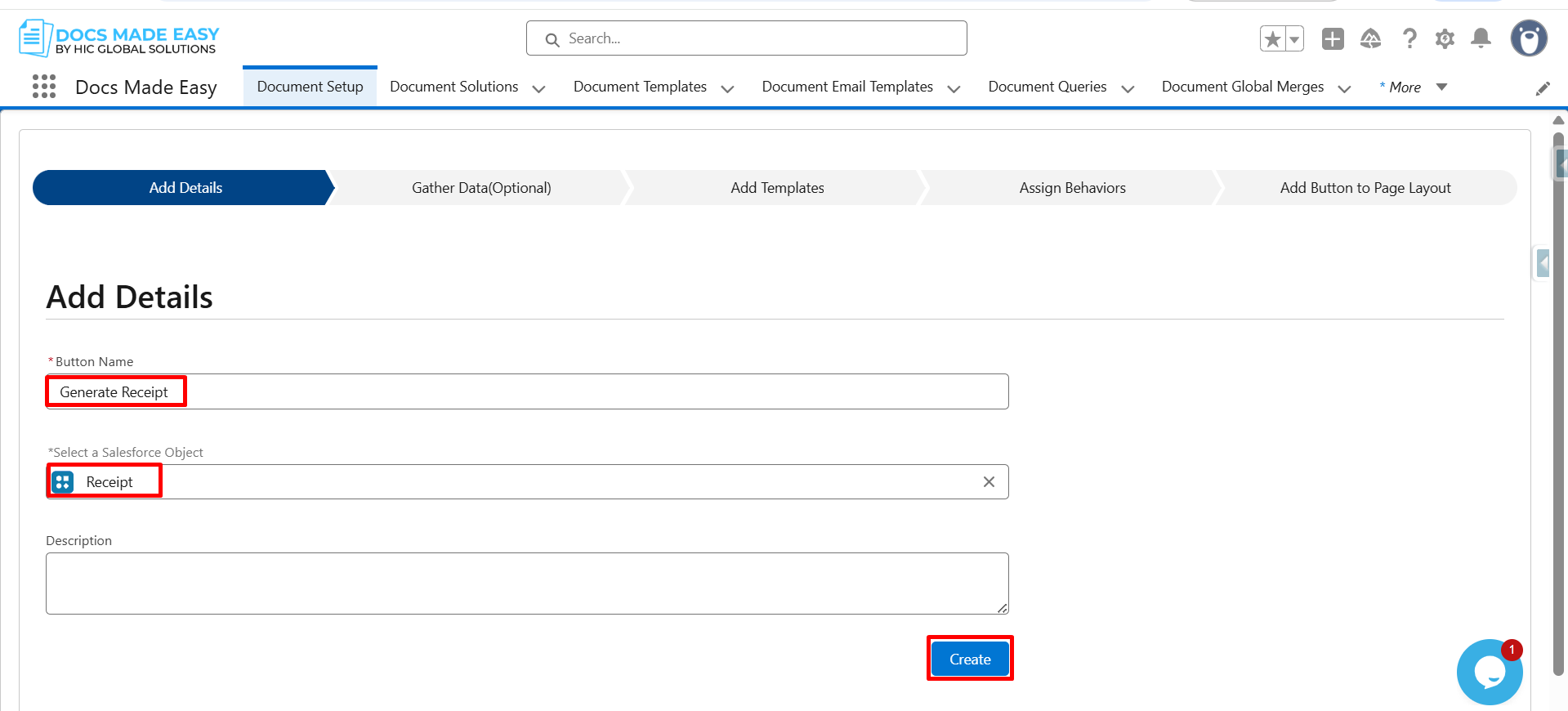
Step 4: Enter the Button Name, select the Salesforce object (Receipt), and click on Create.
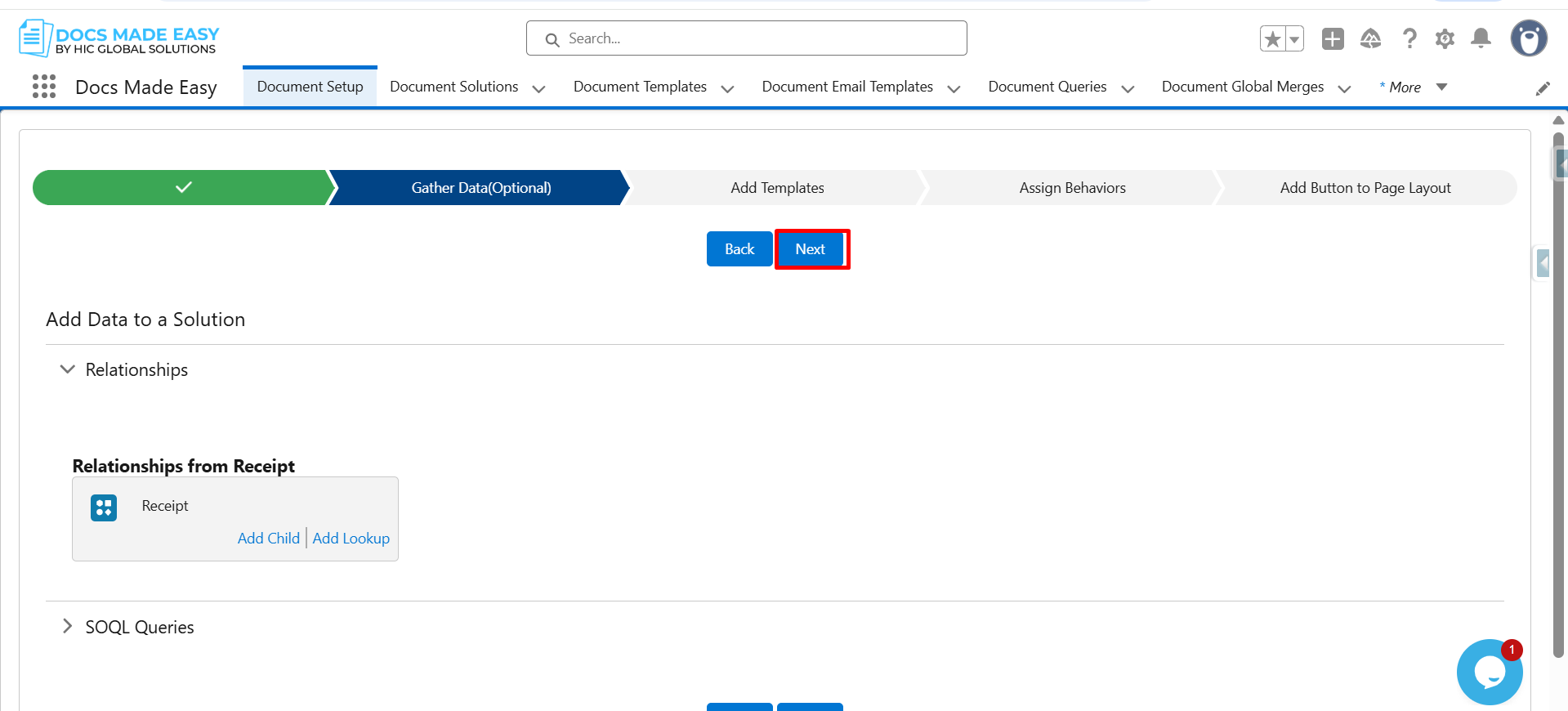
Step 5: After that, click on Next to proceed further.
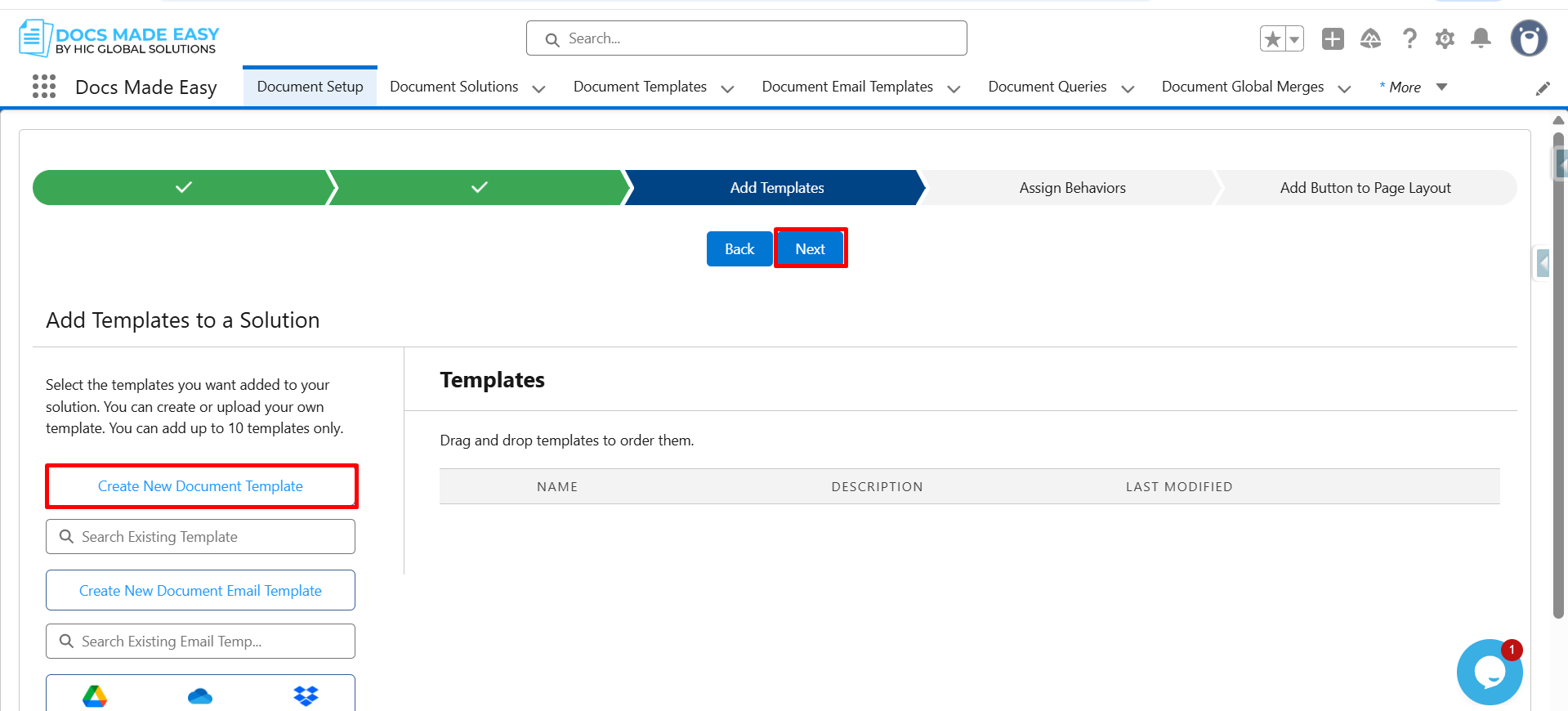
Step 6: Again, click on Next to move to the template configuration section.
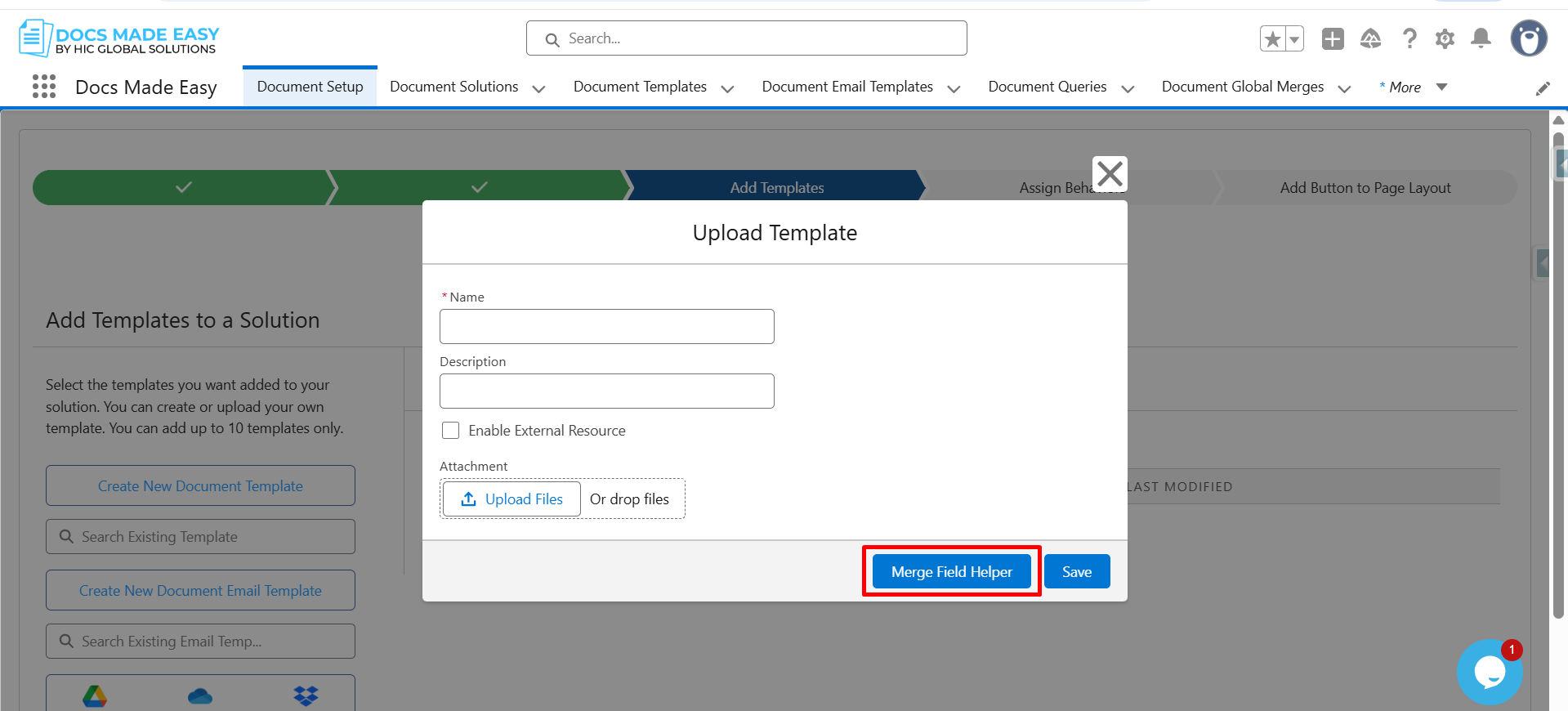
Step 7: Now, open the Merge Field Helper so you can insert dynamic fields into your template.
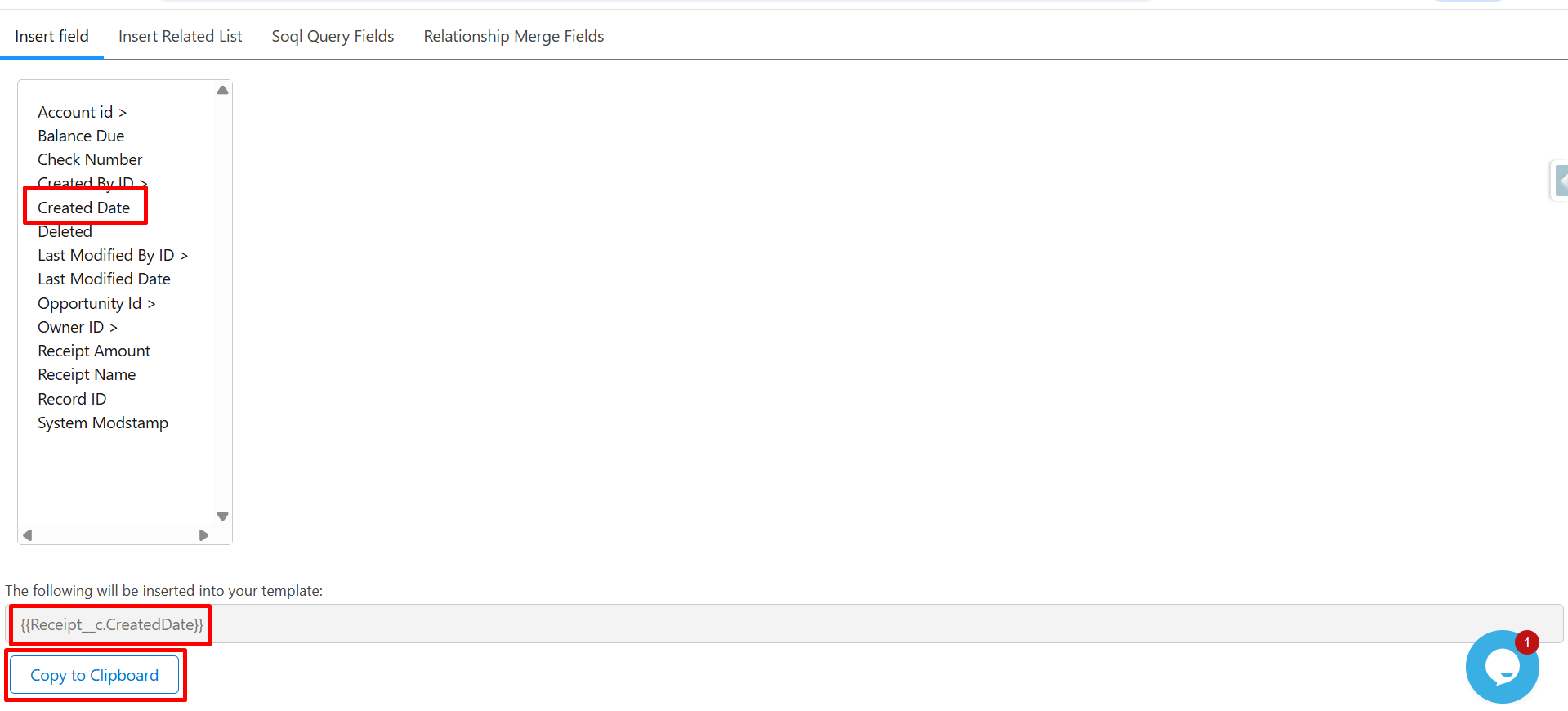
Step 8: Click on Insert Field, select Created Date, and then click Copy to Clipboard to copy the merge field {{Receipt__c.CreatedDate}}.
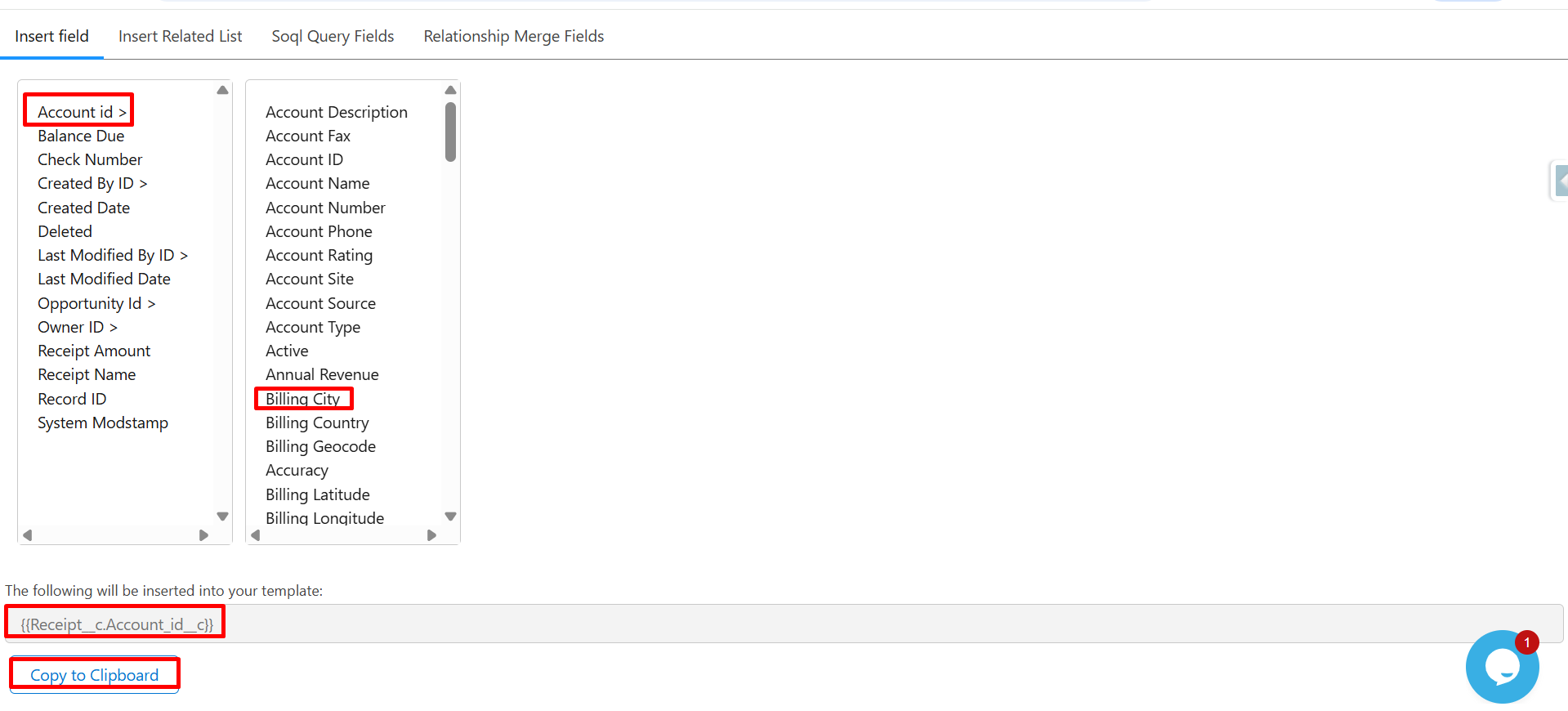
Step 9: Select Account Id to access Account-related fields.
- Select Billing City.
- Verify that the merge field appears in the preview section as
{{Receipt__c.Account__r.BillingCity}}.
Click Copy to Clipboard to copy the merge field.
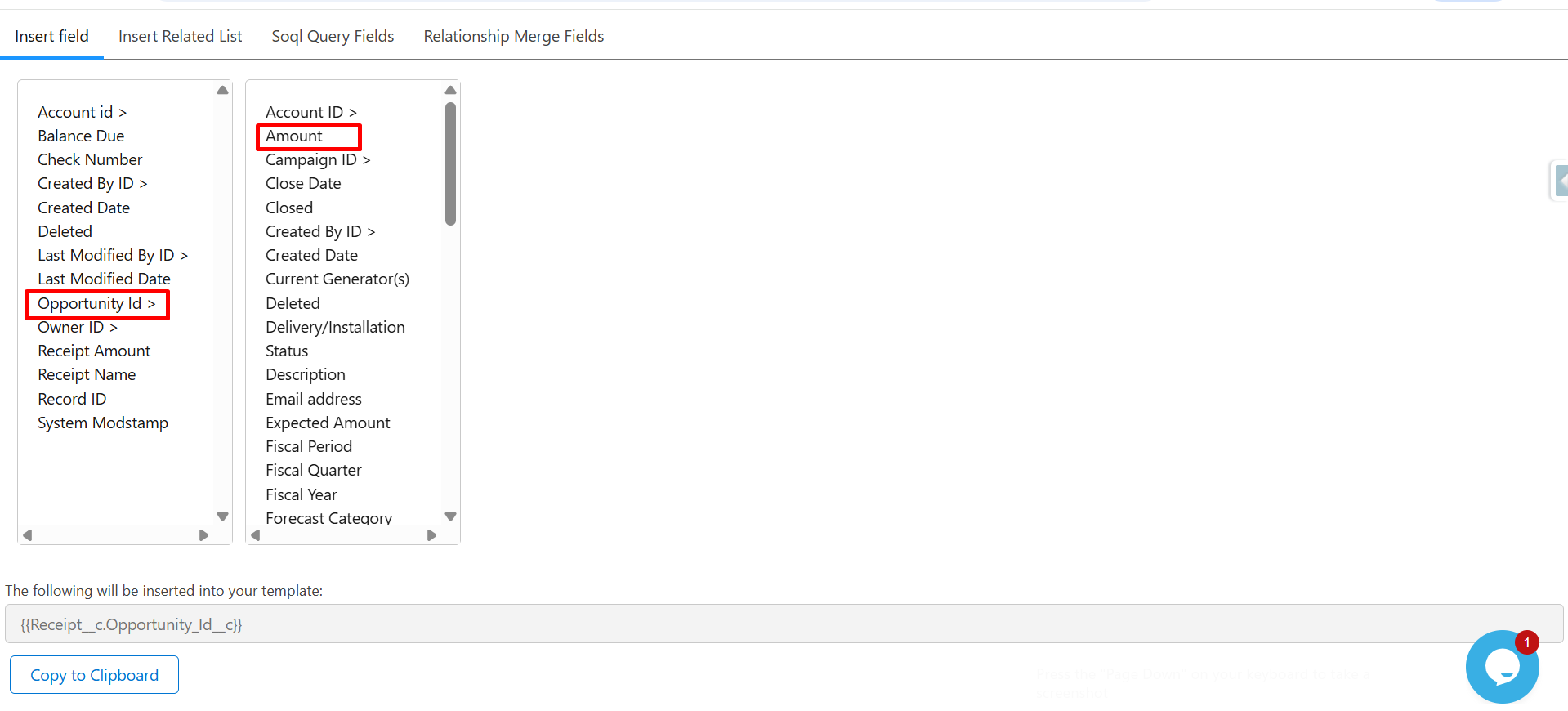
Step 10: Select the Opportunity Id to view Opportunity-related fields.
- From the Opportunity field list, select Amount.
- Verify that the merge field appears in the preview section as
{{Receipt__c.Opportunity__r.Amount}}.
Click Copy to Clipboard to copy the merge field.
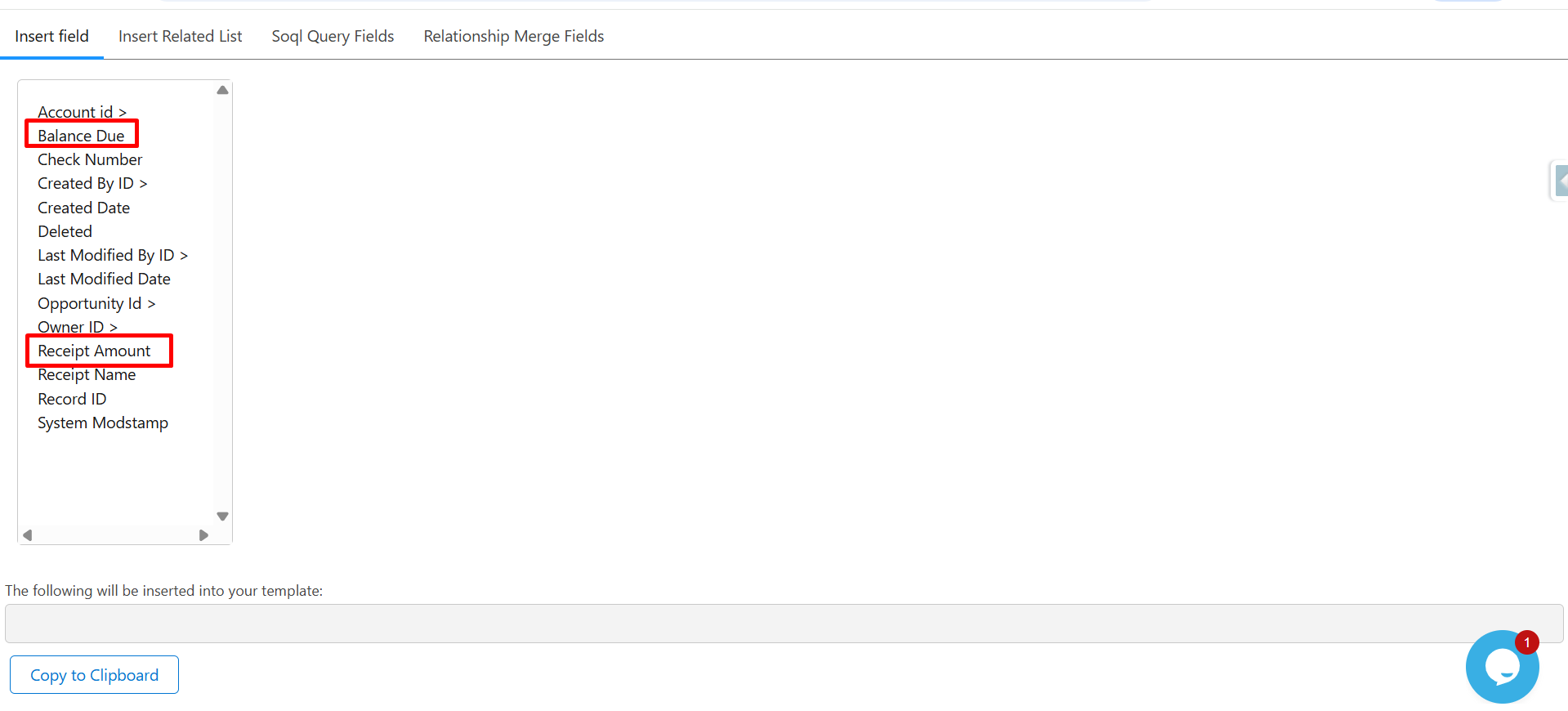
Step 11: Click on Balance Due and Receipt Amount, and then click Copy to Clipboard to copy their merge syntax.
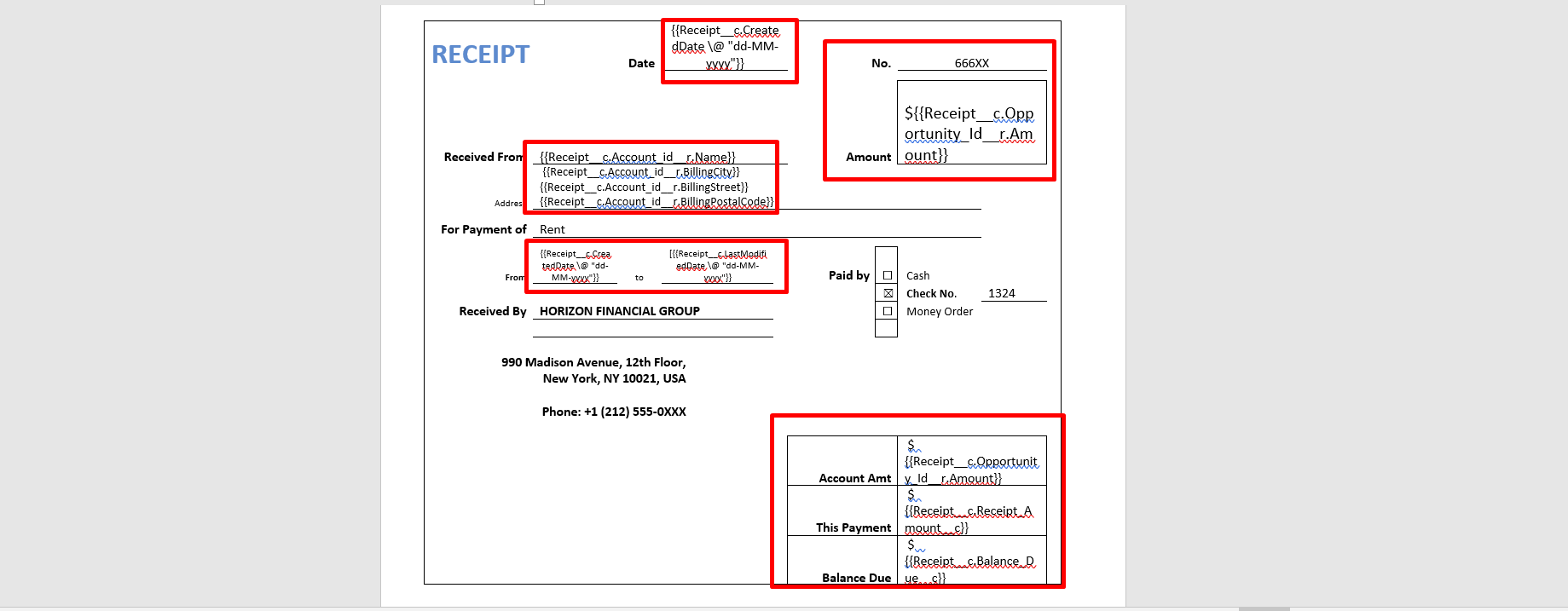
Step 12: Now, paste all the copied merge field syntax into the Template Editor.
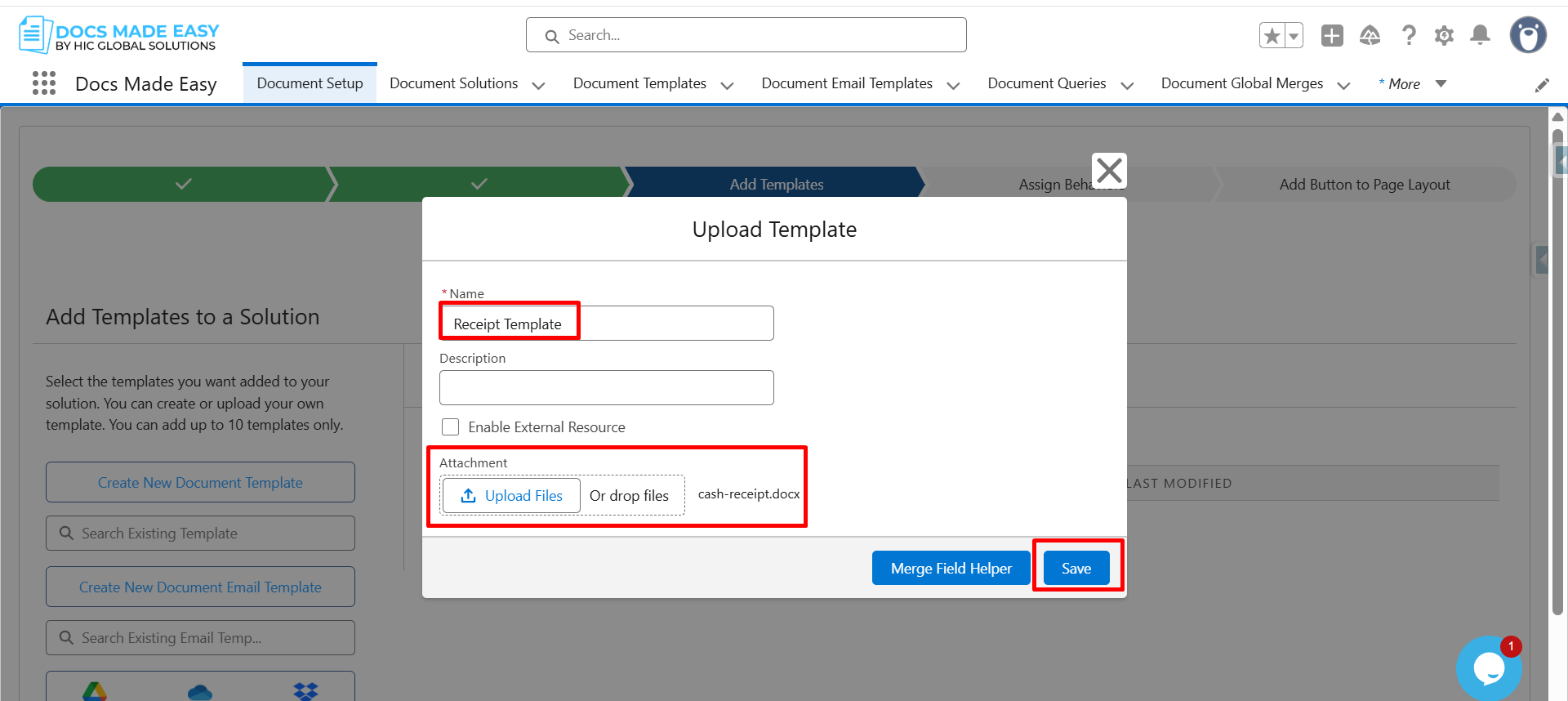
Step 13: Reopen the Upload Template window, enter the Template Name, upload the template file, and click Save.
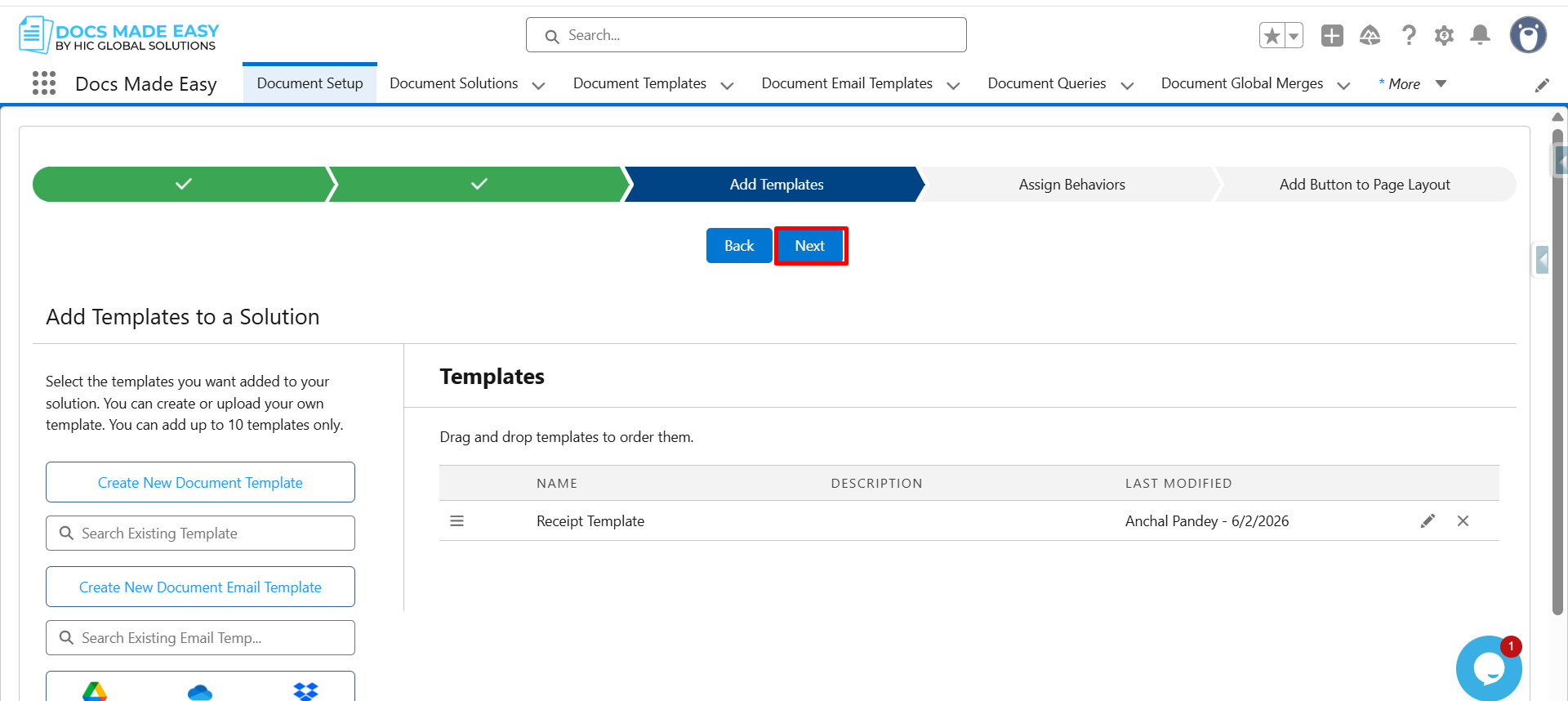
Step 14: Click on Next to continue.
Step 15: Again, click on Next to complete the wizard setup.
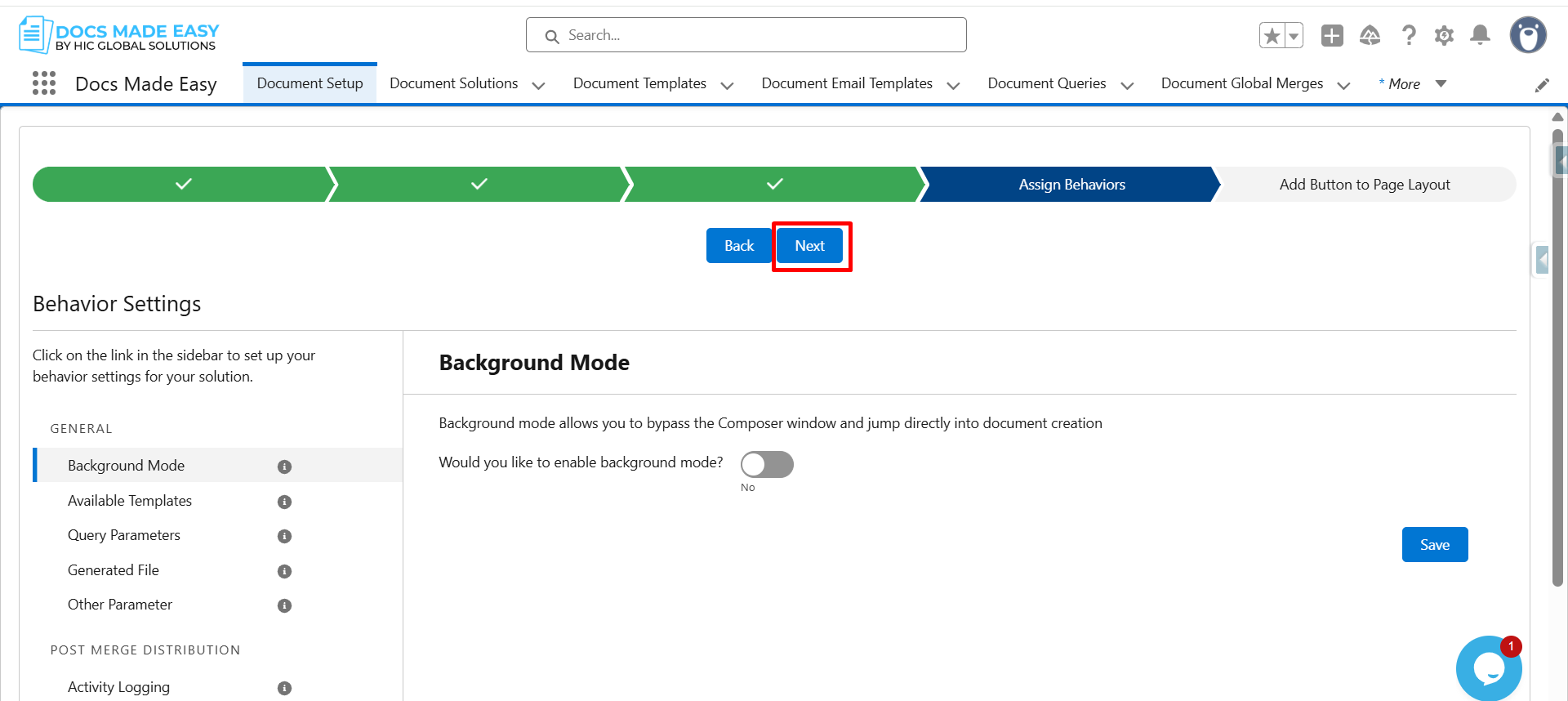
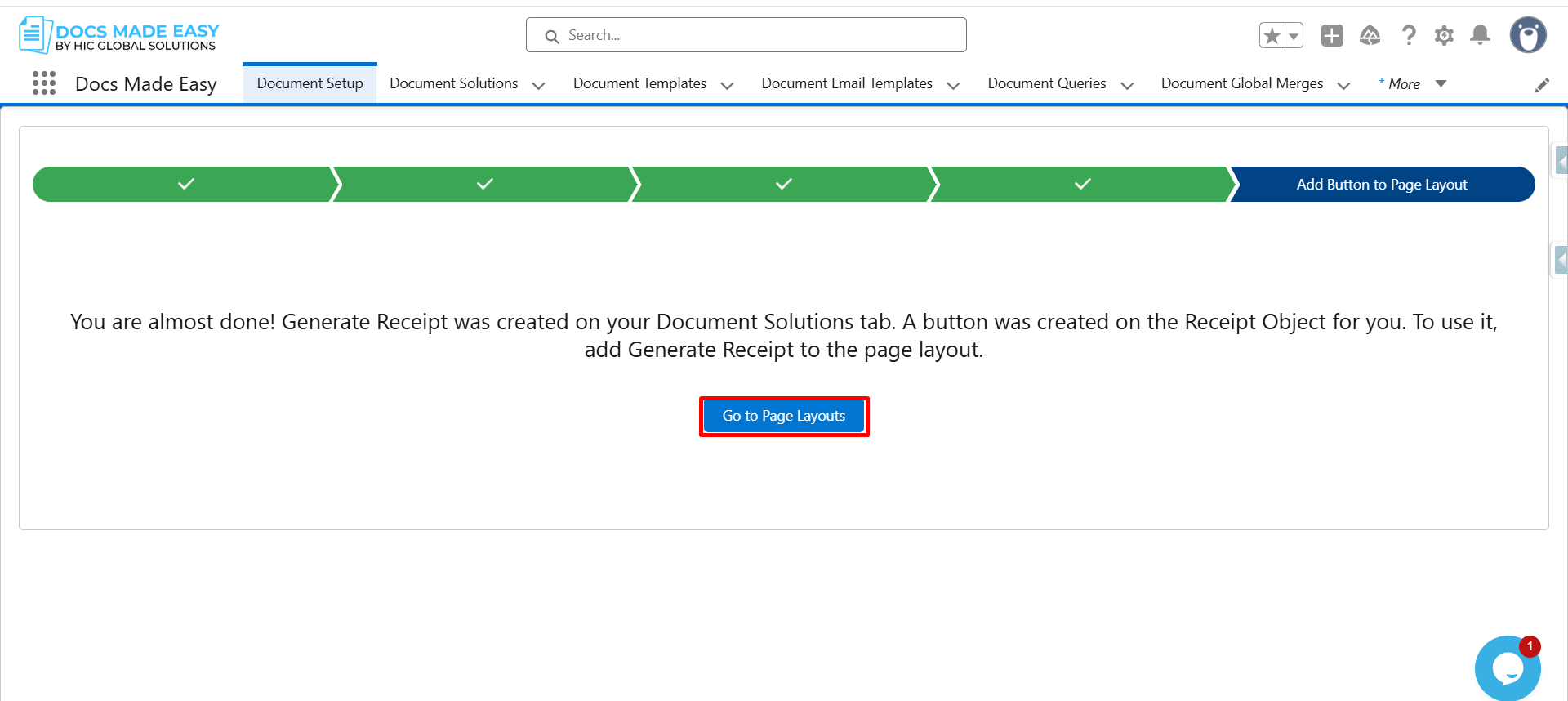
Step 16: Now, Go to Page Layout in the Salesforce setup.
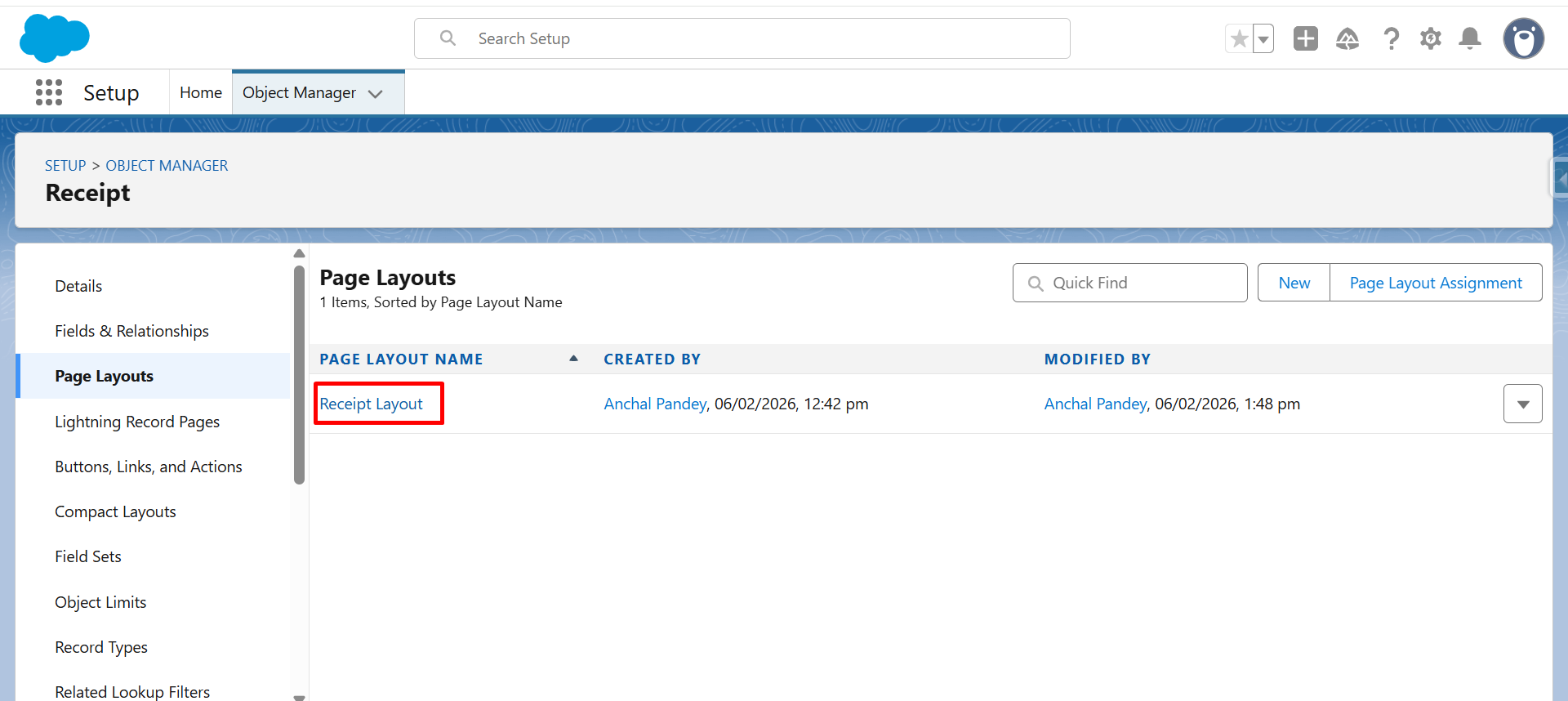
Step 17: Click on Receipt Layout.
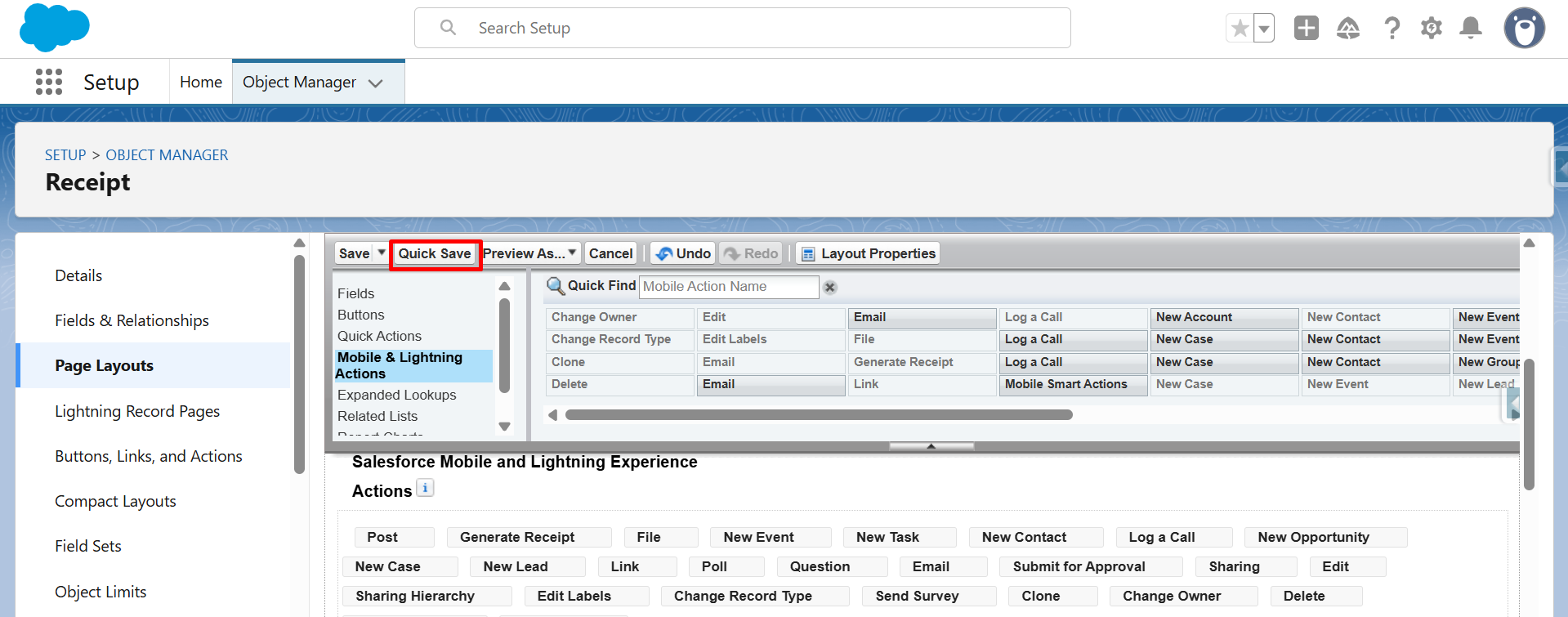
Step 18: From Mobile & Lightning Actions, drag and drop the Generate Receipt button into the Salesforce Mobile and Lightning Experience Actions section.
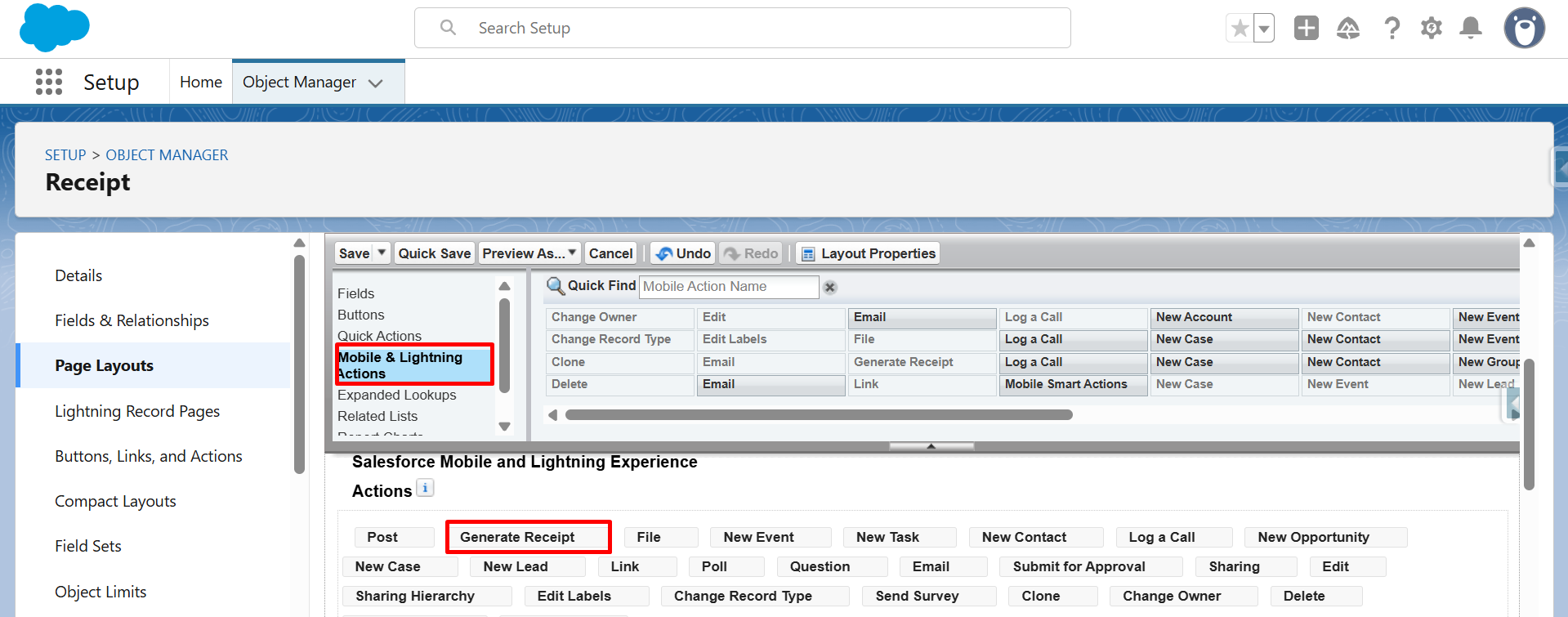
Step 19: Click on Quick Save to save the layout changes.
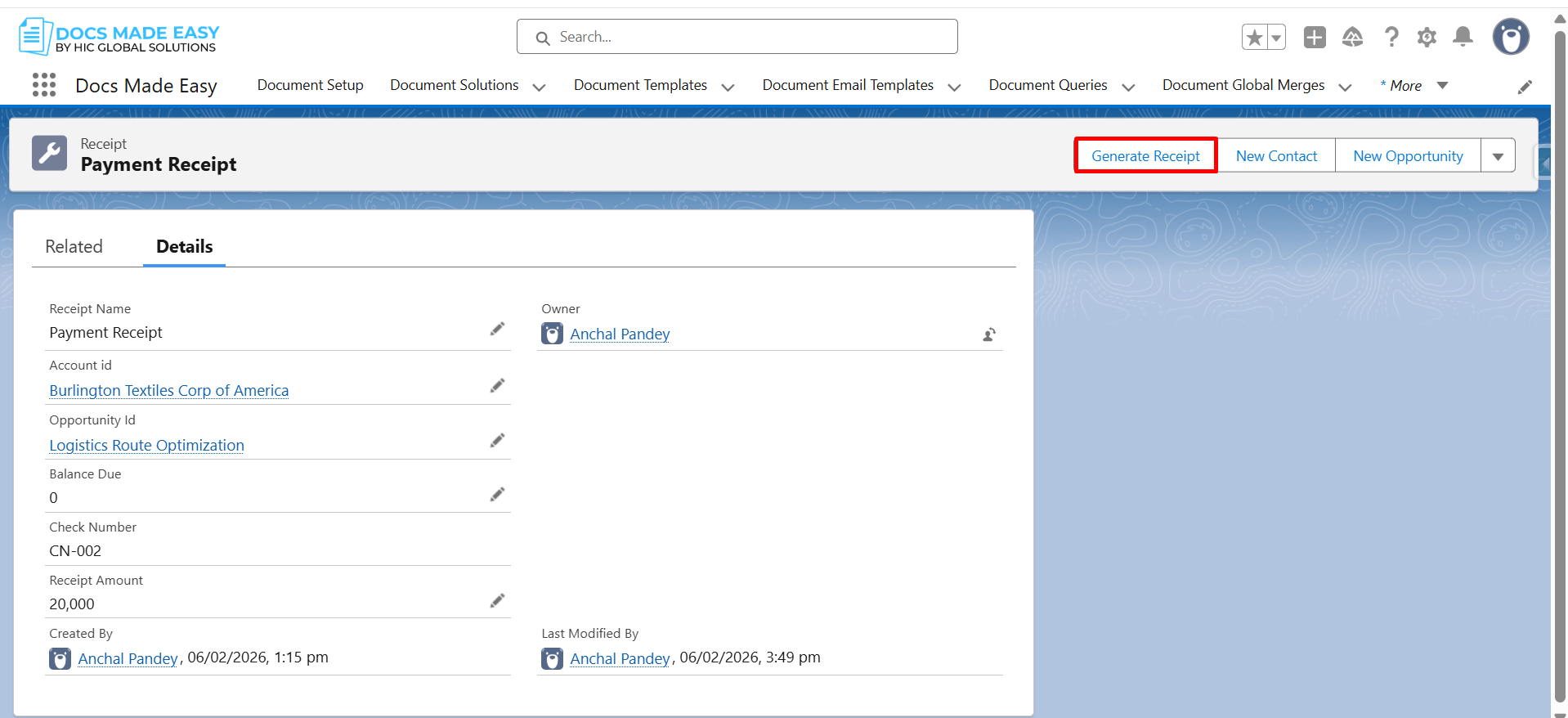
Step 20: Now, go to any Receipt Record and click on the button (Generate Receipt).
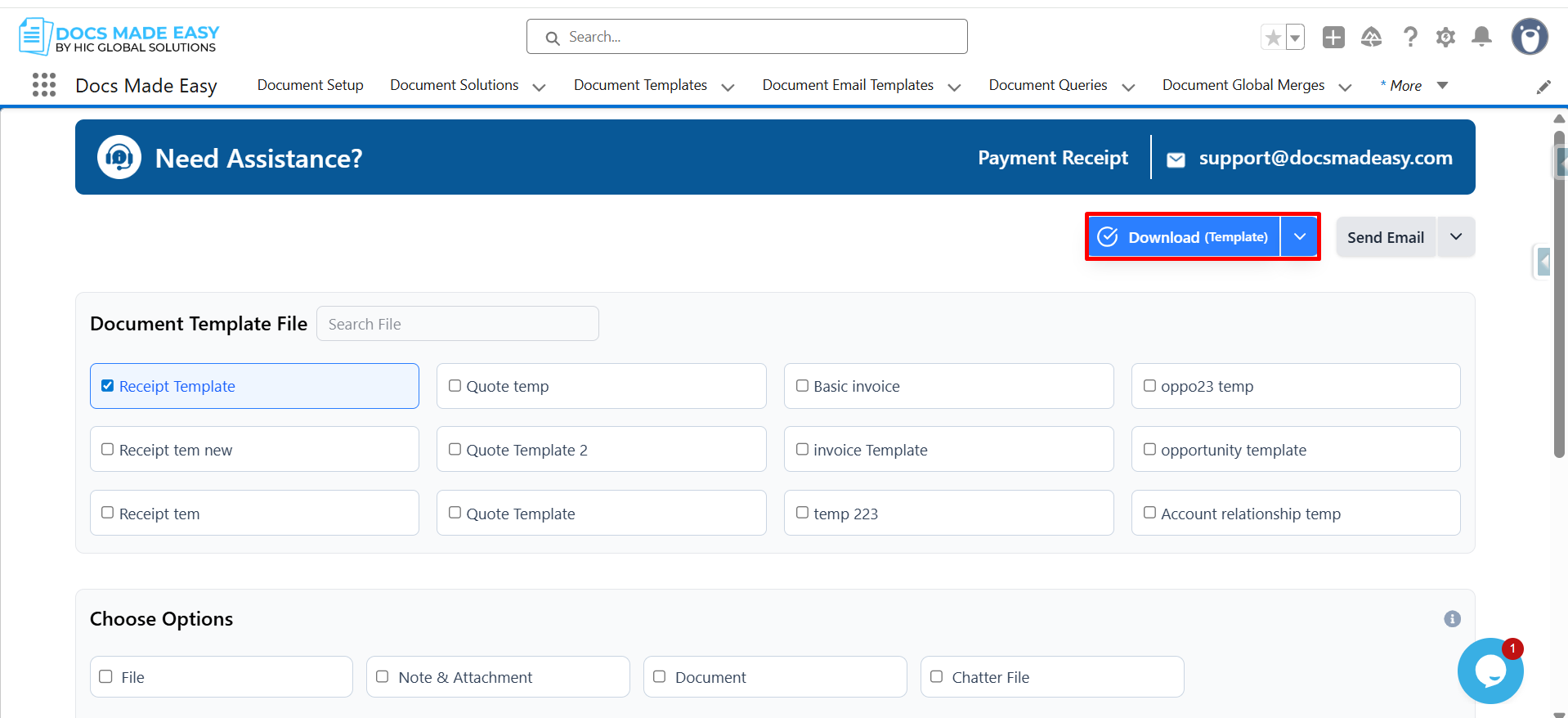
Step 21: Click on Download Template to proceed.
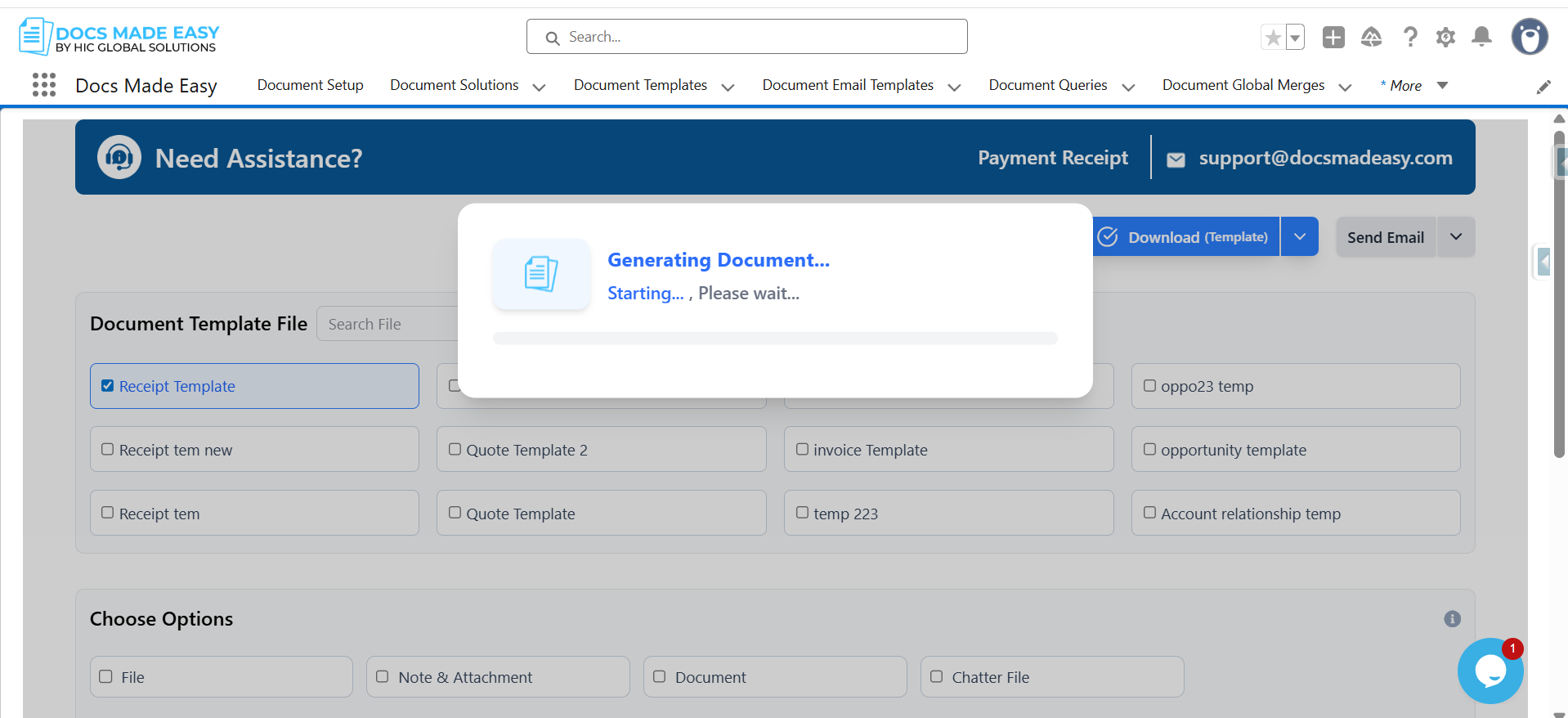
Step 22: The system will automatically start generating the Document.
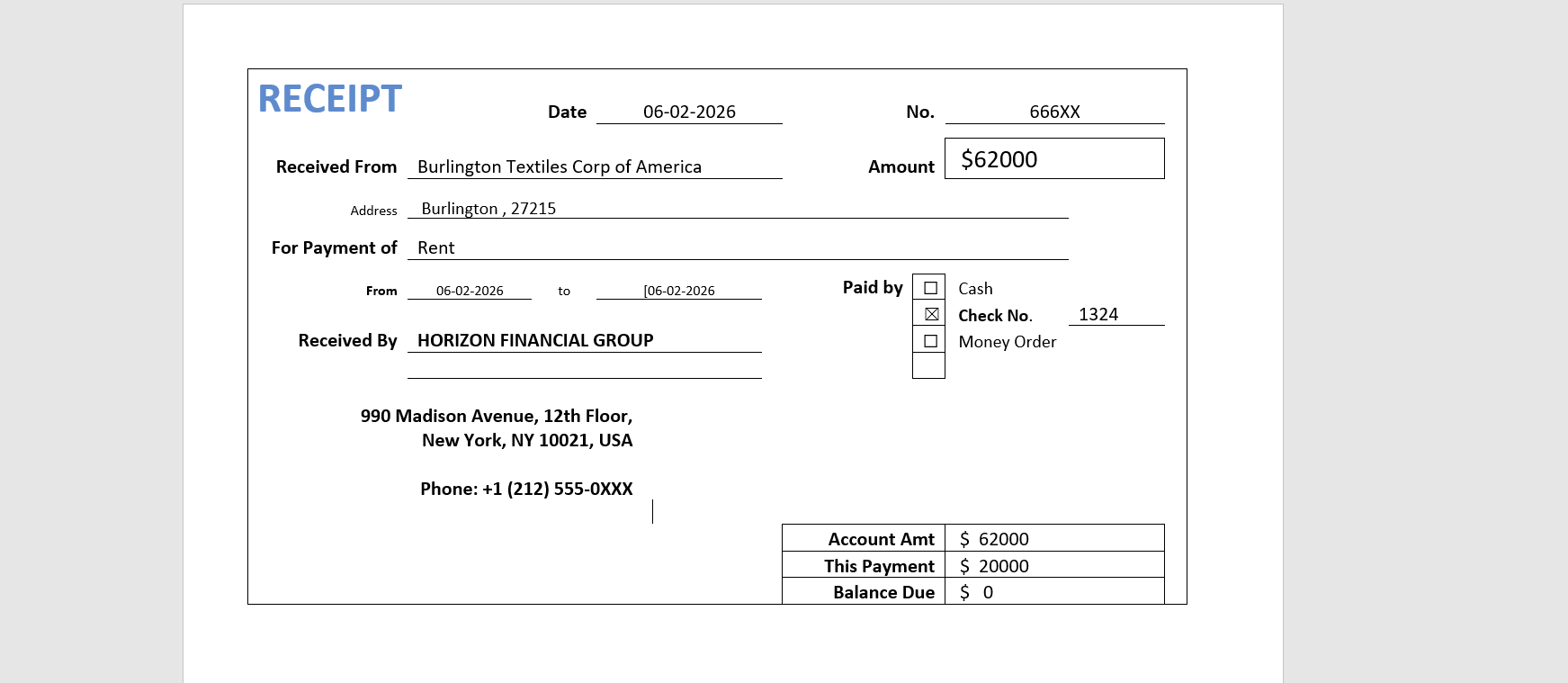
Step 23: Finally, open the Generated Document to review your receipt.
Conclusion
Now you have successfully generated the recipient in Salesforce in the simplest way. You can also automate the process of document generation with Docs Made Easy Pro, which offers advanced features to simplify the entire process, from the template creation to final delivery.
Get started with Docs Made Easy now and create your Salesforce receipt in minutes.
Frequently Asked Questions
Related Blogs