How to Create a Document Solutions Collection in Salesforce
Category :
How To

Docs shouldn’t be complicated.
With Docs Made Easy, creating professional, Salesforce-powered documents is just a few clicks away.
Get Started NowManaging multiple document templates can be challenging when users need quick access to different solutions from a single location. Document Solutions Collection in Docs Made Easy helps organize multiple solutions together, making document management more efficient.
This feature simplifies Document Generation by allowing users to group related solutions and display them directly on Salesforce record pages. In this guide, we will walk you through the steps to create and configure a collection for easier access and Salesforce document automation.
Steps to Create a Document Solutions Collection
Step 1: First, login to Salesforce.
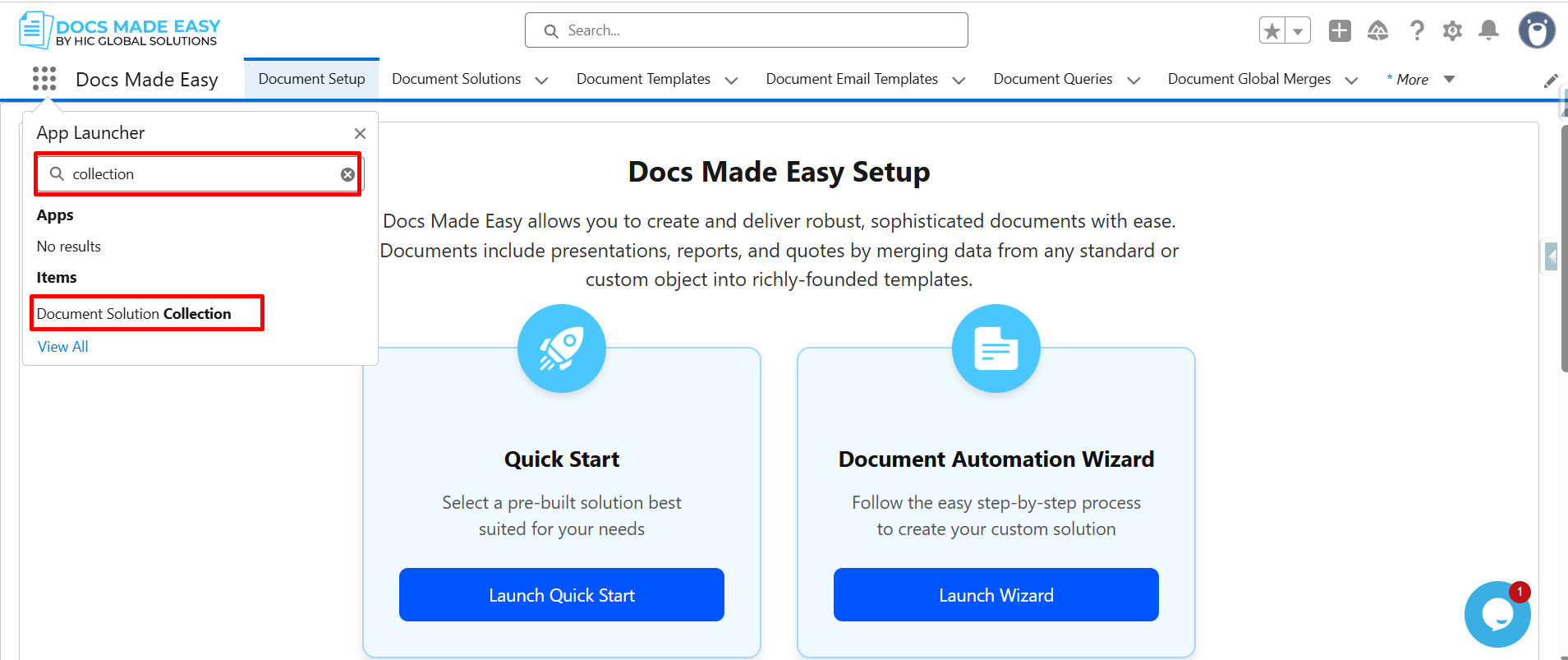
Step 2: Open Docs Made Easy and search for Collection in the App Launcher. Then, click on the Document Solution Collection.
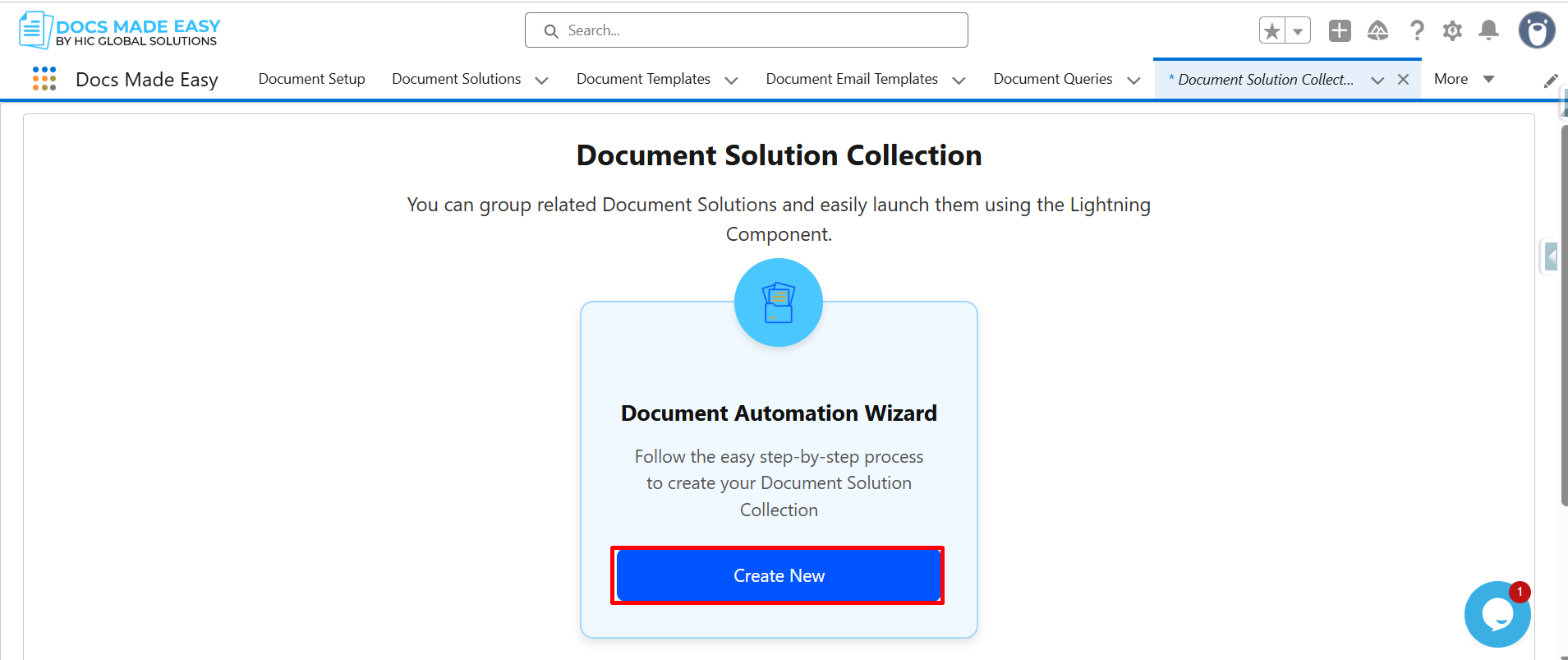
Step 3: Click on Create New.
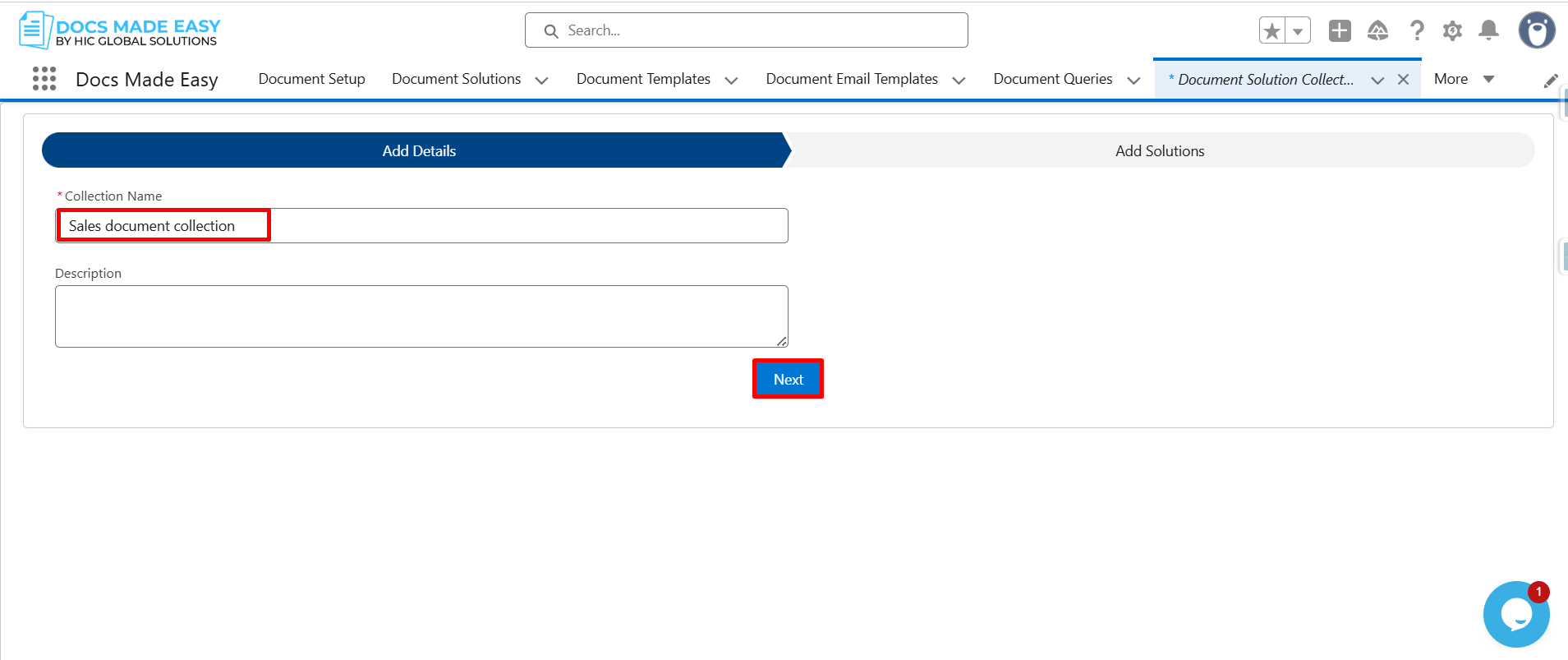
Step 4: Enter the Collection Name and click on Next.
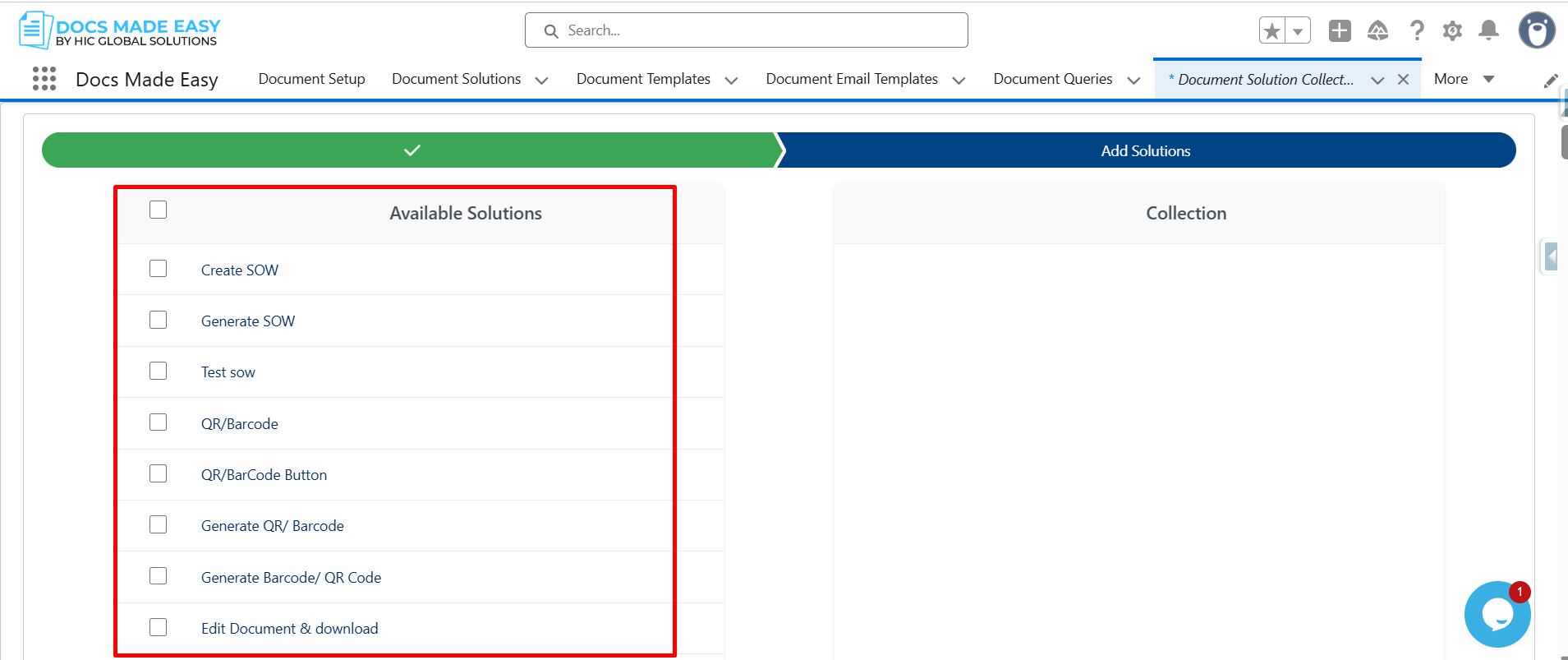
Step 5: Select the required solutions from the available solutions list.
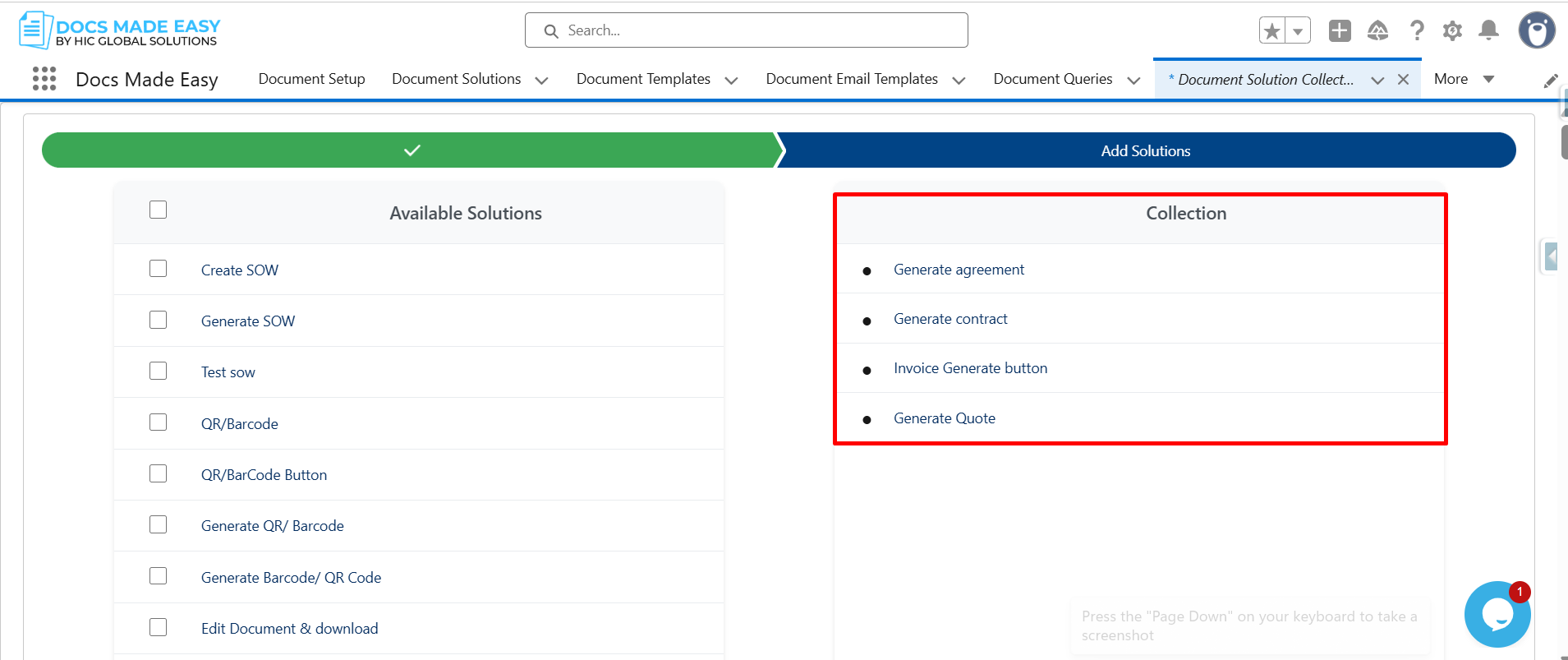
Step 6: Once selected, the solutions will appear in the Collection panel on the right side.
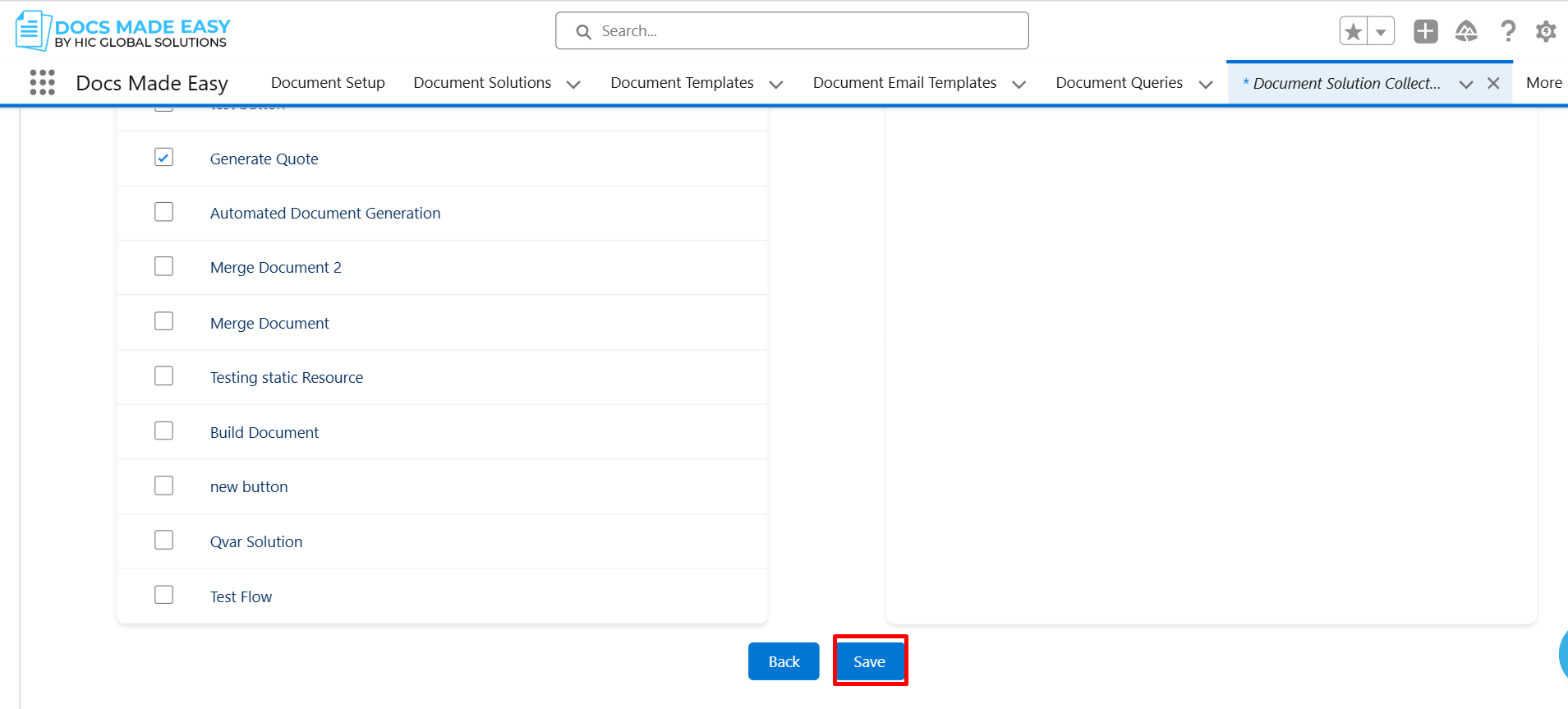
Step 7: After that Click on Next.
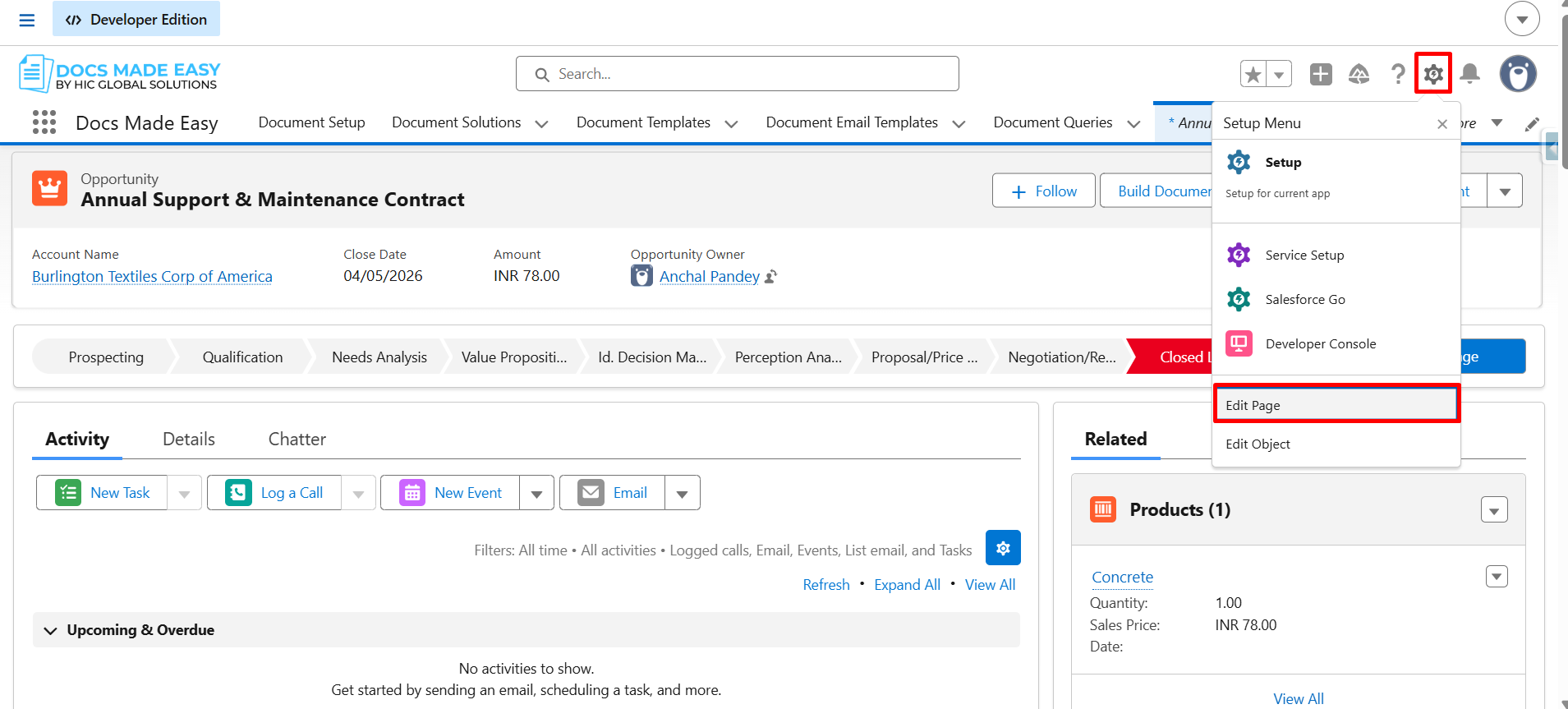
Step 8: Open the object record where the solutions are created, click the Gear icon, and select Edit Page.
Step 9: From the component panel, drag the Document Solution Collection component and place it onto the record page.
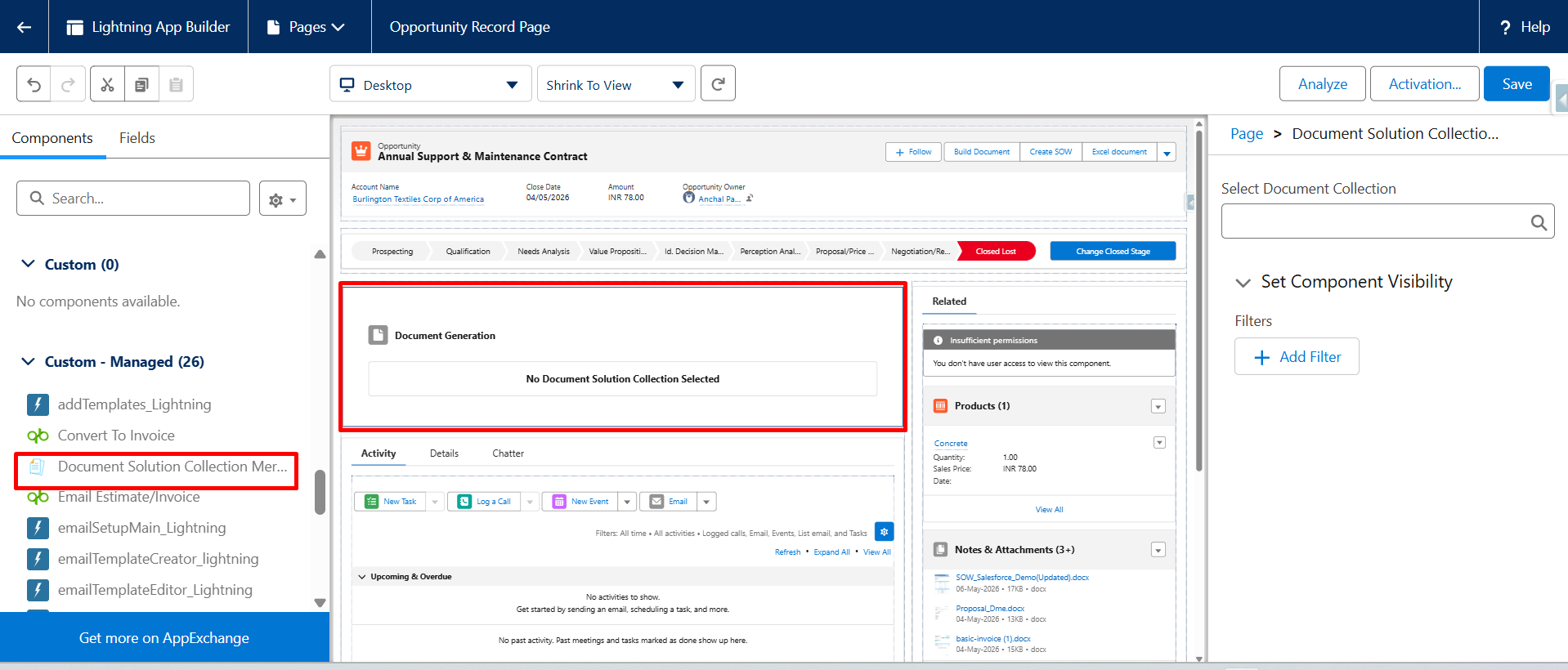
Step 10: Select the required Document Solution Collection, Then click Save to apply the changes.
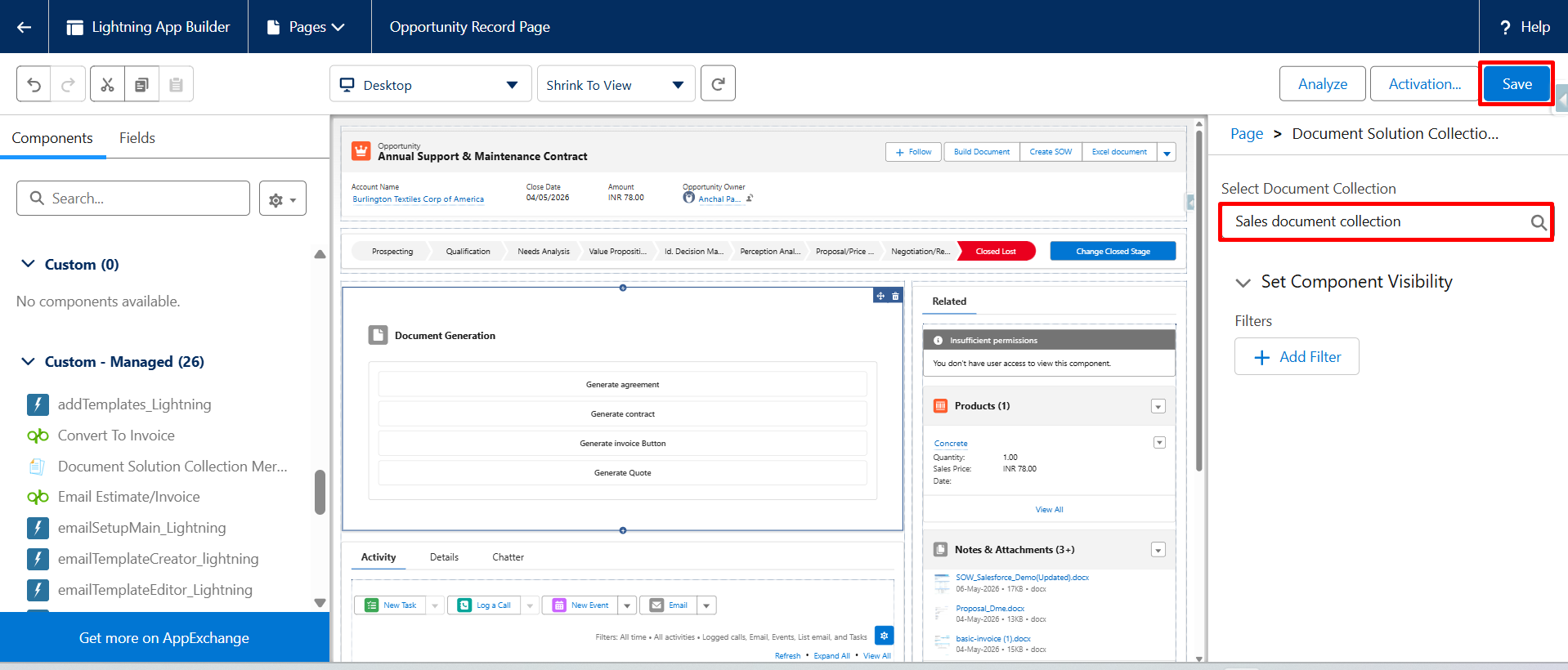
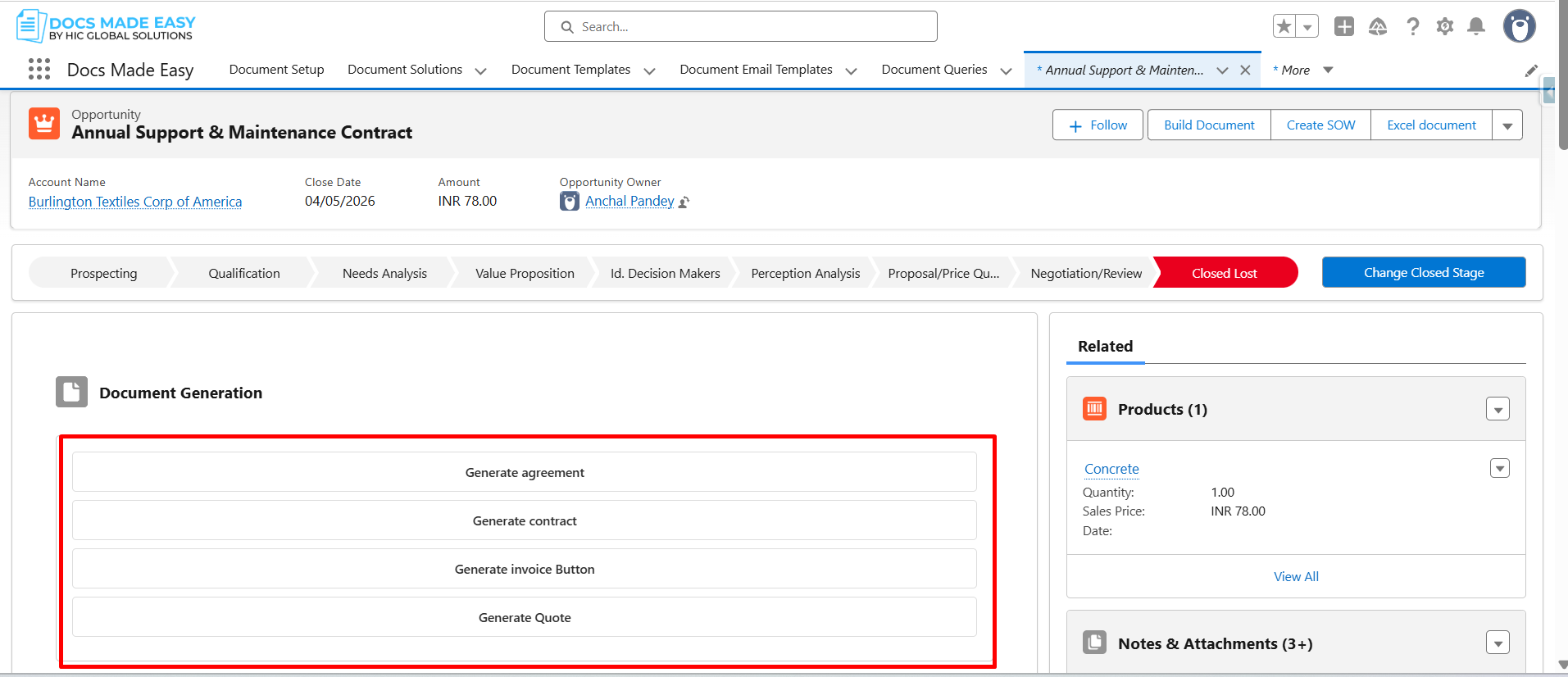
Step 11: You can now see that the solutions selected in the collection are displayed in the Document Generation section on the record.
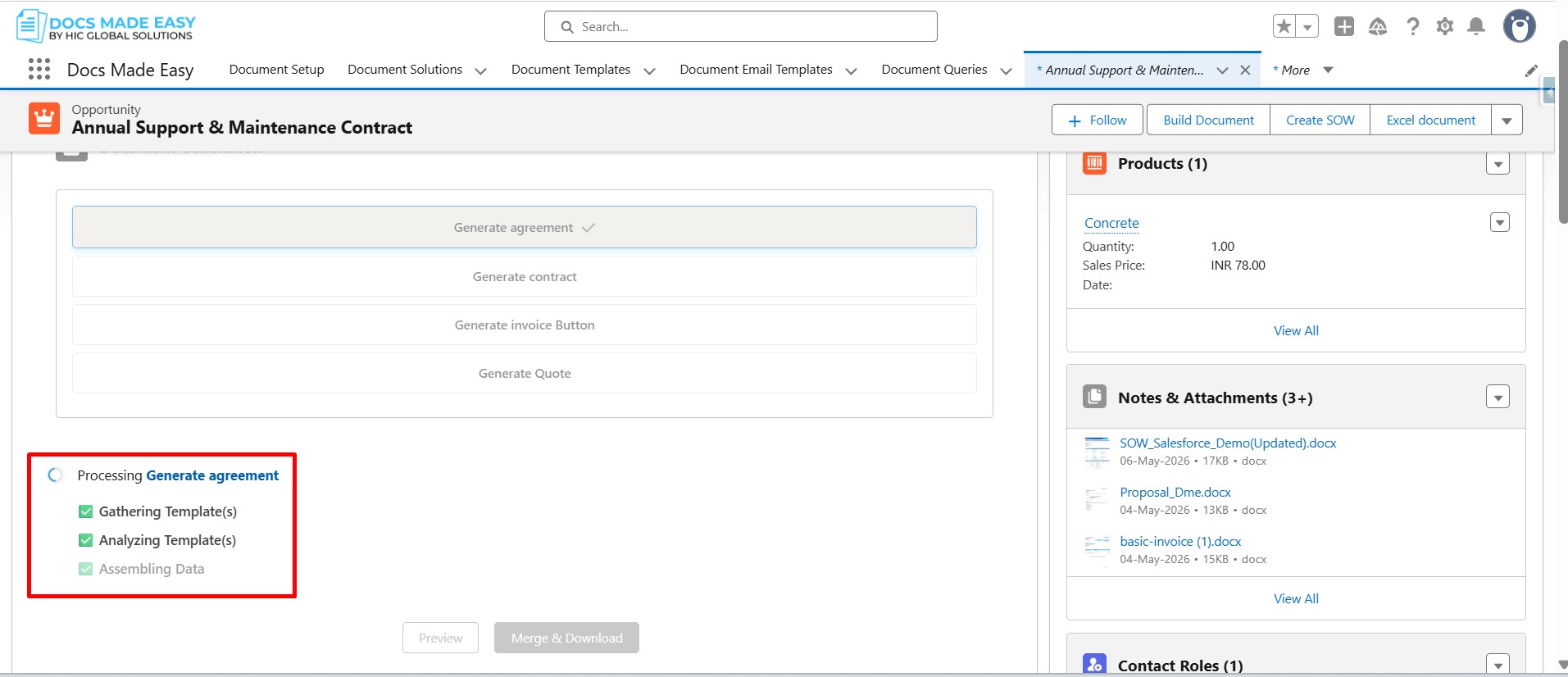
Step 12: Select the required solution and click the Merge & Download button to generate the document.
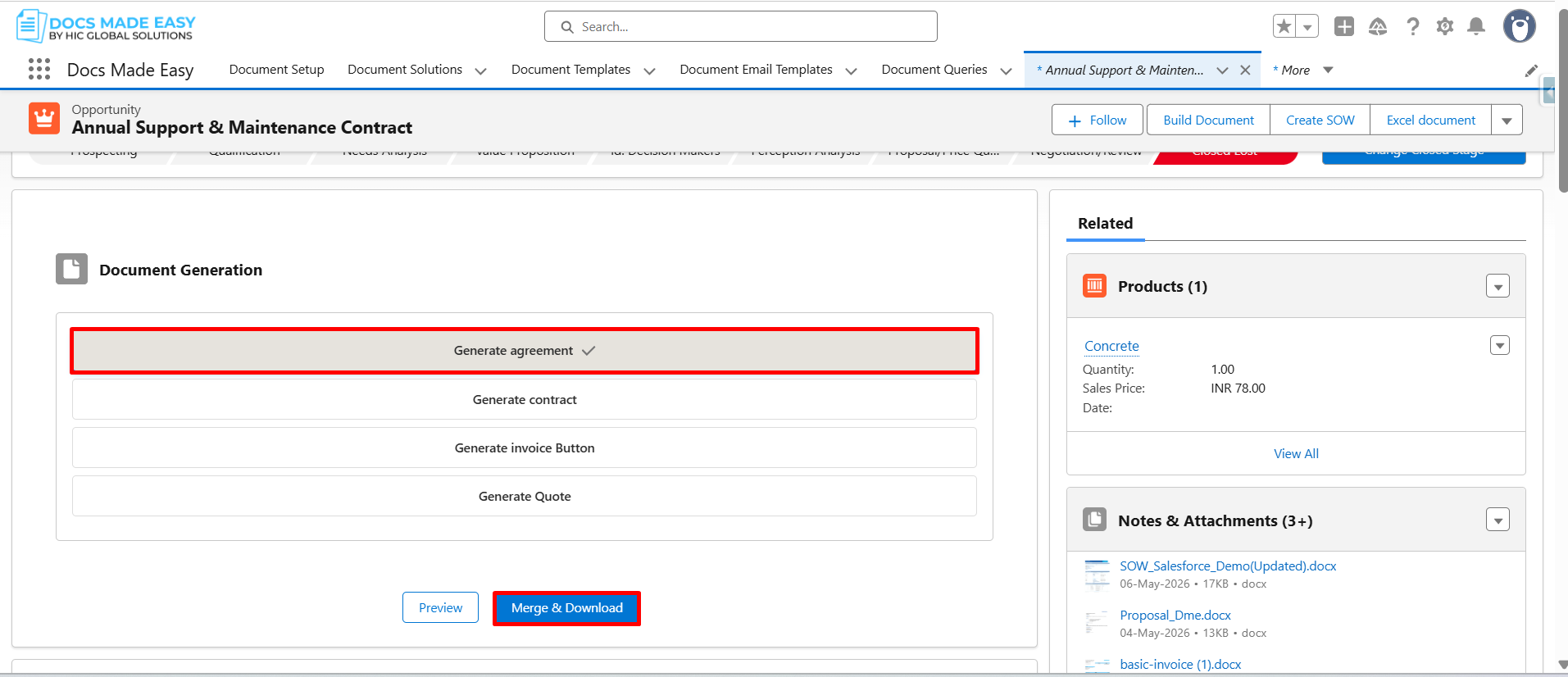
Step 13: The document generation process will begin, and the selected solution will be processed to generate the document.
Conclusion
Using a Document Solutions Collection helps users organize multiple templates in one place and access them directly from Salesforce records. This improves productivity, reduces navigation time, and makes document solutions easier to manage across different business processes.
We hope this guide has helped you successfully set up and use a collection for Salesforce document automation. If you need any further assistance, please contact us at support@docsmadeasy.com.
Frequently Asked Questions
Related Blogs
How to Generate & Send Documents for eSign in Salesforce
Sending a document for signature directly from Salesforce can make the approval process much easier, especially when you want to…
How to Generate Salesforce Documents Using Quick Document Merge
Creating Salesforce documents does not have to involve multiple steps or moving between different tools. With Quick Document Merge, you…
How to Create a Scope of Work (SOW) in Salesforce with Docs Made Easy
Creating a Scope of Work manually can take time, especially when information needs to be collected from Salesforce and added…