How to Use Apex Data for Salesforce Document Generation
Category :
Document Generation

Docs shouldn’t be complicated.
With Docs Made Easy, creating professional, Salesforce-powered documents is just a few clicks away.
Get Started NowDocs Made Easy enables document generation from Salesforce records using predefined templates, but complex business requirements may necessitate data beyond standard SOQL relationships. Apex Data Relationships facilitate this by allowing users to create an Apex class for dynamic and computed datasets. This guide outlines the steps to create an Apex class, register it in Docs Made Easy, add necessary syntax to templates, and filter records using a Record ID, ensuring flexible document generation that meets specific business needs.
Docs Made Easy allows users to generate documents using Salesforce records and predefined templates. However, some business requirements need data that goes beyond standard SOQL-based relationships, especially when the information needs to be calculated, processed, or filtered before it appears in a document.
Apex Data Relationships in Docs Made Easy help handle these requirements by collecting and structuring data through an Apex class. This allows users to prepare dynamic, computed, or conditional datasets for Salesforce document generation.
In this guide, we will walk through how to create an Apex class, register Apex data in Docs Made Easy, add the required syntax to a template, and filter records using a Record ID.
How to Configure Apex Data Relationships in Docs Made Easy
Follow the steps below to create an Apex class, connect it with Docs Made Easy, and use the returned data in your document solution.
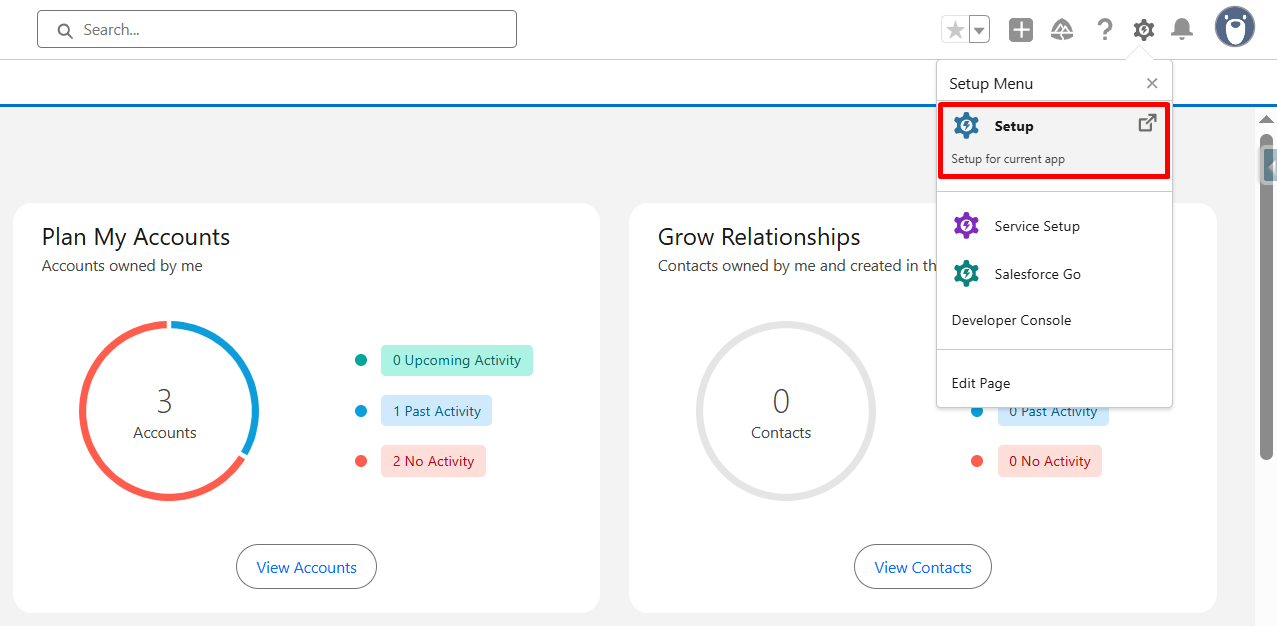
Step 1: Navigate to Setup
- Open Salesforce.
- Navigate to Setup.
Step 2: Search for Apex Classes
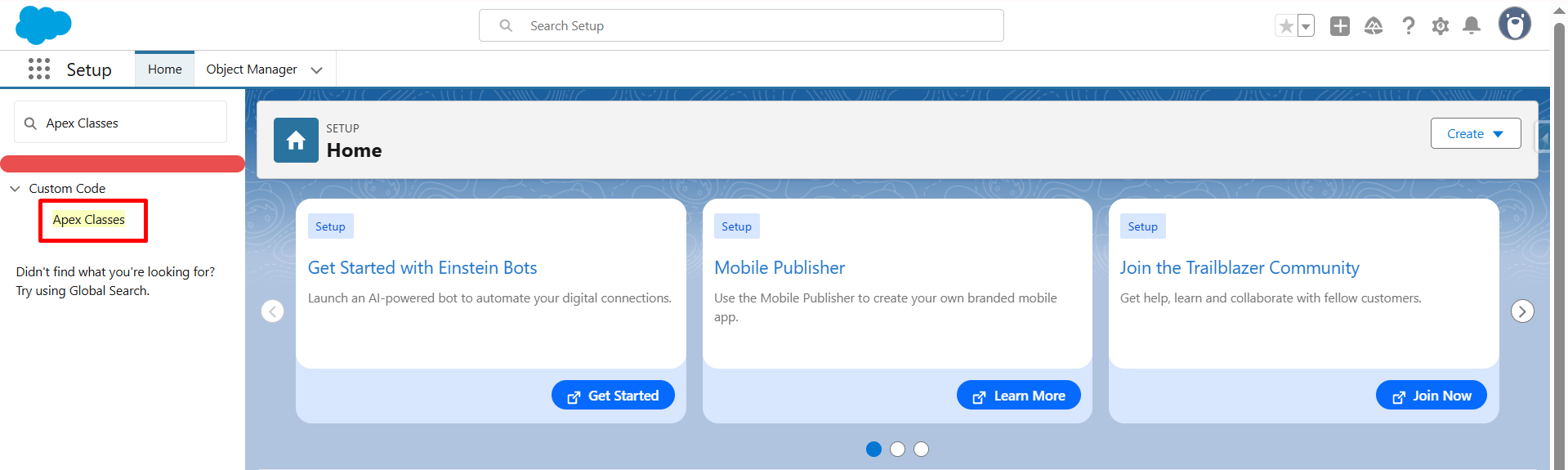
- Search for Apex Classes in the Search Box.
- Click Apex Classes.
Step 3: Create a New Apex Class
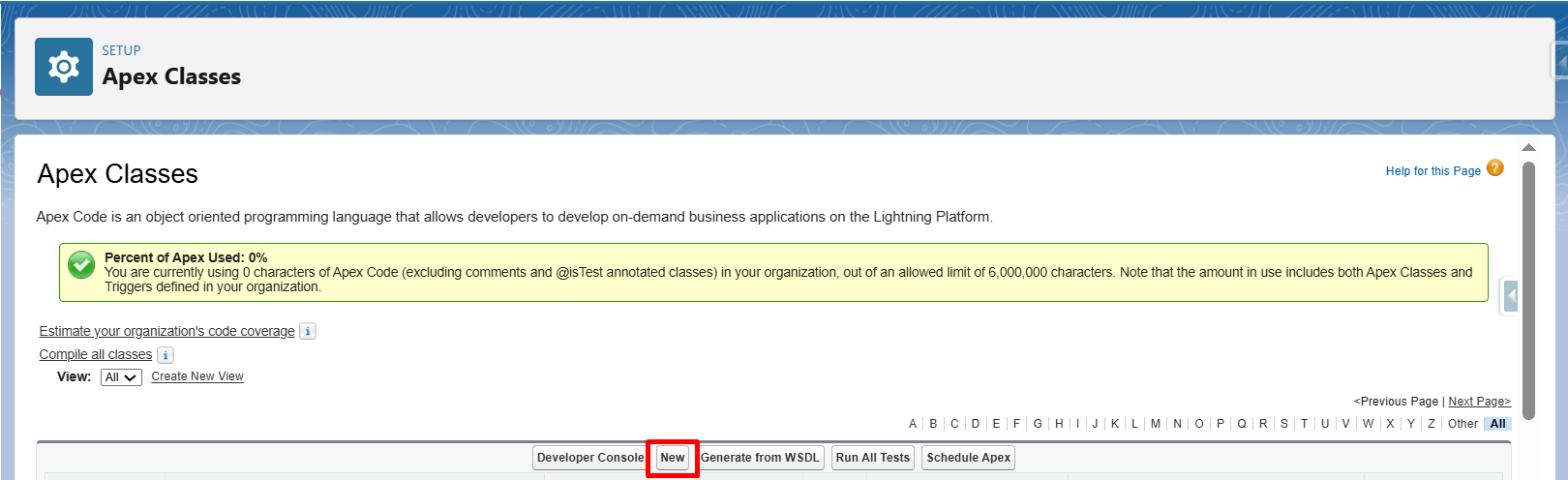
- Click the New button to create a new Apex class.
Step 4: Provide a Class Name and Write Your Logic
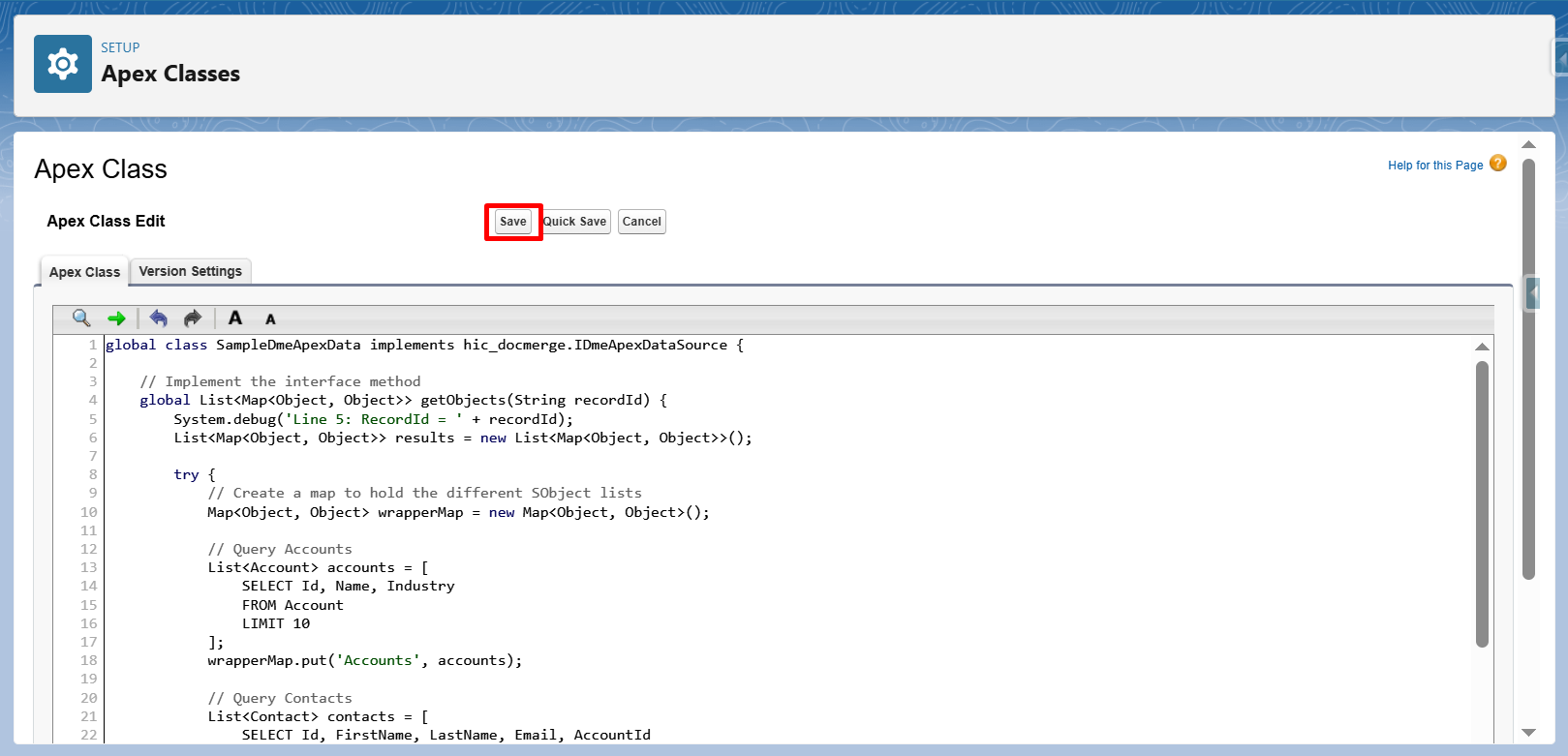
- Provide a meaningful name for your class, for example, SampleDmeApexData.
- Write your logic to fetch and process the required data.
Step 5: Save the Class
- Save the Apex class.
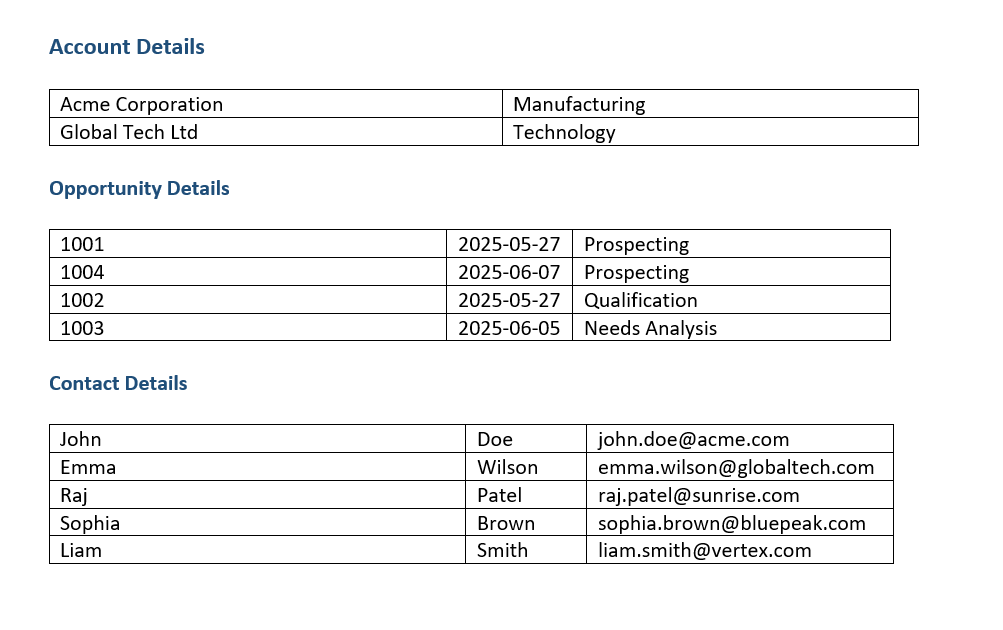
The class returns a dataset containing Account, Contact, and Opportunity records that Docs Made Easy can use during document generation.
Step 6: Navigate to Gather Data
- From the Salesforce App Launcher, select Docs Made Easy.
- Create a Solution.
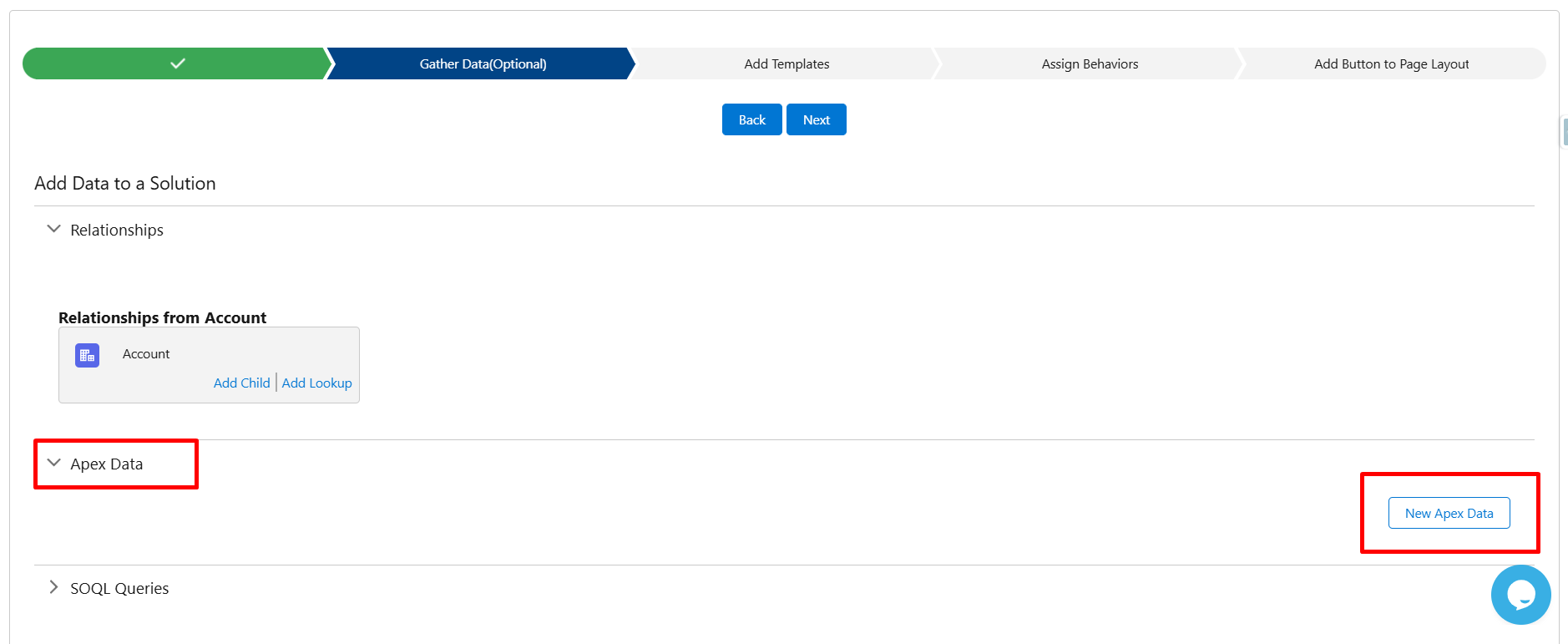
- Go to the Gather Data section.
Step 7: Add and Register Apex Data
- Click New Apex Data.
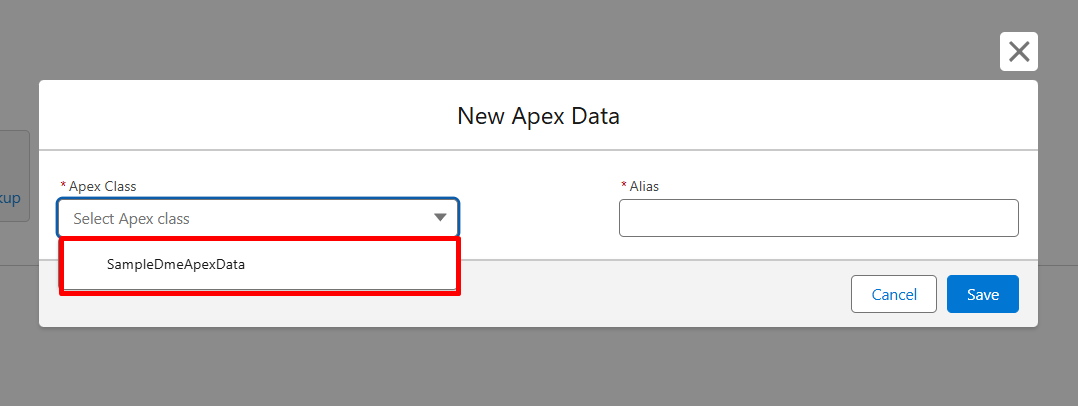
- Select your Apex Class.
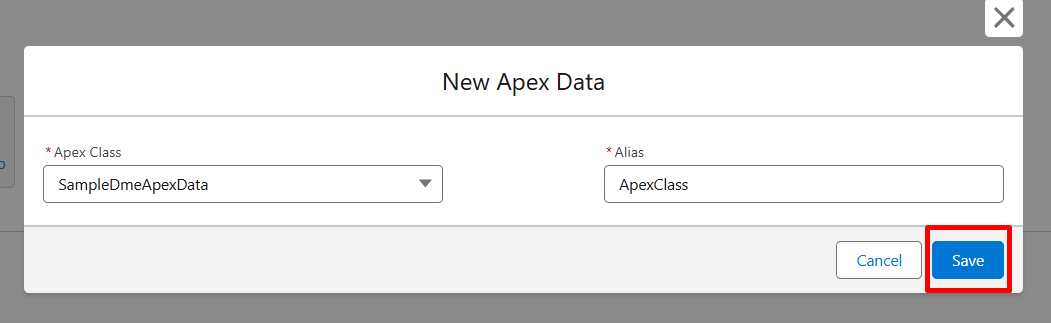
- Give an alias to your Apex Data and click Save.
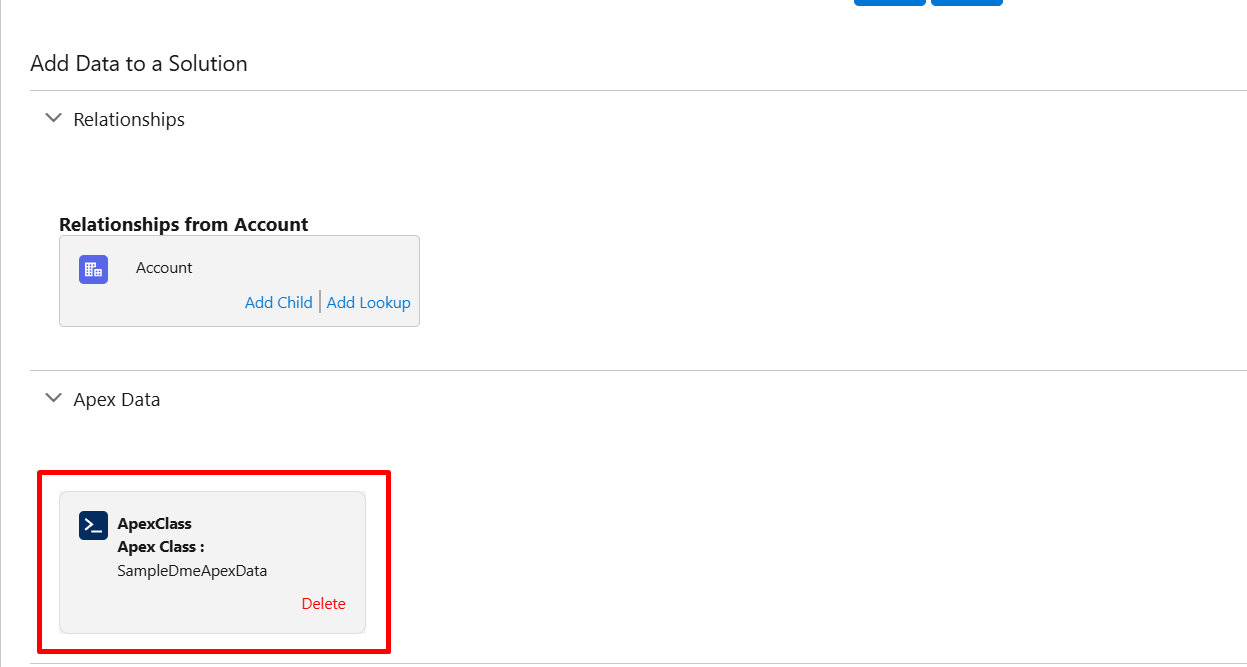
- Now your Apex Data is Saved.
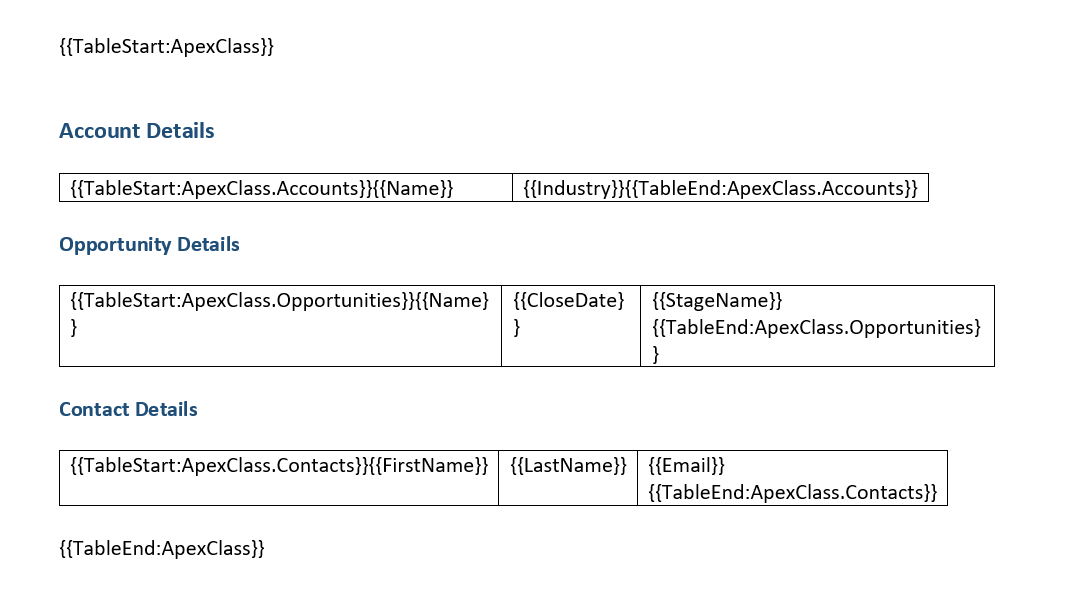
Step 8: Add Syntax to the Template
- Add the required syntax to your template.
- Upload the template.
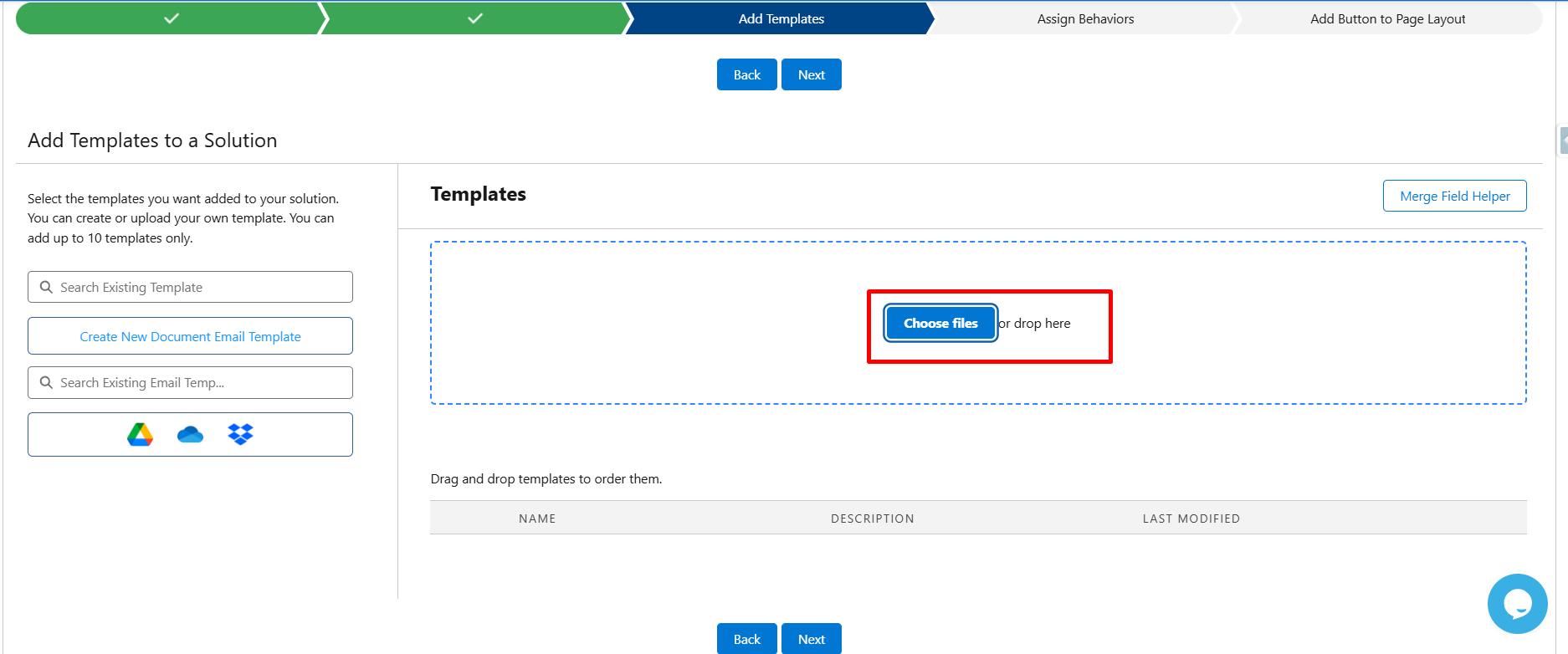
Proceed with the next steps to create the solution.
Click here to know more.
Sample Output:
How to Filter Records Using a Record ID
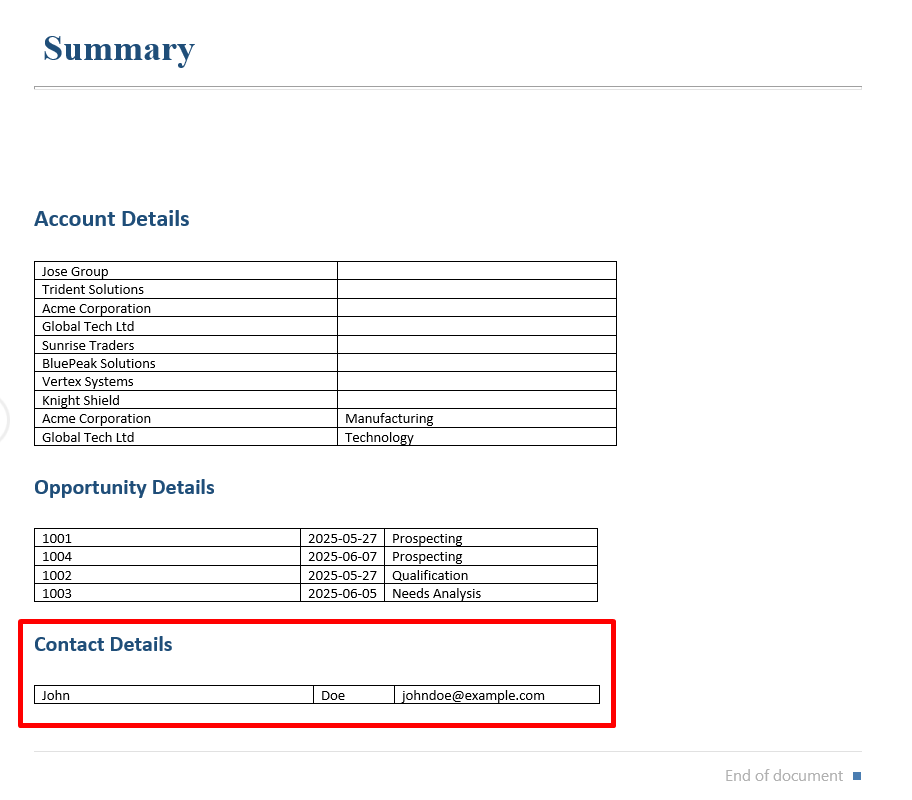
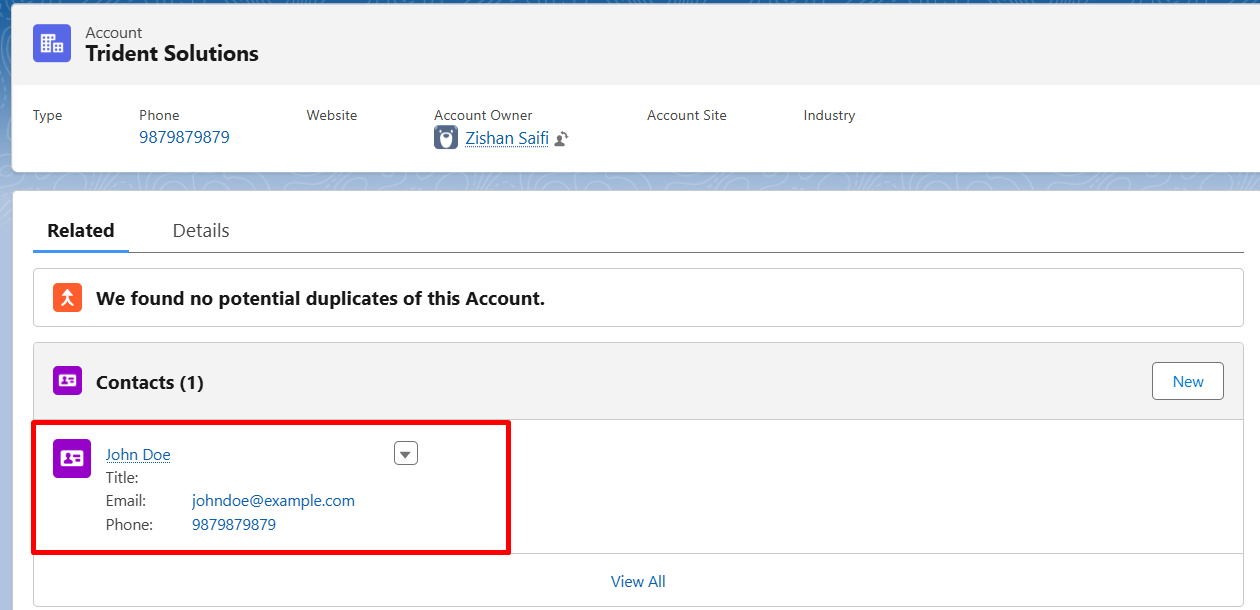
You can also filter records based on their Record ID by adding the required filter condition to your Apex class and passing the Record ID through the solution configuration.
Step 1: Add the Required Filter Condition
- Open your Apex class.
- Add the desired filter condition to fetch records based on the required Record ID

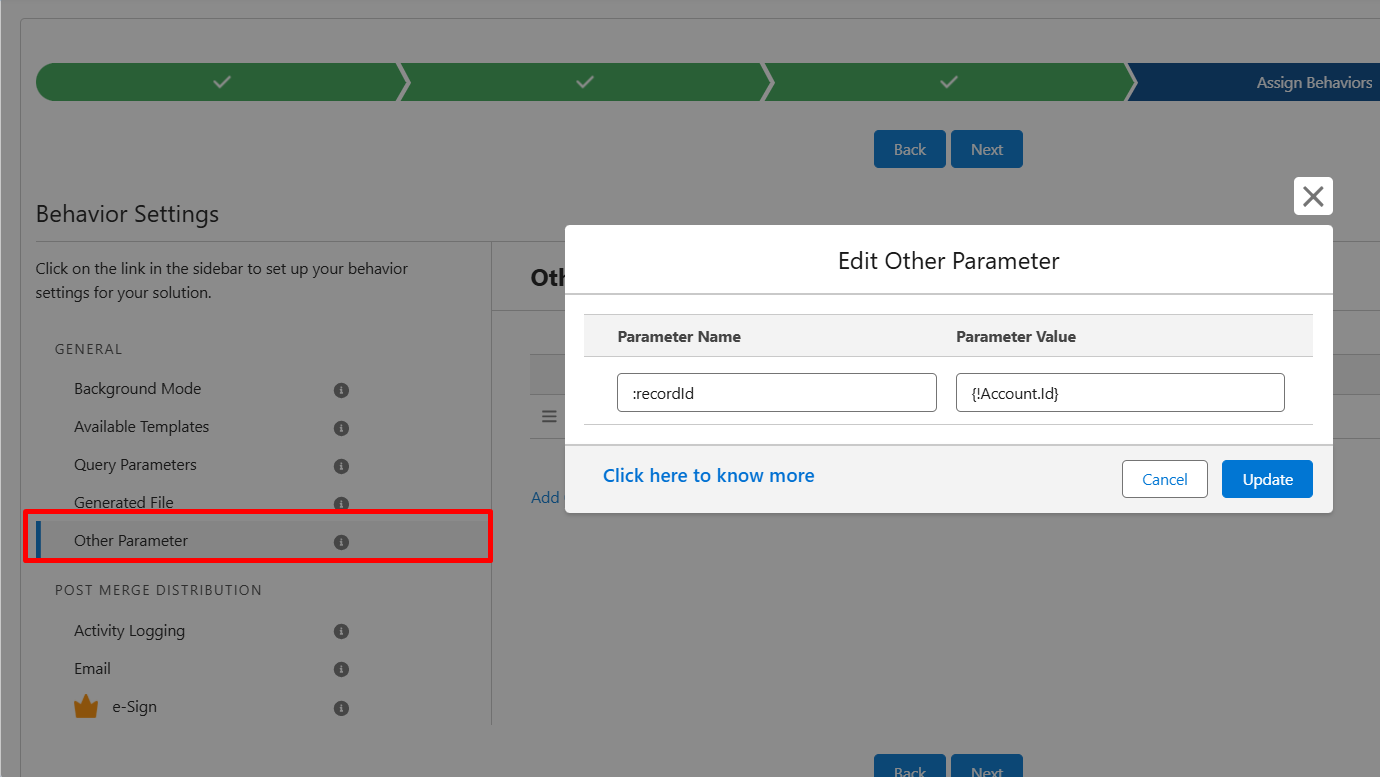
Step 2: Add the Record ID in Other Parameters
- Navigate to the Assign Behavior page.
- Add the Record ID under Other Parameters.
Step 3: Fetch the Filtered Records
- Run the solution to fetch records based on the specified condition.
Conclusion
Apex data in Docs Made Easy allows you to fetch, process, and filter Salesforce records before merging them into a document. By configuring the Apex class and registering it with the solution, you can support more flexible Salesforce document generation requirements.
Additionally, using Apex data with a Salesforce document template helps you handle specific business requirements when standard data relationships are not sufficient. Follow the steps above to configure the relationship and generate documents using the required records.
Frequently Asked Questions
Related Blogs
Top 7 Benefits of Integrating Docs Made Easy with Salesforce Revenue Cloud
Managing revenue today involves much more than creating quotes and sending contracts. Businesses need a connected process that handles pricing,…
Salesforce Documentation Best Practices: How to Reduce Admin Dependency and Scale Faster
As businesses grow in Salesforce, managing documentation often becomes difficult. At first, teams can easily manage workflows, approvals, automations, and…
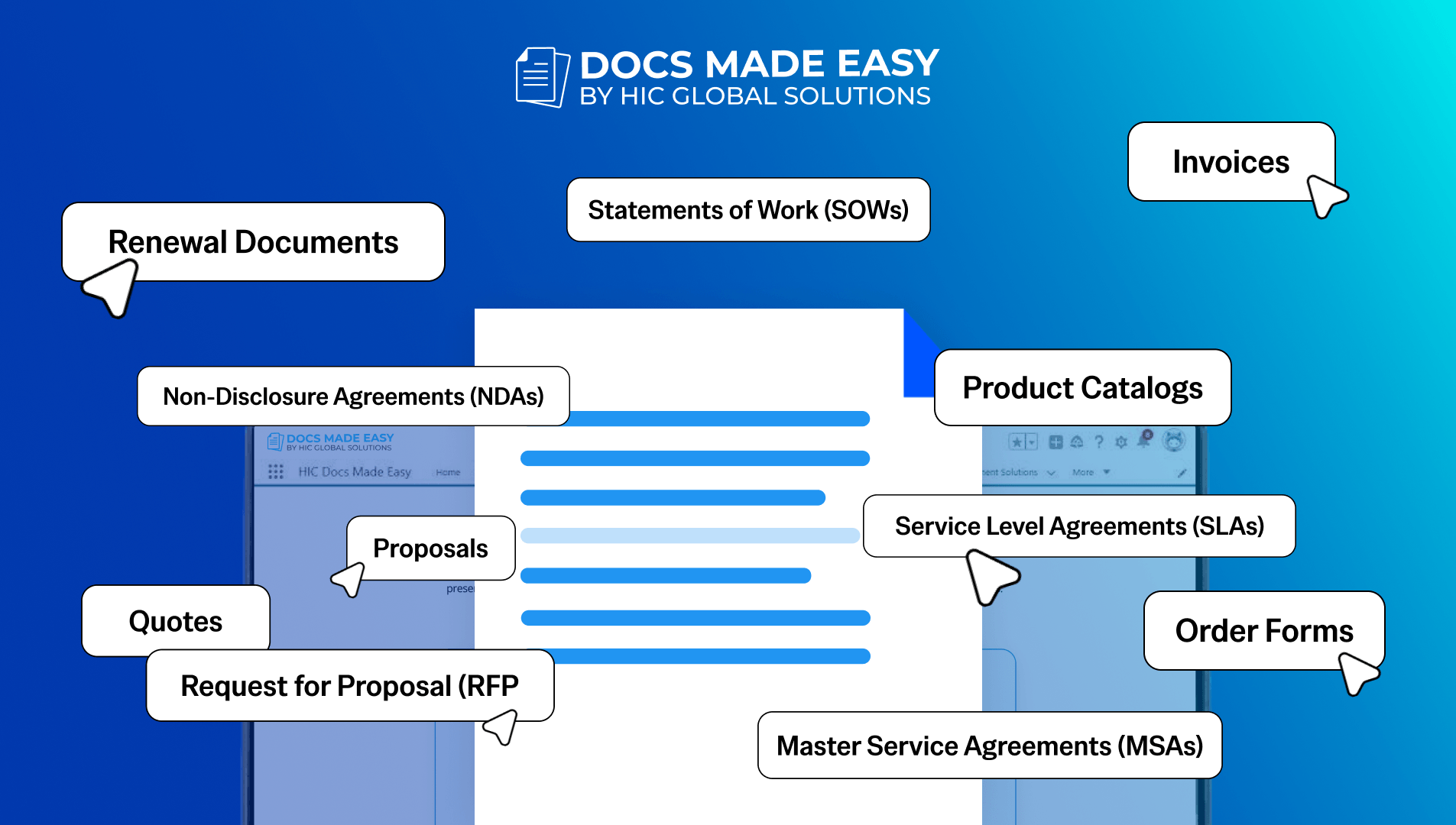
15 Salesforce Document Types That Drive Revenue
Team work with documents almost every day, but many businesses still underestimate how much these documents actually affect revenue. A…