How to Create a Document Template Using Merge Field Helper
Category :
How To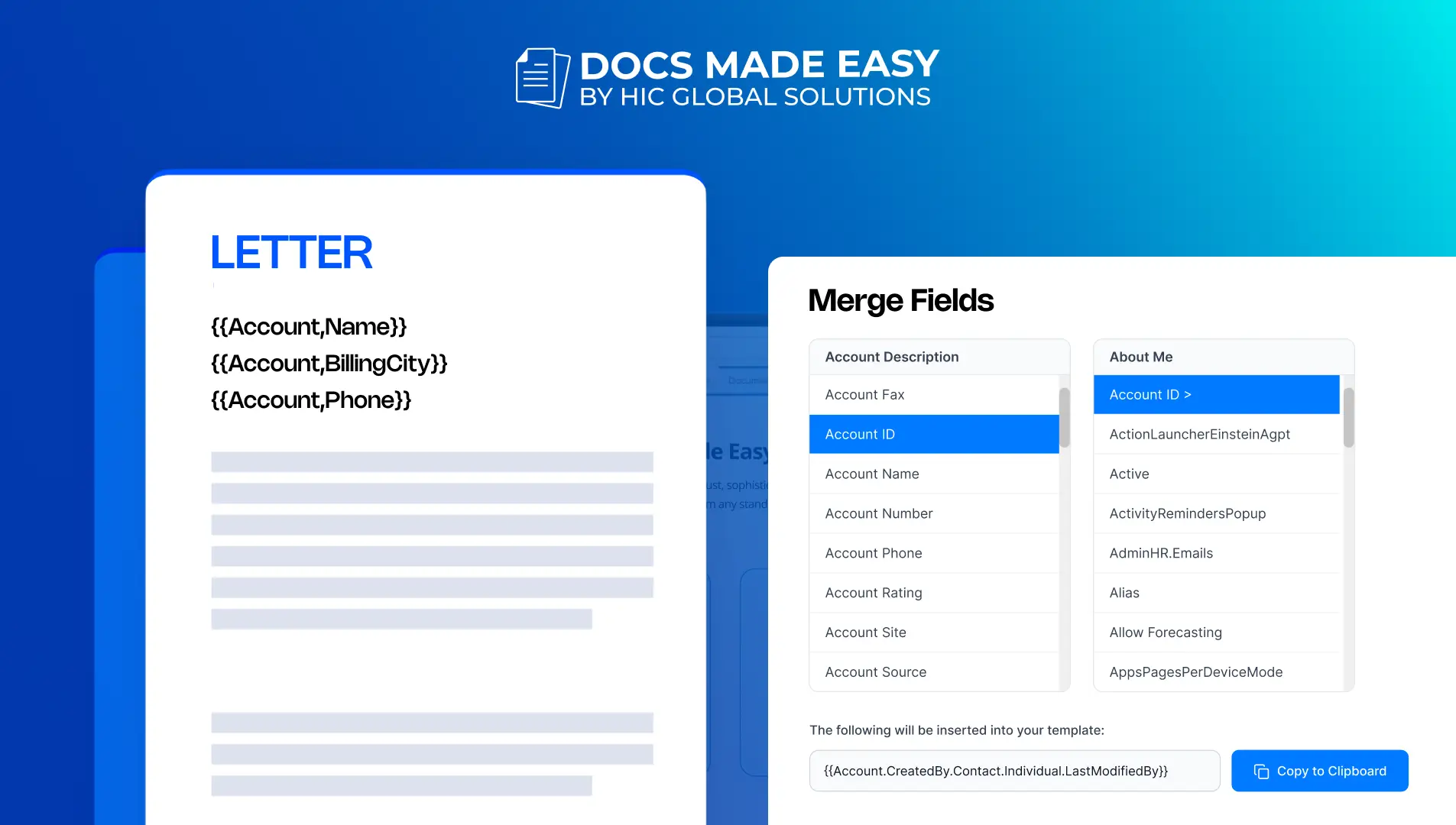

Docs shouldn’t be complicated.
With Docs Made Easy, creating professional, Salesforce-powered documents is just a few clicks away.
Get Started NowCreating documents manually by copying information from Salesforce can take time and often leads to errors. With a document template in Docs Made Easy, you can automatically pull Salesforce data into your documents using merge fields. This helps you generate accurate documents in just a few clicks without entering the same information repeatedly.
In this guide, we will show you how to create a Salesforce document template using the Merge Field Helper in Docs Made Easy. Let’s get started.
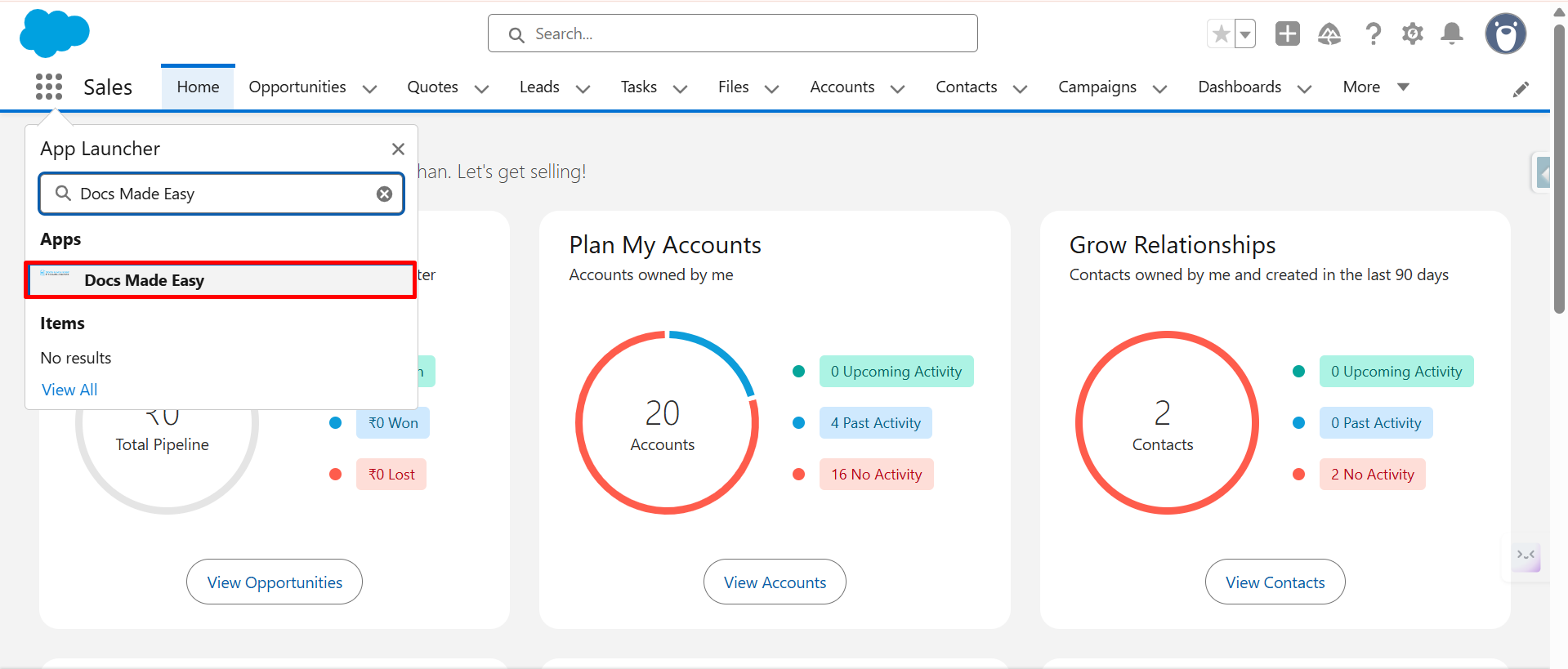
Step 1: Navigate to the App Launcher, search for Docs Made Easy, and open the application.
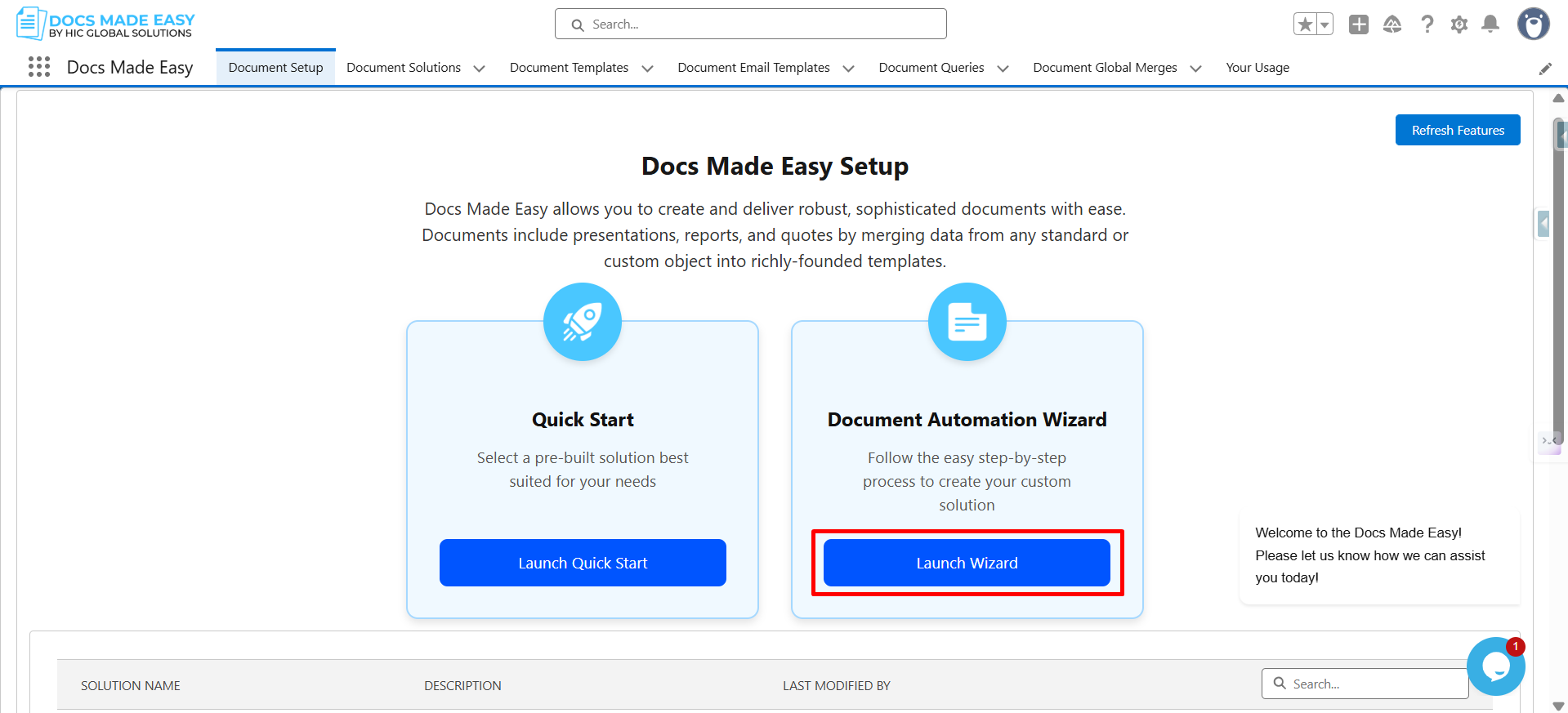
Step 2: Click Launch Wizard to start creating a new solution. Enter a name for your solution and select the required Salesforce object. Adding a description is optional, but it helps others understand the purpose of the solution.
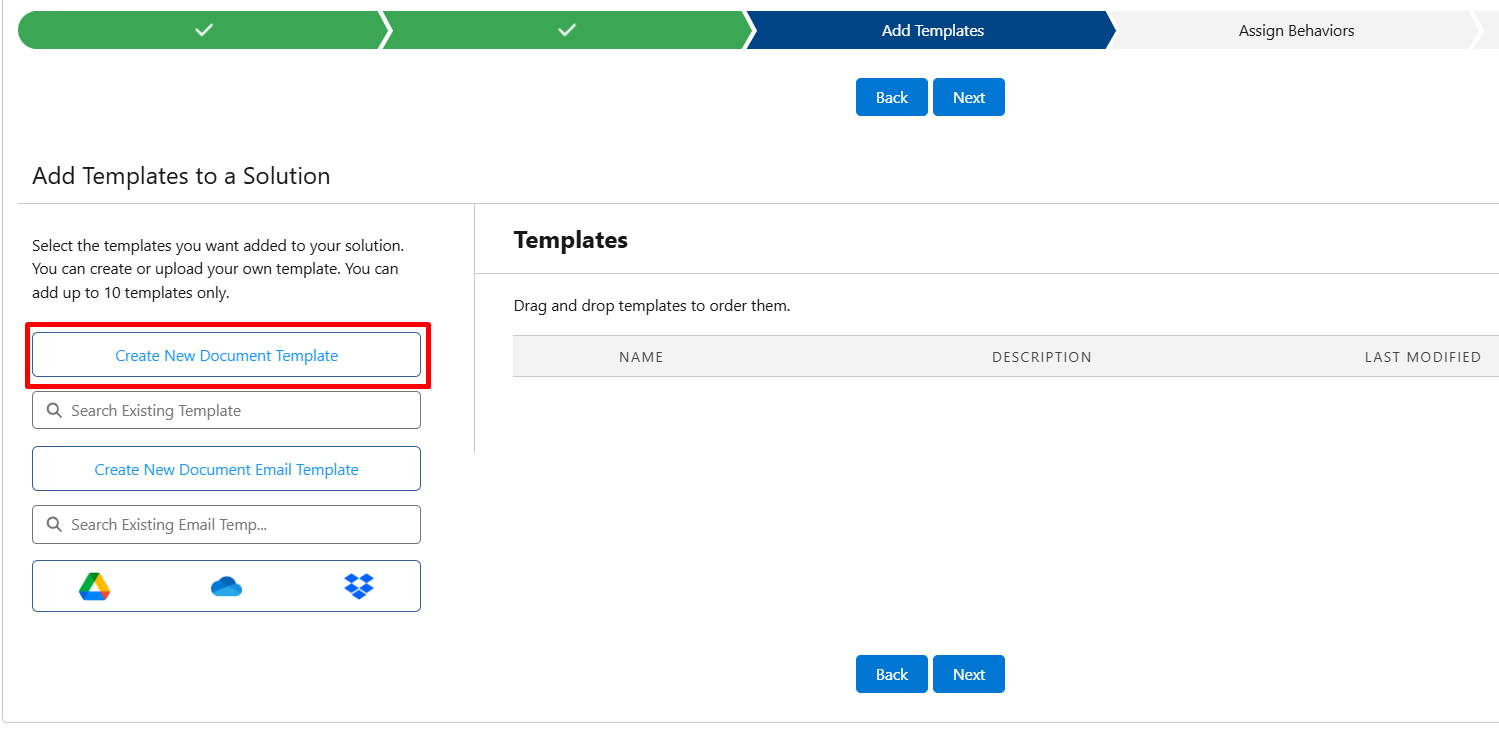
Step 3: Once done, click Create New Document Template. Then, click Next to continue. On the Add Template stage, select the option to create a new document template.
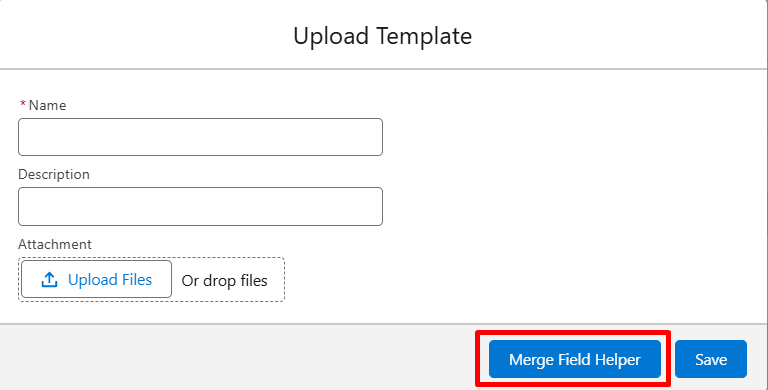
Step 4: A new screen will appear where you can upload your template. Before uploading the file, click Merge Field Helper to access the merge field syntax required for document generation.
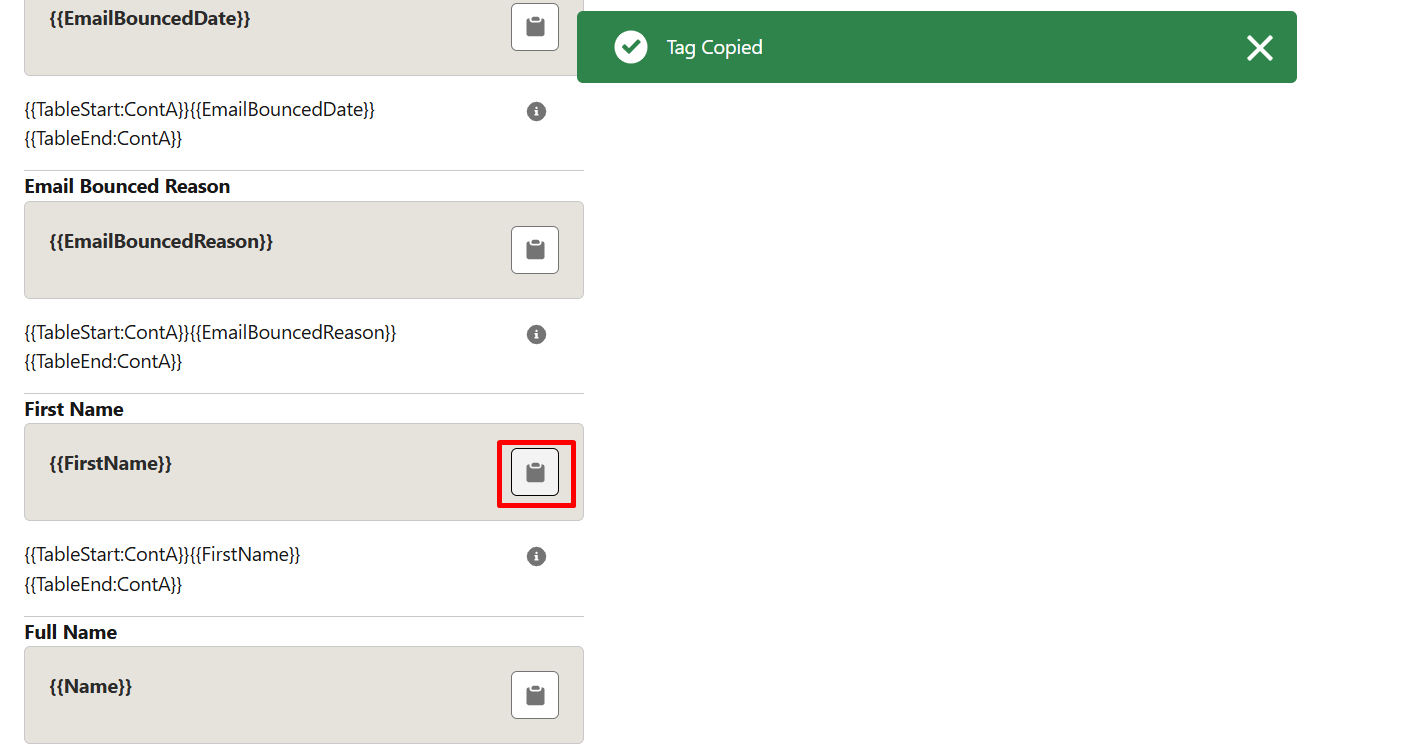
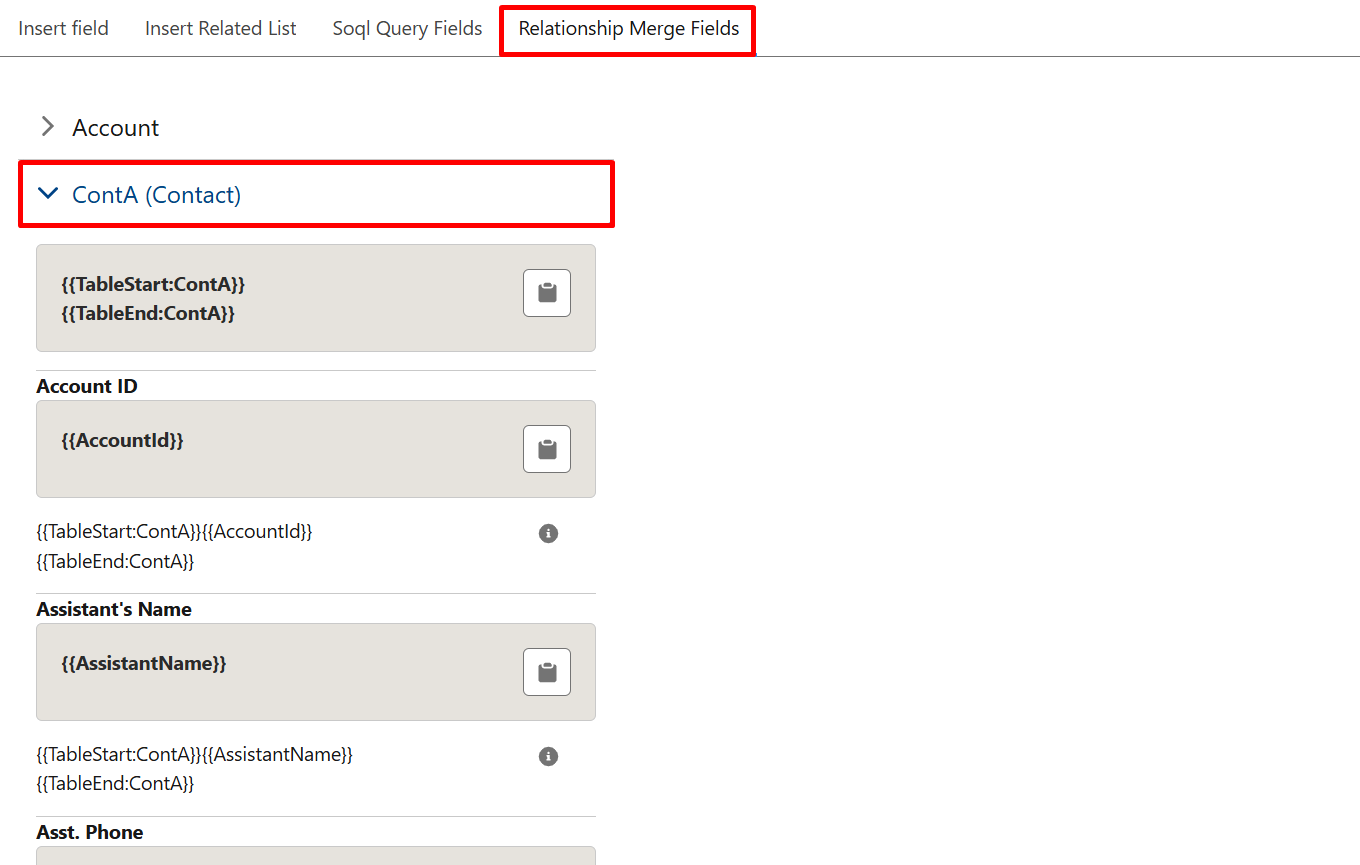
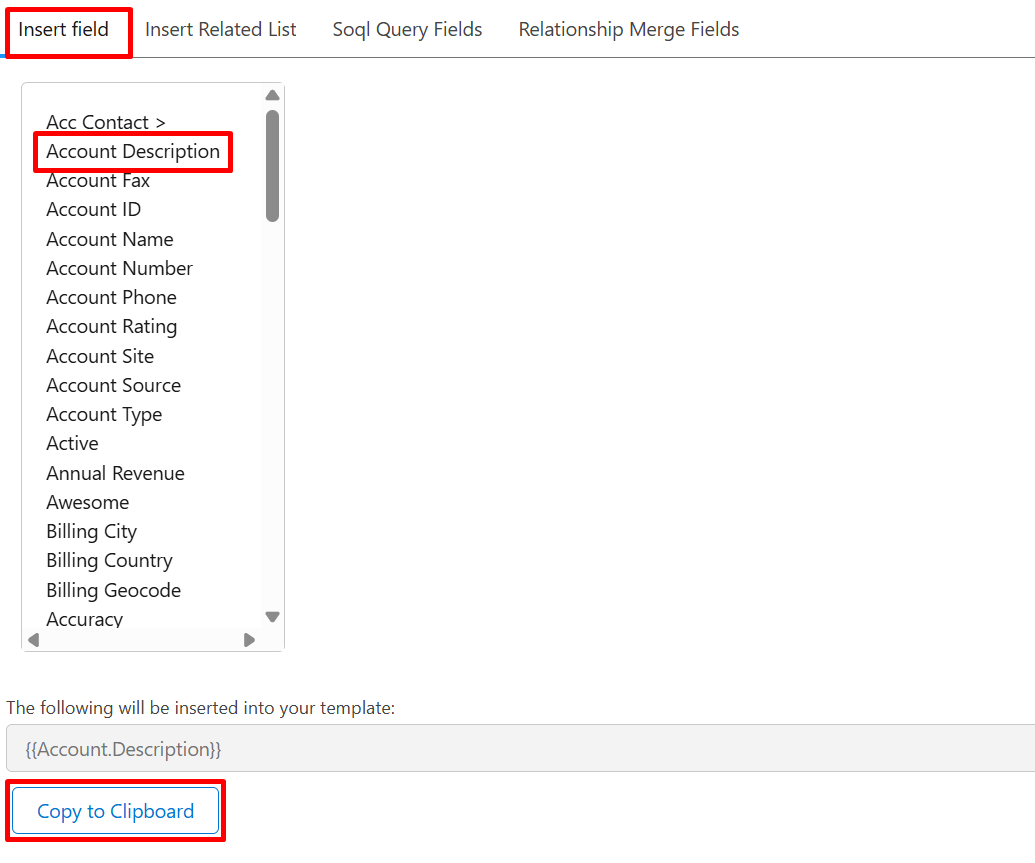
Step 5: Search for the Salesforce fields you want to insert, then copy the syntax by clicking on Copy to Clipboard and paste the merge field syntax into your template.
Step 6: Click Upload Files, select your template, provide a template name, and click Save.
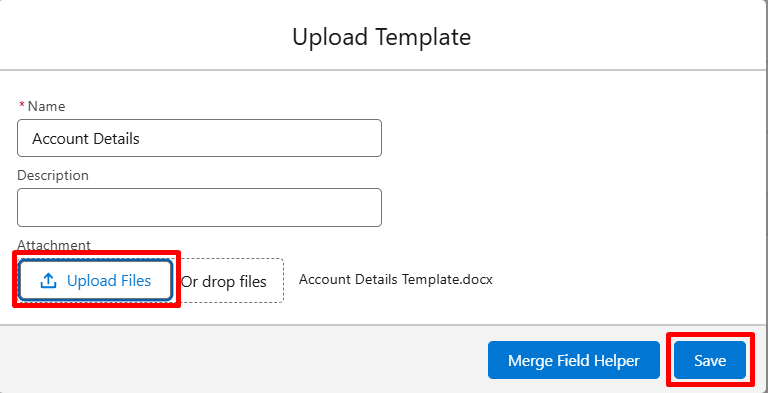
Step 7: Click Next, and on the Assign Behaviors page, click Next again to continue.
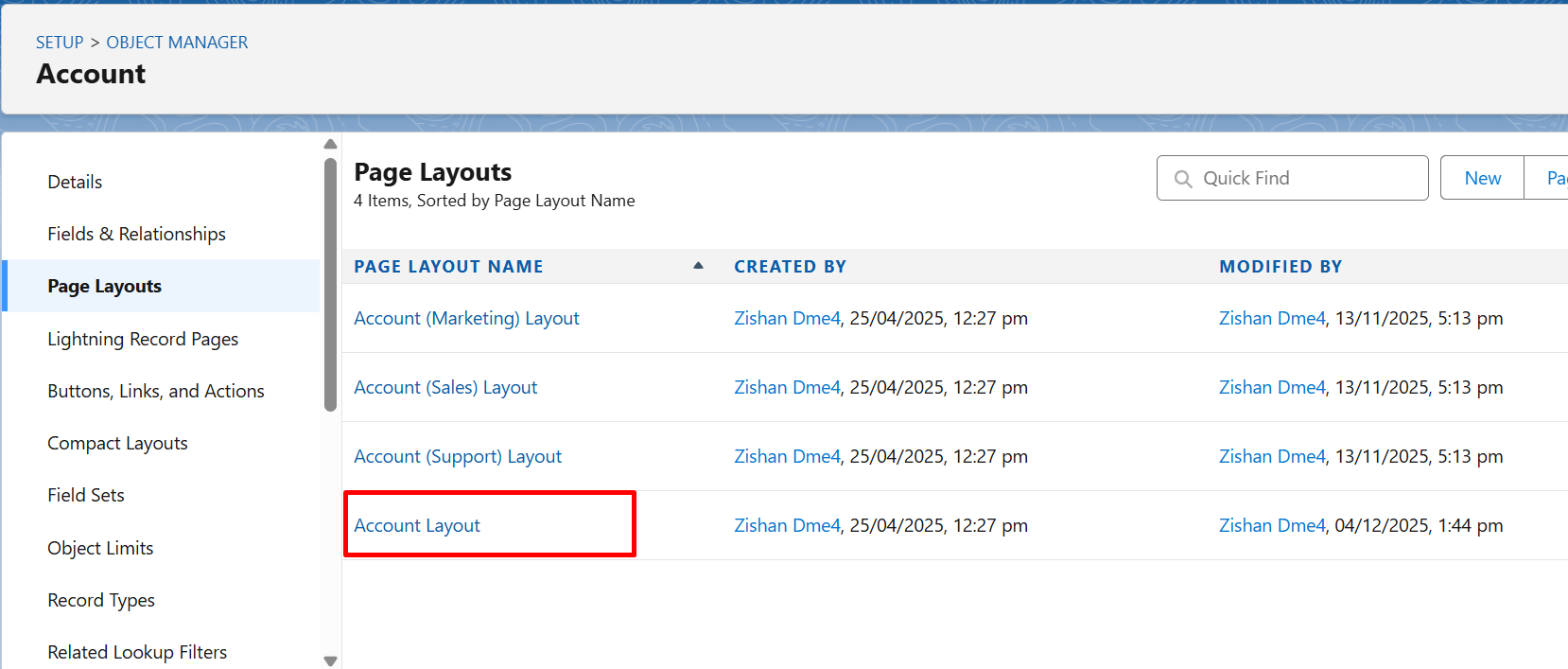
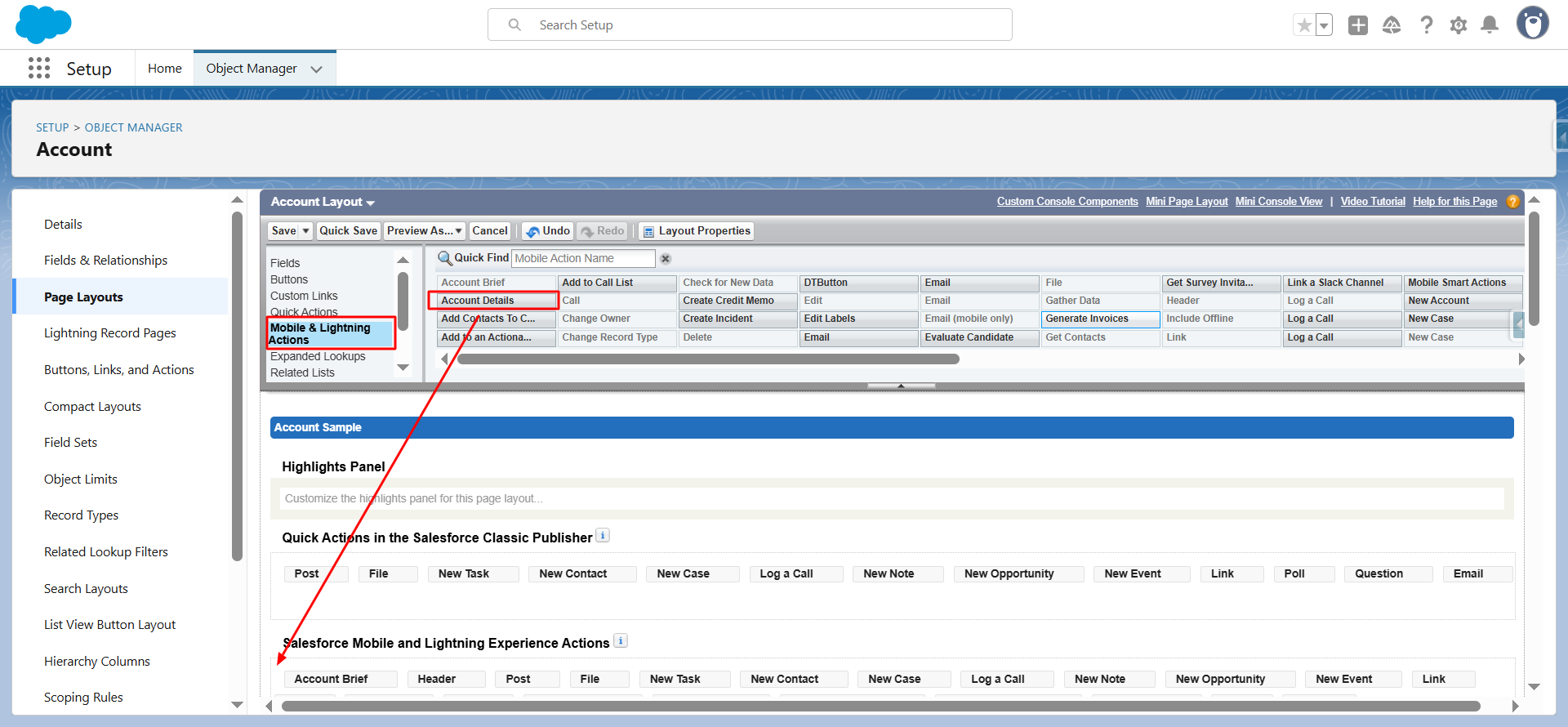
Step 8: Click Go to Page Layout and open the required page layout. Under Salesforce Mobile and Lightning Experience Actions, locate your solution and drag it into the actions section. Click Save.
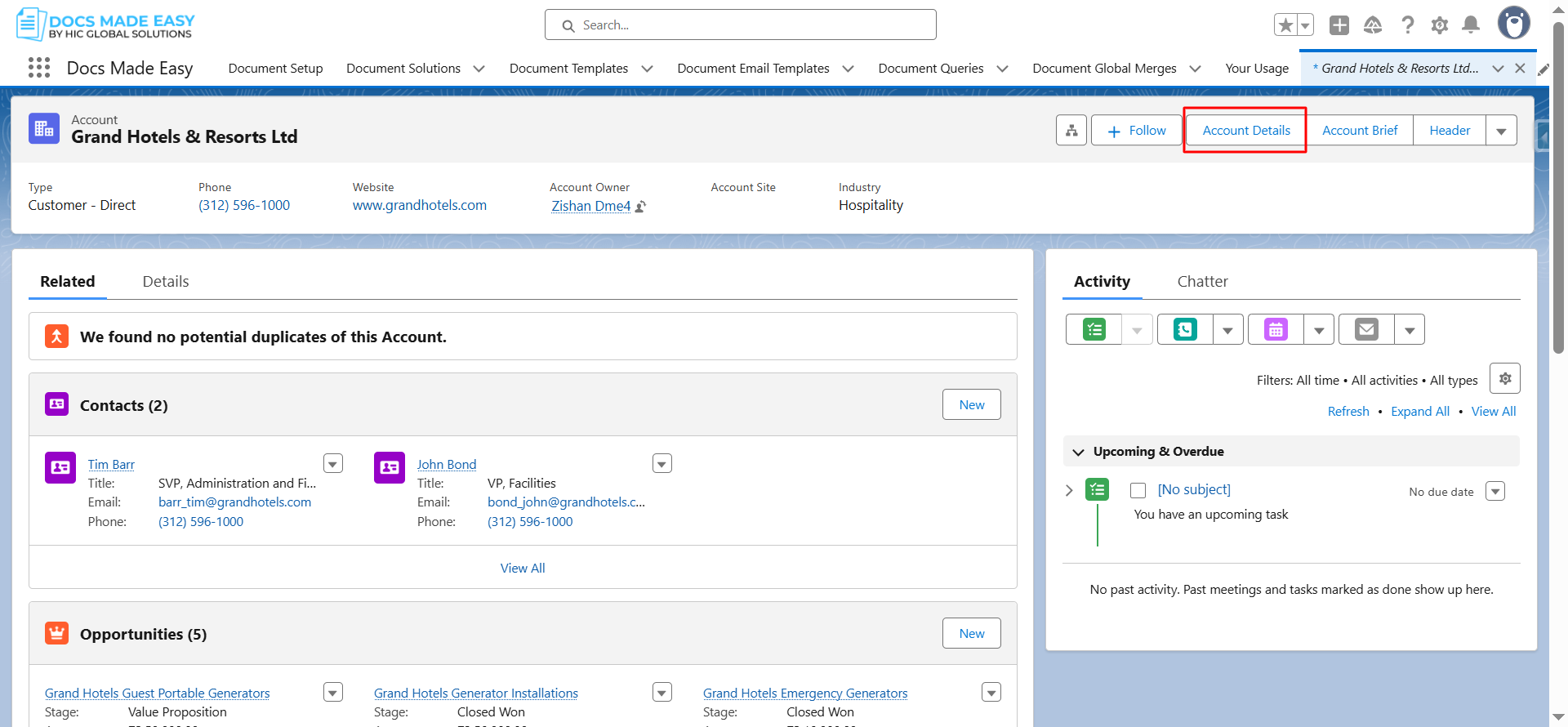
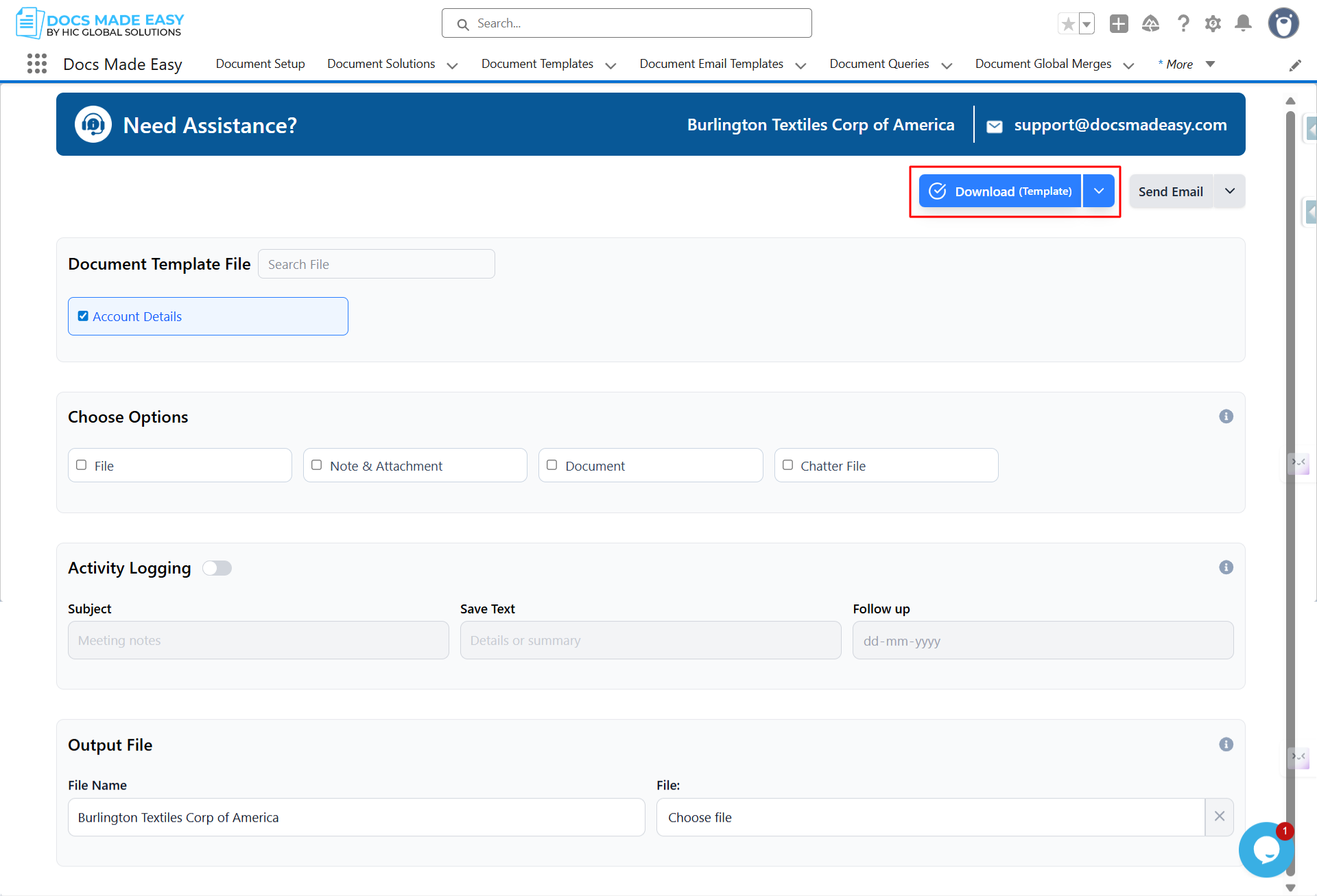
Step 9: Navigate to the App Launcher, search for Contacts, and open any contact record. Your custom button will appear in the top-right corner of the record page. Click the button, then select Download Template. Your document will be generated automatically using the merge fields added to the document template.
Conclusion
Using the Merge Field Helper makes it easy to create a document template that automatically pulls information from Salesforce records. Instead of manually updating documents every time, you can rely on document generation to create accurate files in just a few clicks.
Whether you’re creating contracts, invoices, proposals, or other business documents, Salesforce DocGen with Docs Made Easy helps you save time, reduce manual work, and generate consistent documents whenever you need them.
Frequently Asked Questions
Related Blogs
How to Generate & Send Documents for eSign in Salesforce
Sending a document for signature directly from Salesforce can make the approval process much easier, especially when you want to…
How to Generate Salesforce Documents Using Quick Document Merge
Creating Salesforce documents does not have to involve multiple steps or moving between different tools. With Quick Document Merge, you…
How to Create a Scope of Work (SOW) in Salesforce with Docs Made Easy
Creating a Scope of Work manually can take time, especially when information needs to be collected from Salesforce and added…