How to Generate Letters in Salesforce
Category :
How To
Docs Made Easy Proudly Featured by Salesforce
With Docs Made Easy, creating professional, Salesforce-powered documents is just a few clicks away.
Explore Now!Creating professional letters directly within Salesforce can often become time-consuming when handled manually. Businesses today need a faster and more efficient way to generate customer-ready documents without switching between multiple tools.
With Docs Made Easy, users can automate letter generation in Salesforce using a simple no-code approach, reducing manual effort while improving accuracy and productivity.
In this step-by-step guide, you will learn how to generate letters in Salesforce using Docs Made Easy, from setting up document templates and inserting merge fields to generating dynamic documents directly from Salesforce records.
Whether you want to generate & automate customer letters, account documents, or personalized communication, this process helps streamline document generation within Salesforce.
Let’s check out the steps:
Step 1: Login to Salesforce.
Step 2: Open Docs Made Easy from the App launcher.
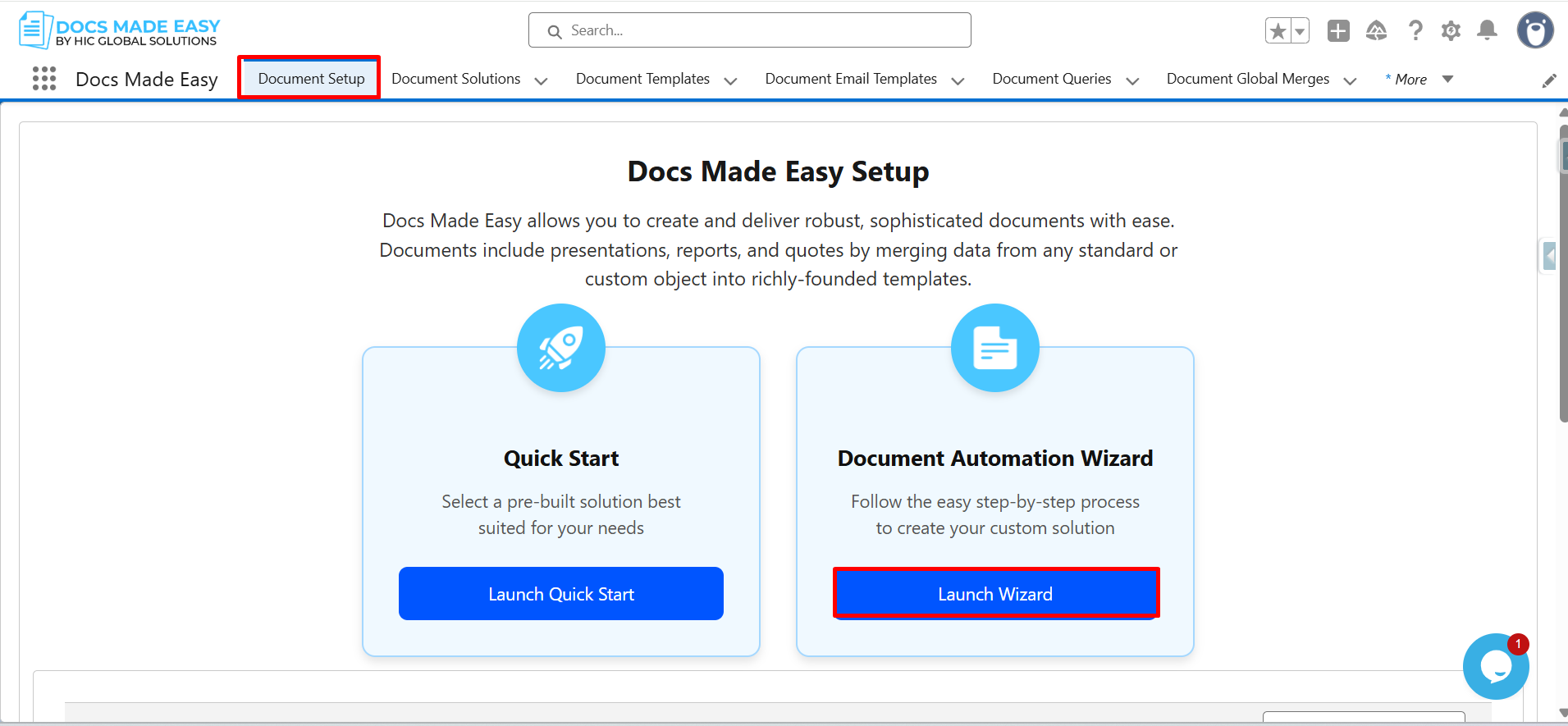
Step 3: Click on Document setup. Then click Launch wizard.
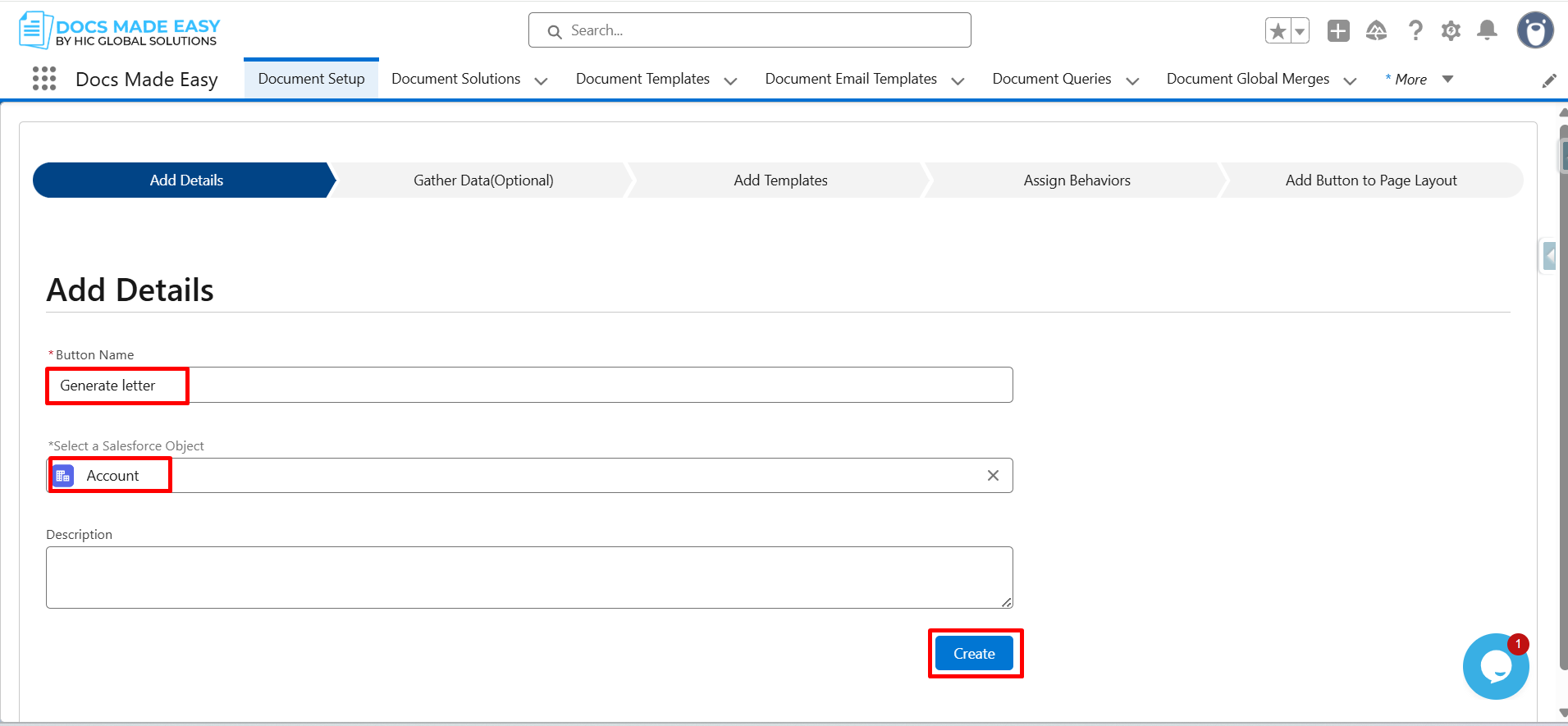
Step 4: Enter Button Name, select a Salesforce object and click on Create.
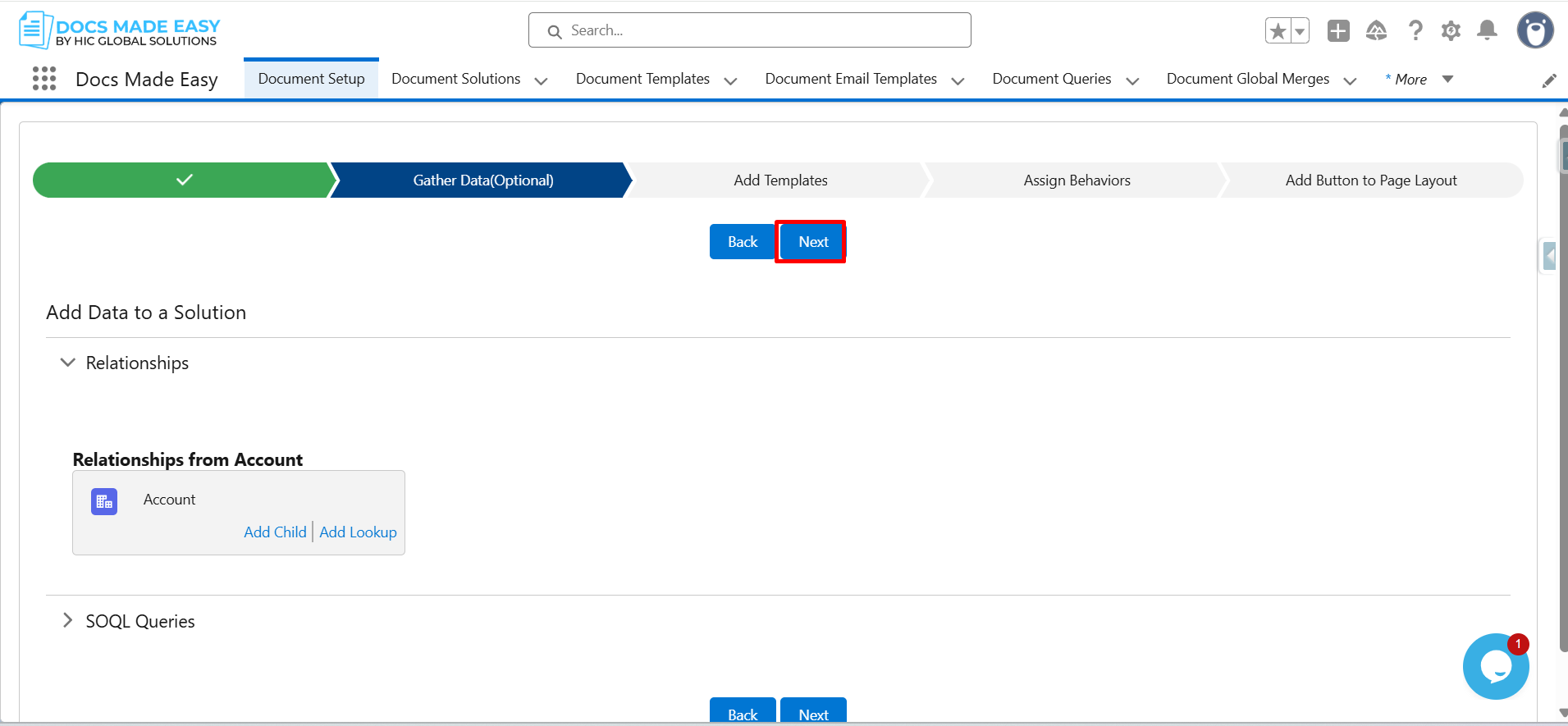
Step 5: Click on Next.
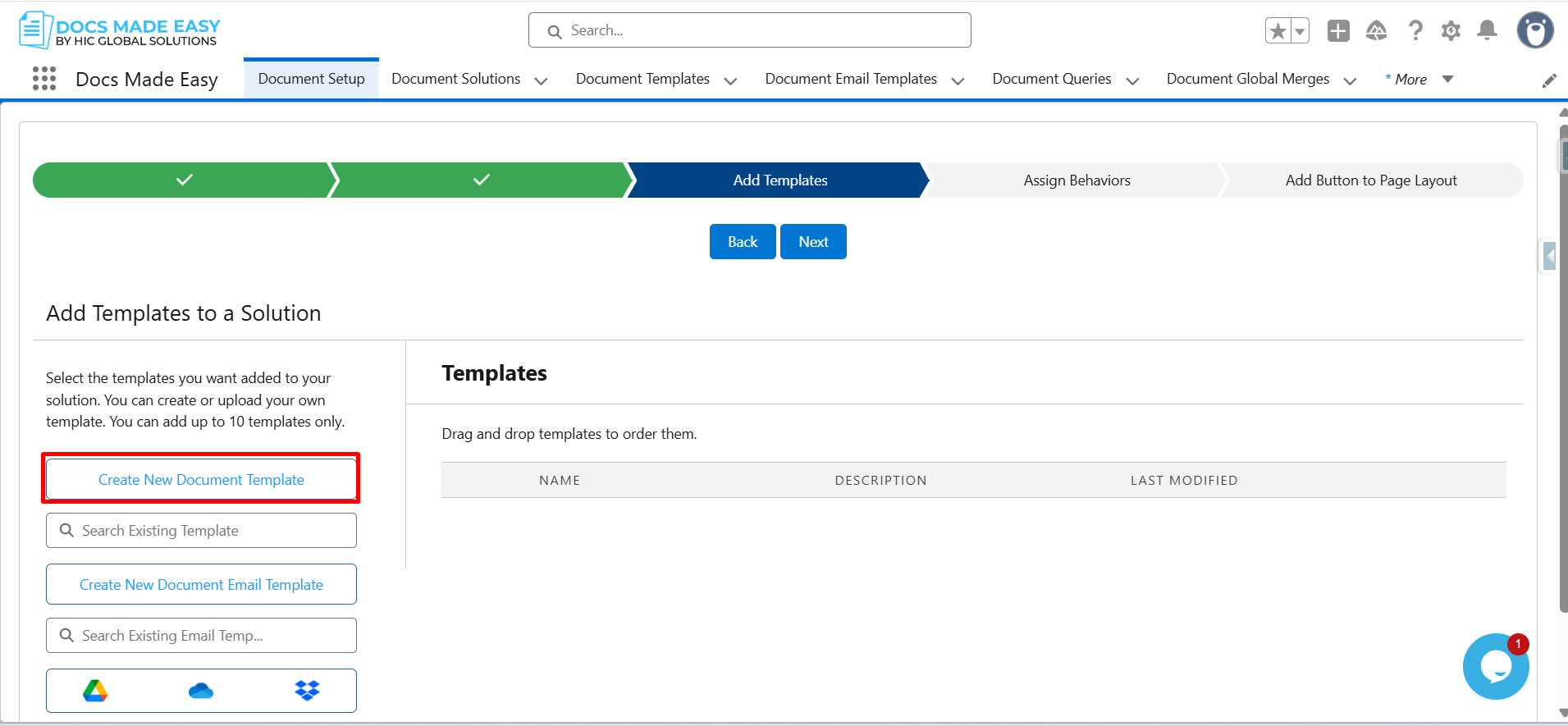
Step 6: Click on Create New Document Template.
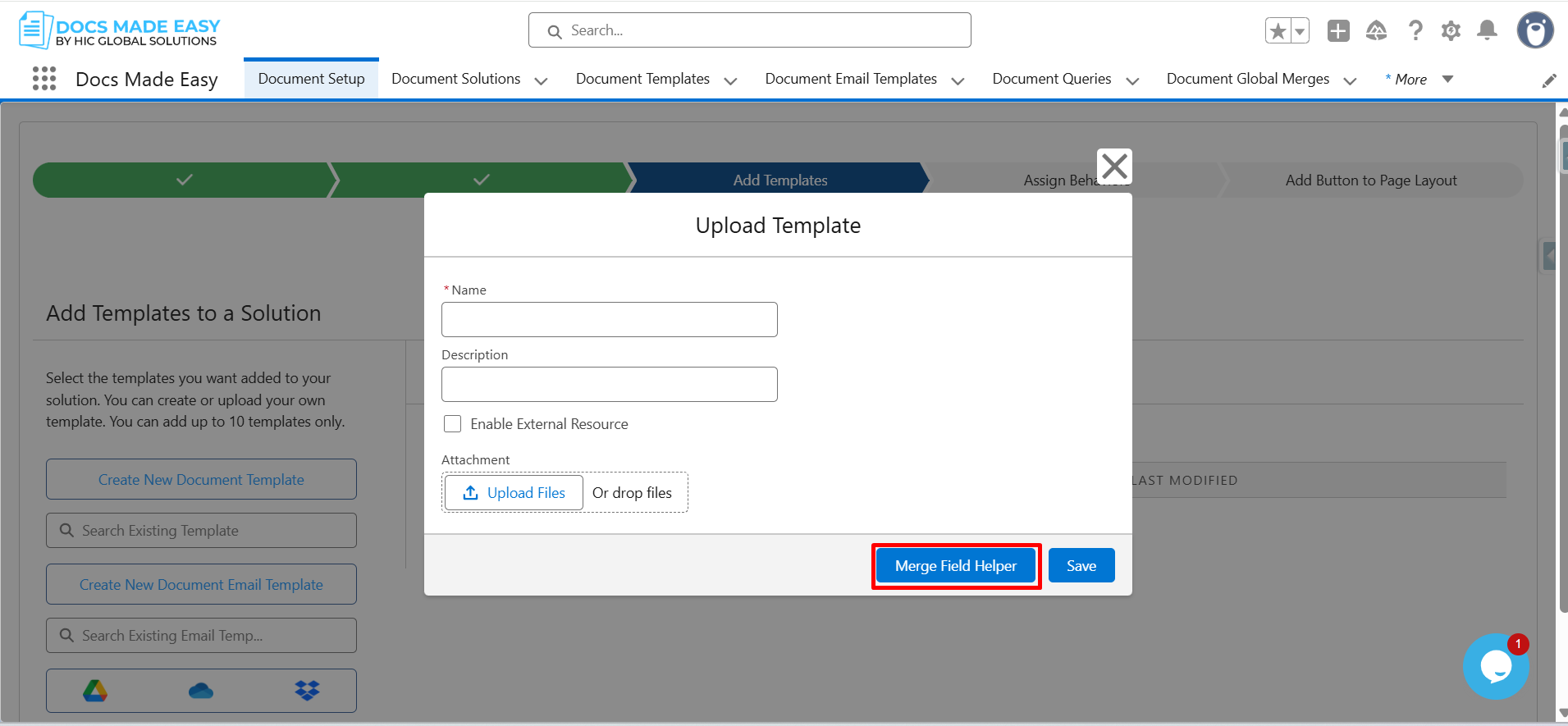
Step 7: Click on Merge Field Helper.
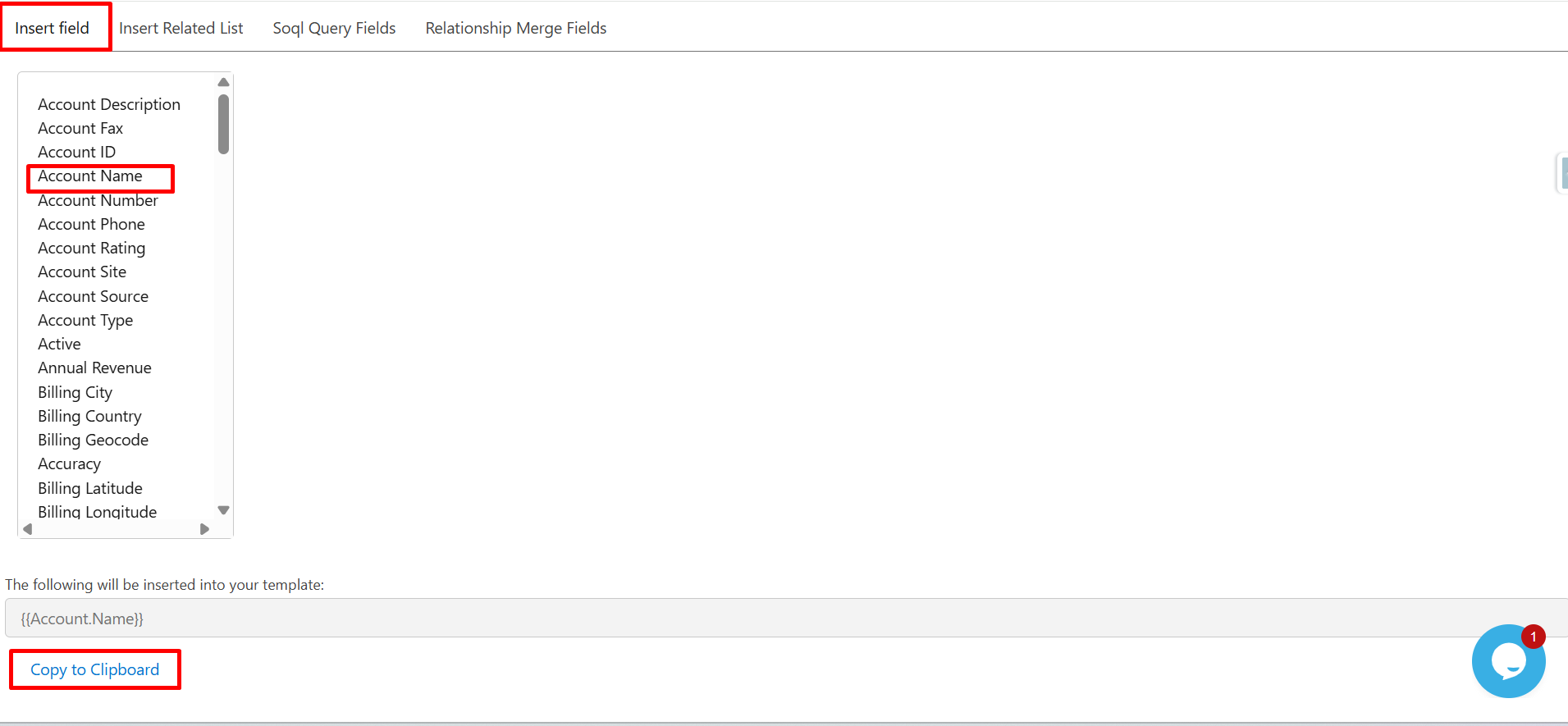
Step 8: From the Insert field list, click on Account Name.
The system will auto-generate the merge field syntax: {{Account.Name}}. Then, click Copy to Clipboard.
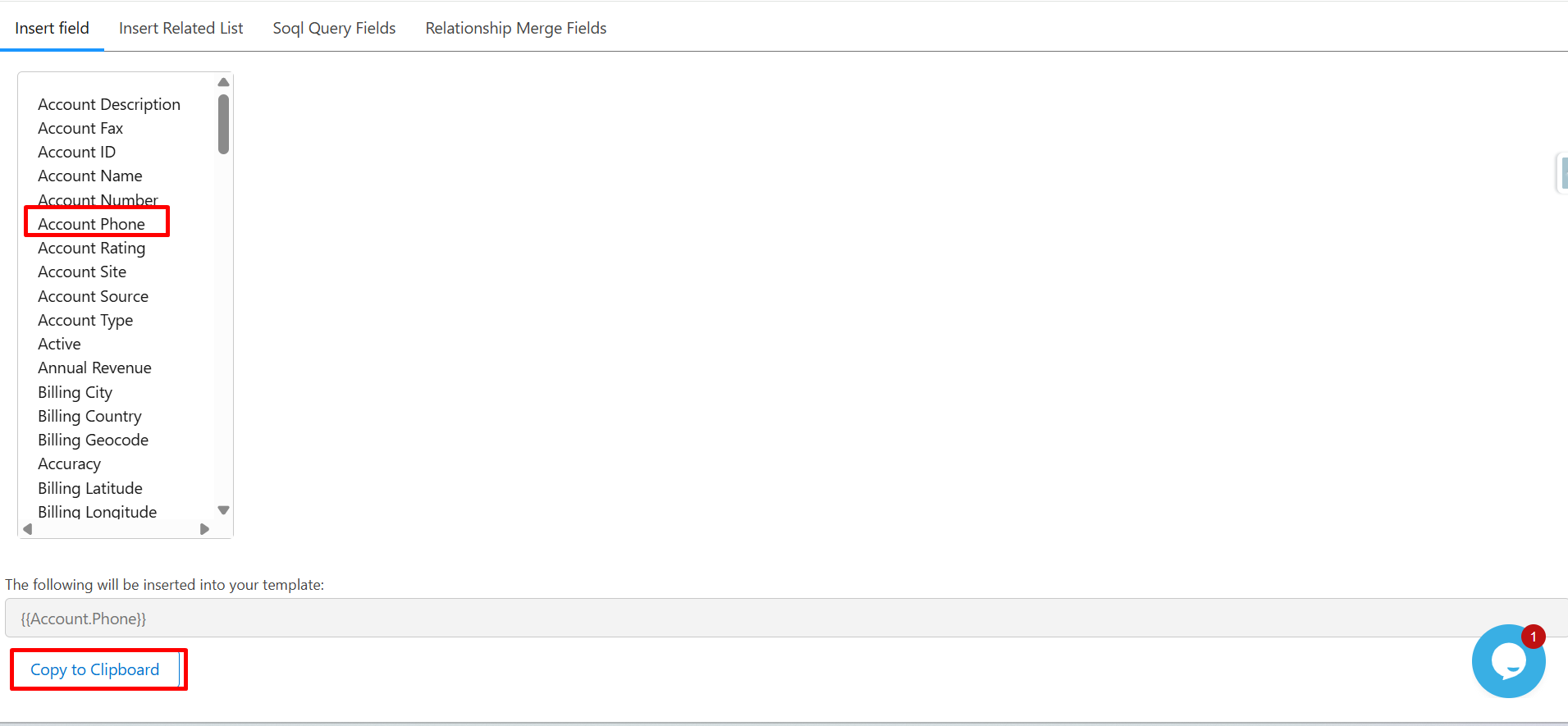
Step 9: Click on Account Phone. Click on Copy to Clipboard.
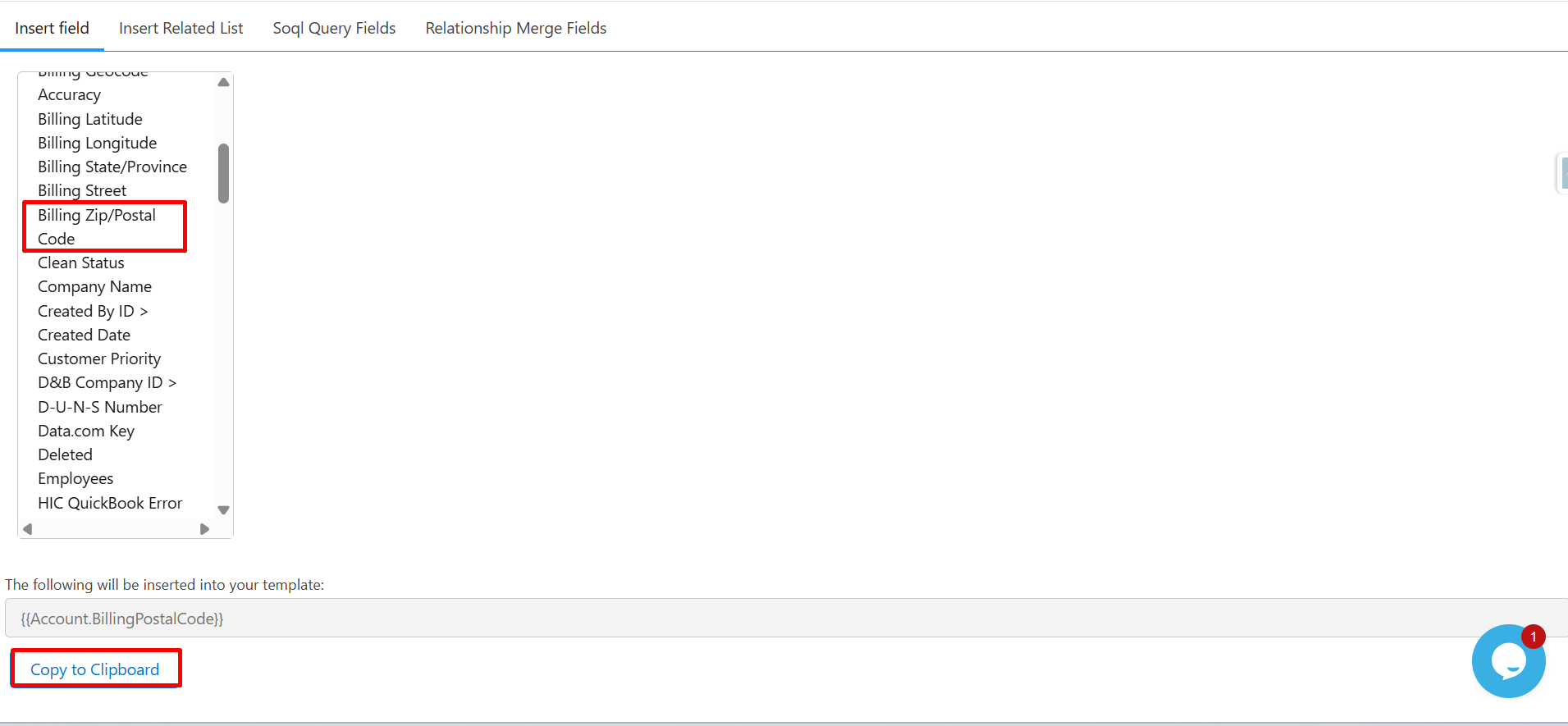
Step 10: Click on Billing Zip/Postal Code then click on Copy to Clipboard.
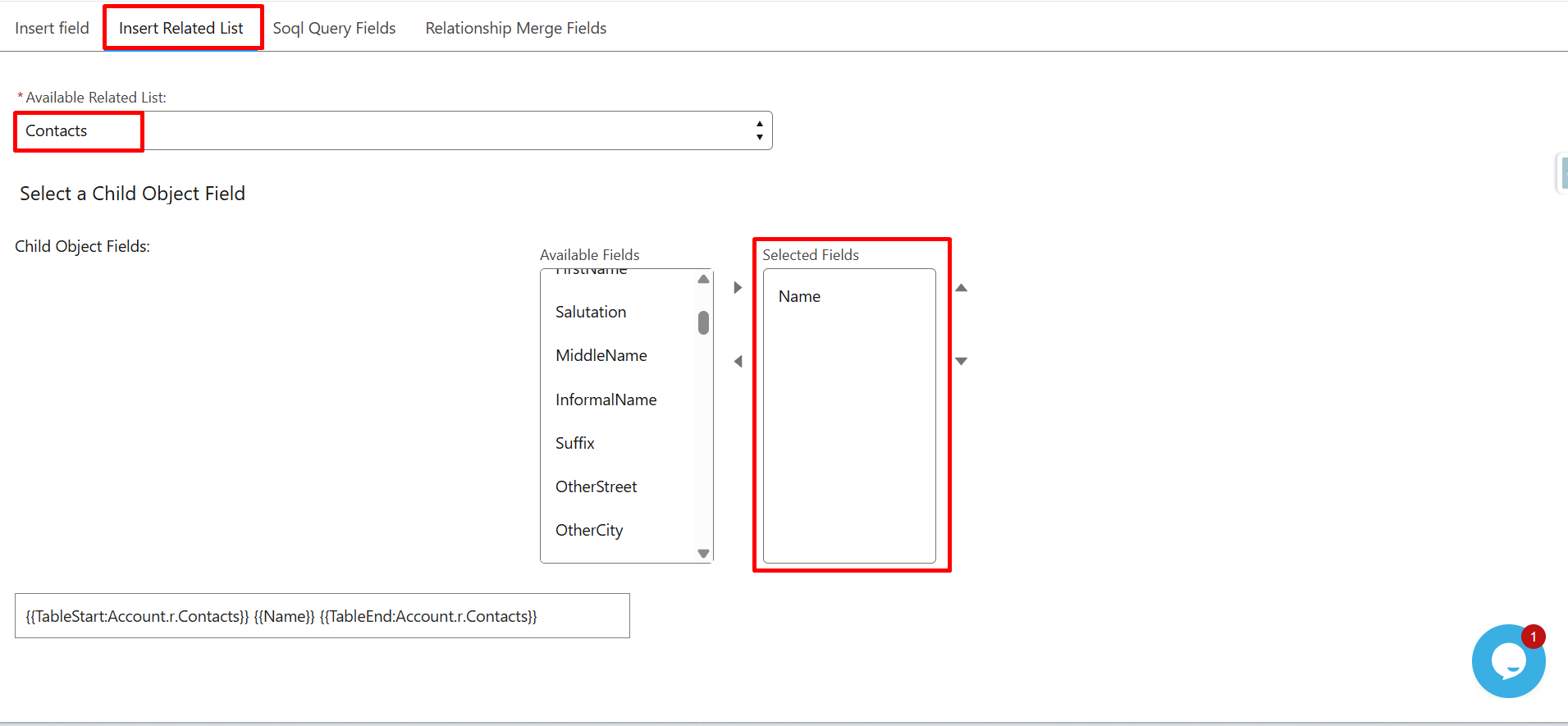
Step 11: Click on the Insert Related List. From the Available Related List, Contacts
Under Child Object Field, choose the required fields such as:
- Name
The system automatically generates the table merge syntax.
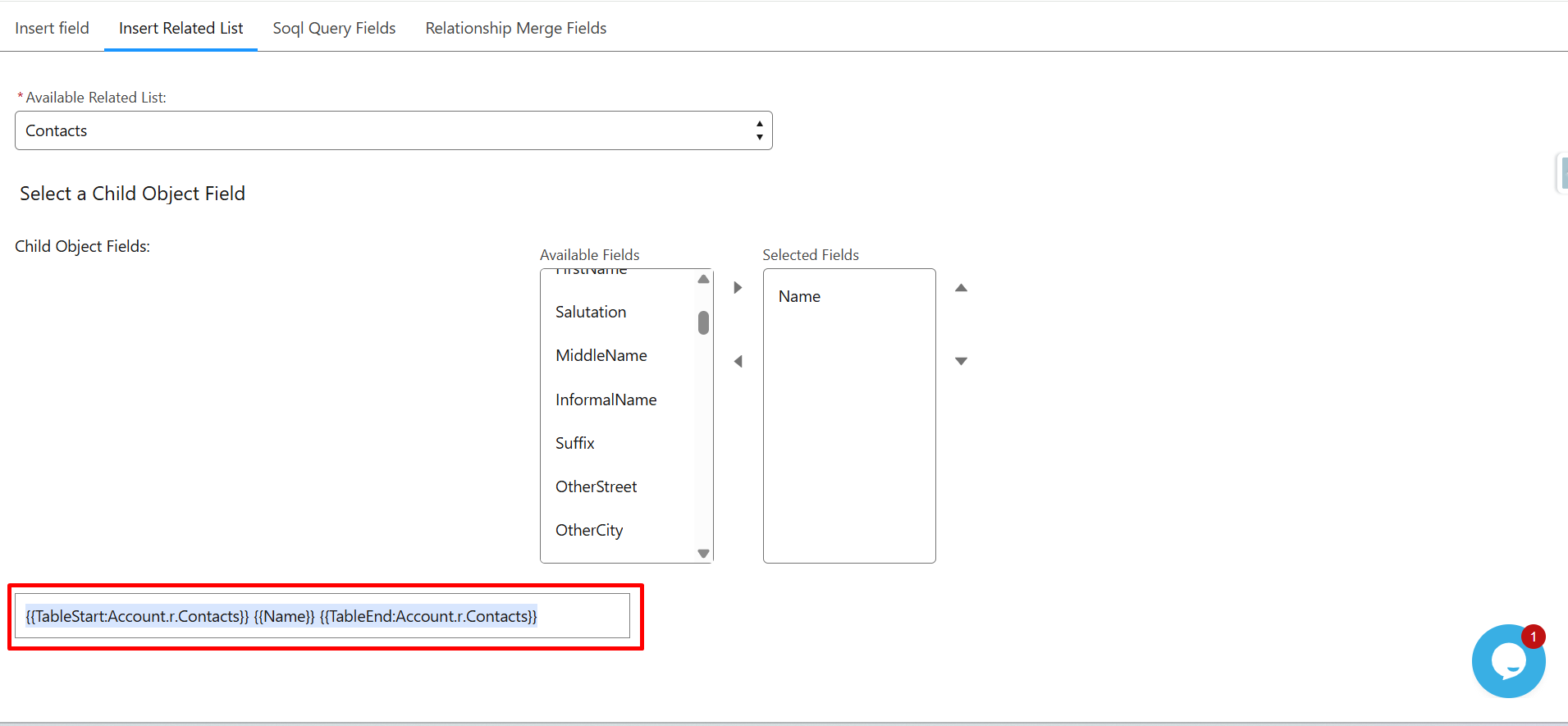
Step 12: Copy the generated table merge syntax.
Step 13: Paste all the syntax into the template editor.
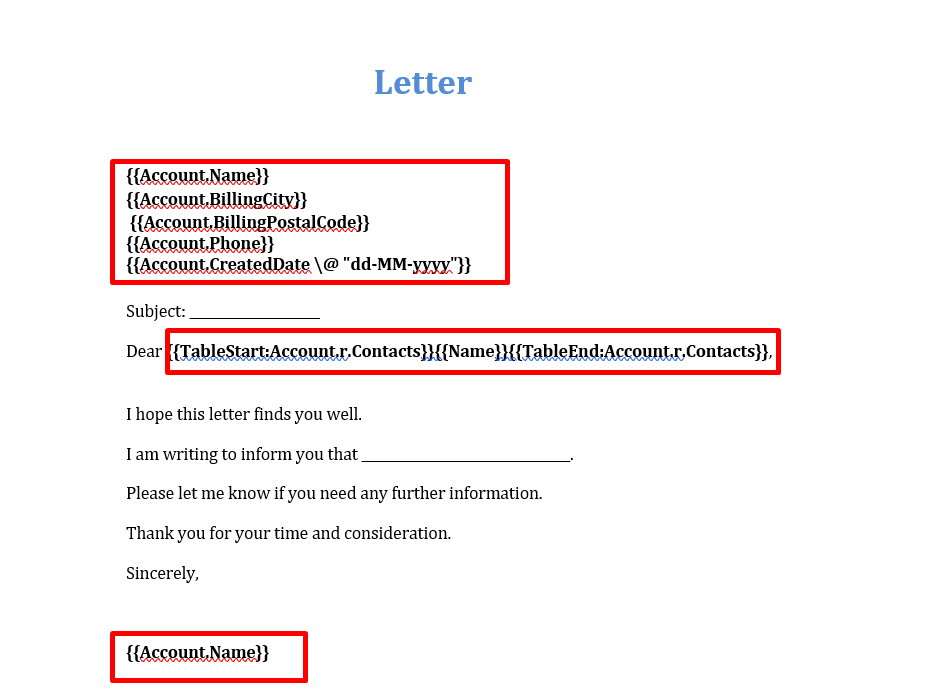
Step 14: Reopen the Upload Template window, enter the template Name, upload the Template file in the Attachment, and click Save.
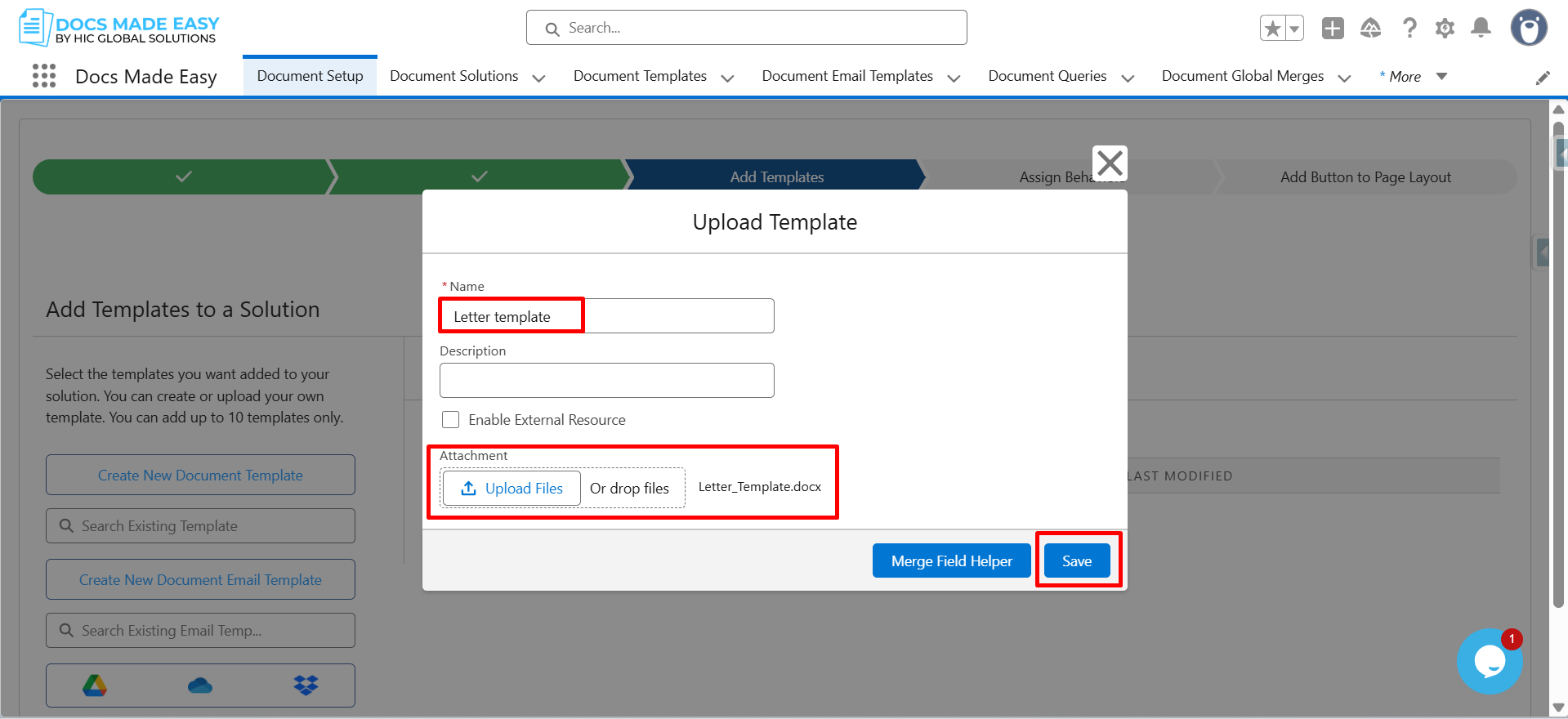
Step 15: In the Document Setup, click on Next.
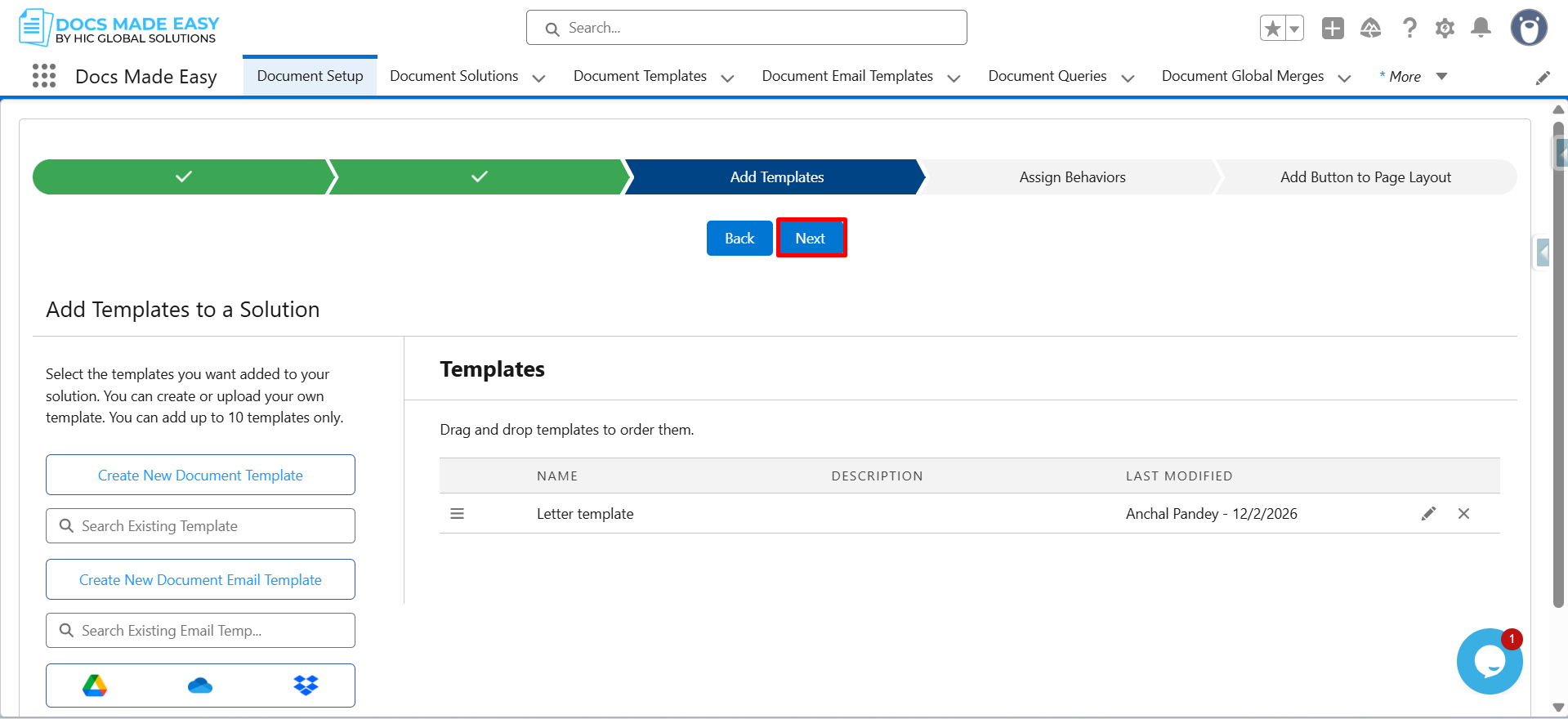
Step 16: Click on Next again.
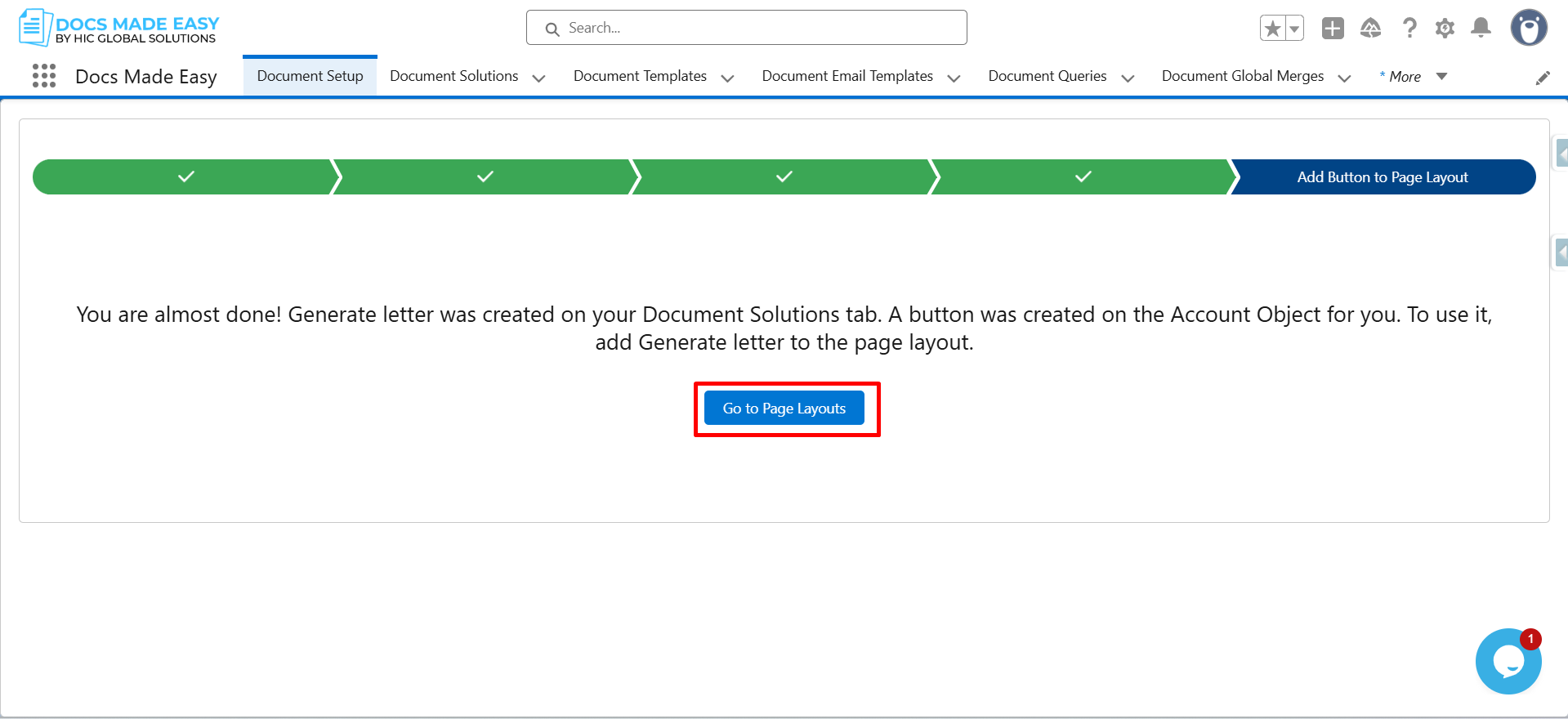
Step 17: Click on Go to Page Layouts.
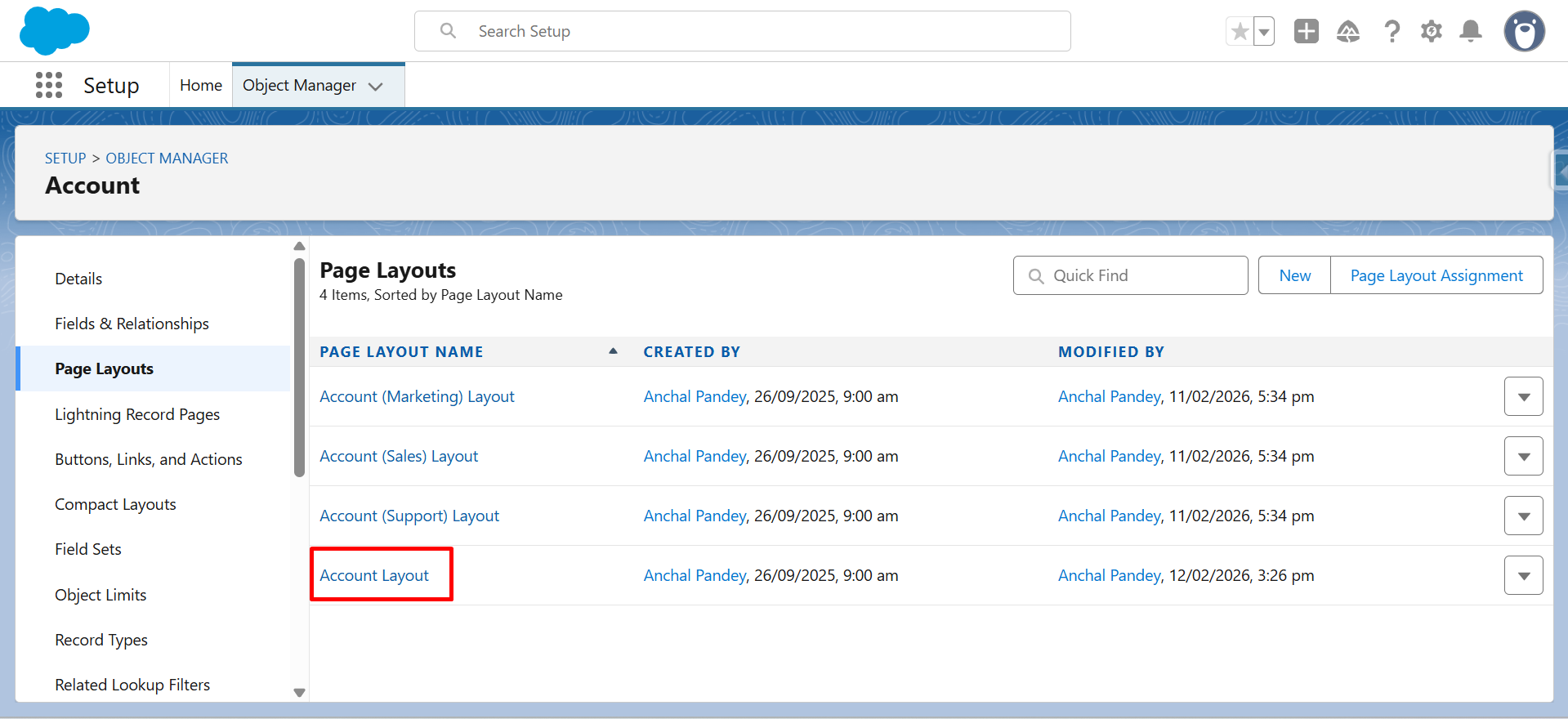
Step 18: Click on Account Layout.
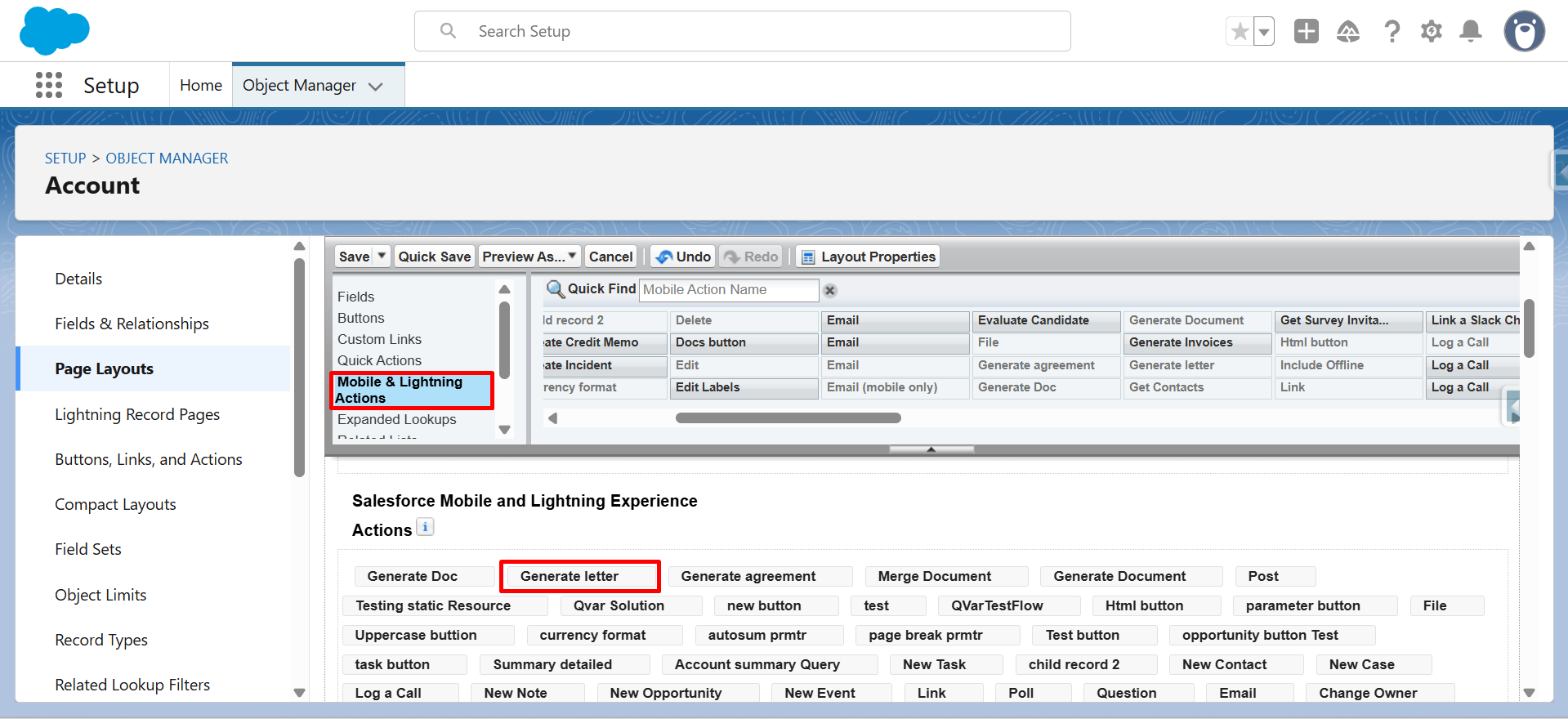
Step 19: From Mobile & Lightning Actions, drag and drop the Generate Letter button below in Salesforce Mobile and Lightning Experience Actions.
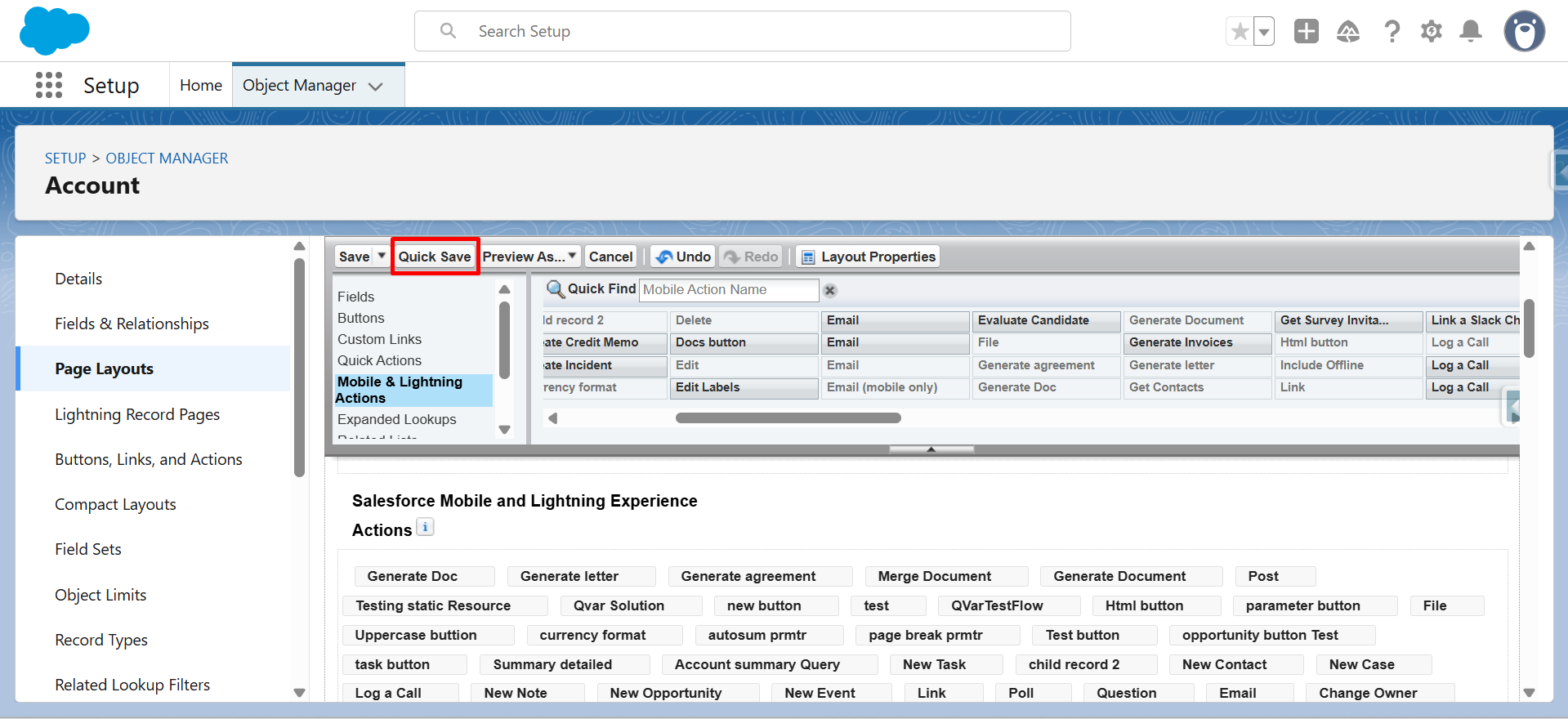
Step 20: Click on Quick Save.
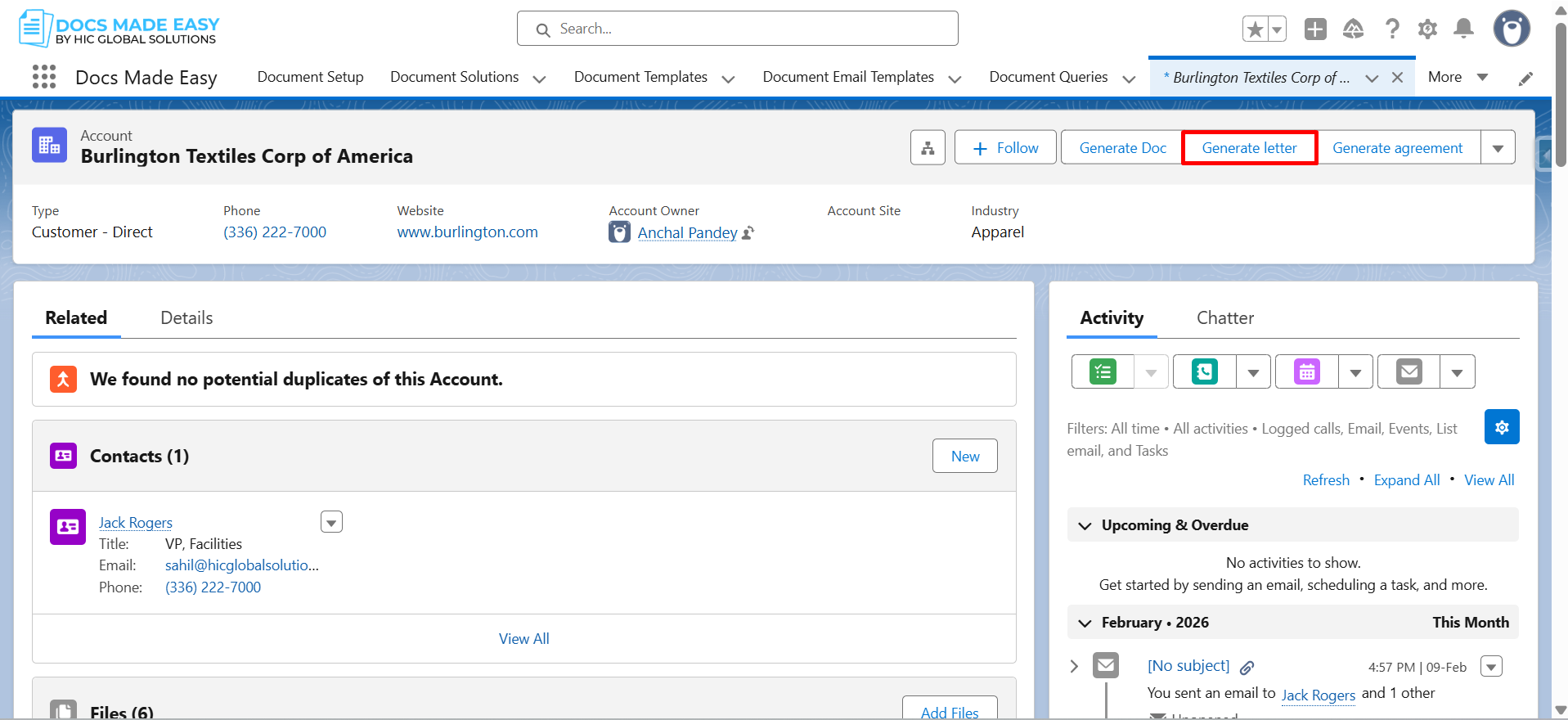
Step 21: Go to Account Record and click on the Generate Letter button.
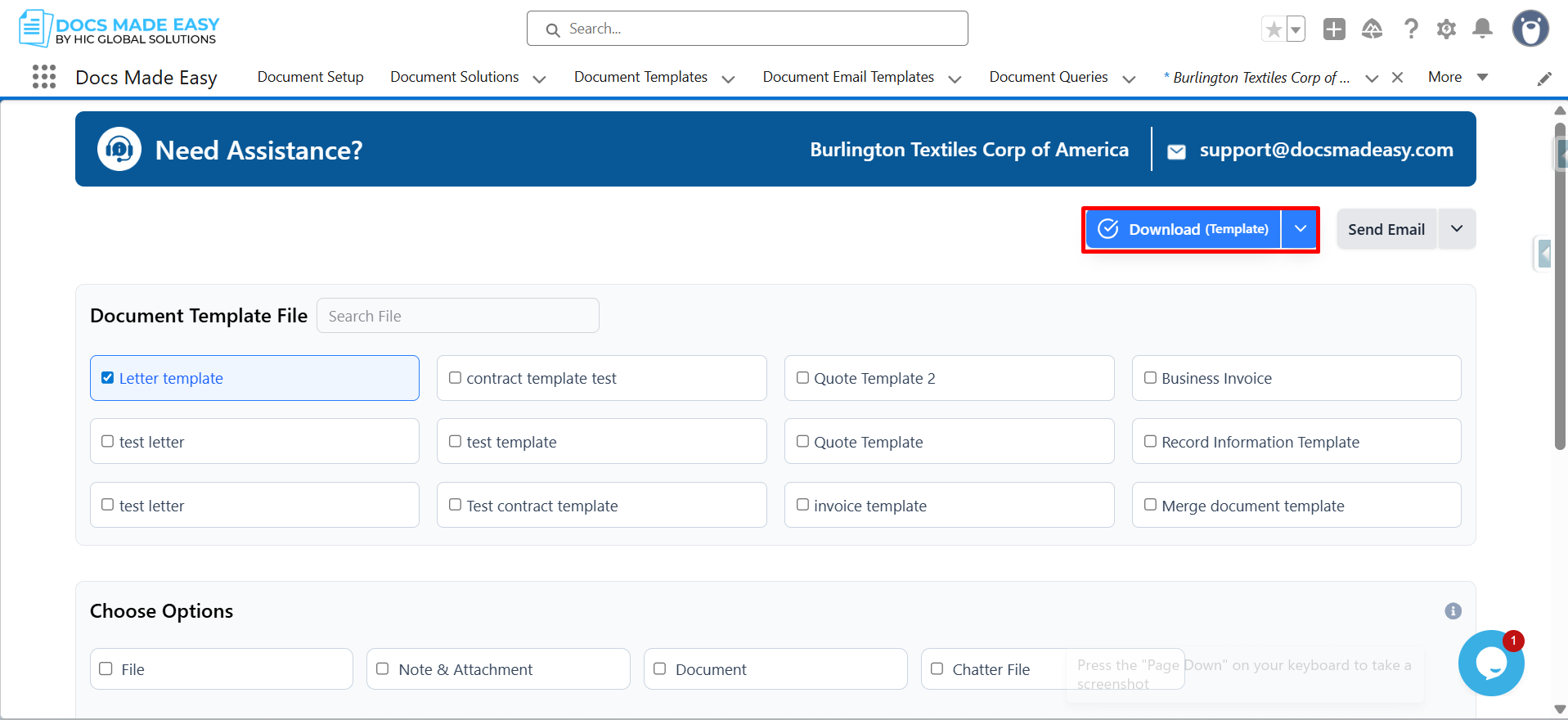
Step 22: Click on Download (Template).
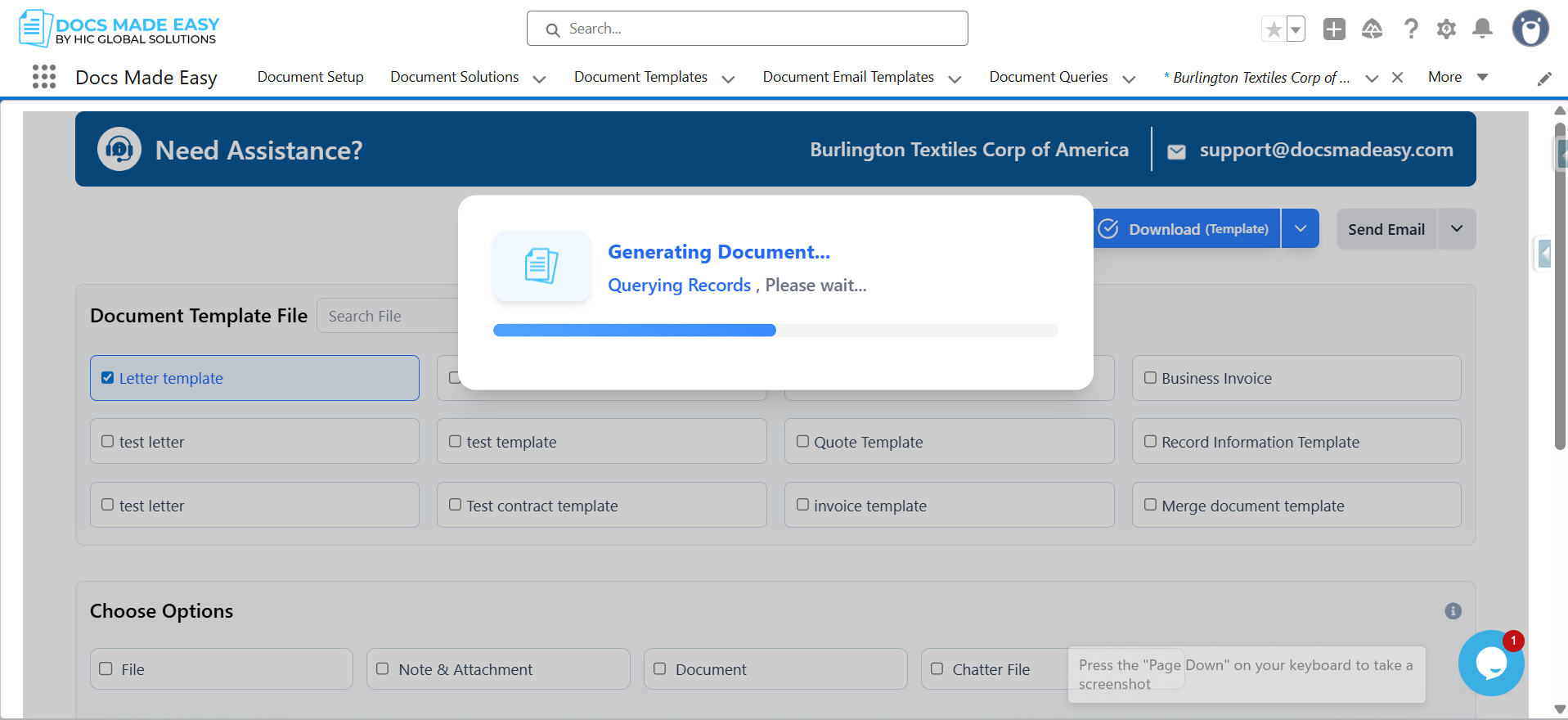
Step 23: The system will start generating the document.
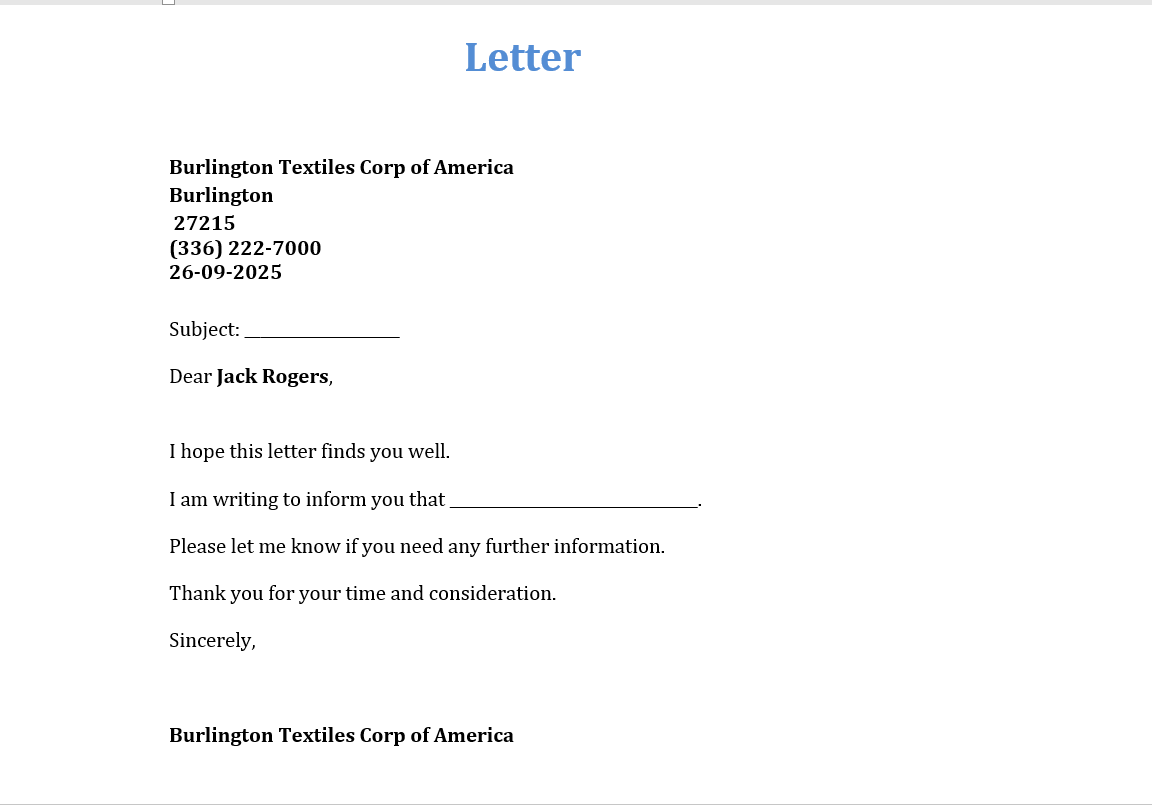
Step 24: Open the generated document and you are done.
Conclusion
Automating letter generation in Salesforce with Docs Made Easy simplifies the entire document creation process while eliminating repetitive manual work.
By using merge fields, related list data, and Salesforce-native automation, businesses can generate accurate and professional documents in just a few clicks.
This step-by-step setup not only improves operational efficiency but also enhances productivity for sales, support, and business teams.
If your organization is looking for a smarter way to create dynamic documents in Salesforce, book a call with Docs Made Easy.

Top Companies Trust Docs Made Easy What’s Stopping You?
Frequently Asked Questions
Related Blogs
How to Generate & Send Documents for eSign in Salesforce
Sending a document for signature directly from Salesforce can make the approval process much easier, especially when you want to…
How to Generate Salesforce Documents Using Quick Document Merge
Creating Salesforce documents does not have to involve multiple steps or moving between different tools. With Quick Document Merge, you…
How to Create a Scope of Work (SOW) in Salesforce with Docs Made Easy
Creating a Scope of Work manually can take time, especially when information needs to be collected from Salesforce and added…