How to Generate QR Codes and Barcodes in Salesforce Documents
Category :
How To

Docs shouldn’t be complicated.
With Docs Made Easy, creating professional, Salesforce-powered documents is just a few clicks away.
Get Started NowAdding QR codes and barcodes to your documents can make it easier to track records, verify information, and share data with just a quick scan. Instead of creating them manually, you can generate them automatically while creating documents in Salesforce.
In this blog, we will follow the steps on how to generate QR codes and barcodes using Docs Made Easy. The steps below cover how to add the required syntax, configure the document template, and generate documents with QR codes and barcodes using Salesforce records.
Step 1: Login to Salesforce.
Step 2: Open Docs Made Easy from the App launcher.
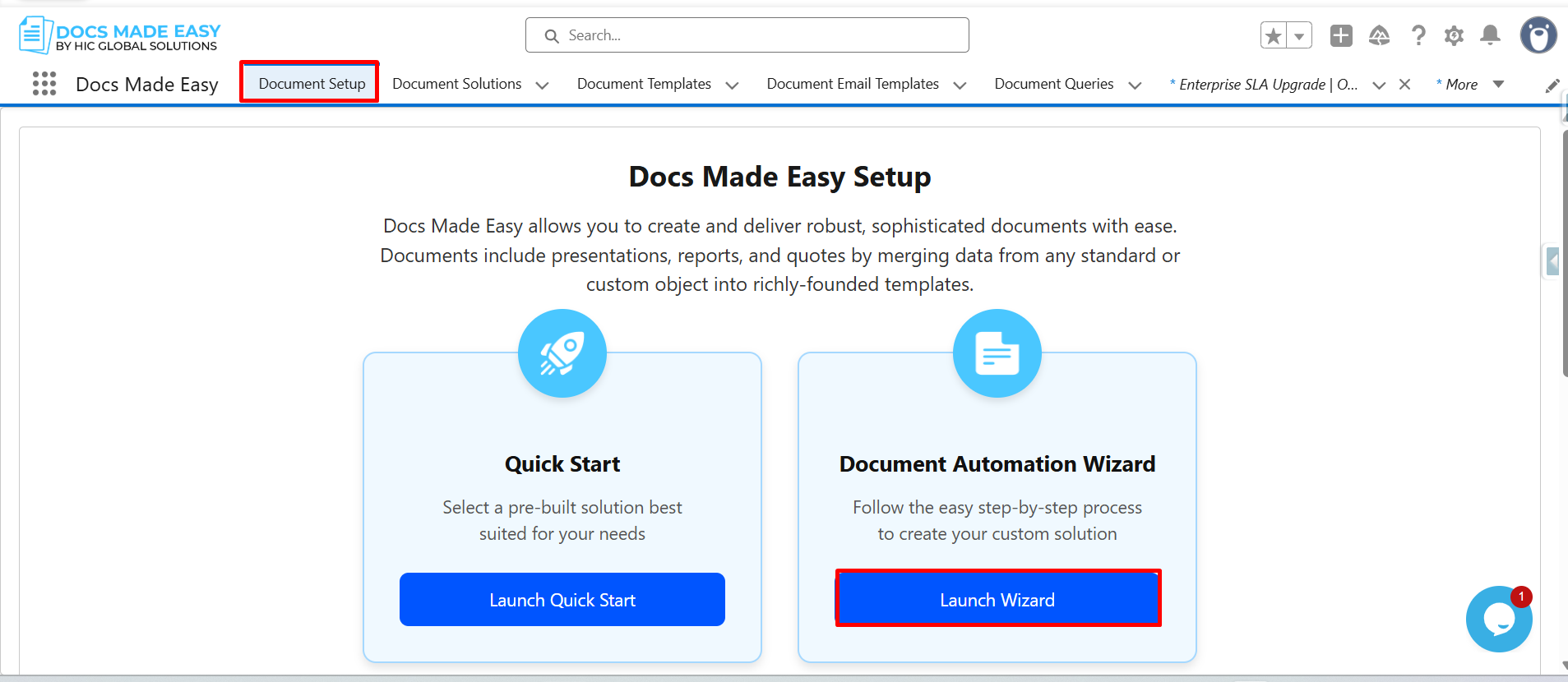
Step 3: Click On Document setup. Then click Launch wizard.
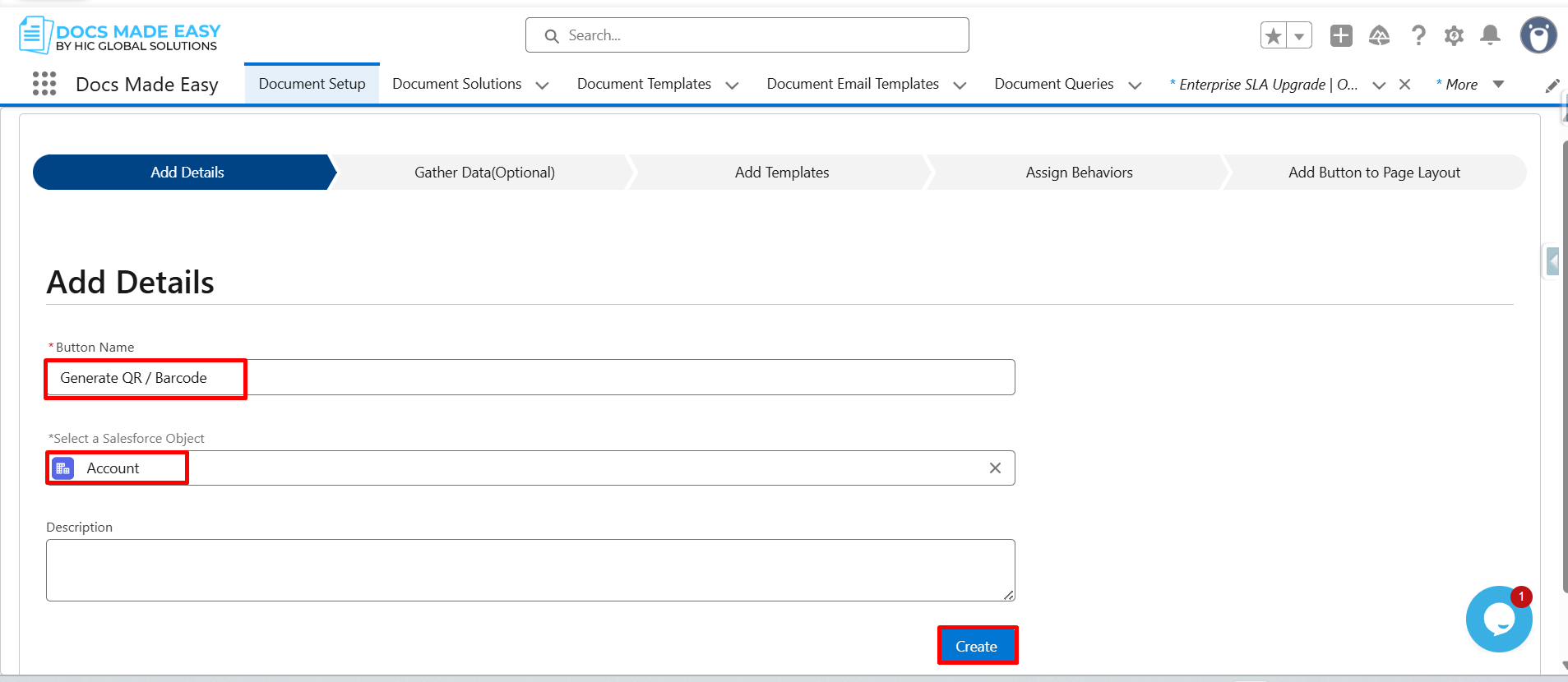
Step 4: Enter the Button Name, select the Salesforce Object, and then click Create.
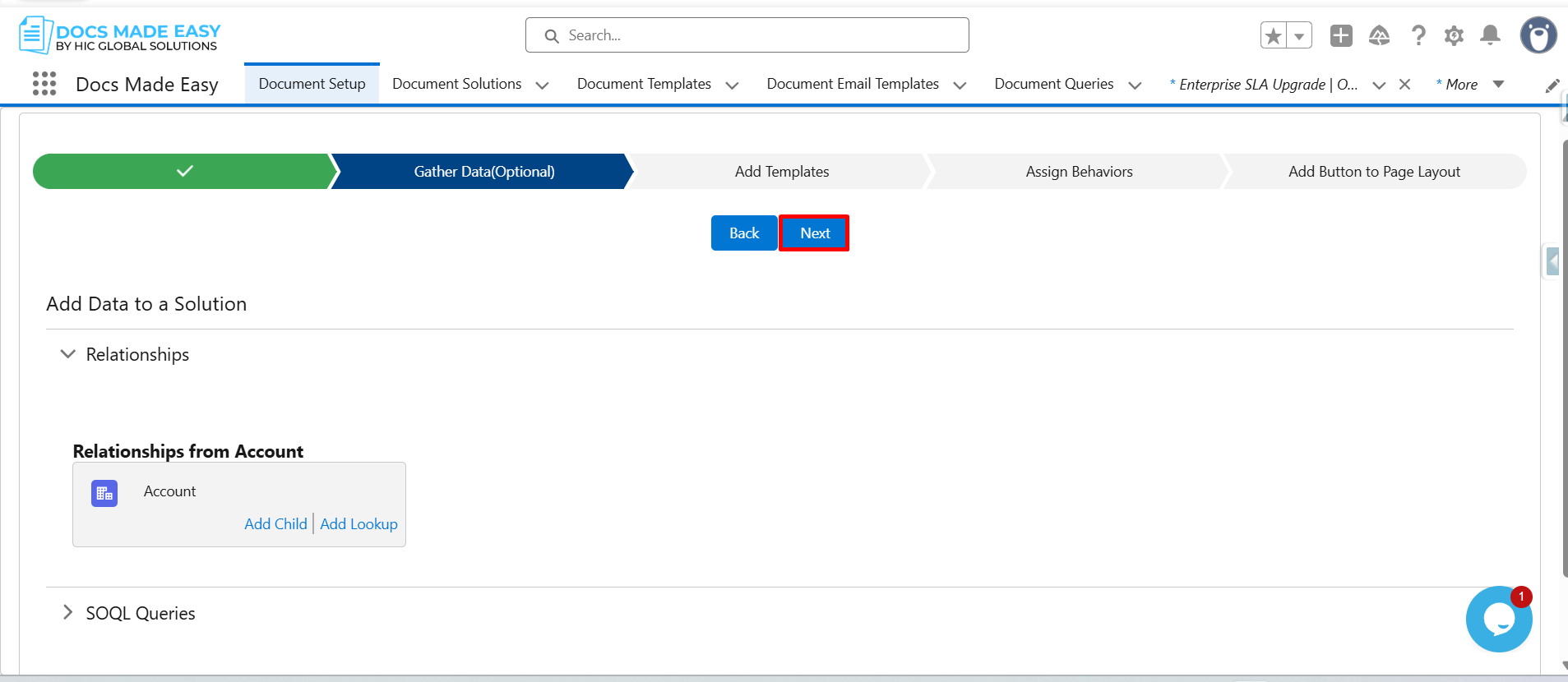
Step 5: Click on Next.
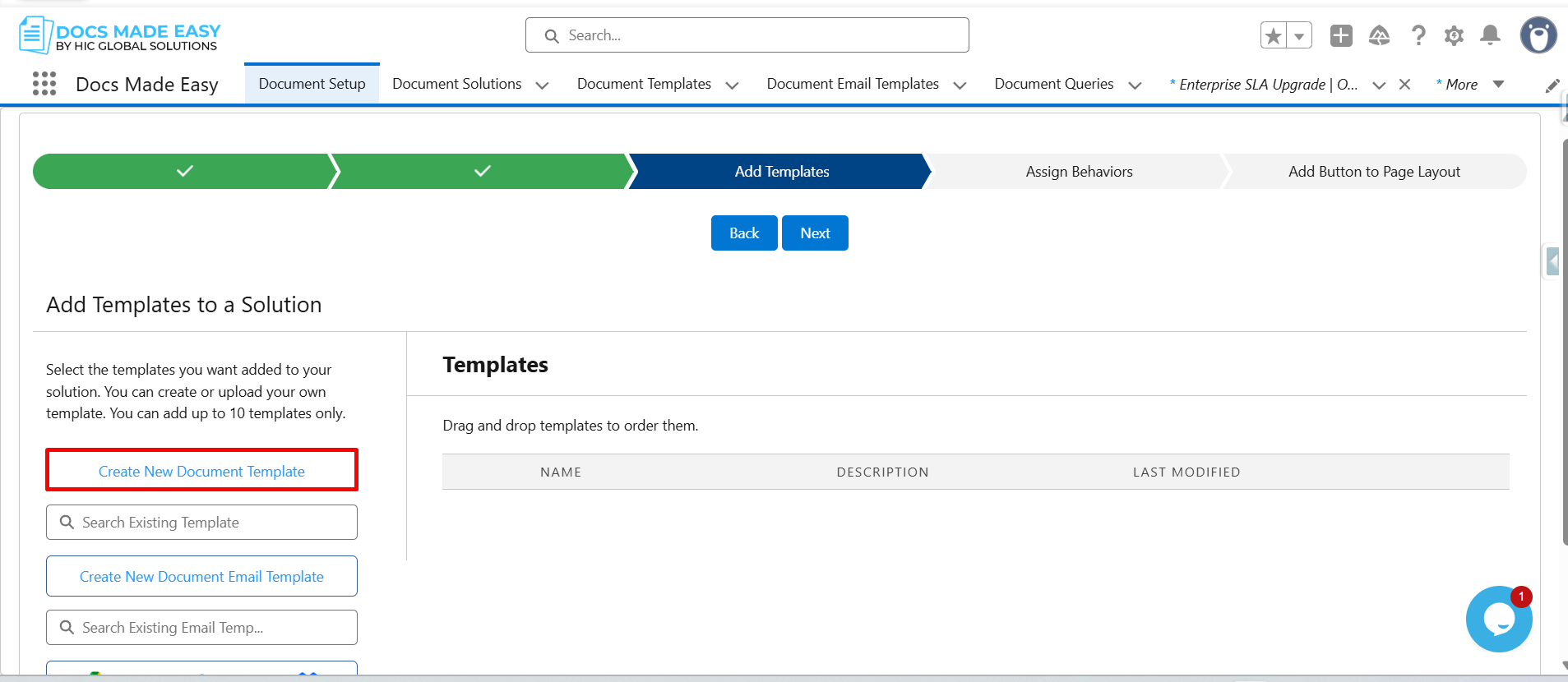
Step 6: Click on Create New Document Template.
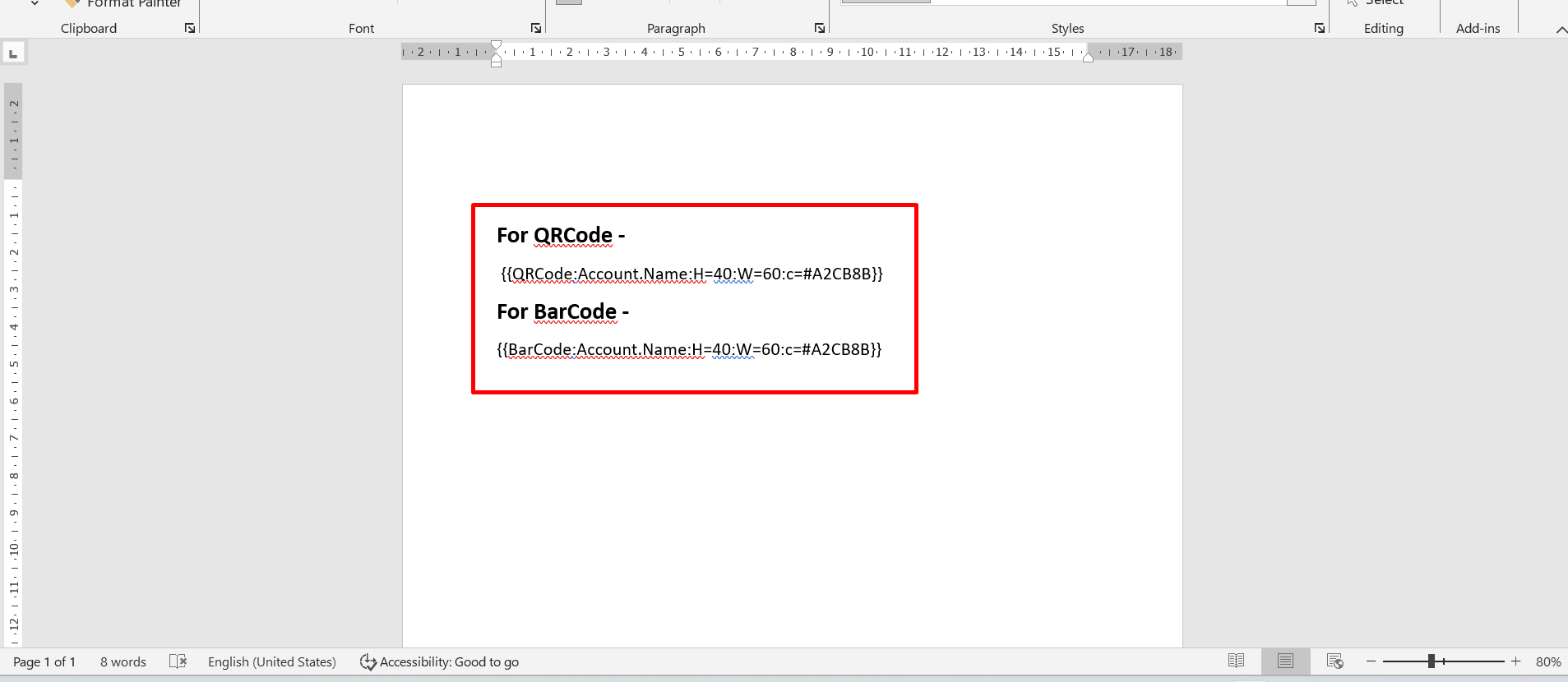
Step 7: In template editor enter the syntax for QRCode:
{{QRCode:Account.Name:H=40:W=60:c=#A2CB8B}}
Parameters:
- Account.Name → Field API name (can be any object field)
- H → Height of QR code
- W → Width of QR code
- c → Color (Hex code)
Enter the syntax for BarCode:
{{BarCode:Account.Name:H=40:W=60:c=#A2CB8B}}
Parameters:
- Same as QR code (field + size + color)
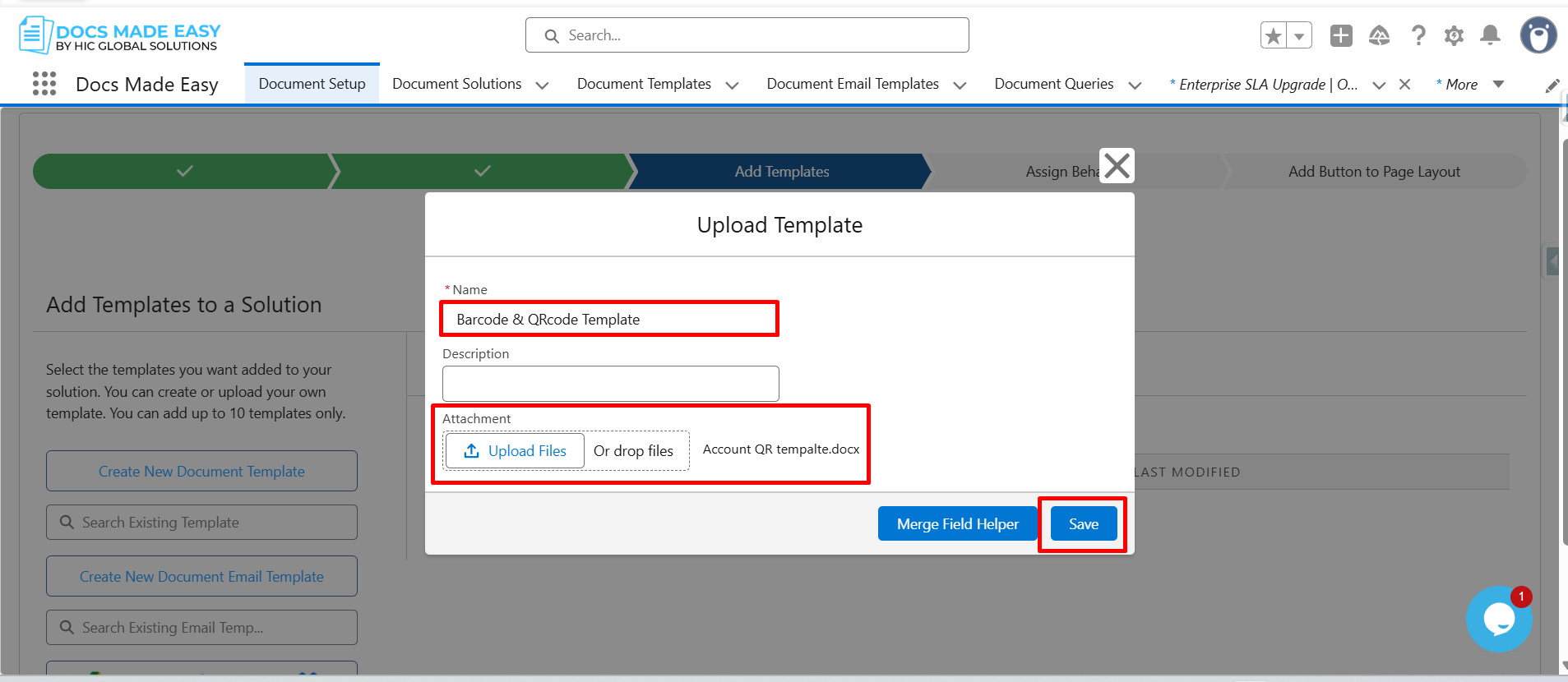
Step 8: Open the Upload Template window, enter the Template Name, upload the Template file, and click Save.
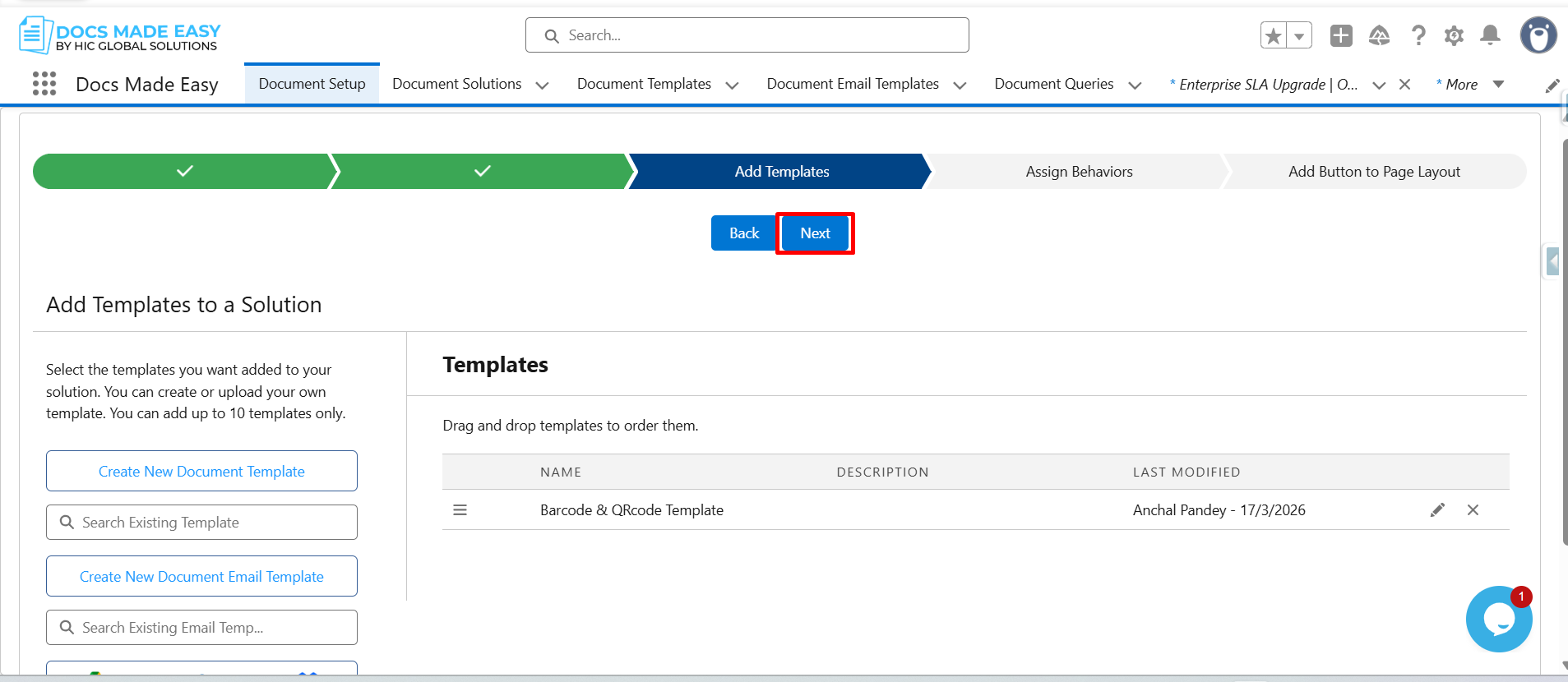
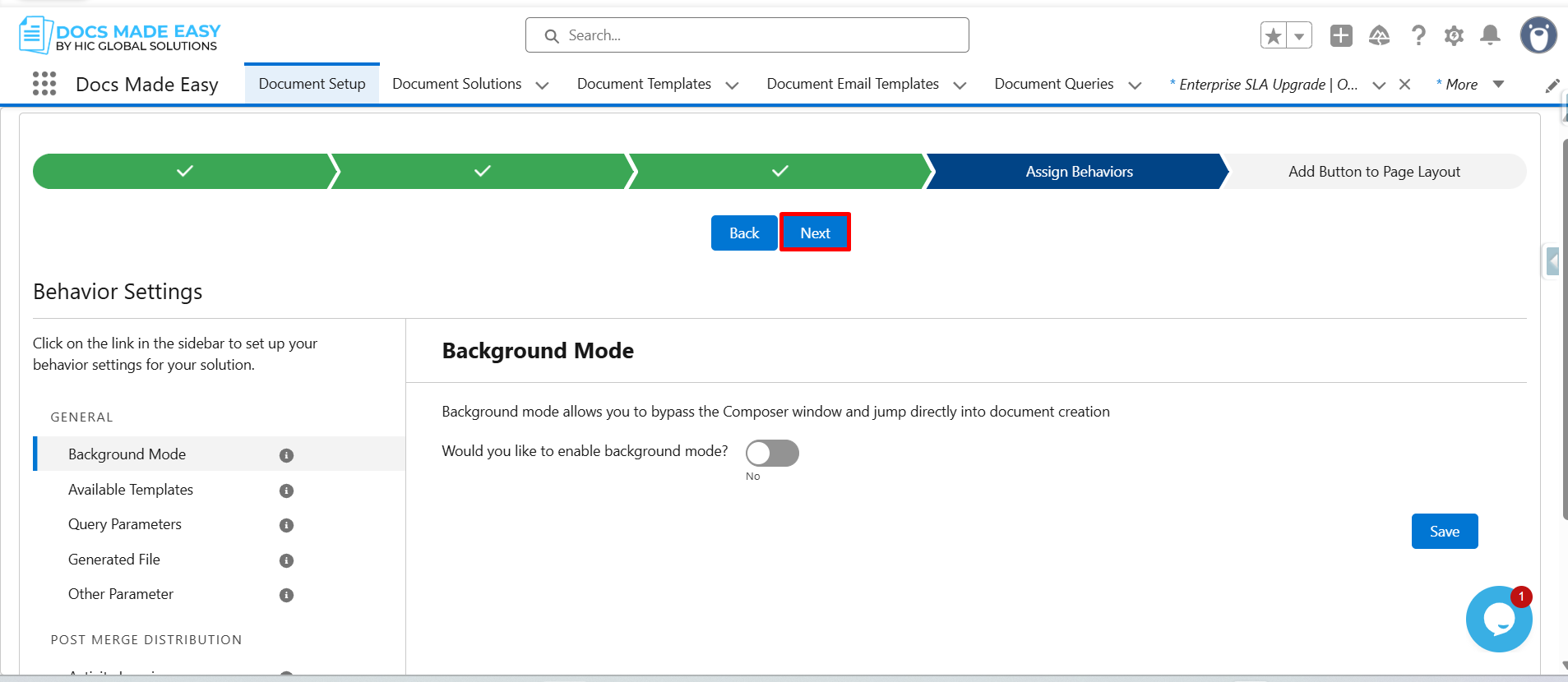
Step 9: Click on Next.
Step 10: Again, click on Next.
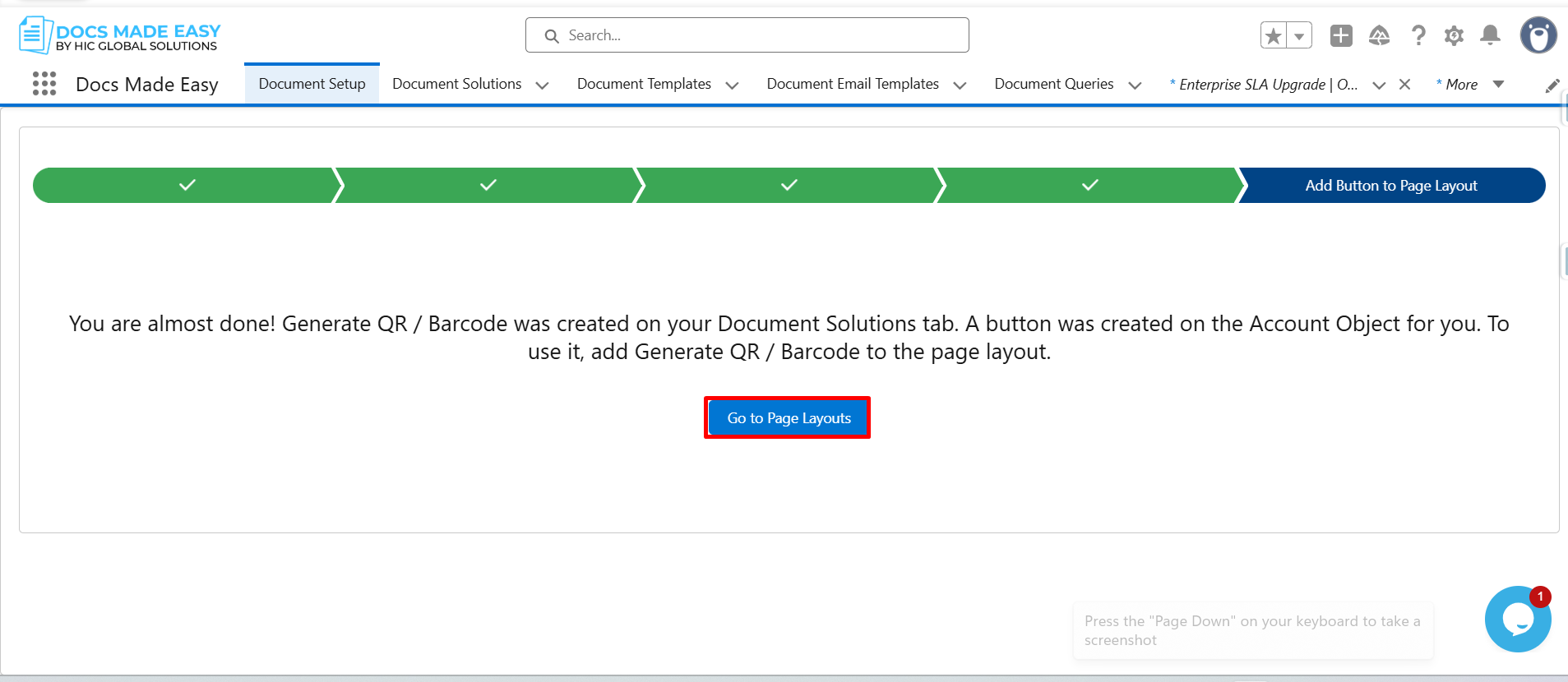
Step 11: Now, go to page layout.
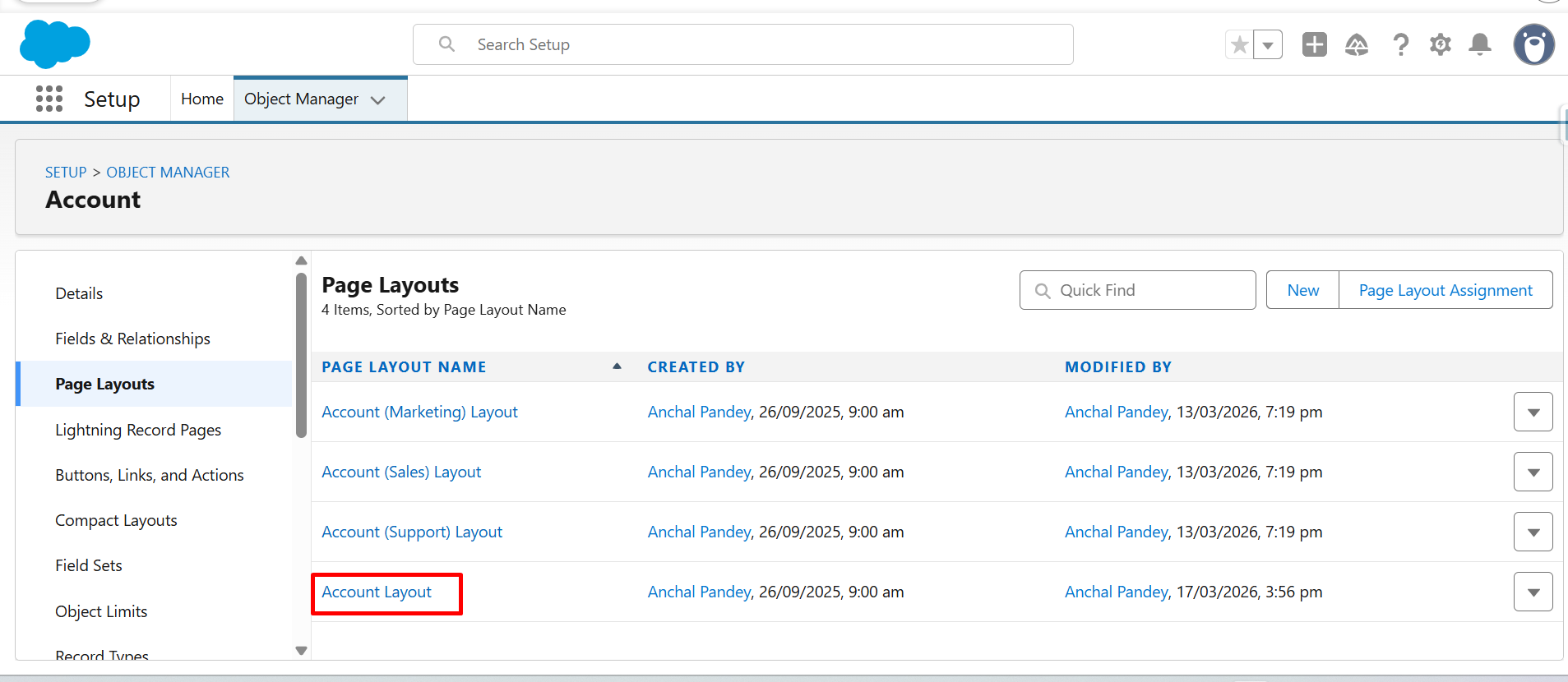
Step 12: Click on Account layout.
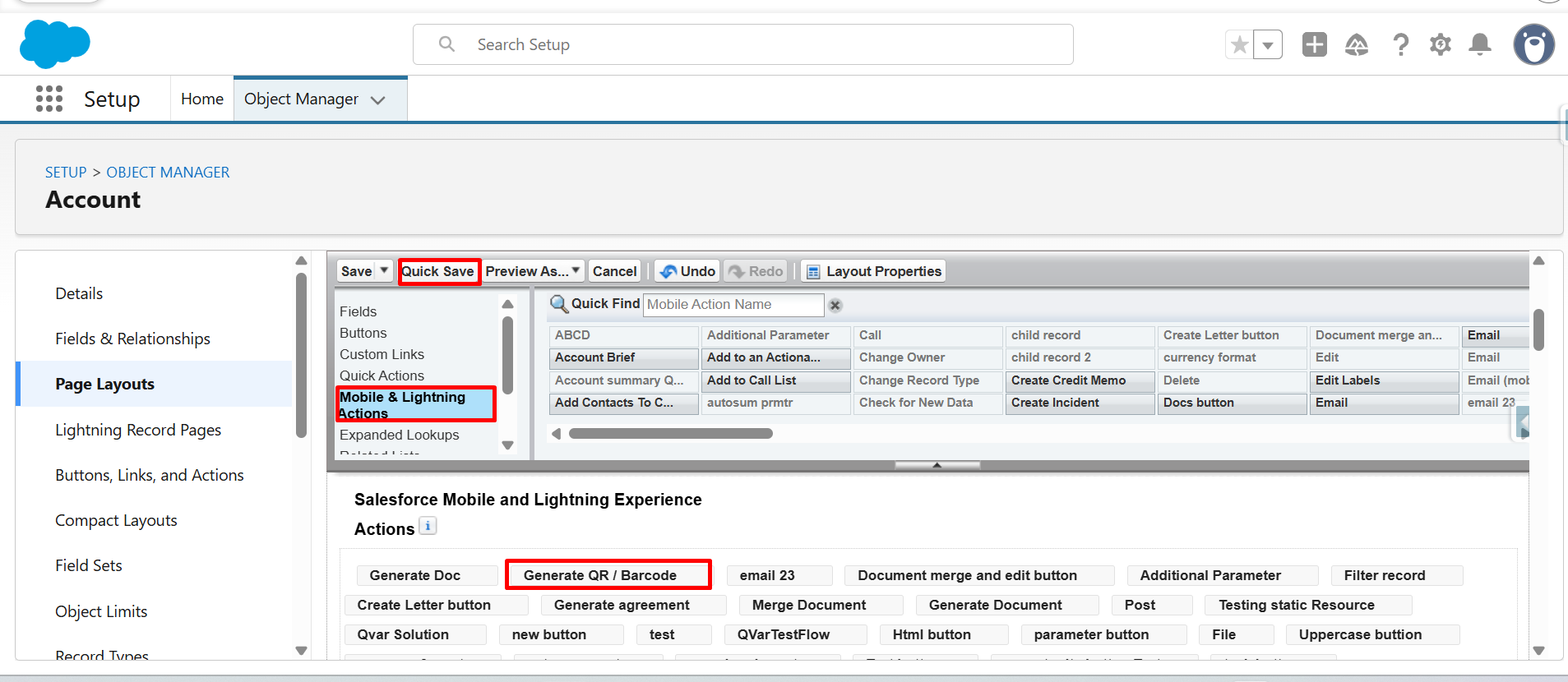
Step 13: From Mobile & Lightning Actions, drag and drop the Generate QR / BarCode button in Salesforce Mobile and Lightning Experience Actions.
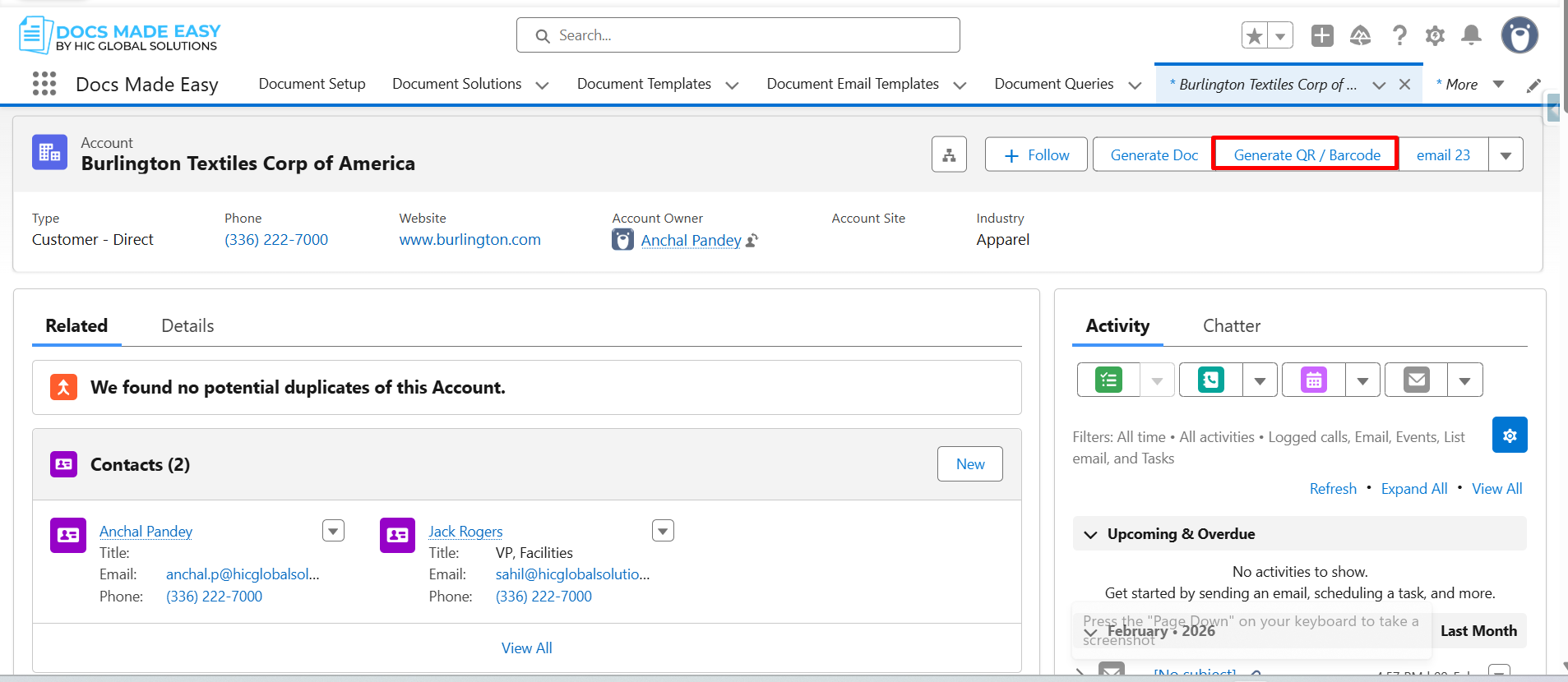
Step 14: Go to Account record and click on the created button (Generate QR/BarCode).
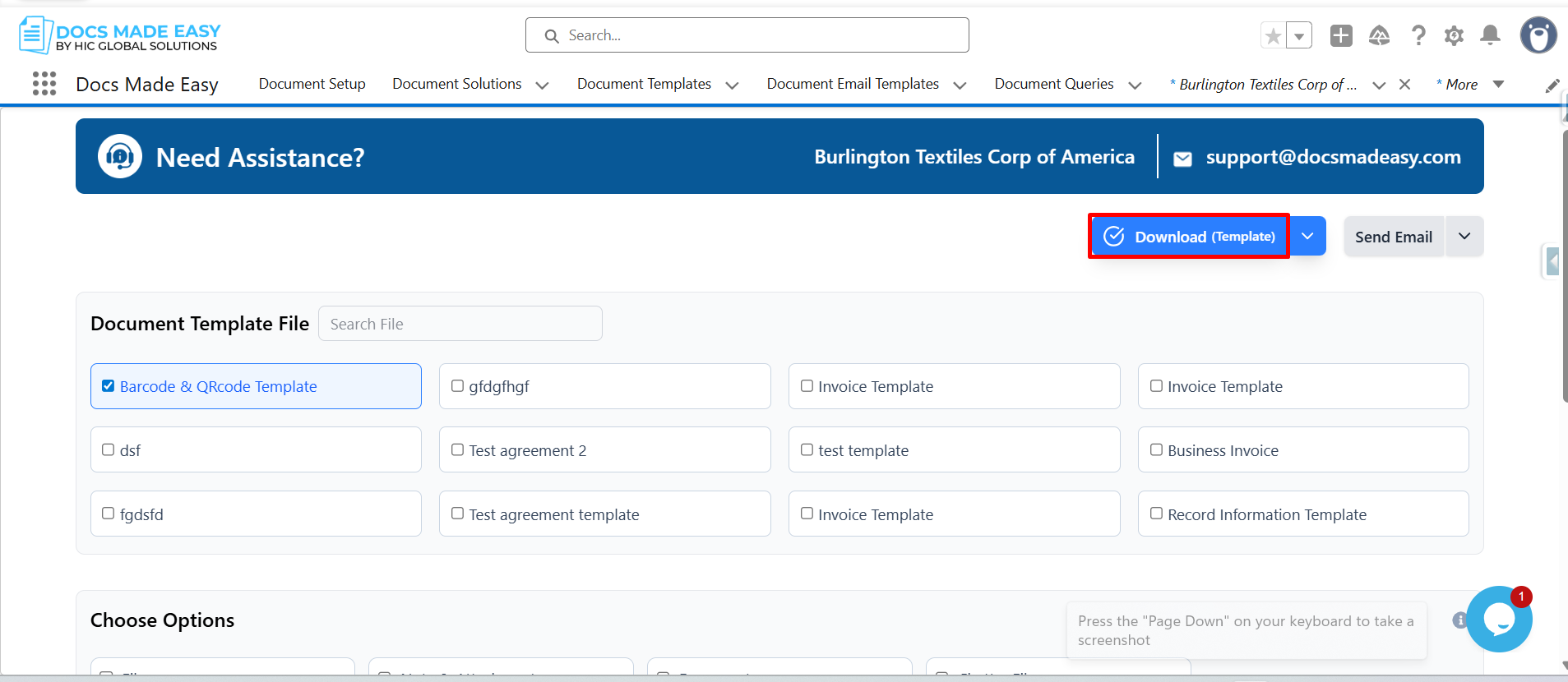
Step 15: Click on Download Template.
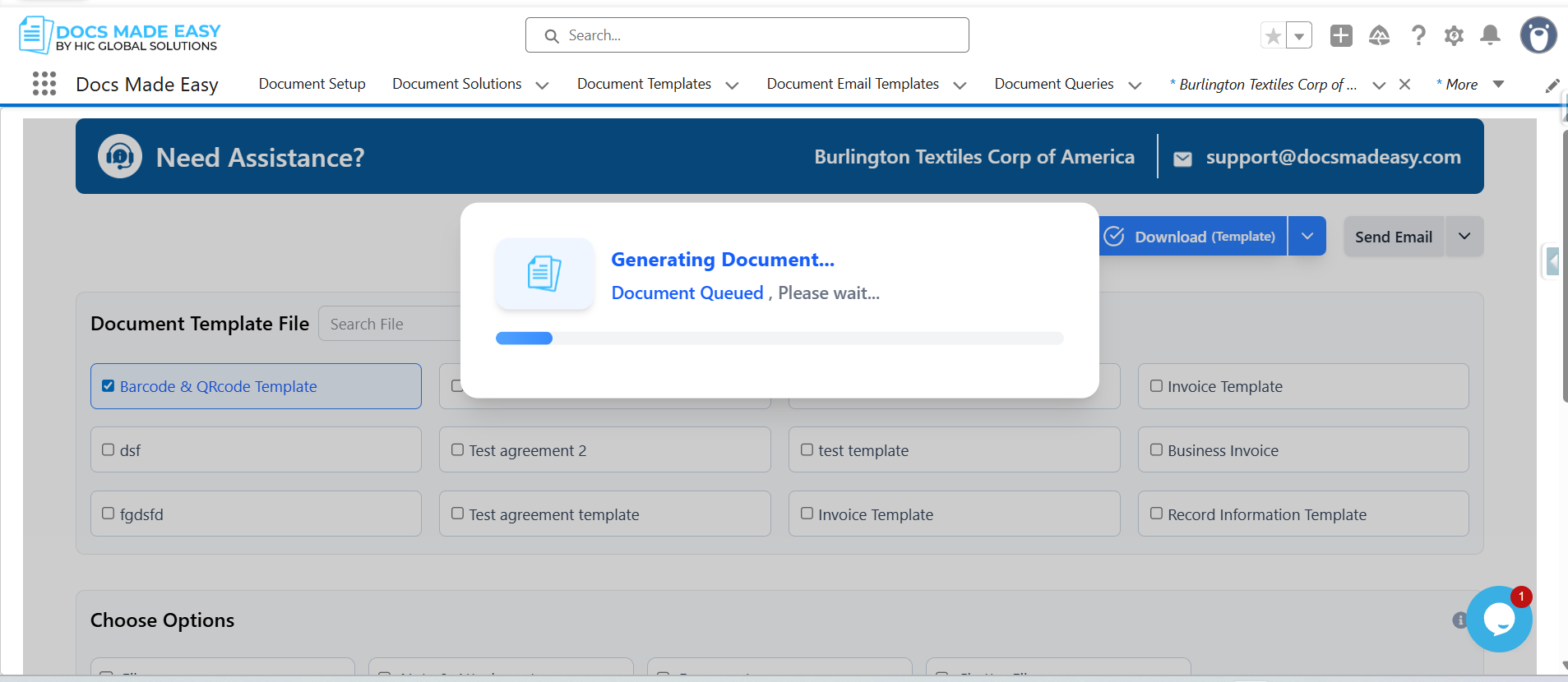
Step 16: The system will automatically generate the document based on the selected template and Salesforce record.
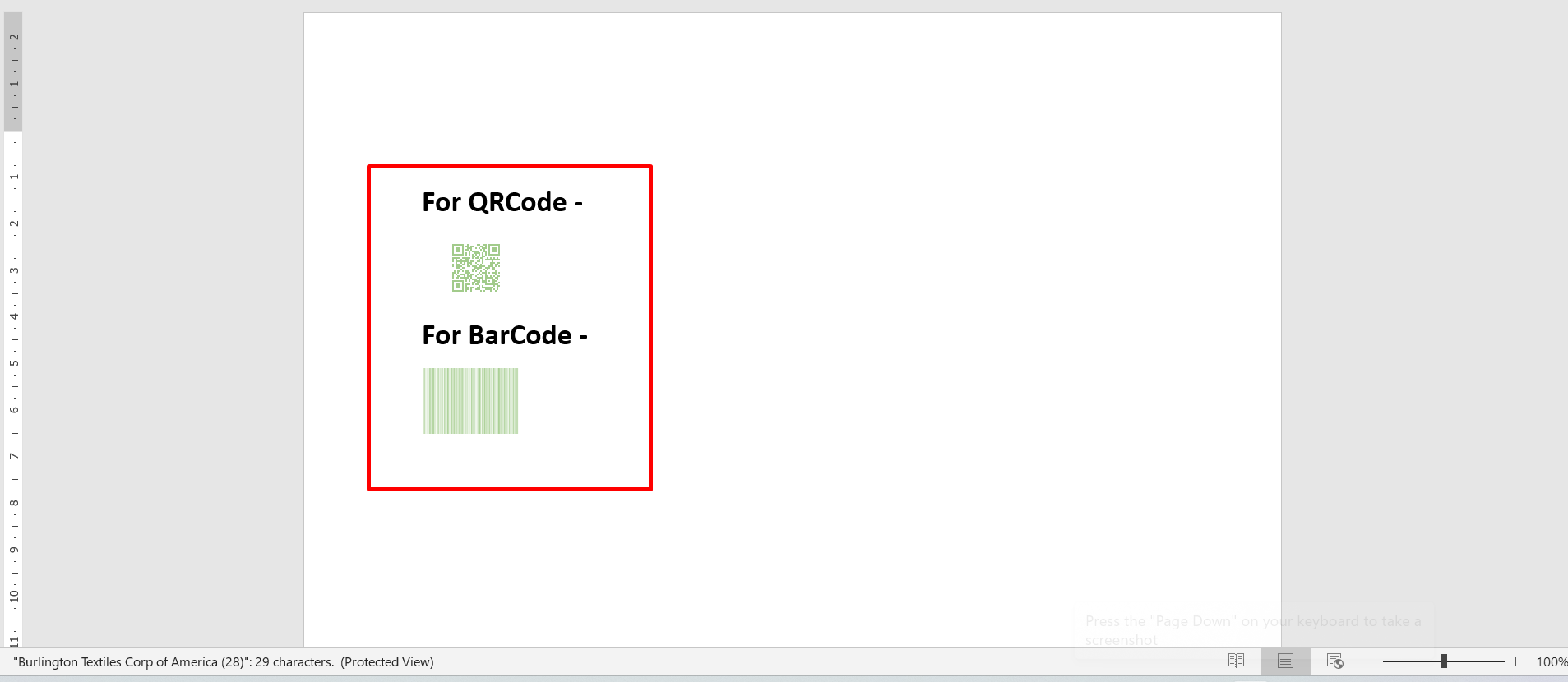
Step 17: Open the generated document.
Verify QR Code
- QR code is visible.
- Size and color match configuration.
Verify Barcode
- The barcode is visible.
- Size and color match configuration.
Conclusion
Once the setup is complete, every generated document will automatically include the configured QR code or barcode based on your Salesforce record data. This removes the need to generate codes separately and helps keep your documents accurate and consistent.
Whether you’re creating invoices, contracts, labels, or business documents, QR Code document generation makes the process much more efficient. Combined with Salesforce document generation and reusable Salesforce document templates, it helps you deliver professional documents while saving time and reducing manual work.

Top Companies Trust Docs Made Easy What’s Stopping You?
Frequently Asked Questions
Related Blogs
How to Generate & Send Documents for eSign in Salesforce
Sending a document for signature directly from Salesforce can make the approval process much easier, especially when you want to…
How to Generate Salesforce Documents Using Quick Document Merge
Creating Salesforce documents does not have to involve multiple steps or moving between different tools. With Quick Document Merge, you…

How to Create a Scope of Work (SOW) in Salesforce with Docs Made Easy
Creating a Scope of Work manually can take time, especially when information needs to be collected from Salesforce and added…