How to Create a Scope of Work (SOW) in Salesforce with Docs Made Easy
Category :
How To

Docs shouldn’t be complicated.
With Docs Made Easy, creating professional, Salesforce-powered documents is just a few clicks away.
Get Started NowCreating a Scope of Work manually can take time, especially when information needs to be collected from Salesforce and added to a document. Docs Made Easy simplifies this process by letting you create a reusable template, add Salesforce data through merge fields, and generate the document directly from your records.
In this guide, we’ll walk through the complete process of Salesforce document generation, from creating the template and adding merge fields to configuring the document action and generating the final Scope of Work.
Step 1: Start by logging into Salesforce.
Step 2: Now, open Docs Made Easy from the App Launcher to begin the setup.
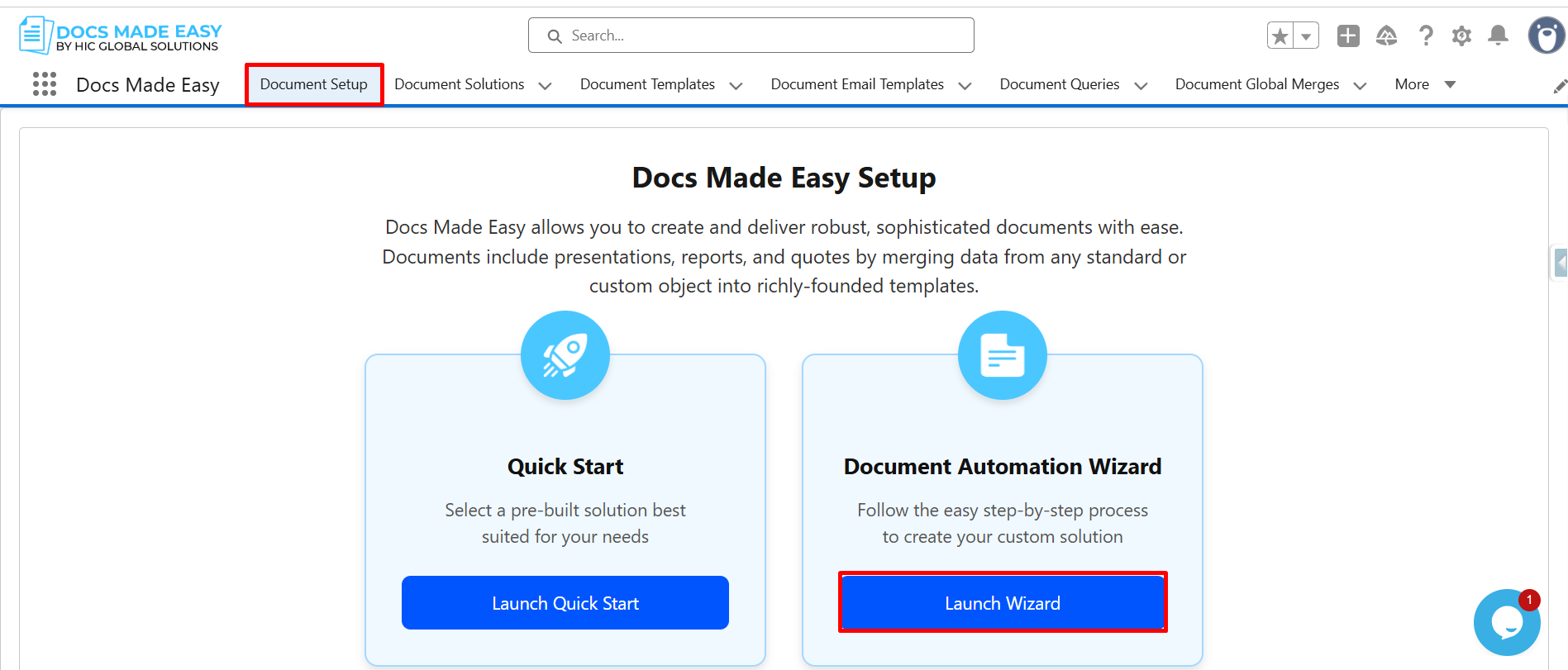
Step 3: Once you’re inside the app, click Document Setup and then proceed by clicking Launch Wizard.
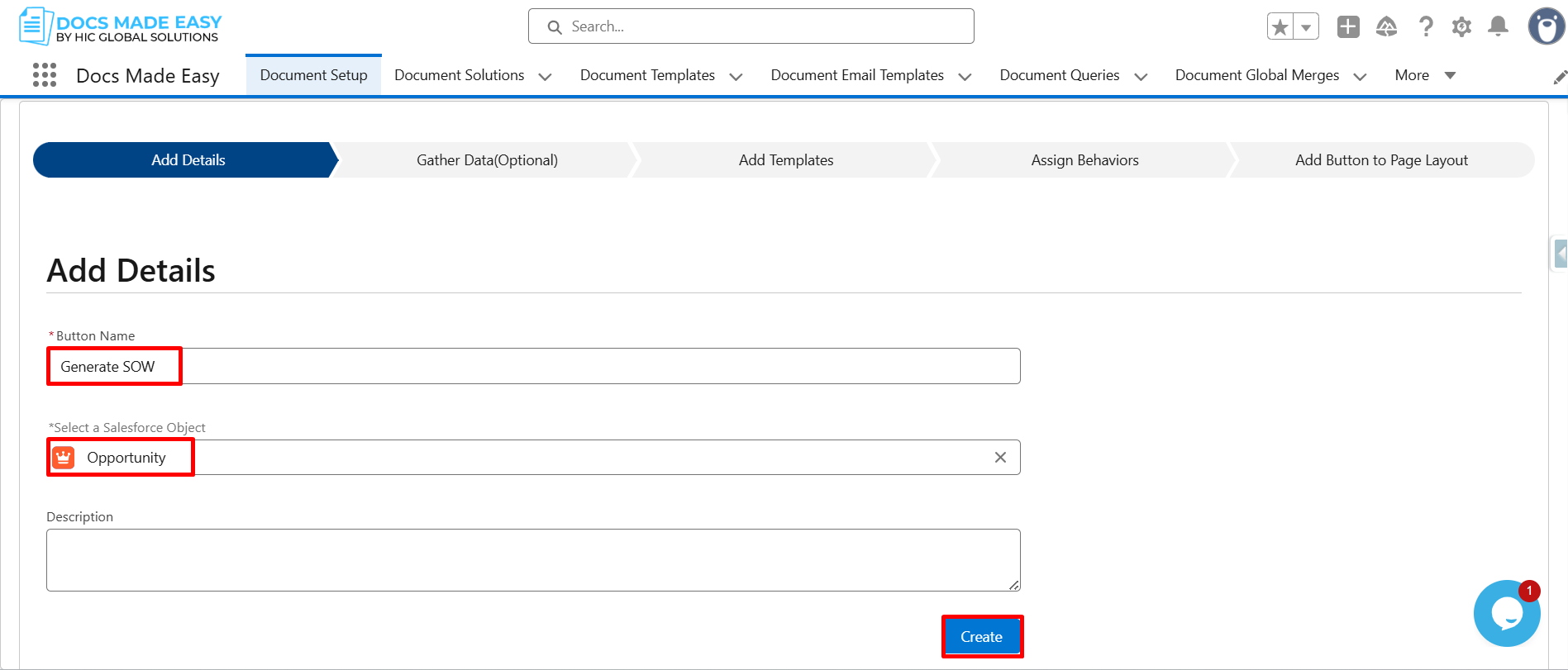
Step 4: Next, enter the button name and select the Salesforce Object, like Opportunity.
After setting this up, click Create to move forward.
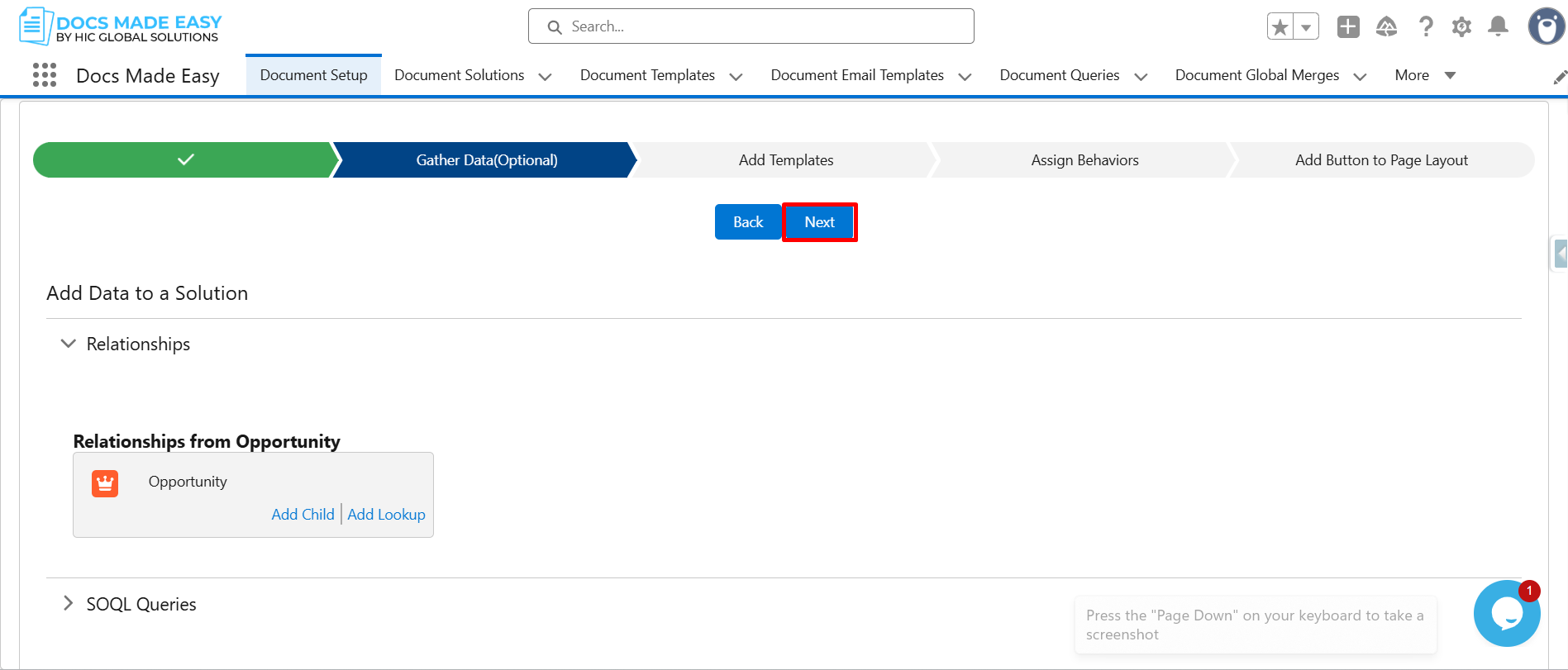
Step 5: Click Next to continue.
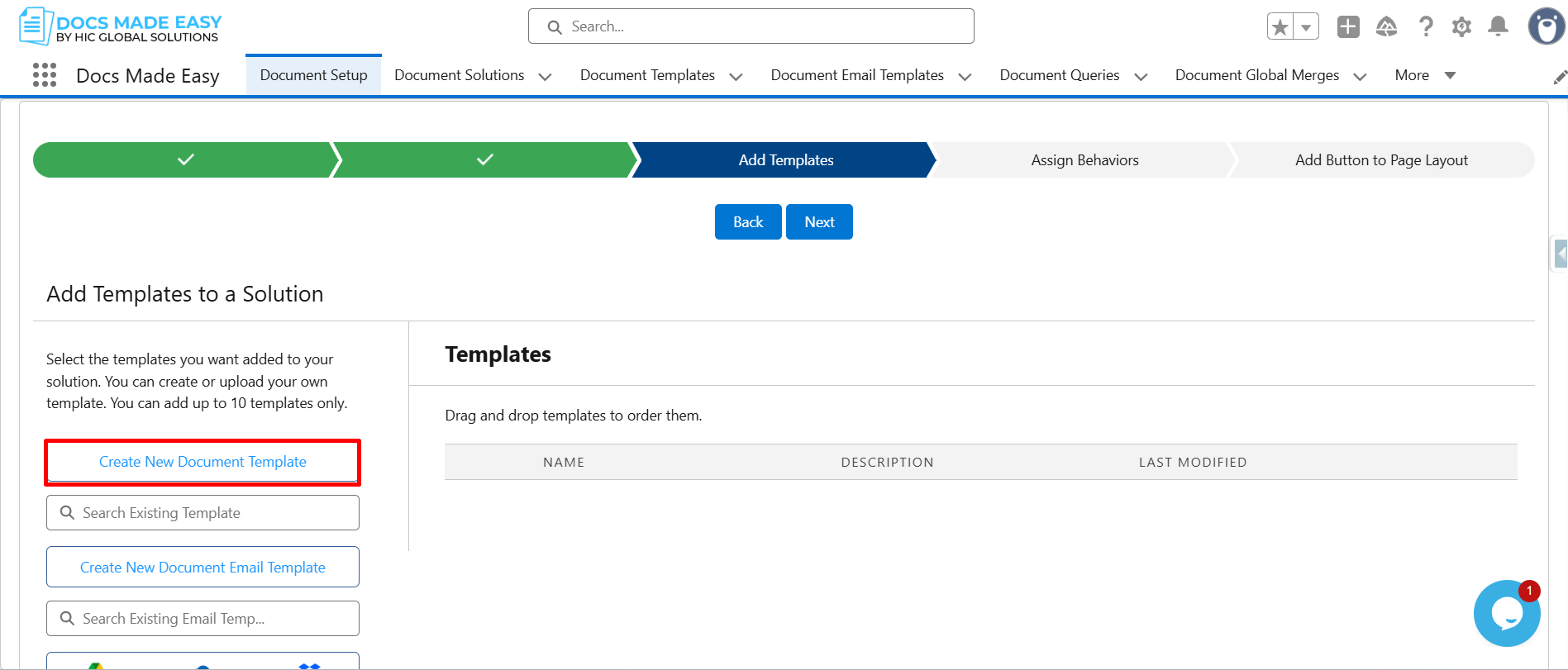
Step 6: At this stage, click Create New Document Template.
Step 7: Now, open Merge Field Helper.
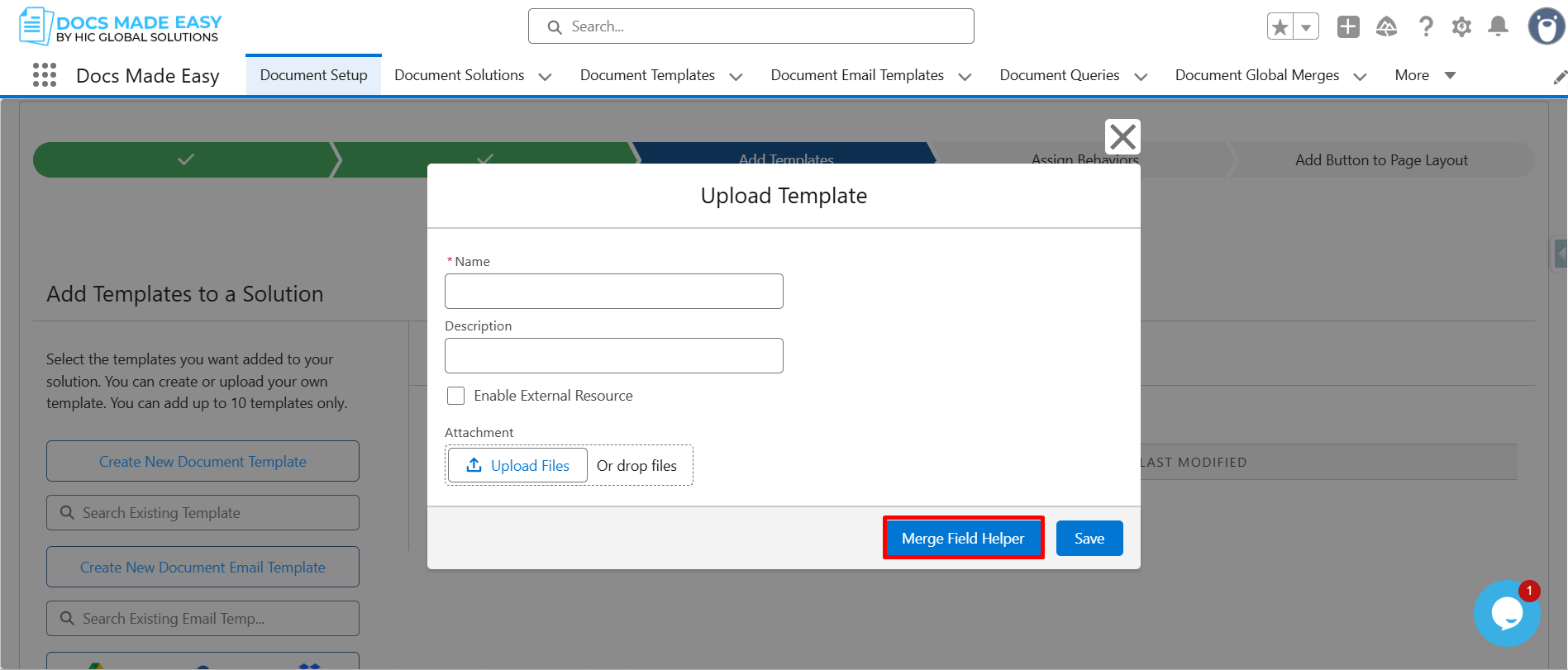
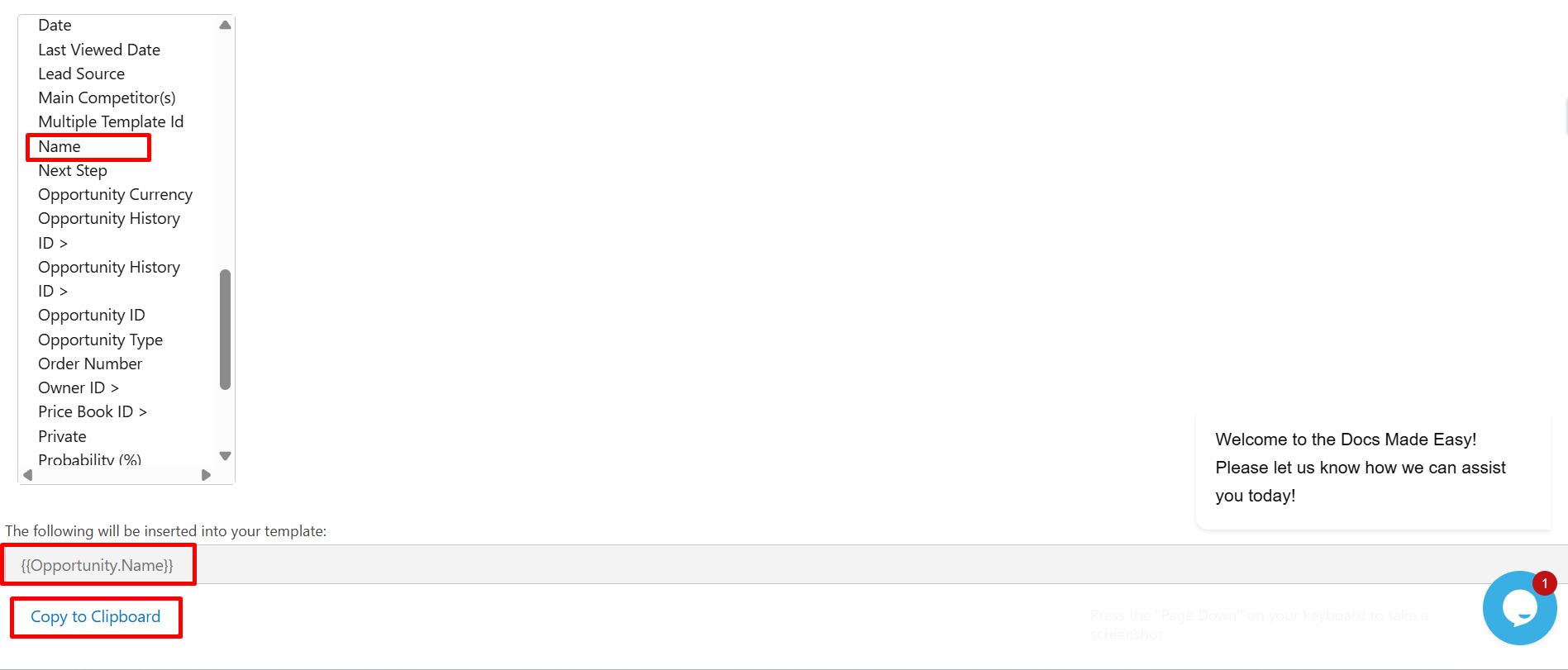
Step 8: From the field list, click Name to select it.
The system automatically generates the merge field syntax: {{Opportunity.Name}}
Now, click Copy to Clipboard.
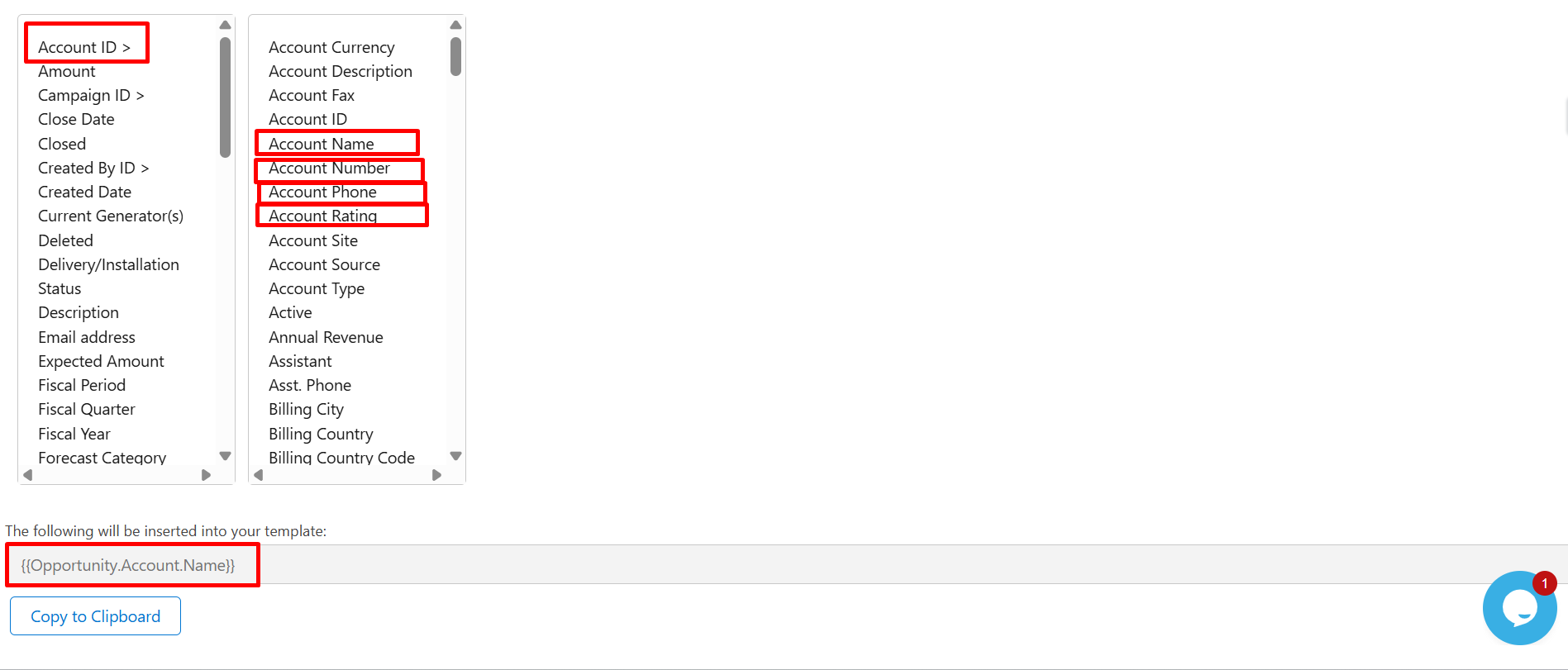
Step 9: After that, select Account ID (Opportunity → Account relationship) and click the required account-related fields such as Account Name, Phone Number, or Rating,
Then click Copy to Clipboard to copy the generated merge field for use in your template.
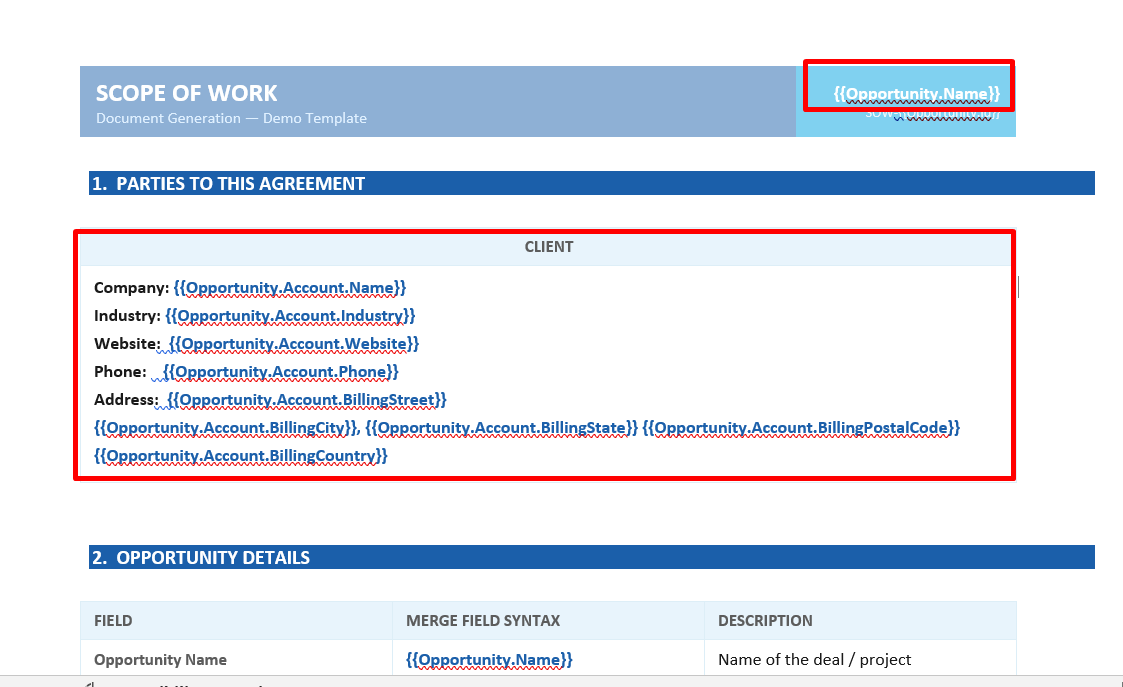
Step 10: Next, paste all the copied merge field syntax into the Template.
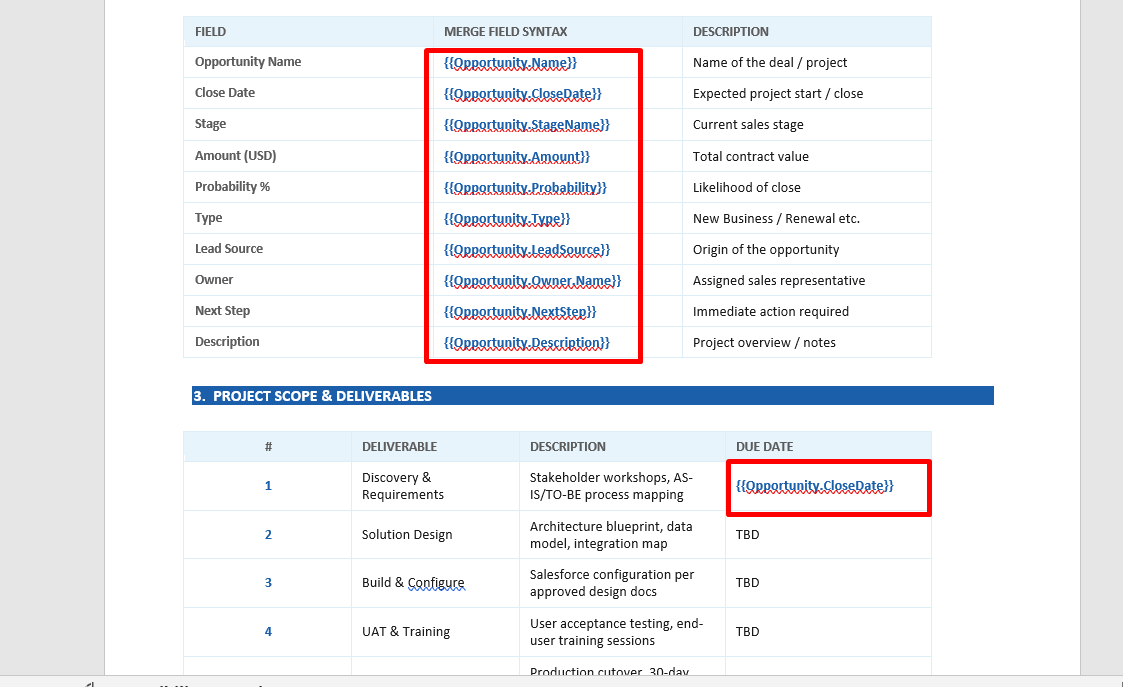
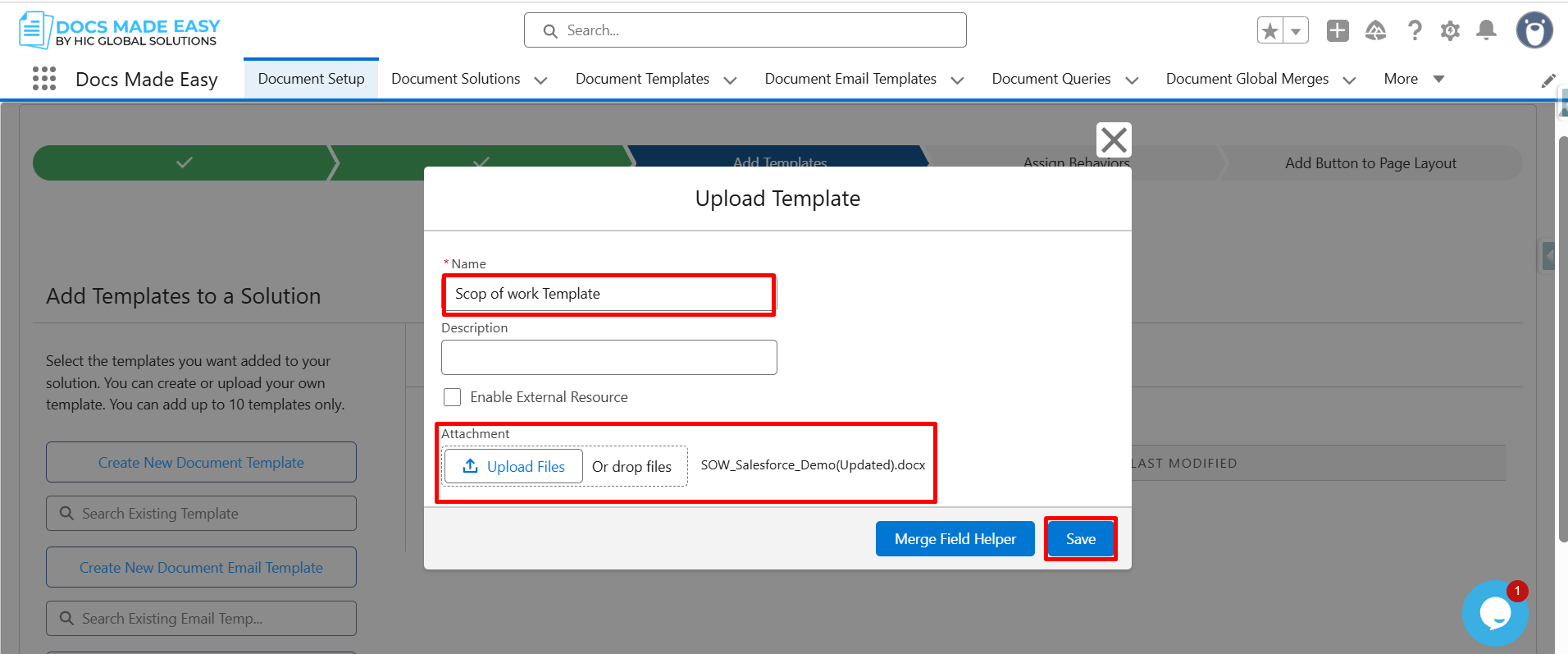
Step 11: After completing the template design, reopen the Upload Template window.
Enter the template name, upload the template file, and then click Save.
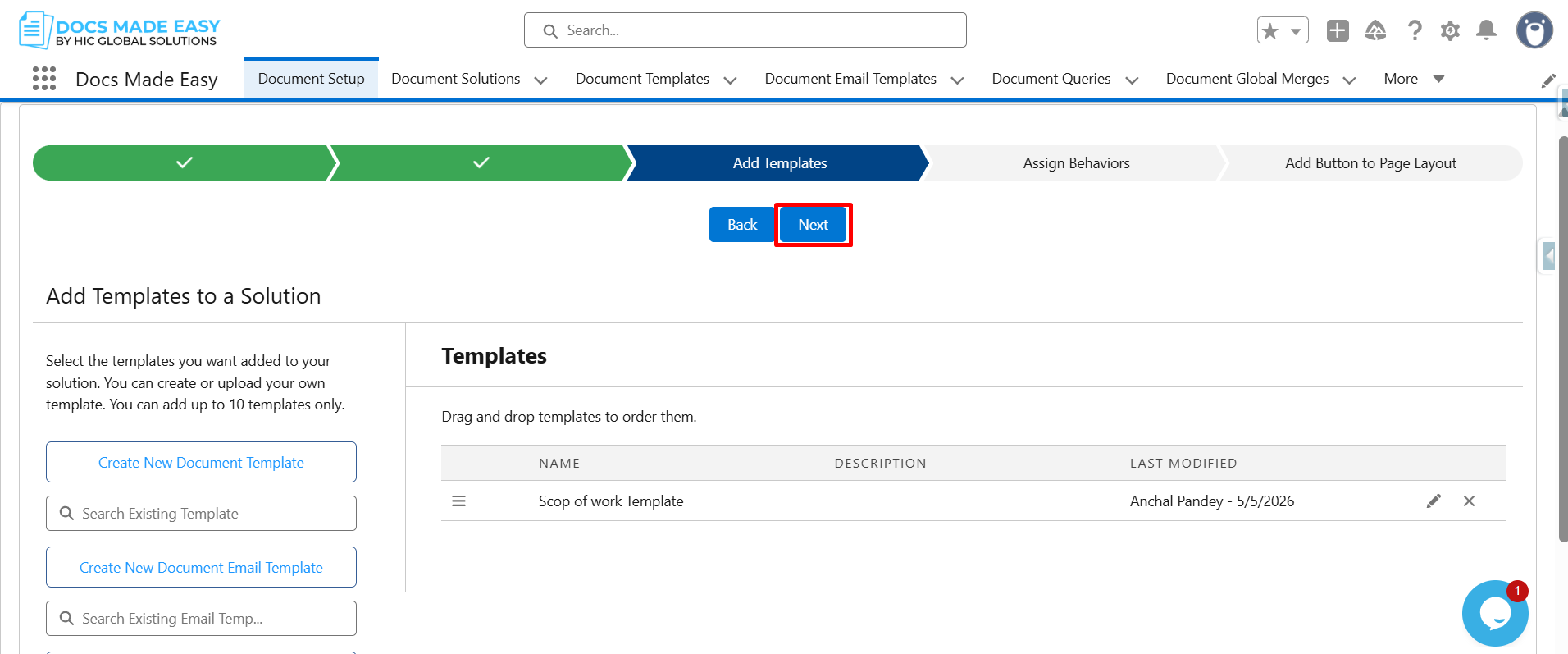
Step 12: Now that the template is saved, click Next to continue.
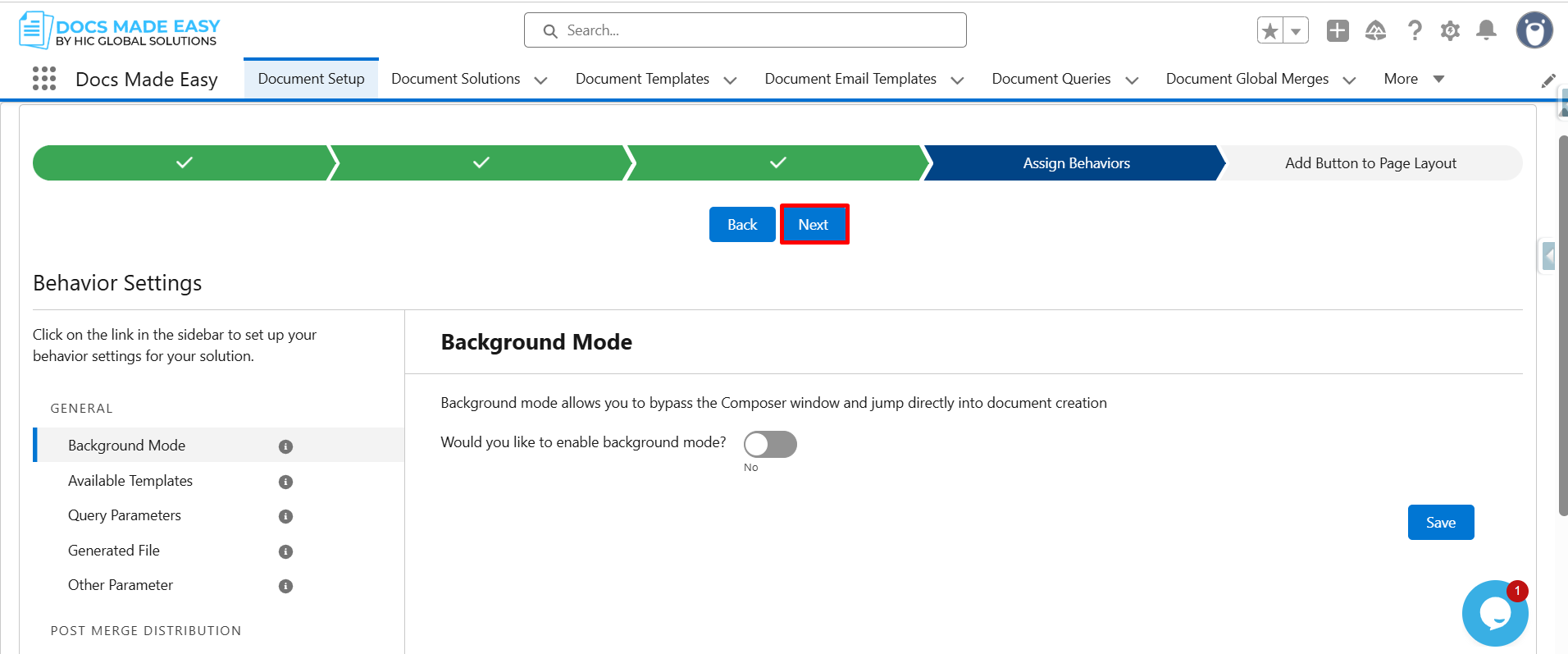
Step 13: Click Next again to move to the layout configuration.
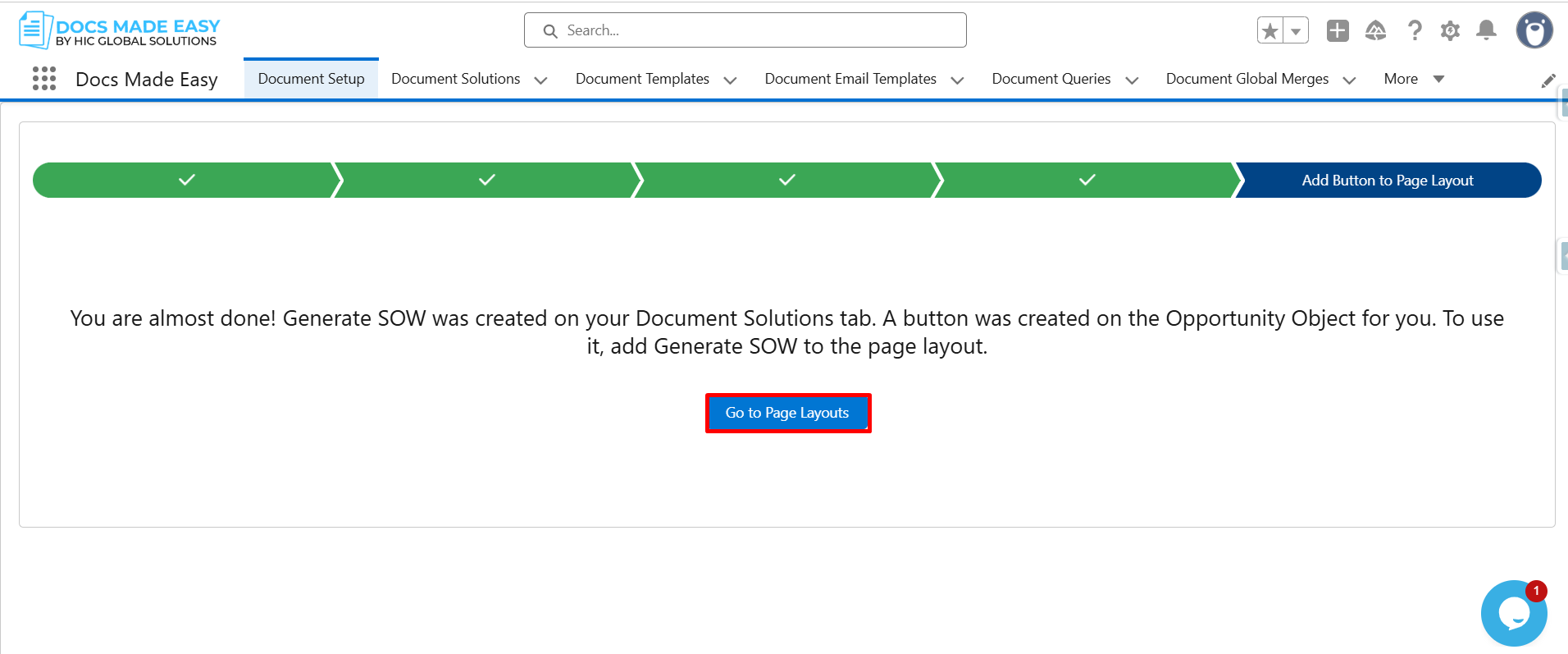
Step 14: Click on Go to Page Layouts in Salesforce.
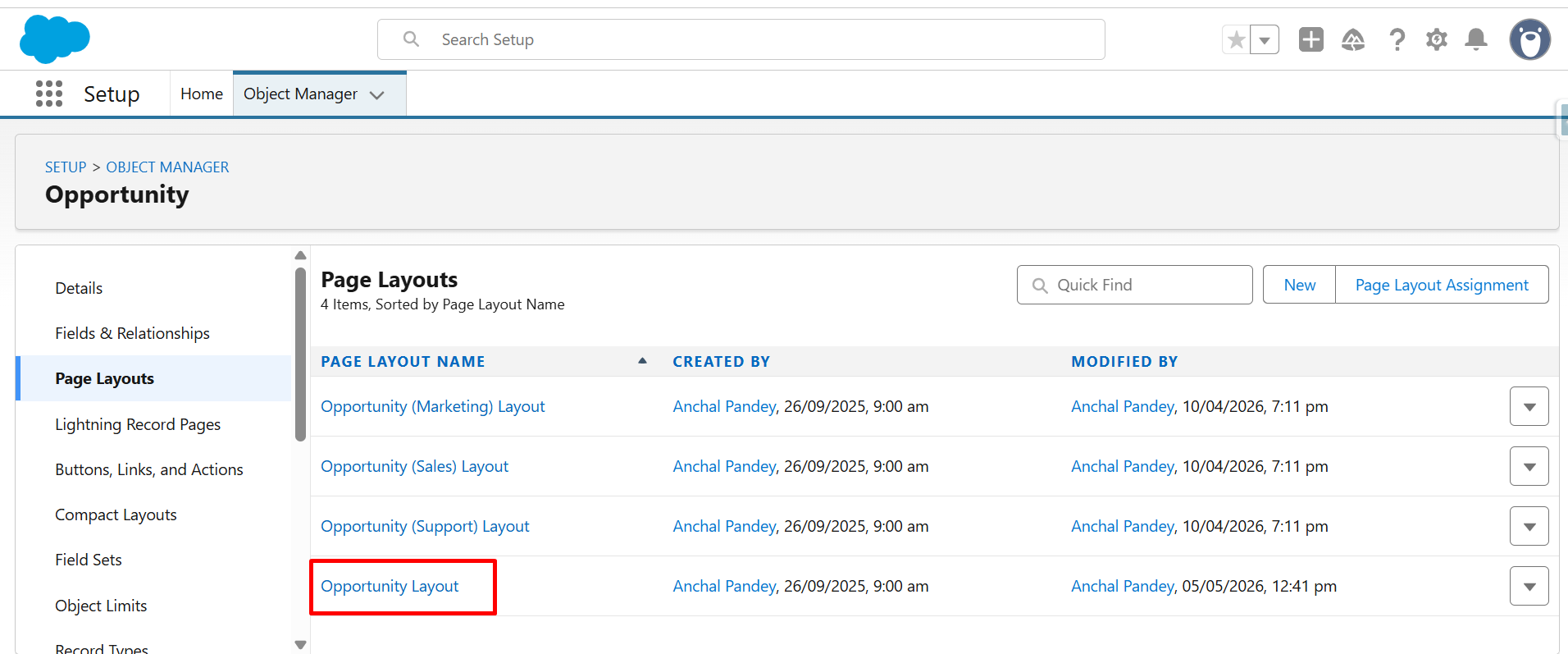
Step 15: From the list, click Opportunity Layout (as we have selected Opportunity as the Salesforce object) to customize the record page.
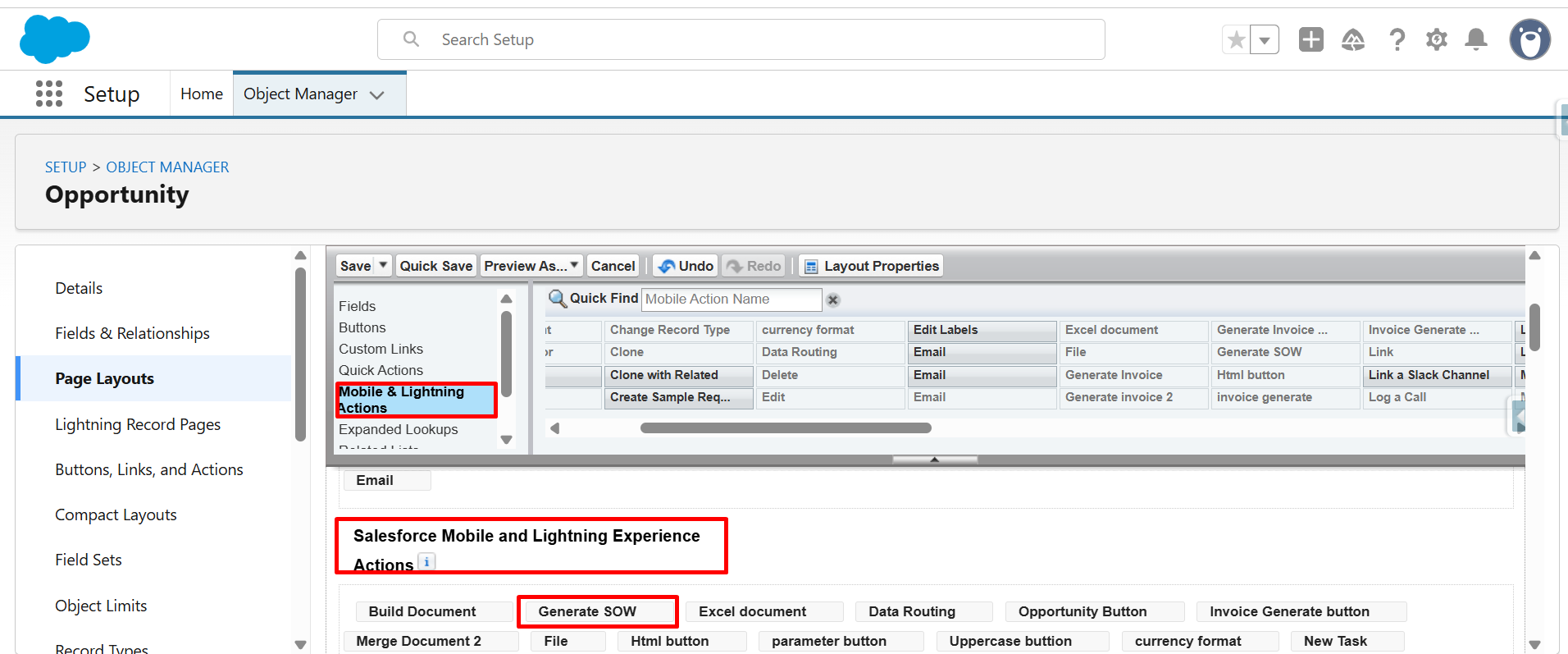
Step 16: Now, from Mobile & Lightning Actions, drag and drop Generate SOW into Salesforce Mobile and Lightning Experience Actions.
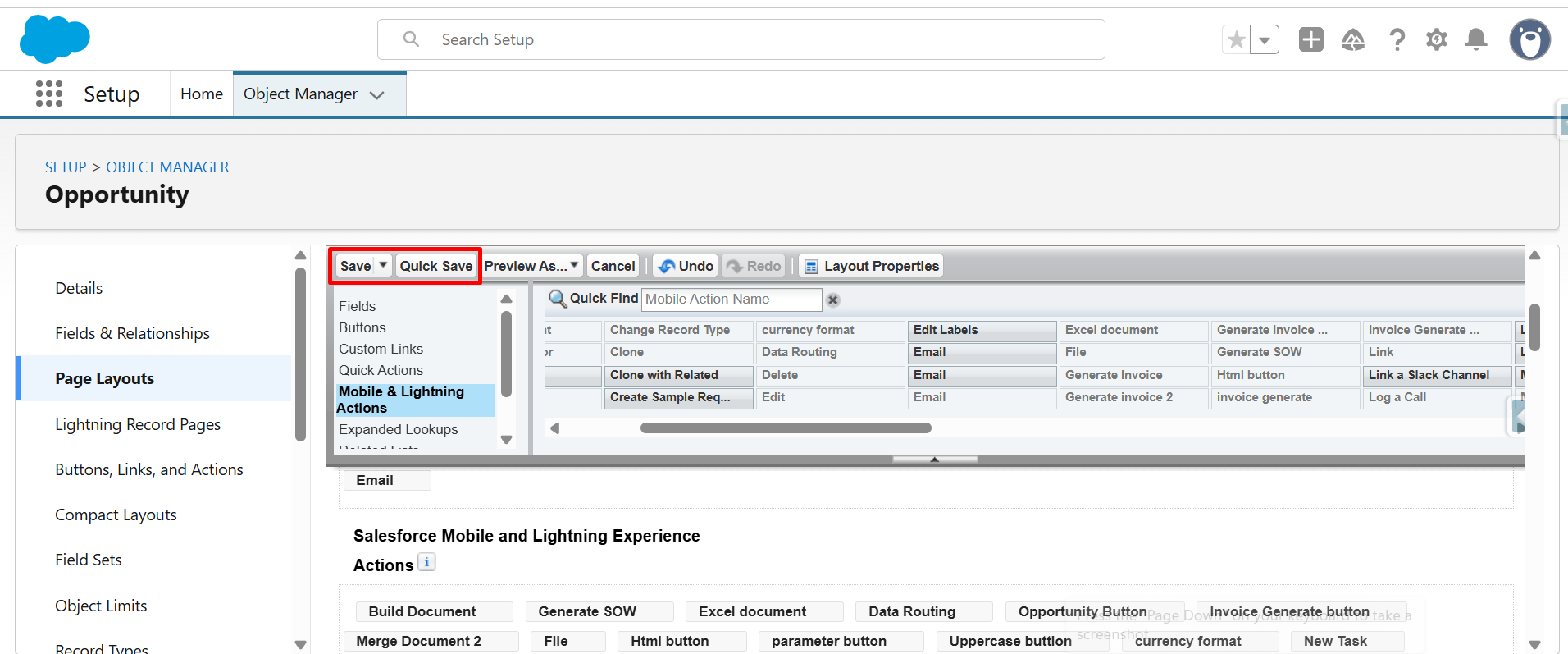
Step 17: After placing the button, click Quick Save or Save to apply the changes.
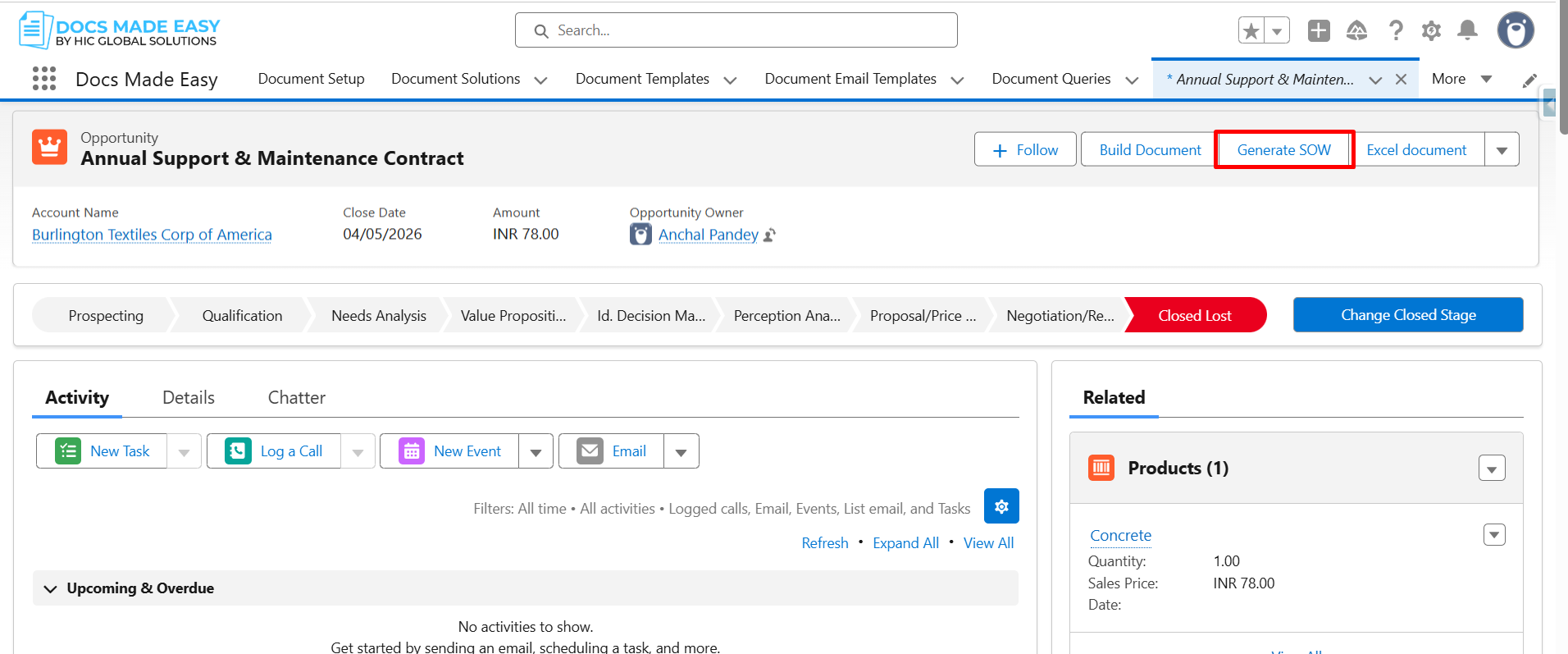
Step 18: Next, open an Opportunity record and click the Generate SOW (the button you created).
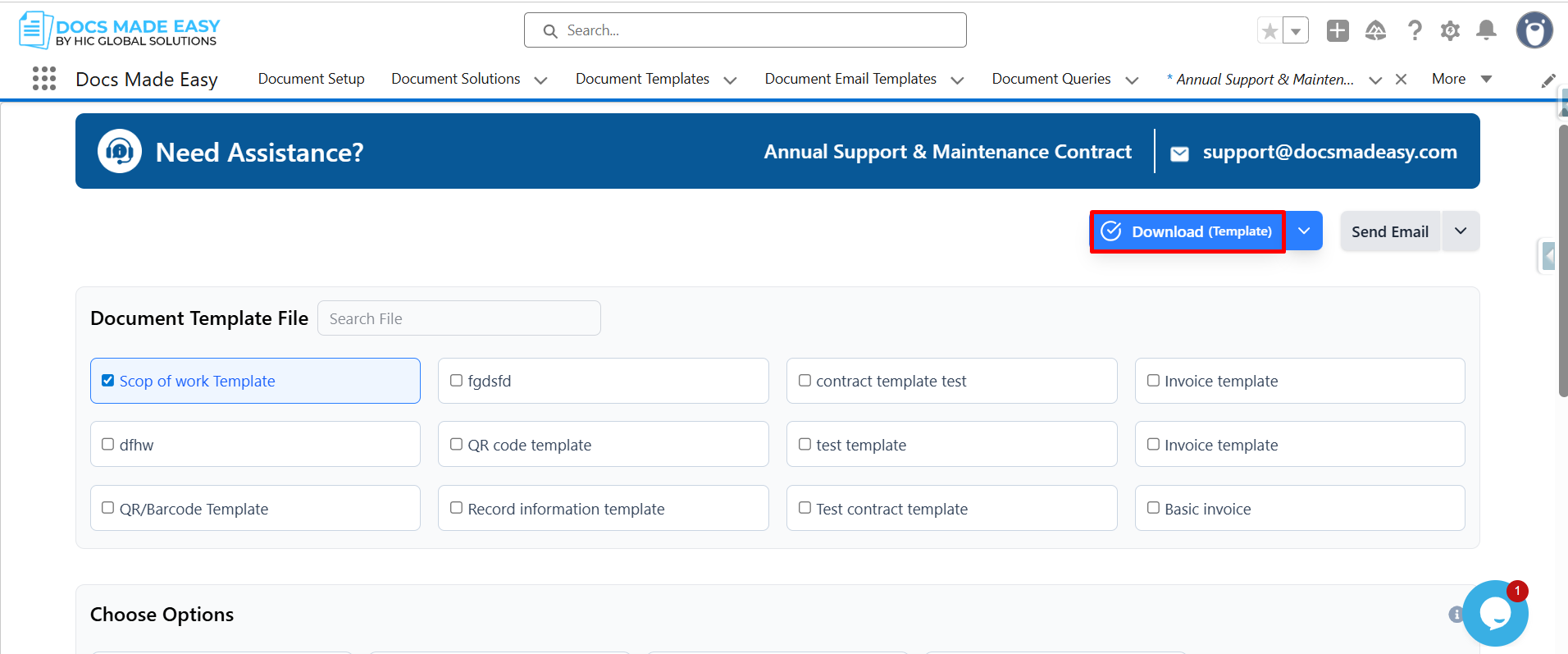
Step 19: Now, click Download Template to start the document process.
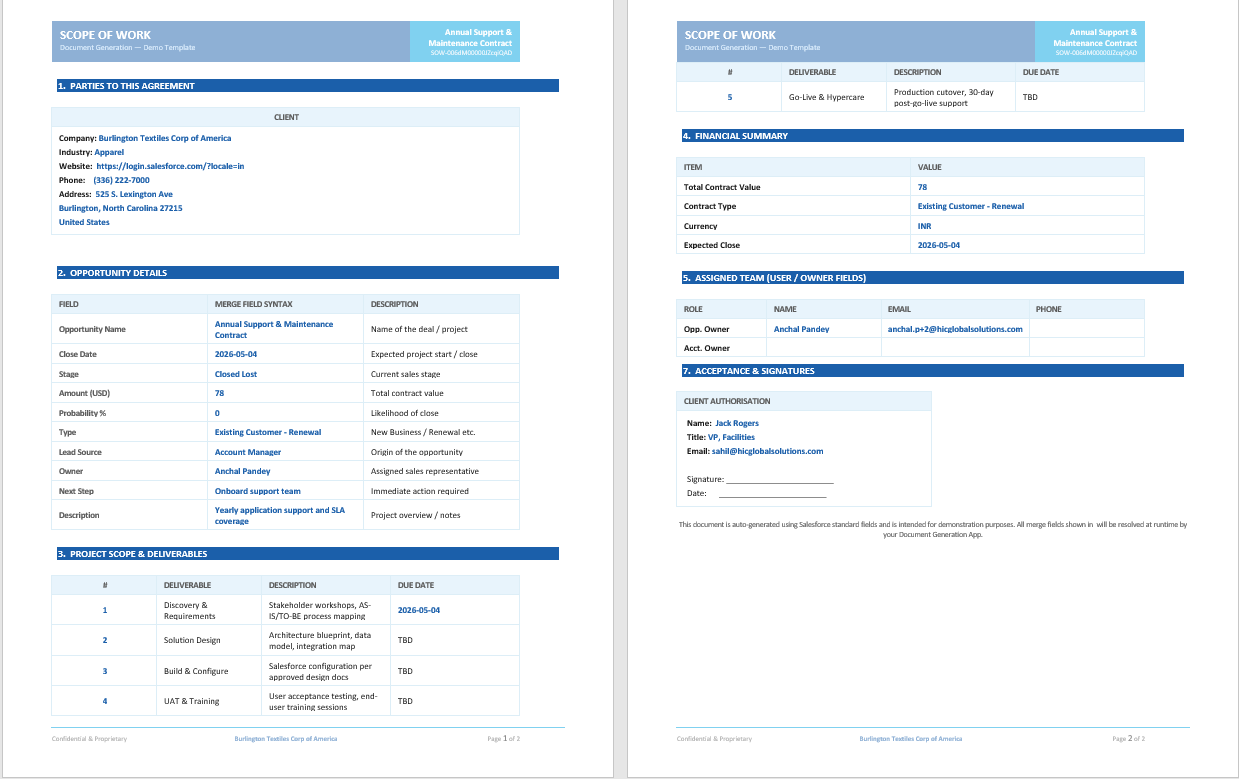
Step 20: Now you can open the generated document and review.
Conclusion
By following the above steps, you will successfully create a reusable Scope of Work template, connect it with your Salesforce data, and generate the document directly from your Salesforce record whenever required.
This approach makes Salesforce document creation easier and supports Salesforce document automation, helping reduce repetitive manual work while keeping document generation connected to your existing Salesforce workflow.
Watch Demo Video
Frequently Asked Questions
Related Blogs
How to Generate & Send Documents for eSign in Salesforce
Sending a document for signature directly from Salesforce can make the approval process much easier, especially when you want to…
How to Generate Salesforce Documents Using Quick Document Merge
Creating Salesforce documents does not have to involve multiple steps or moving between different tools. With Quick Document Merge, you…

How Universities Reduce Administrative Work by 75% Using Automated Document Generation
Universities have a lot going on. Admissions, enrollment, student records, certificates, agreements, invoices, reports, and then there are probably ten…