Data Routing: How to dynamically select templates using formula fields (Part 1)
Category :
How To

Docs shouldn’t be complicated.
With Docs Made Easy, creating professional, Salesforce-powered documents is just a few clicks away.
Get Started NowMany organizations need different documents at different stages of the sales cycle. Manually selecting the correct document template for every record can slow processes down and increase the risk of generating the wrong document.
In this step-by-step guide, we will solve this challenge by configuring Salesforce document generation to automatically select the appropriate template based on Opportunity Stage. Whether you need a contract template, proposal template, or invoice template, the correct document can be generated from a single data source.
Create Three Templates
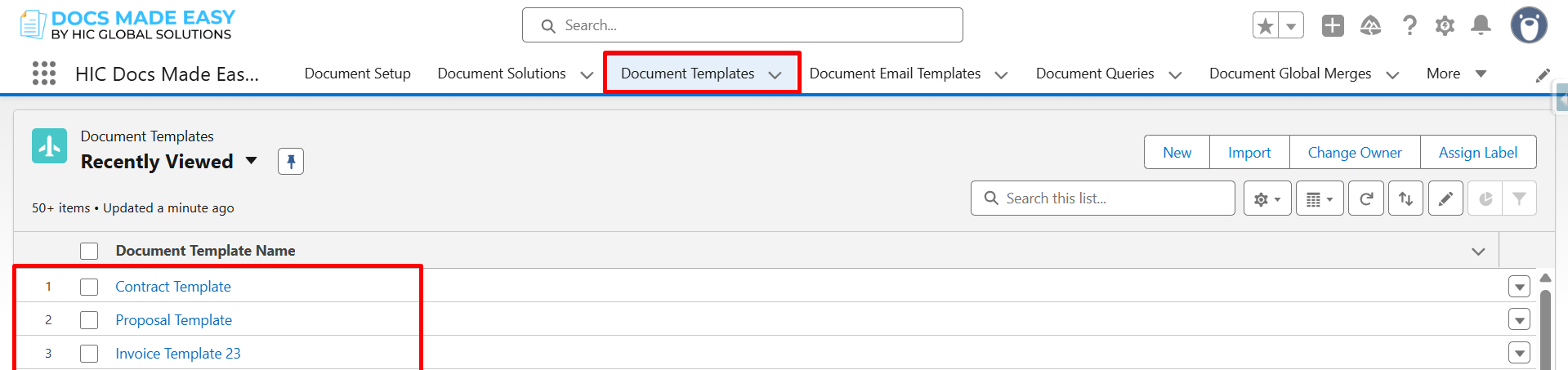
Step 1: Create the following three templates:
- Contract Template
- Proposal Template
- Invoice Template
After successfully creating these templates, copy their respective IDs. Use these IDs while creating the formula field.
Creating Formula Field
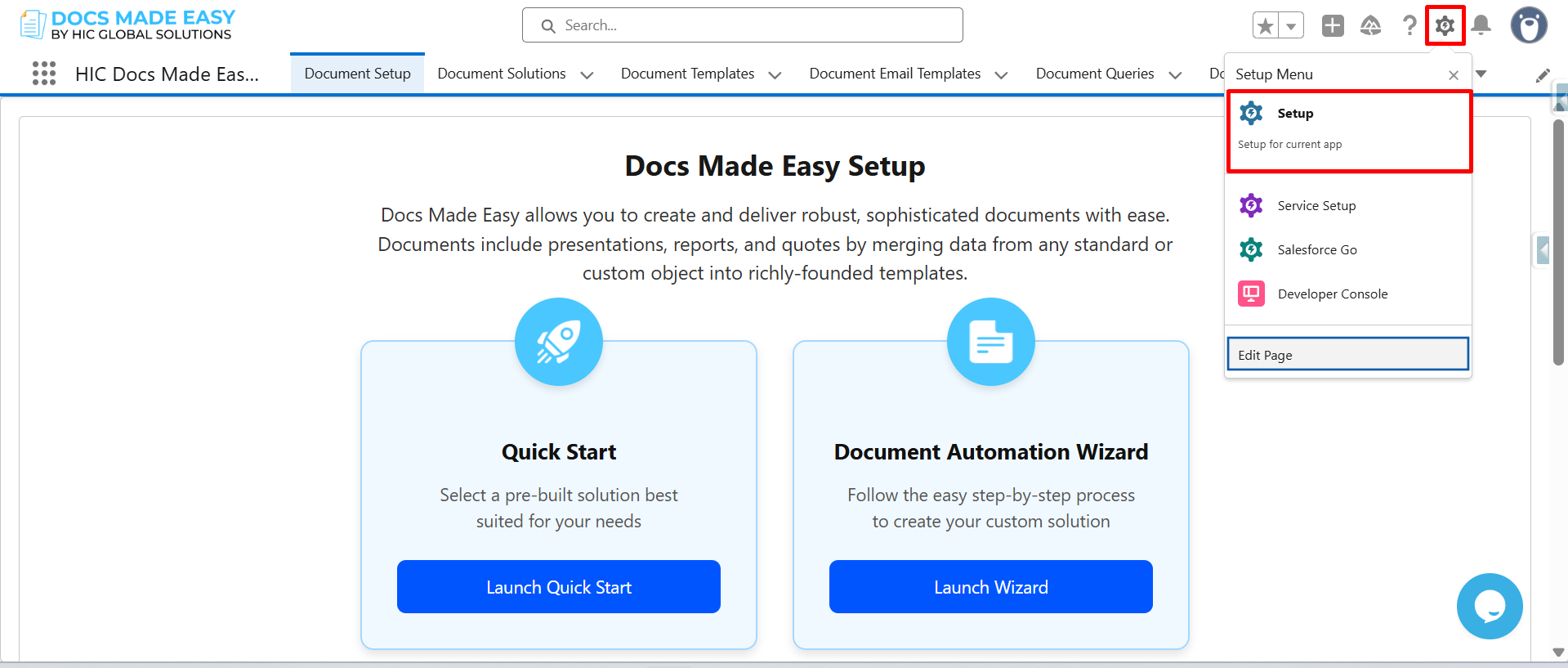
Step 1: Click on the Gear (⚙️) icon in the top-right corner, then select Setup from the dropdown menu.
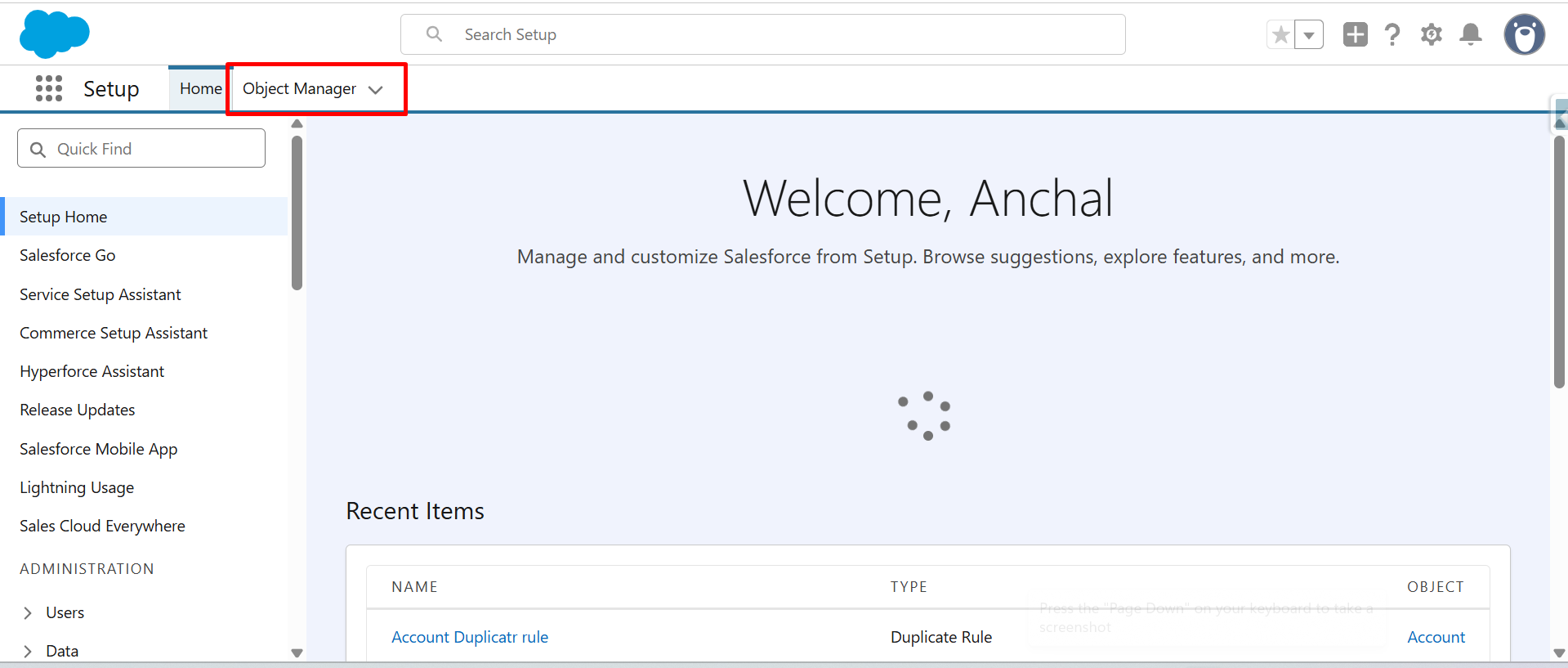
Step 2: Click on Object Manager.
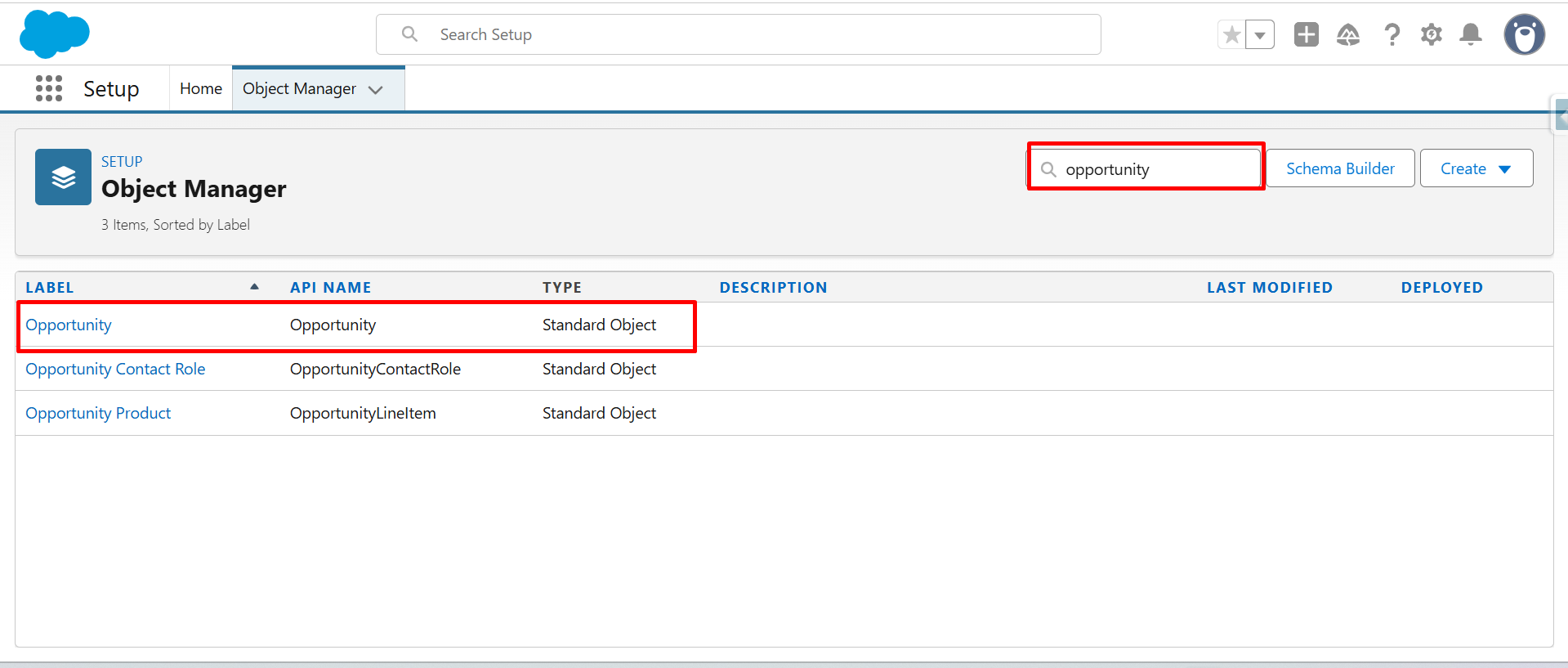
Step 3: In the Quick Find search bar, type Opportunity, then select Opportunity from the search results.
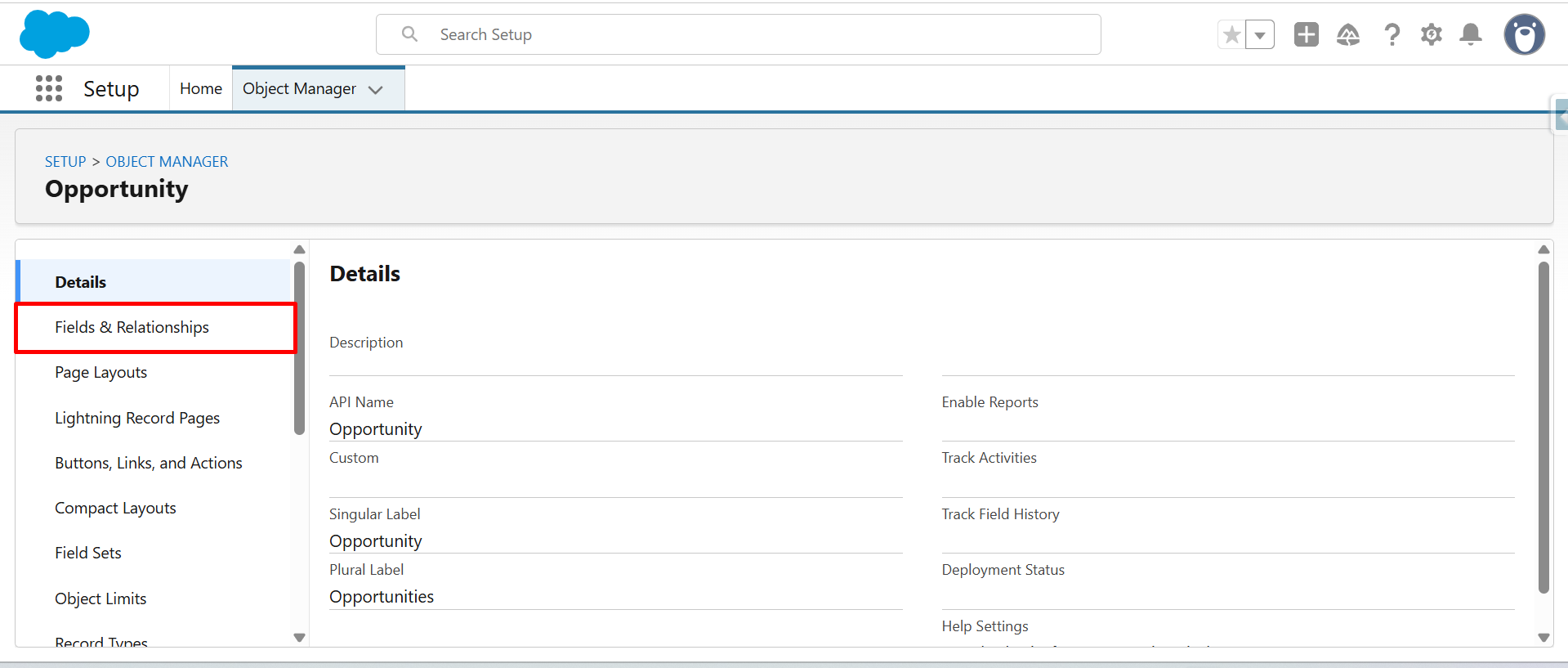
Step 4: Click on Field & Relationship.
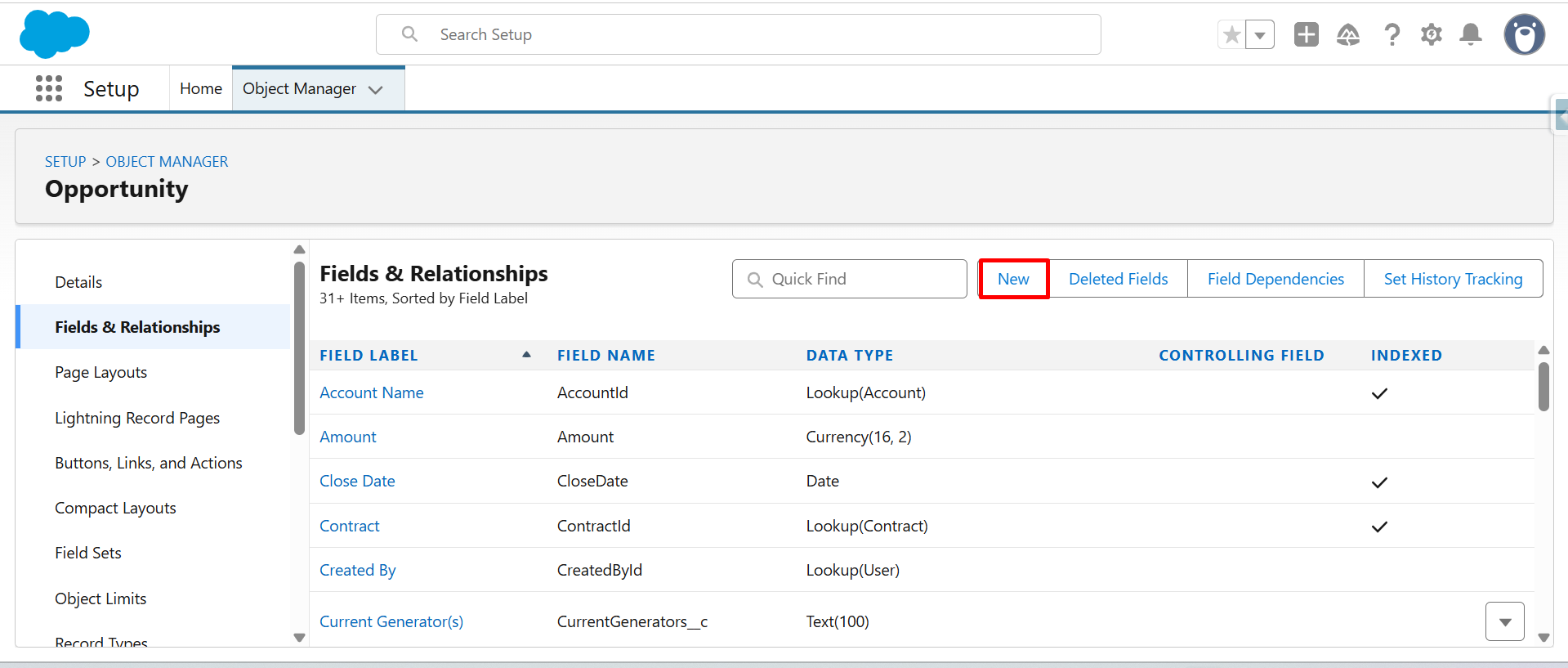
Step 5: Click on New Button.
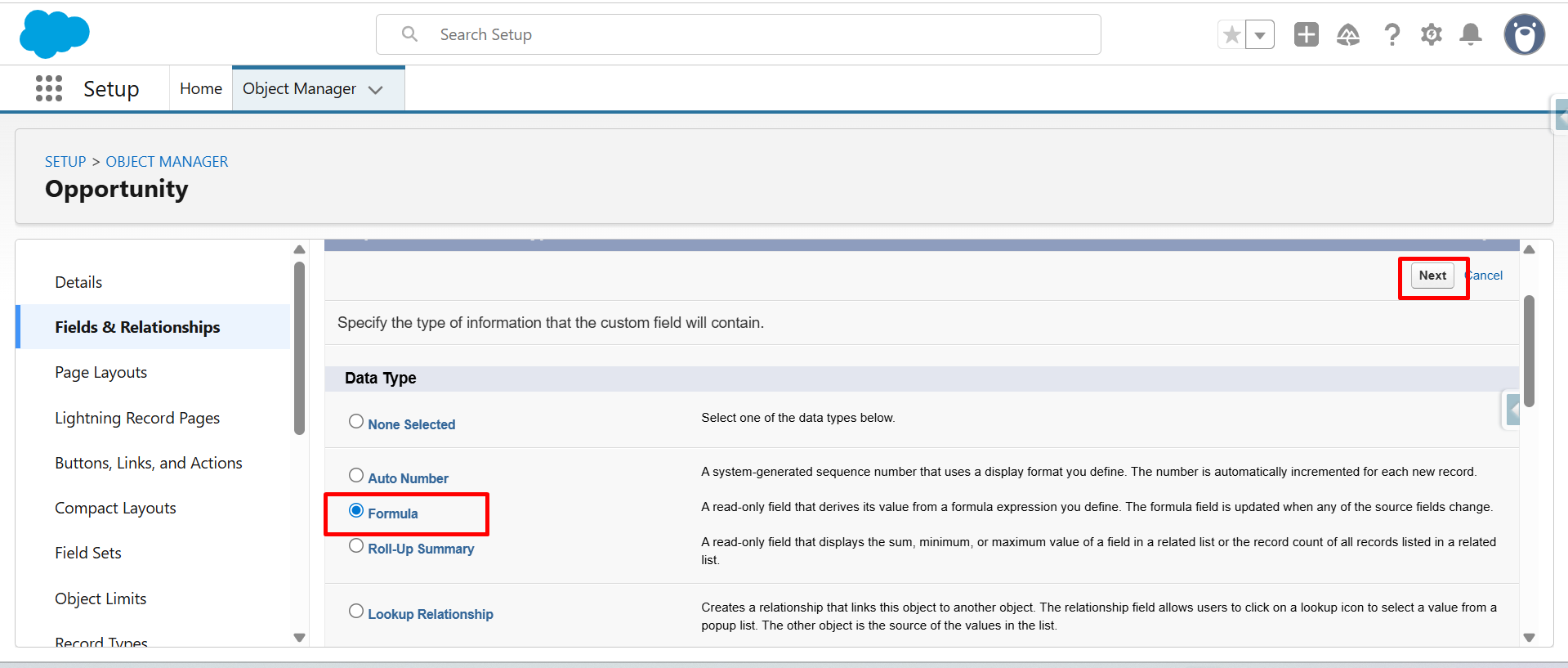
Step 6: Select Formula as the data type, then click Next.
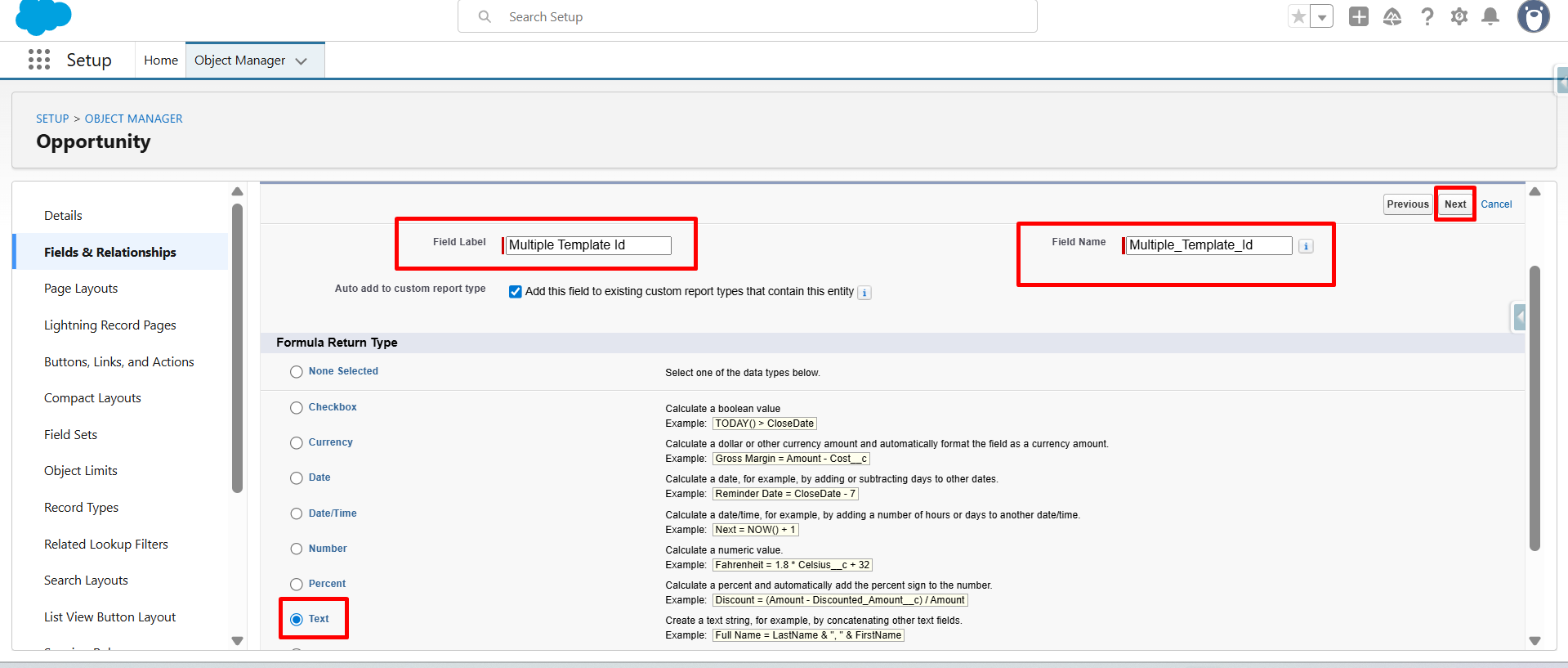
Step 7: Enter the Field Label as “Multiple Template Id”, then select Text as the formula return type. After that, click Next.
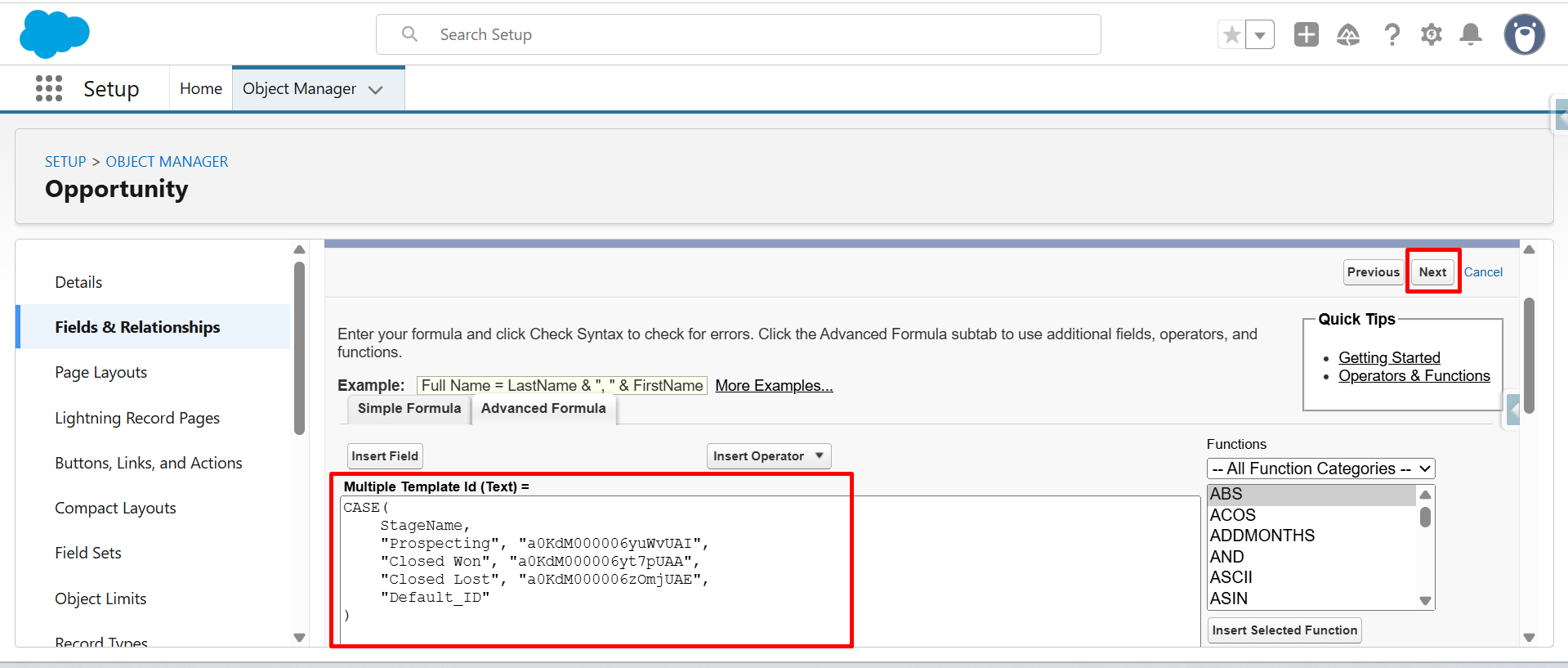
Step 8: Enter the CASE function to return Template IDs based on Opportunity Stage.
Enter the CASE formula as follows:
CASE(
StageName,
“Prospecting”, “Contract_Template_Id”,
“Closed Won”, “Invoice_Template_Id”,
“Closed Lost”, “Proposal_Template_Id”,
“Default_ID”
Explanation:
- When Stage = Prospecting → returns Contract Template ID
- When Stage = Closed Won → returns Invoice Template ID
- When Stage = Closed Lost → returns Proposal Template ID
- If none match → returns Default ID
Click On Next
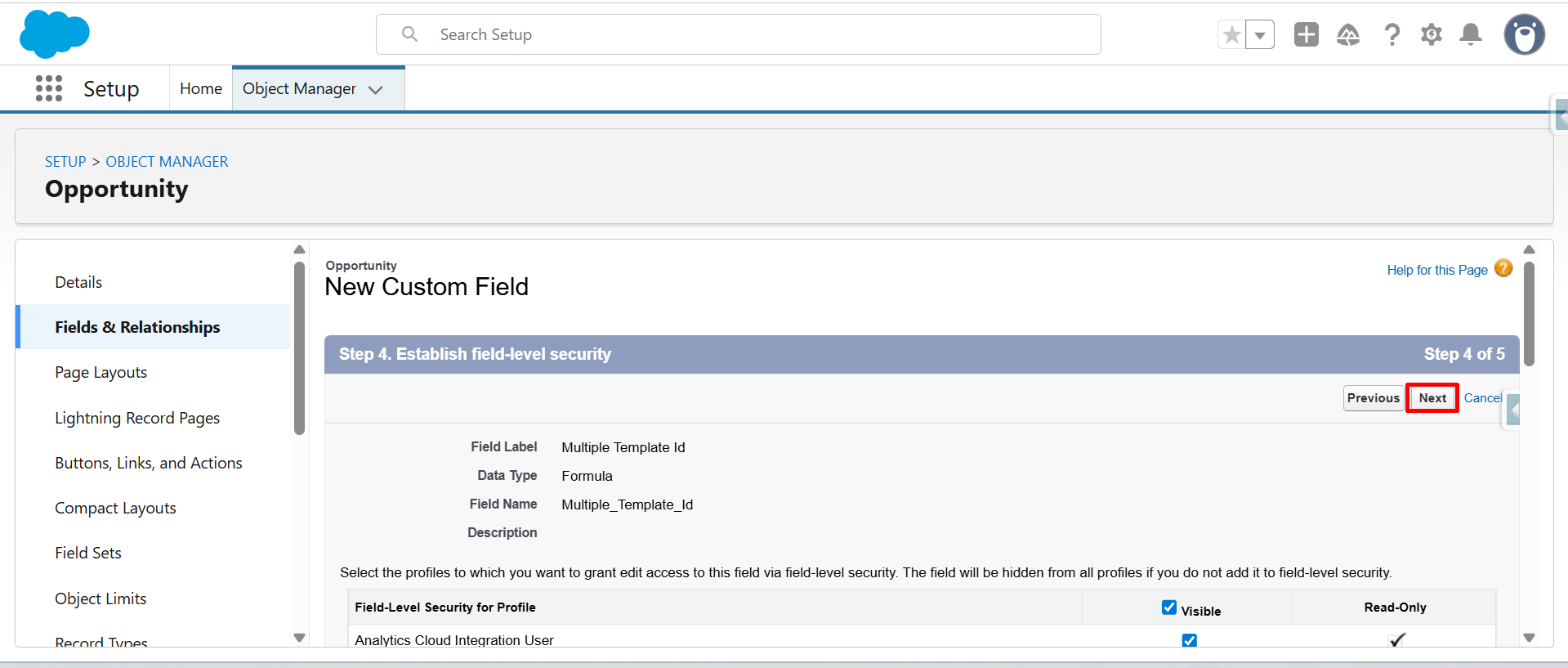
Step 9: Click Next again, then click Save to create the field successfully.
 Watch Live Demo
Conclusion
By mapping Opportunity stages to specific template IDs through a formula field, you can automate document generation and eliminate the need for manual template selection. This creates a more consistent and efficient document workflow.
This approach helps ensure the right document is generated at the right time while simplifying Salesforce document generation processes across your sales lifecycle. It also makes managing multiple templates easier as your business requirements grow.
Frequently Asked Questions
Related Blogs
How to Generate & Send Documents for eSign in Salesforce
Sending a document for signature directly from Salesforce can make the approval process much easier, especially when you want to…
How to Generate Salesforce Documents Using Quick Document Merge
Creating Salesforce documents does not have to involve multiple steps or moving between different tools. With Quick Document Merge, you…
How to Create a Scope of Work (SOW) in Salesforce with Docs Made Easy
Creating a Scope of Work manually can take time, especially when information needs to be collected from Salesforce and added…